Create and Save a Colour Palette in 23degrees
This tutorial guides you through creating a custom colour palette in 23degrees.
You will learn how to set up and save a new colour set for your projects.
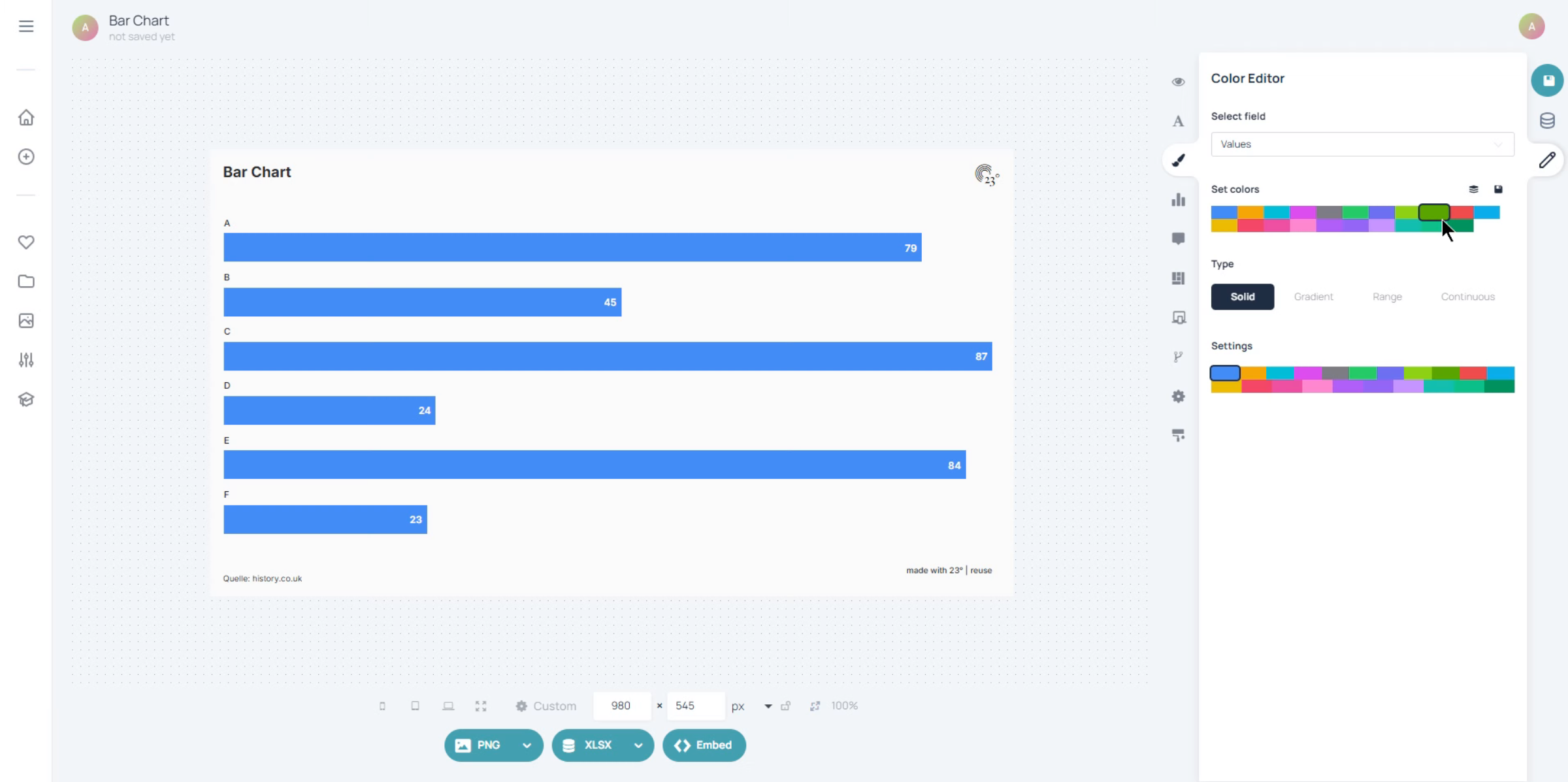
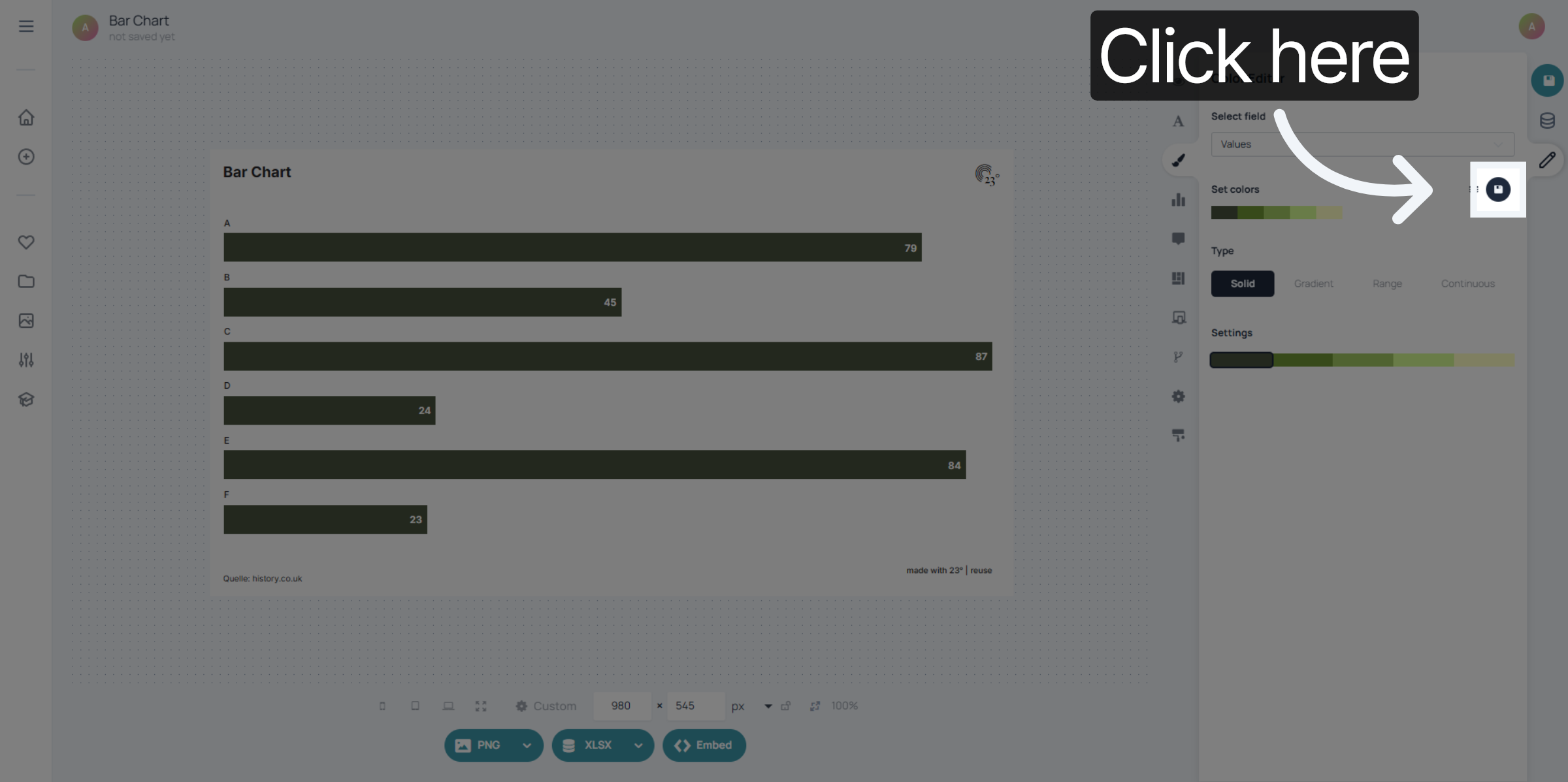
Click here to access your existing colour sets
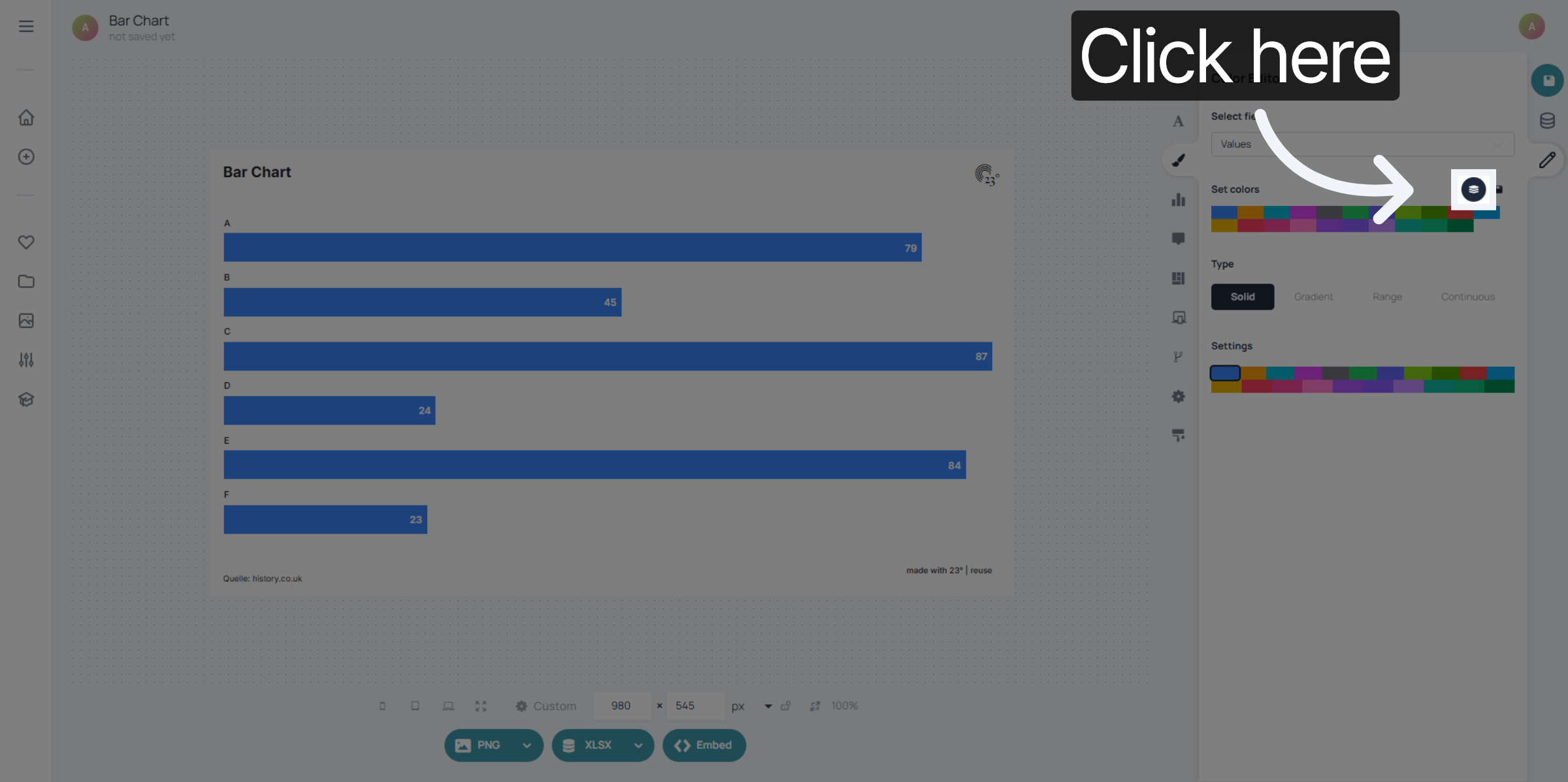
Pick an existing colour set.
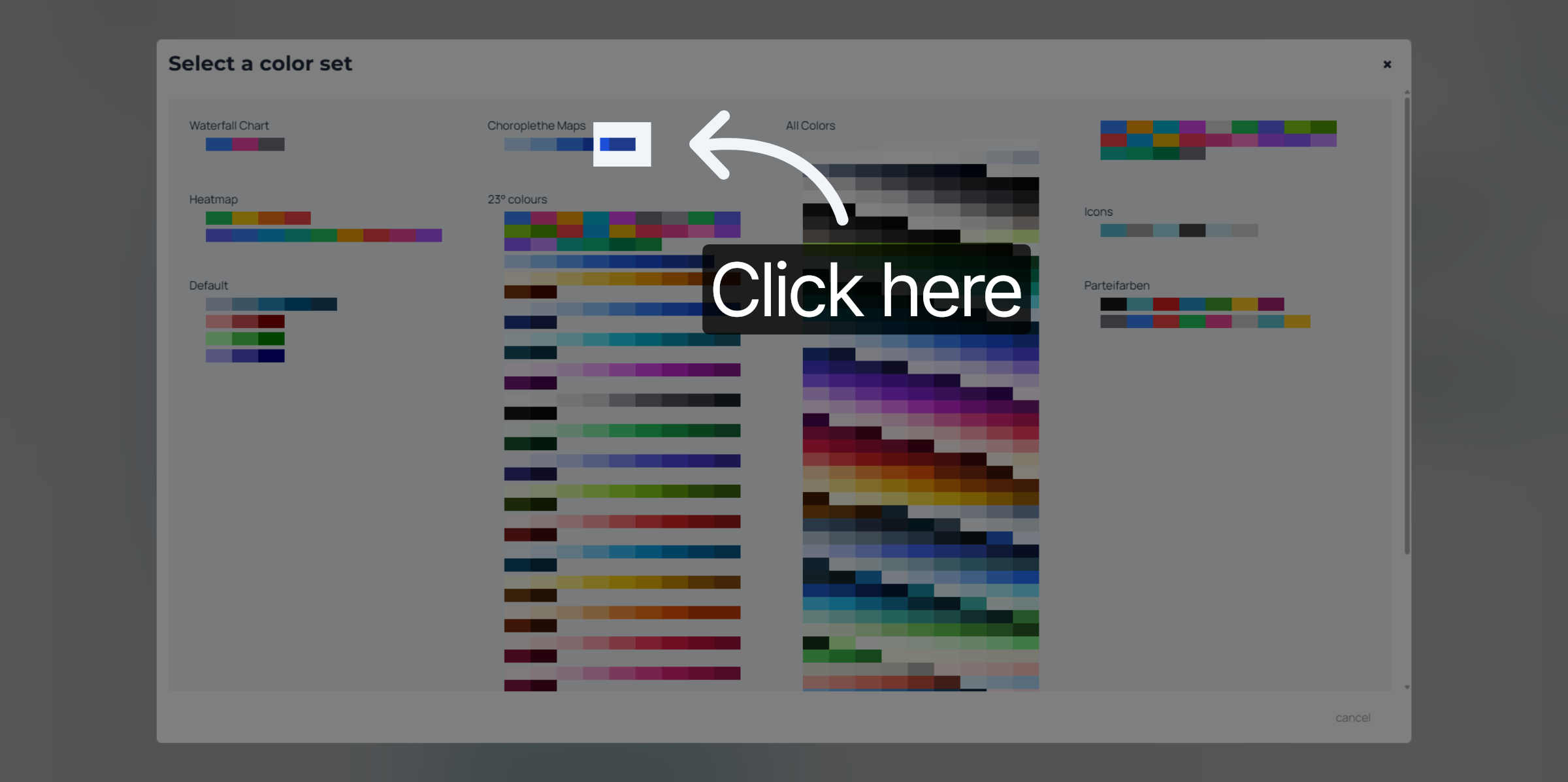
Access the colour set settings by clicking on a colour
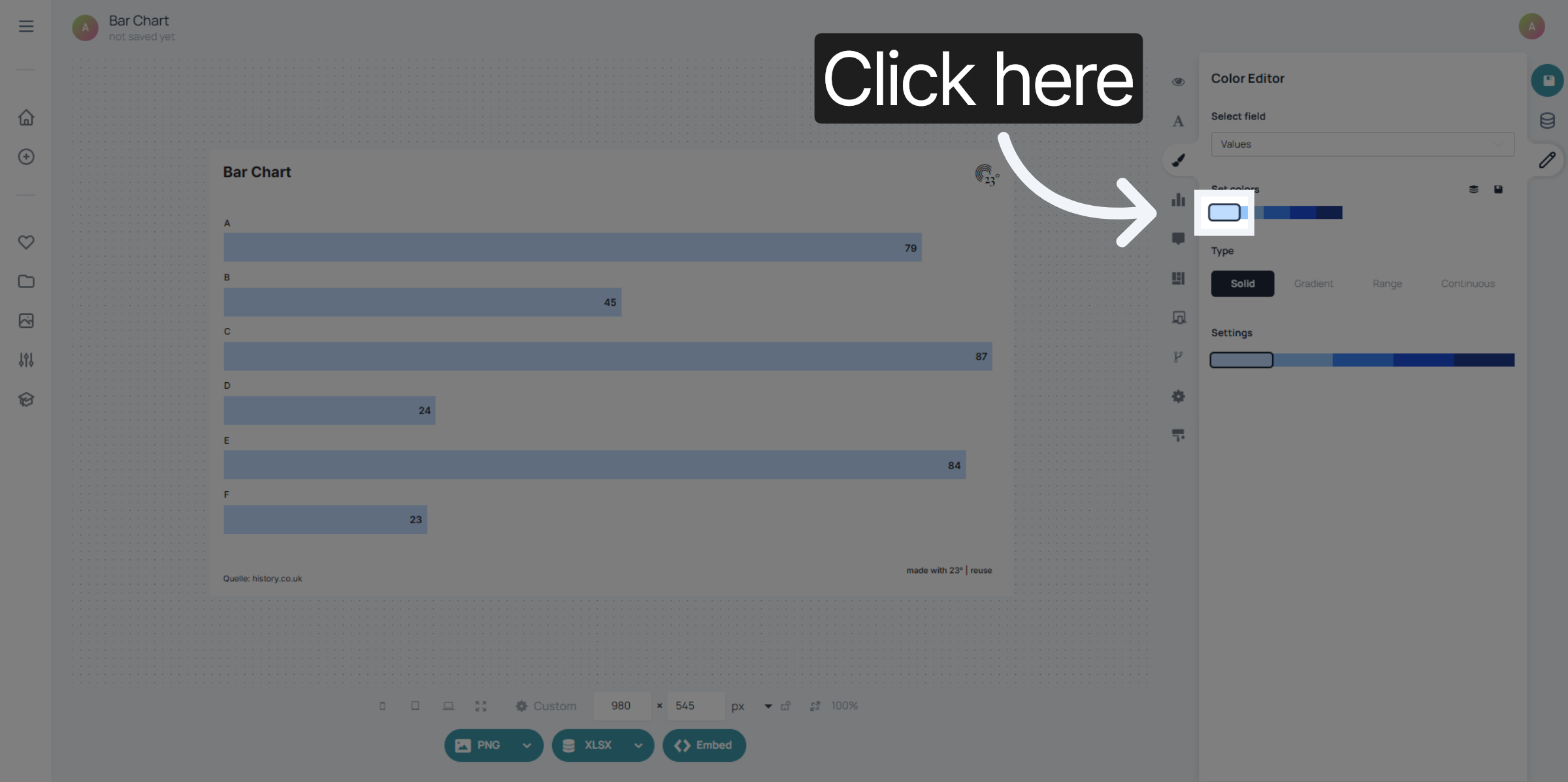
You can change your colours by entering the rgb or hex codes or you can simply pick a new colour from the colour picker.
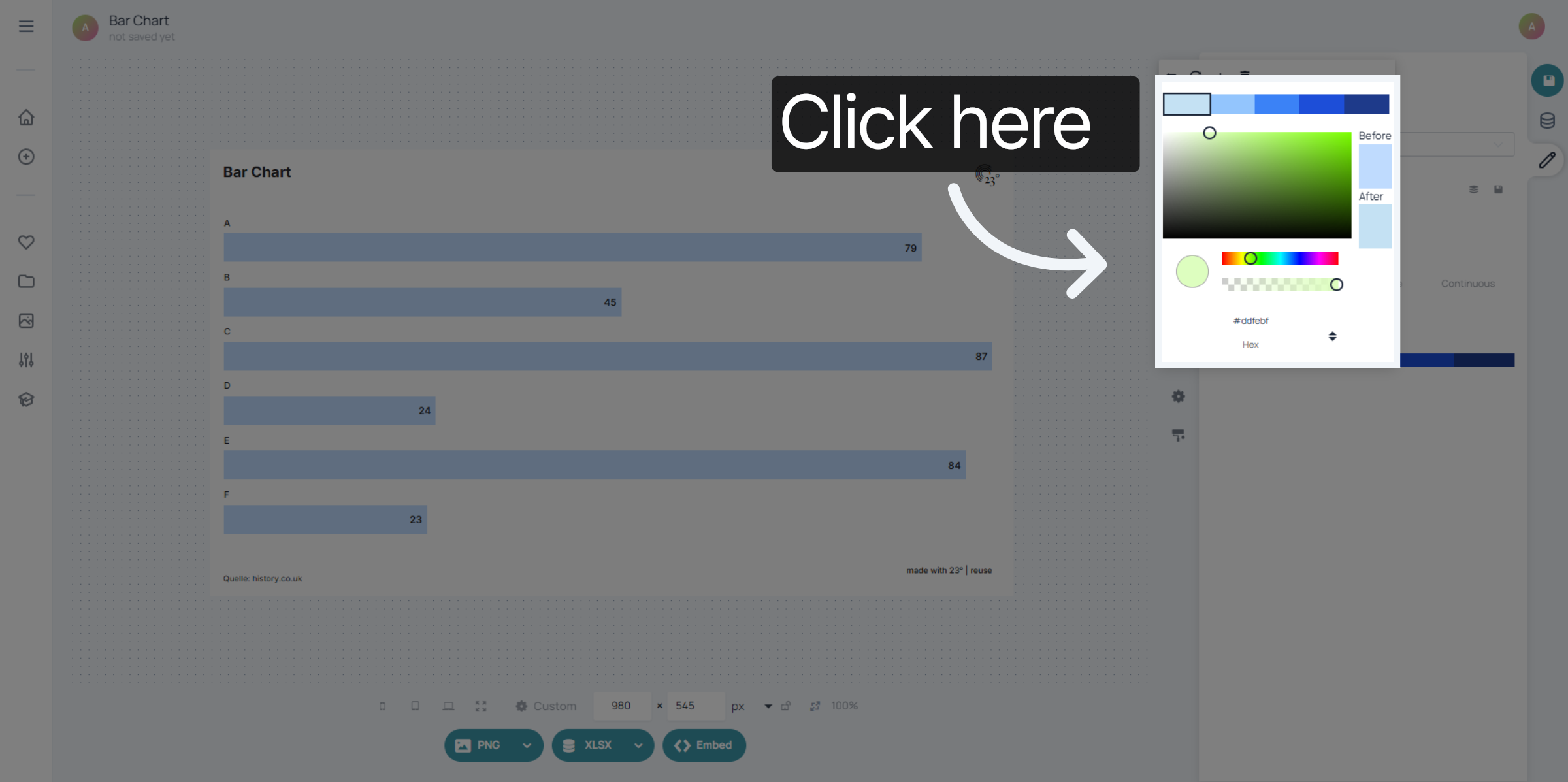
You can do this for every colour individually.
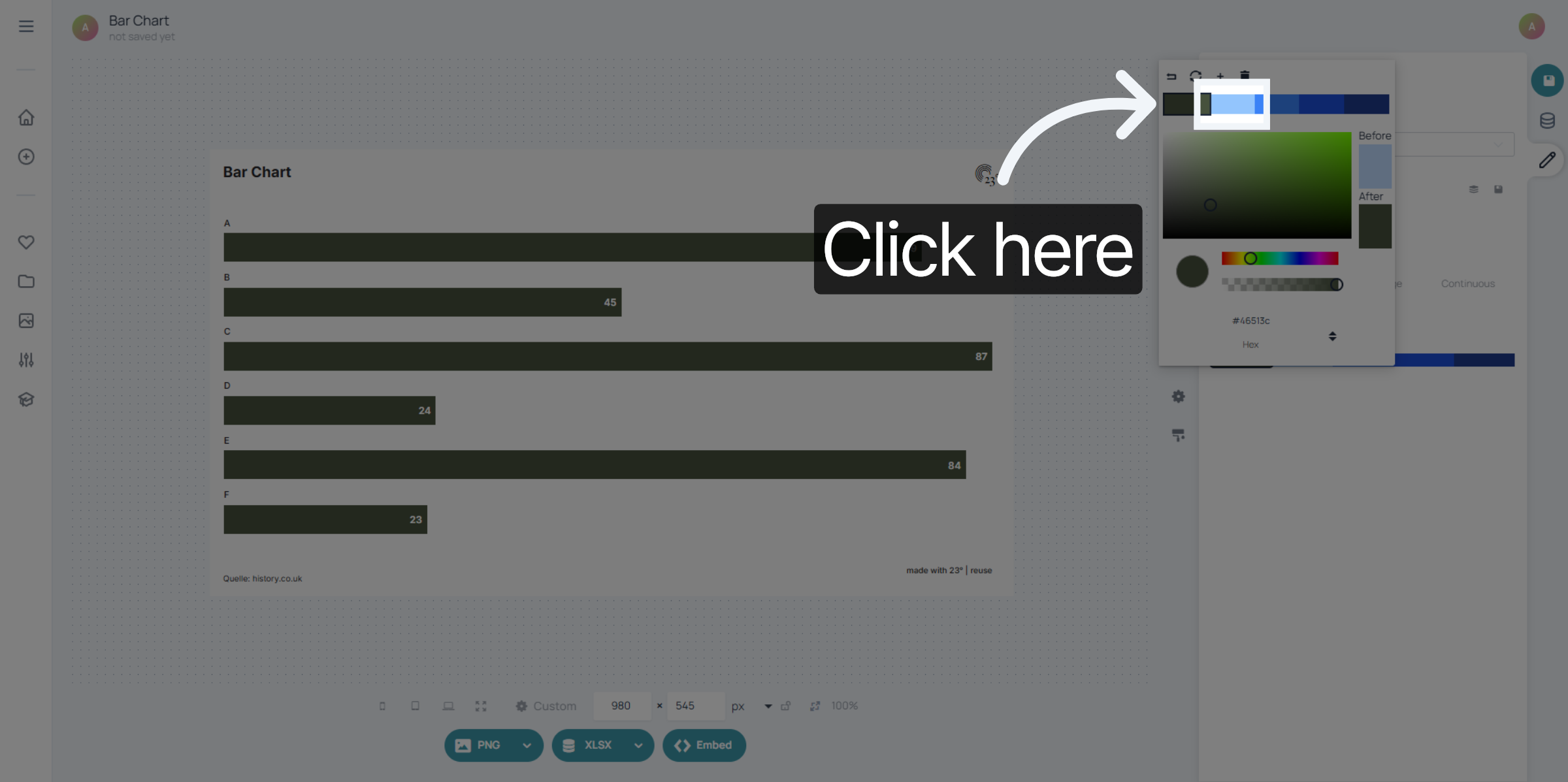
If you want to remove a colour pick the colour and delete it by clicking here.
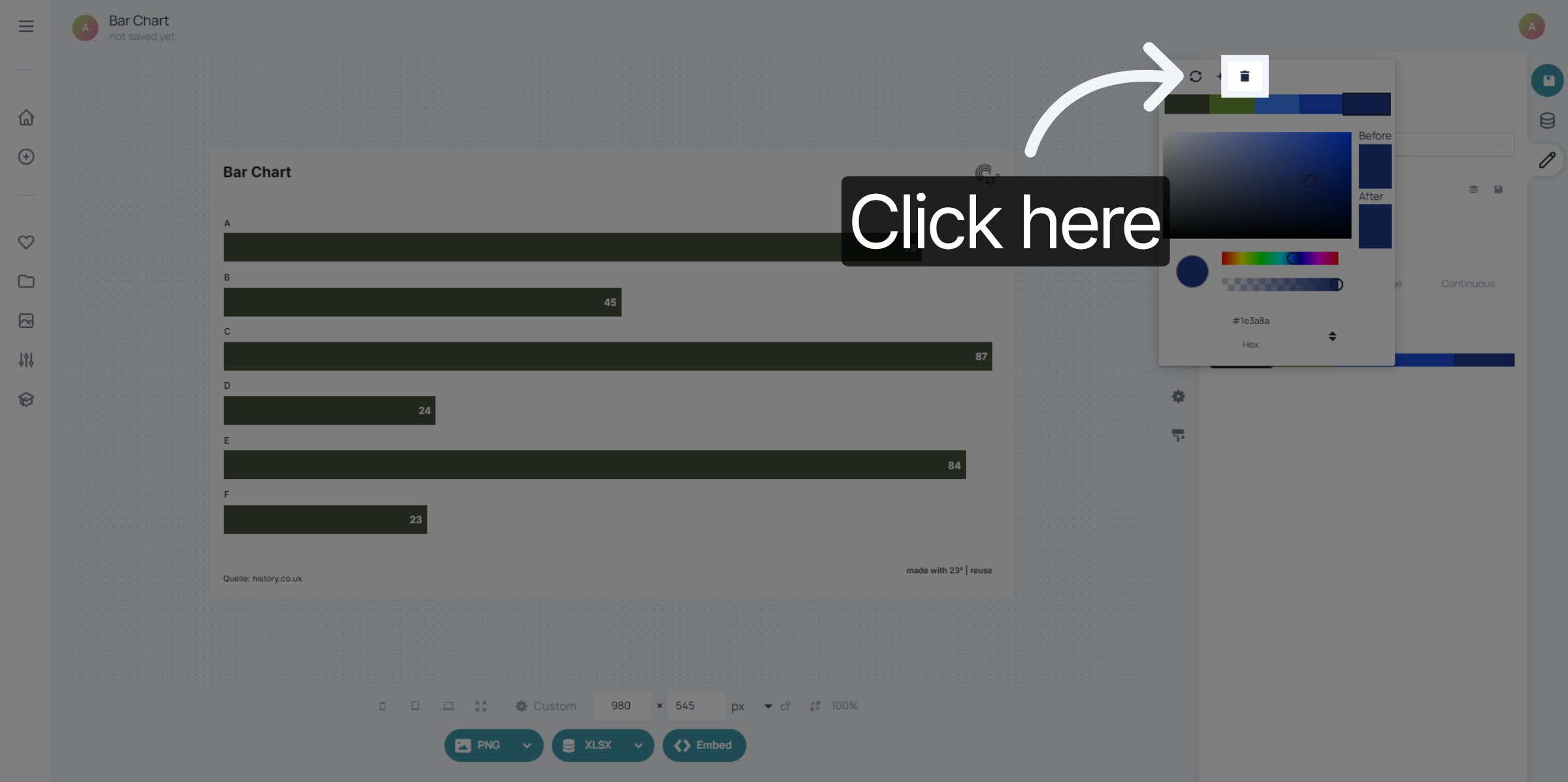
To add colours just click on the plus icon.
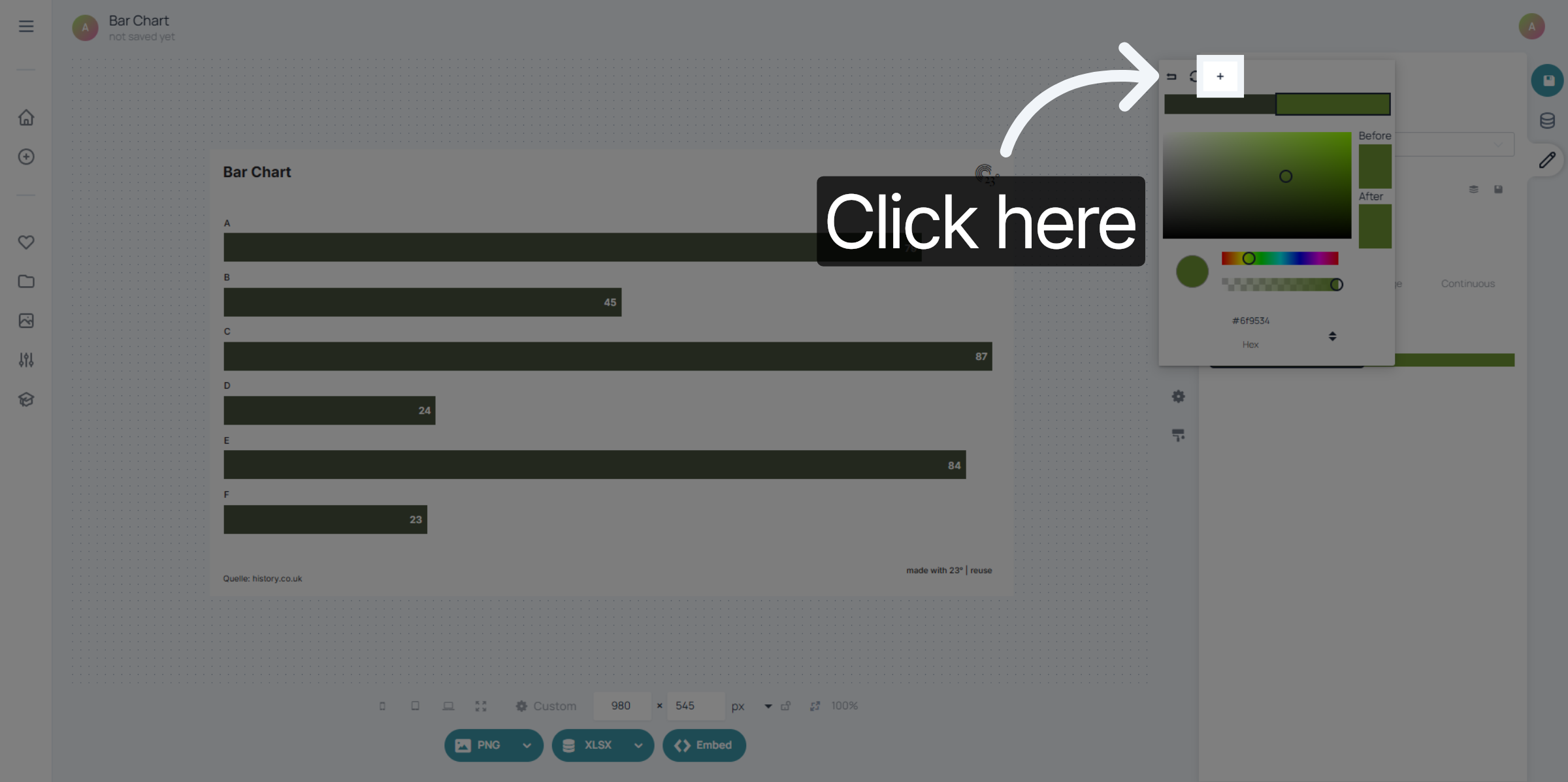
If you are happy with your colour set and want to save it, access your colour set menu again...
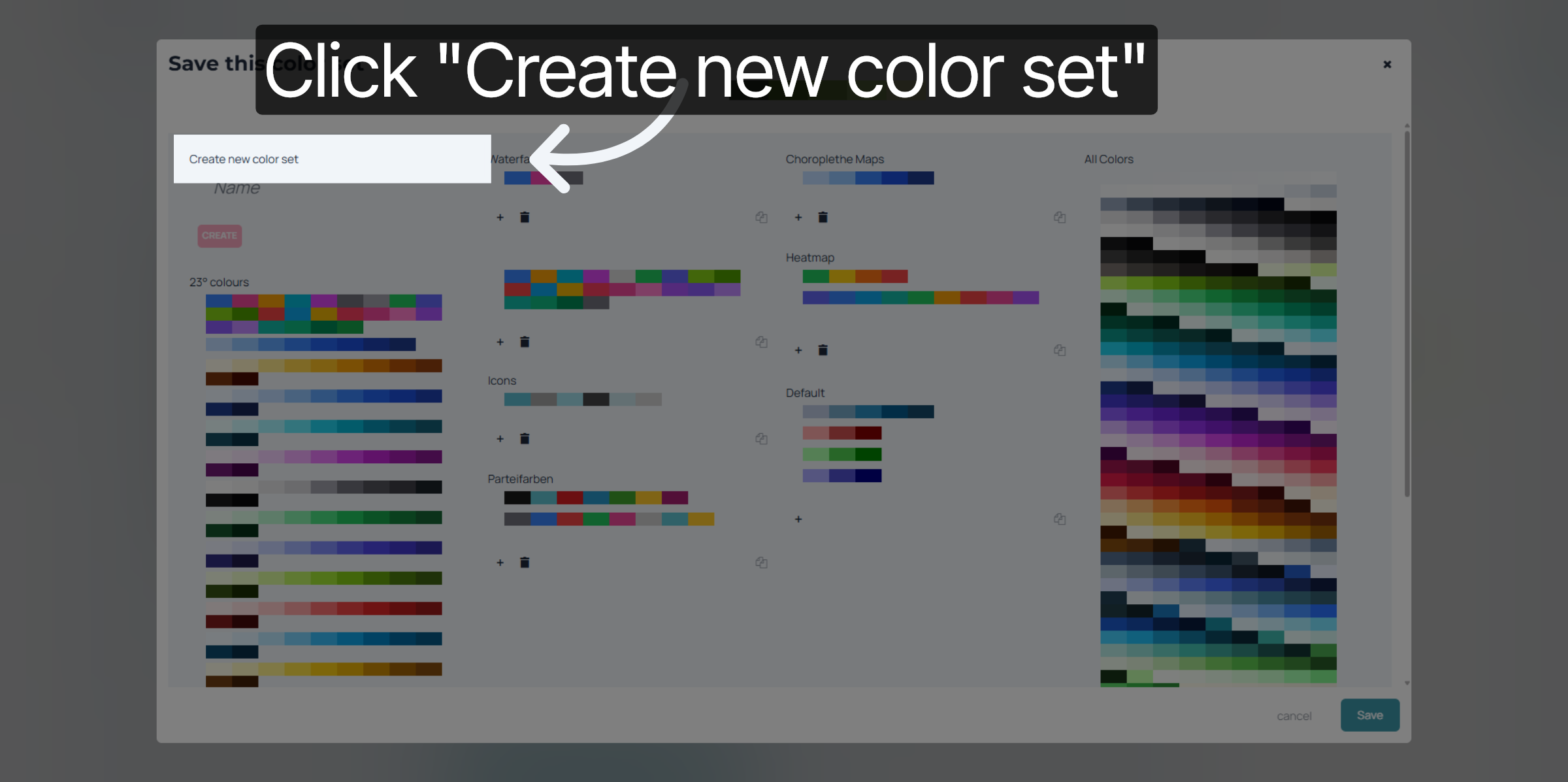
Click "Create" to generate your new colour set.
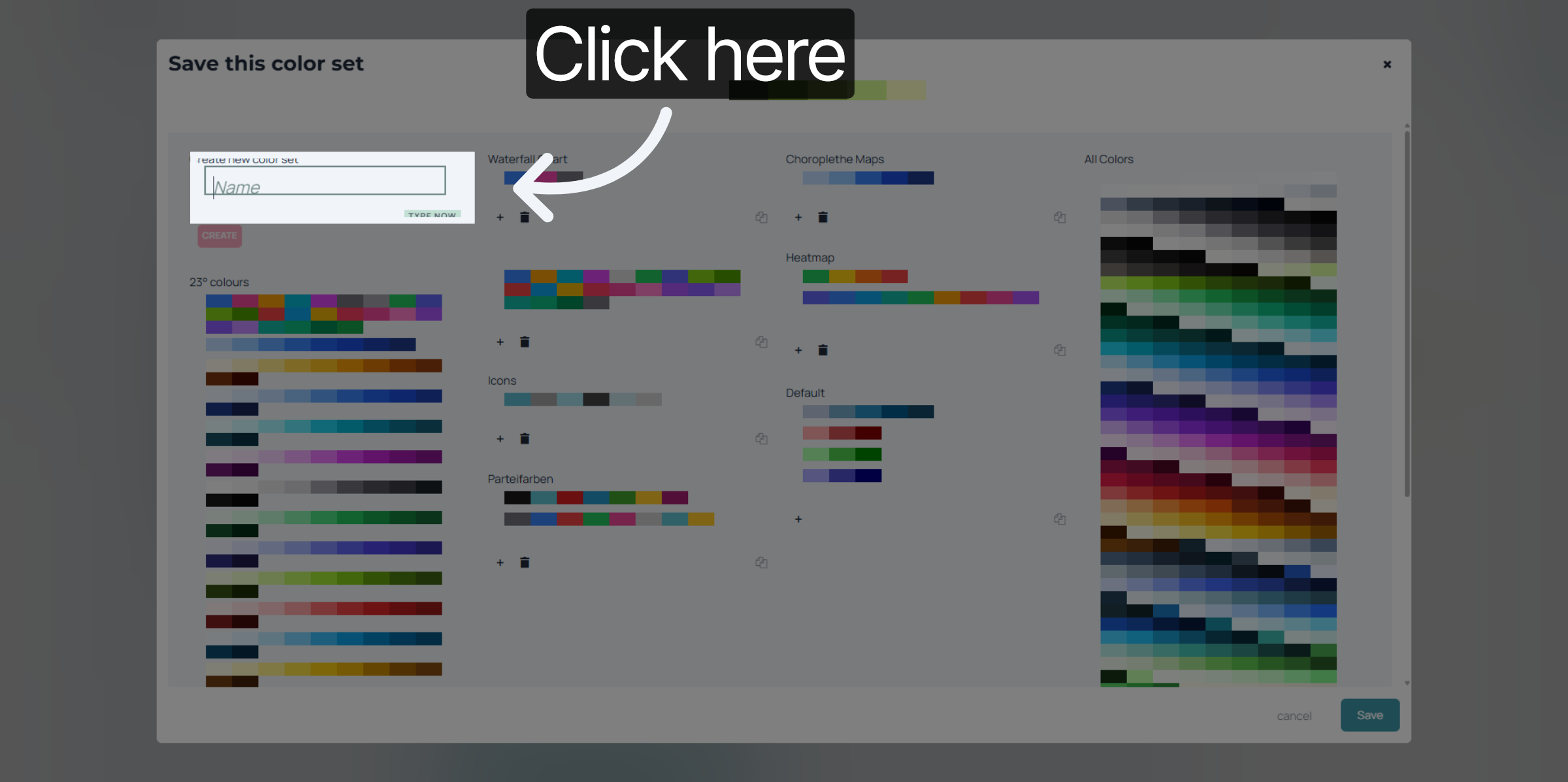
Give your Colour set a name
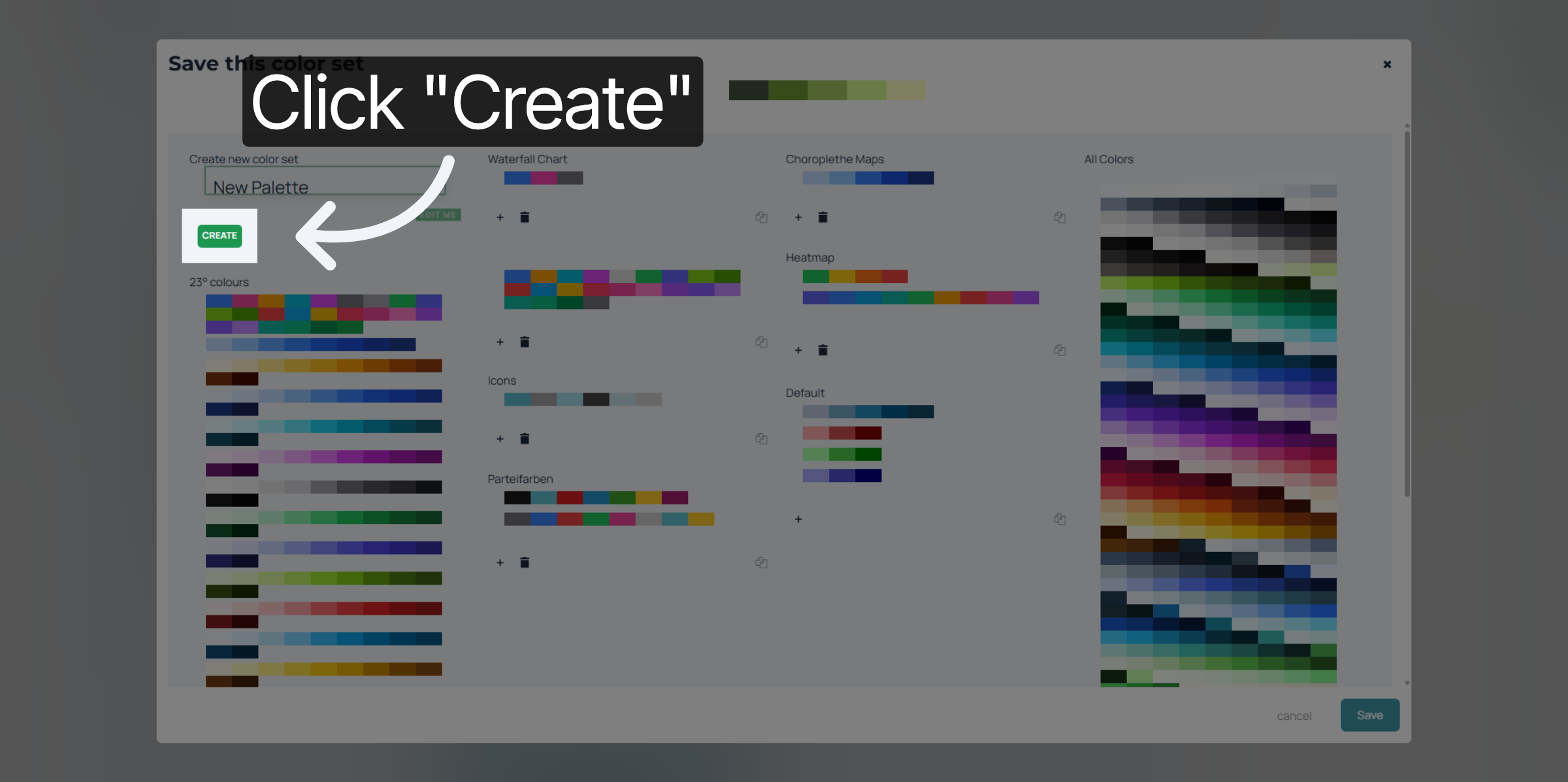
Click "Create" to store your new colour set for future use.
Save your new colour set.
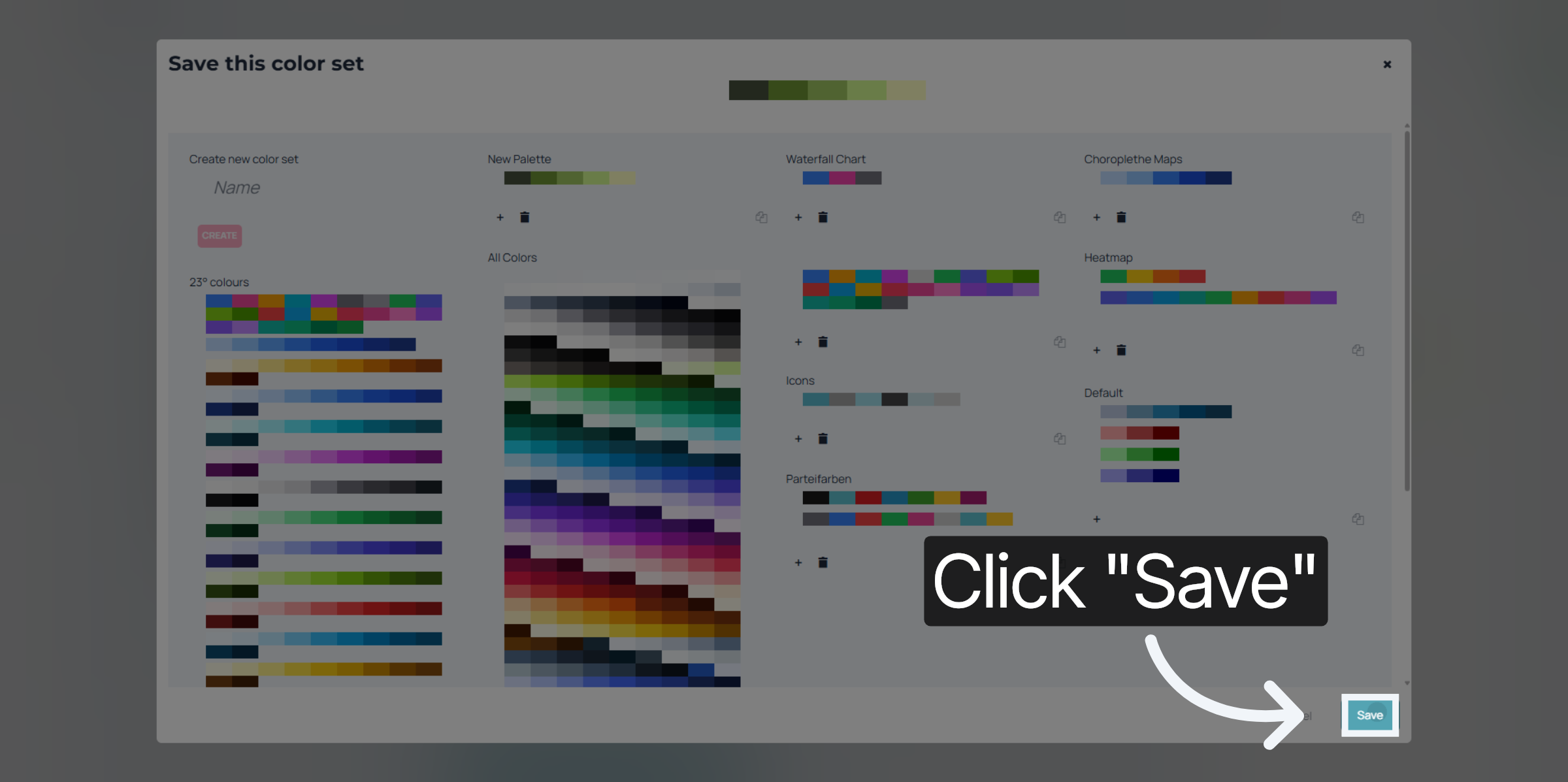
You have successfully created and saved a custom colour set in 23degrees. This set is now ready for use in your design projects, enhancing your workflow and consistency.