How to highlight one line in a Line Chart
You created a linechart with 23° and only want to highlight one or several lines? This tutorial will show you how.
Click here to go to the Chart Editor.
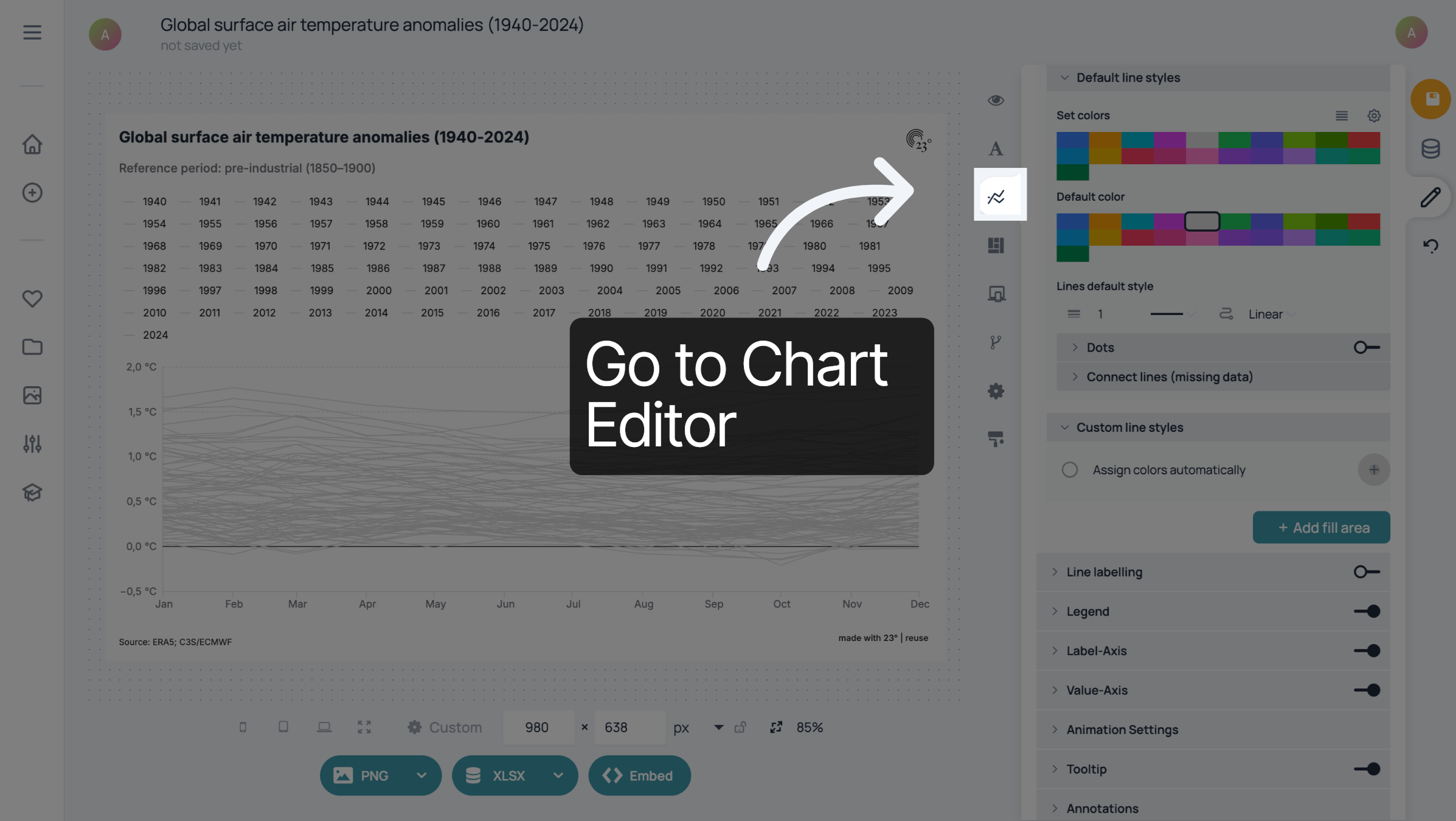
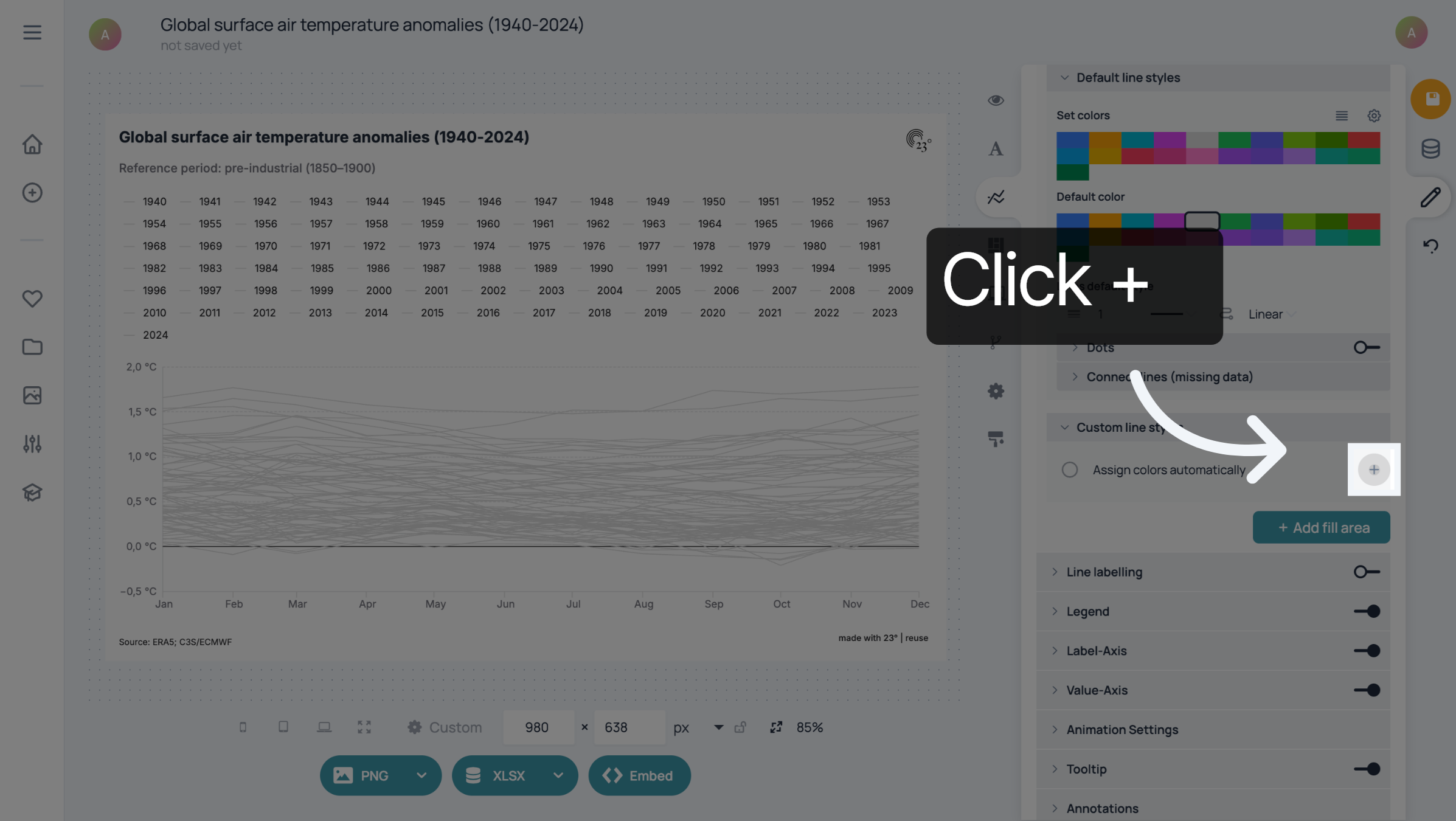
To highlight one line, go to "Custom line styles" and click the plus sign.
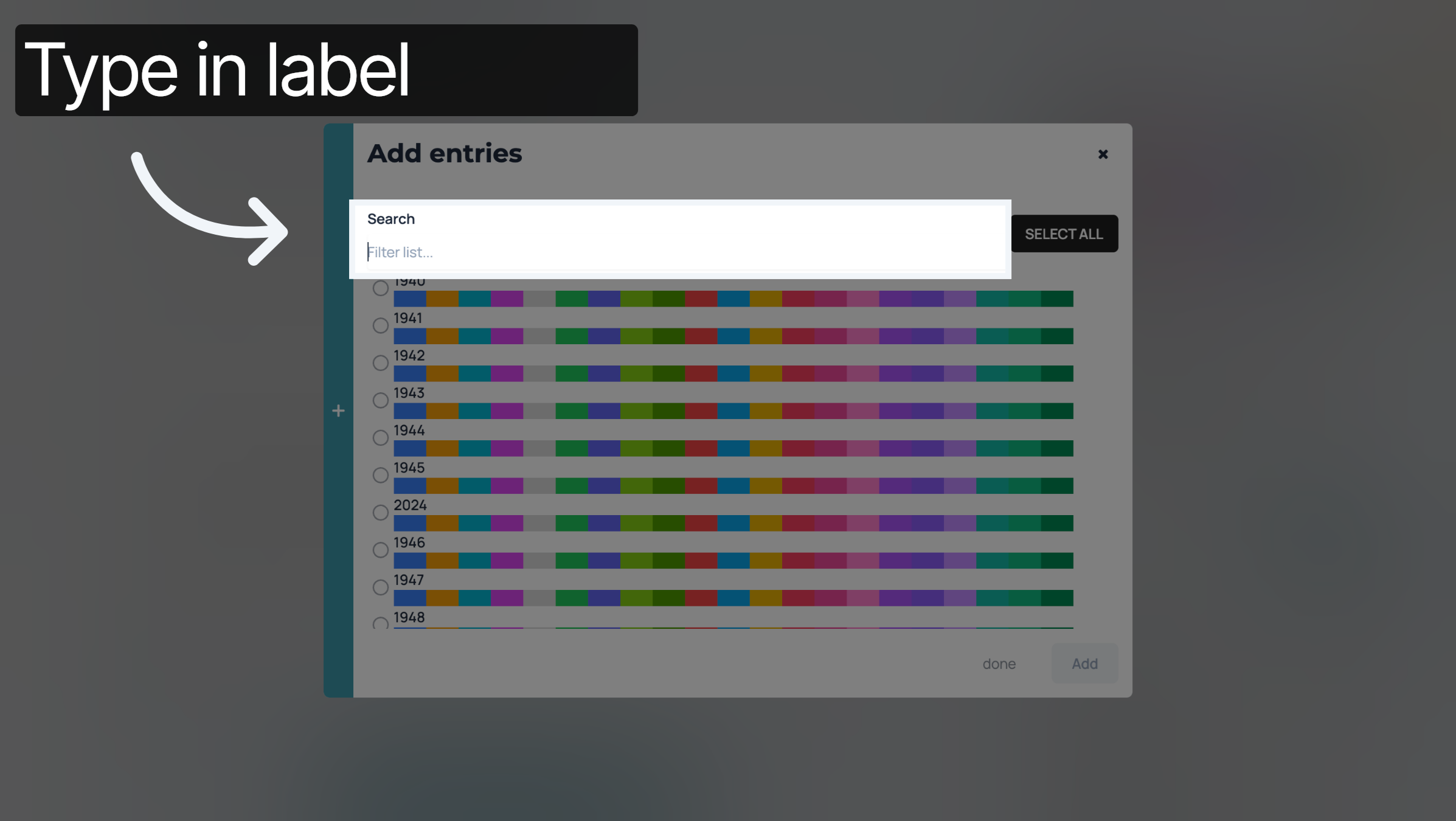
Below "Search", you can type the label of the line you want to highlight.
Click on the colour you want the line to be in. You can also change this later.
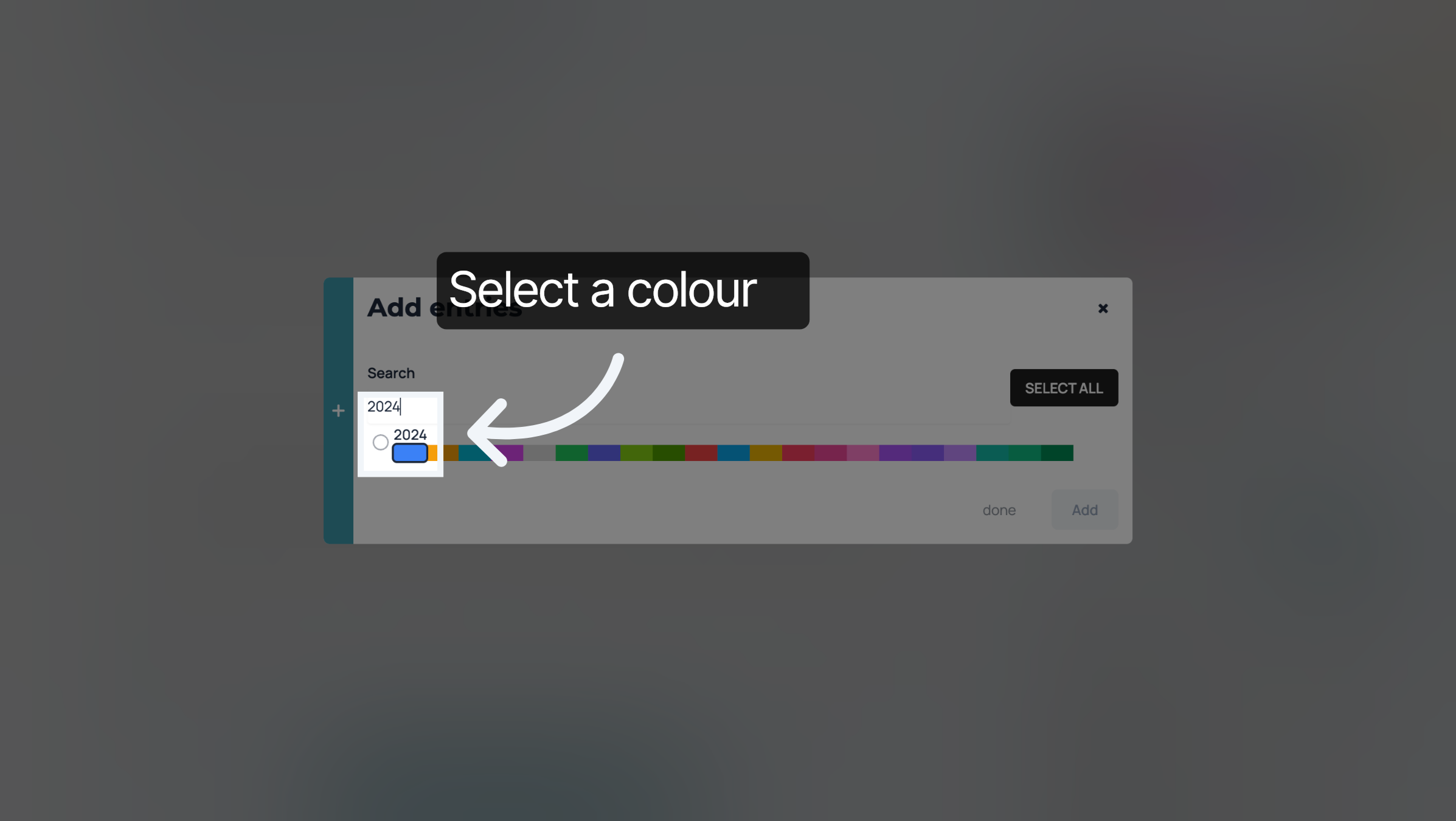
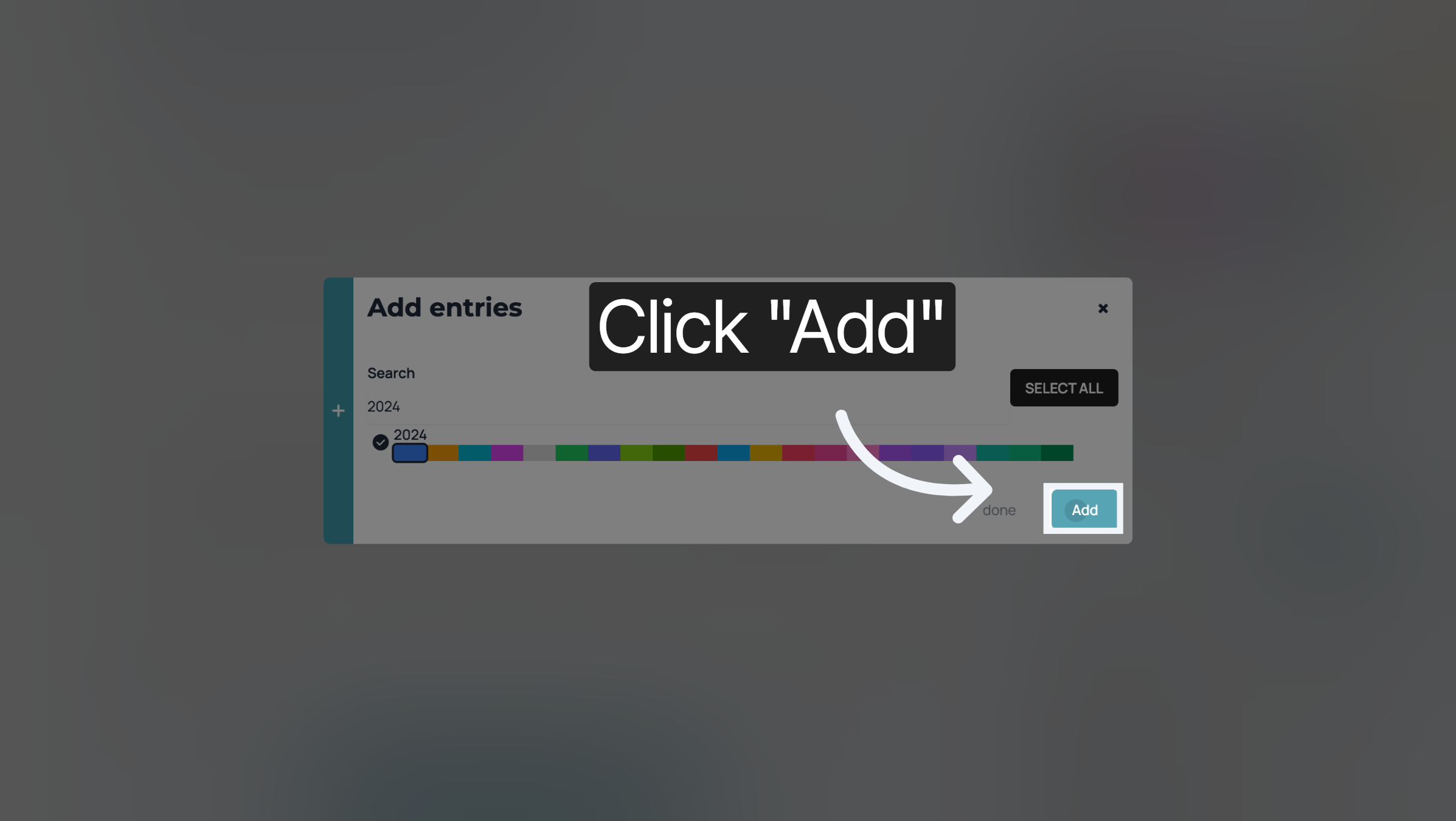
Click "Add" customize the colour of the line.
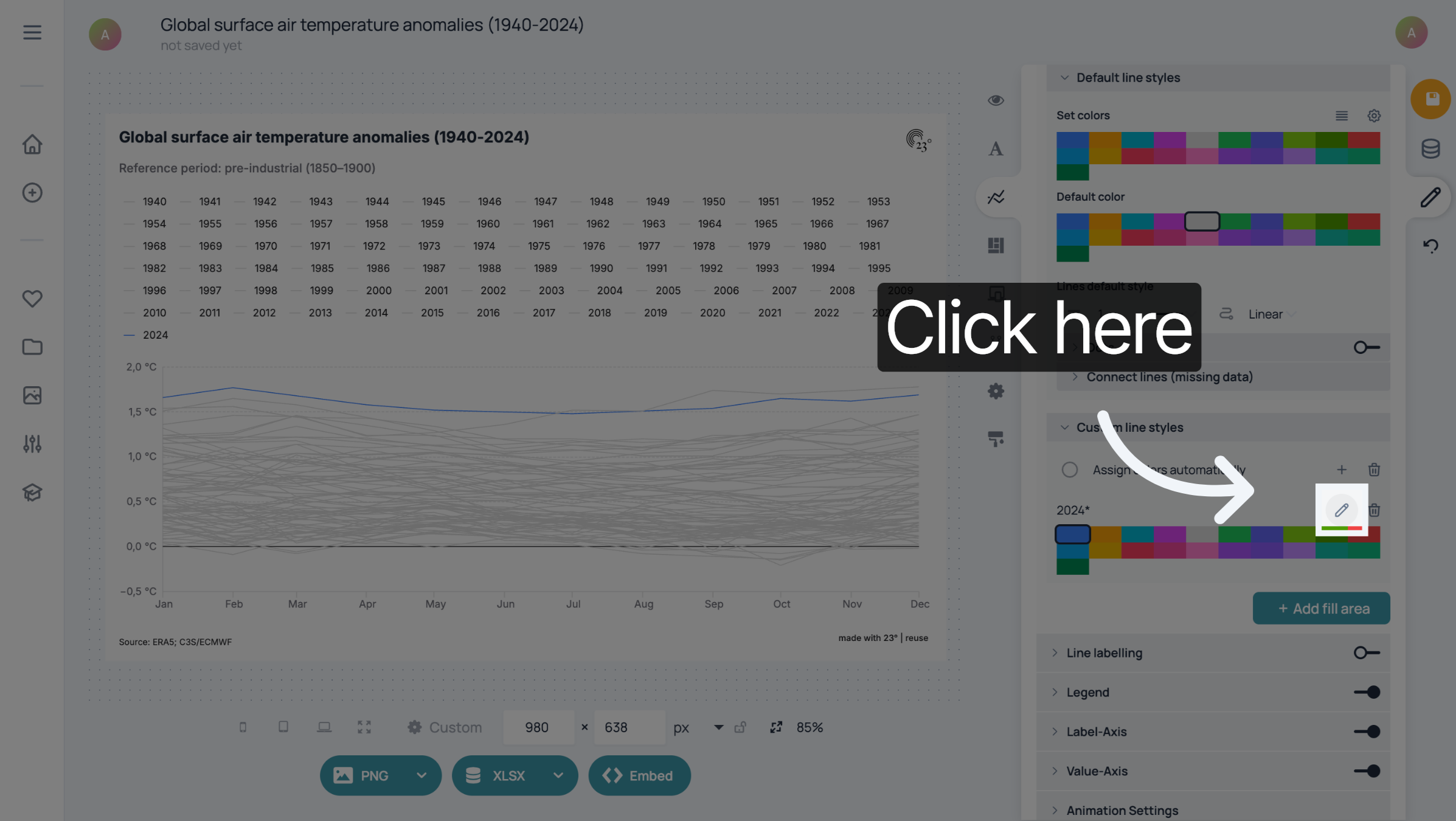
To customize the line further, click on the pencil next to the label.
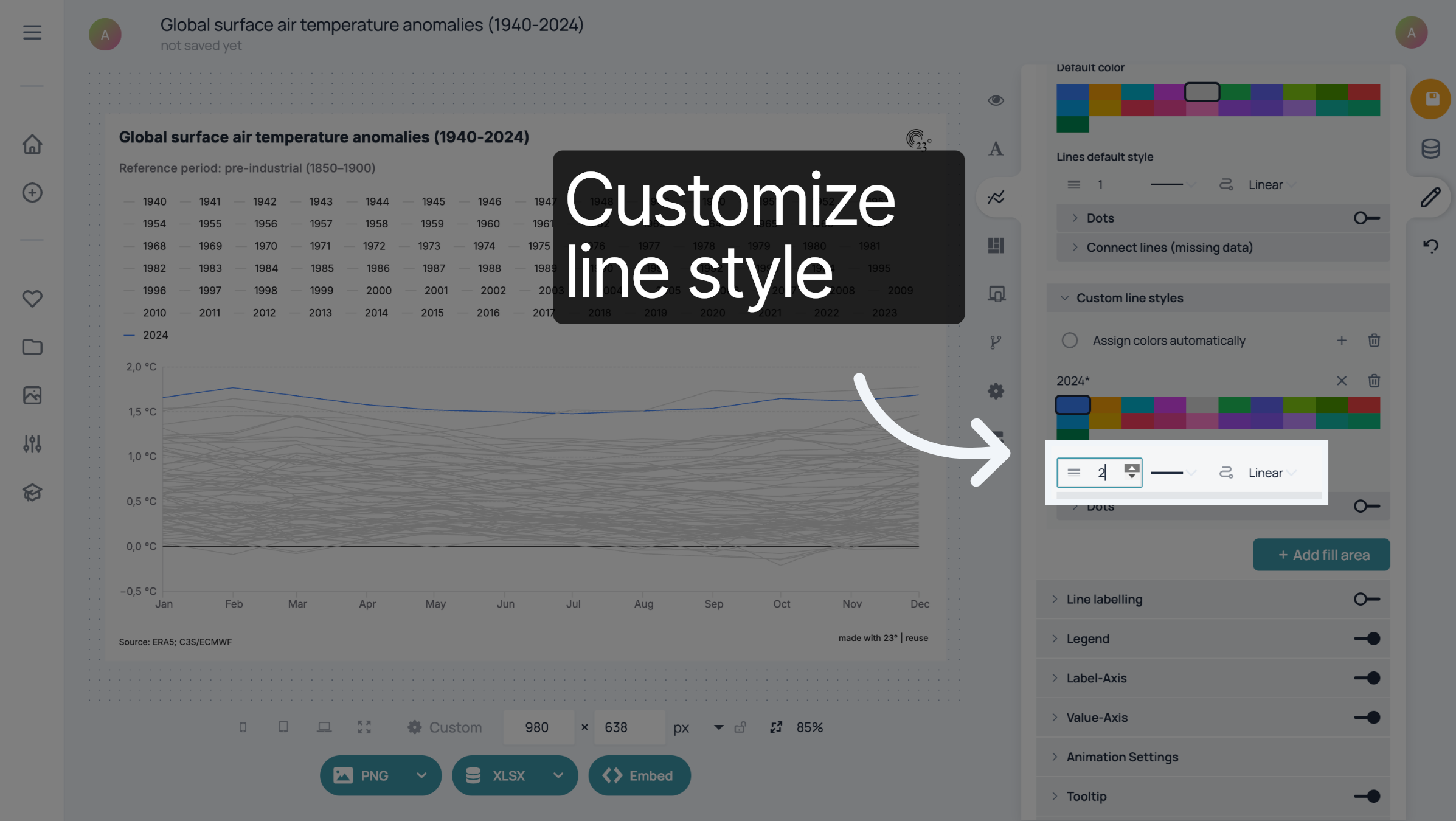
You can change the weight and the style of the line here.
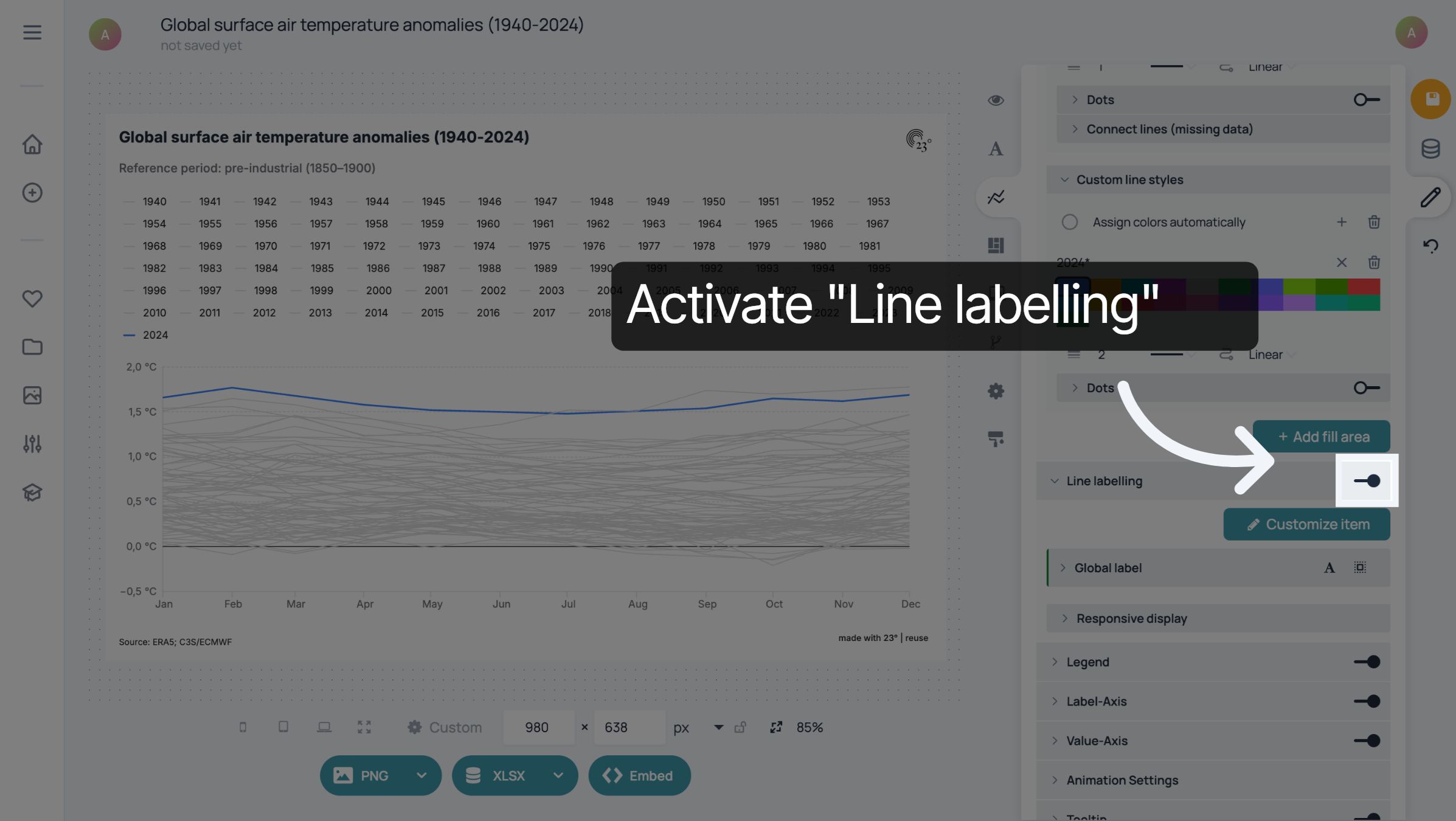
To add a label next to the line, activate "Line Labelling"
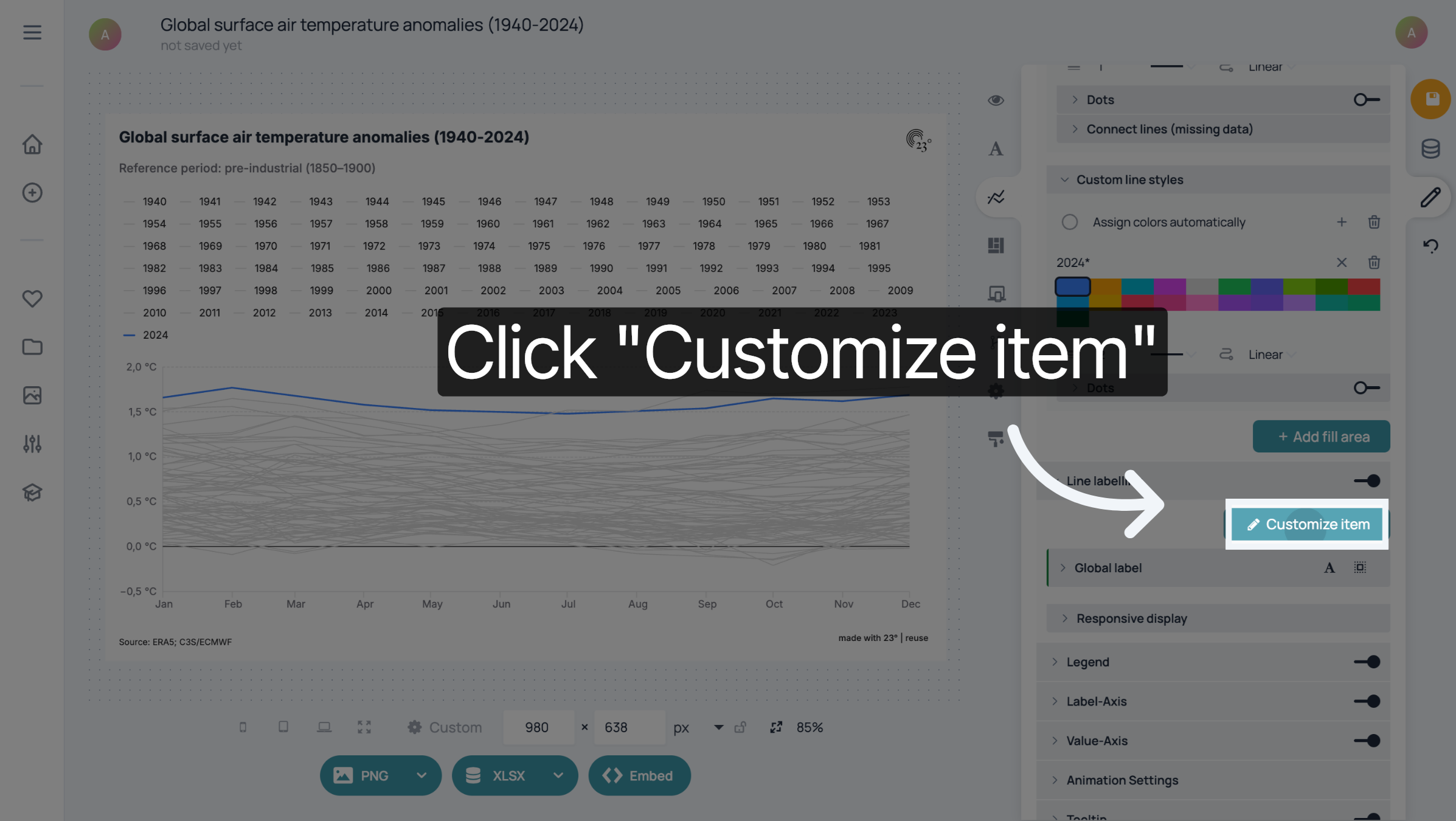
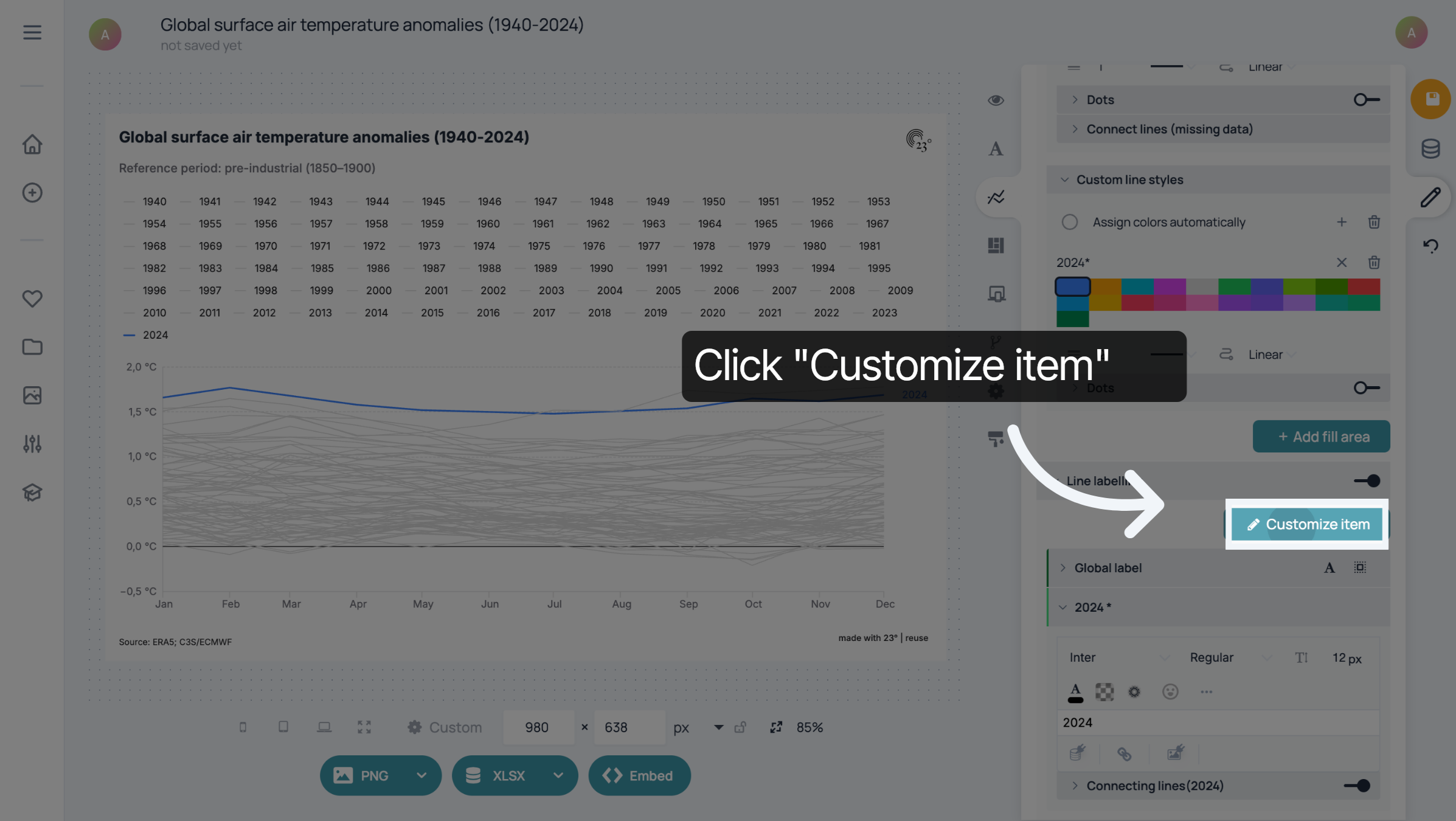
Click "Customize item".
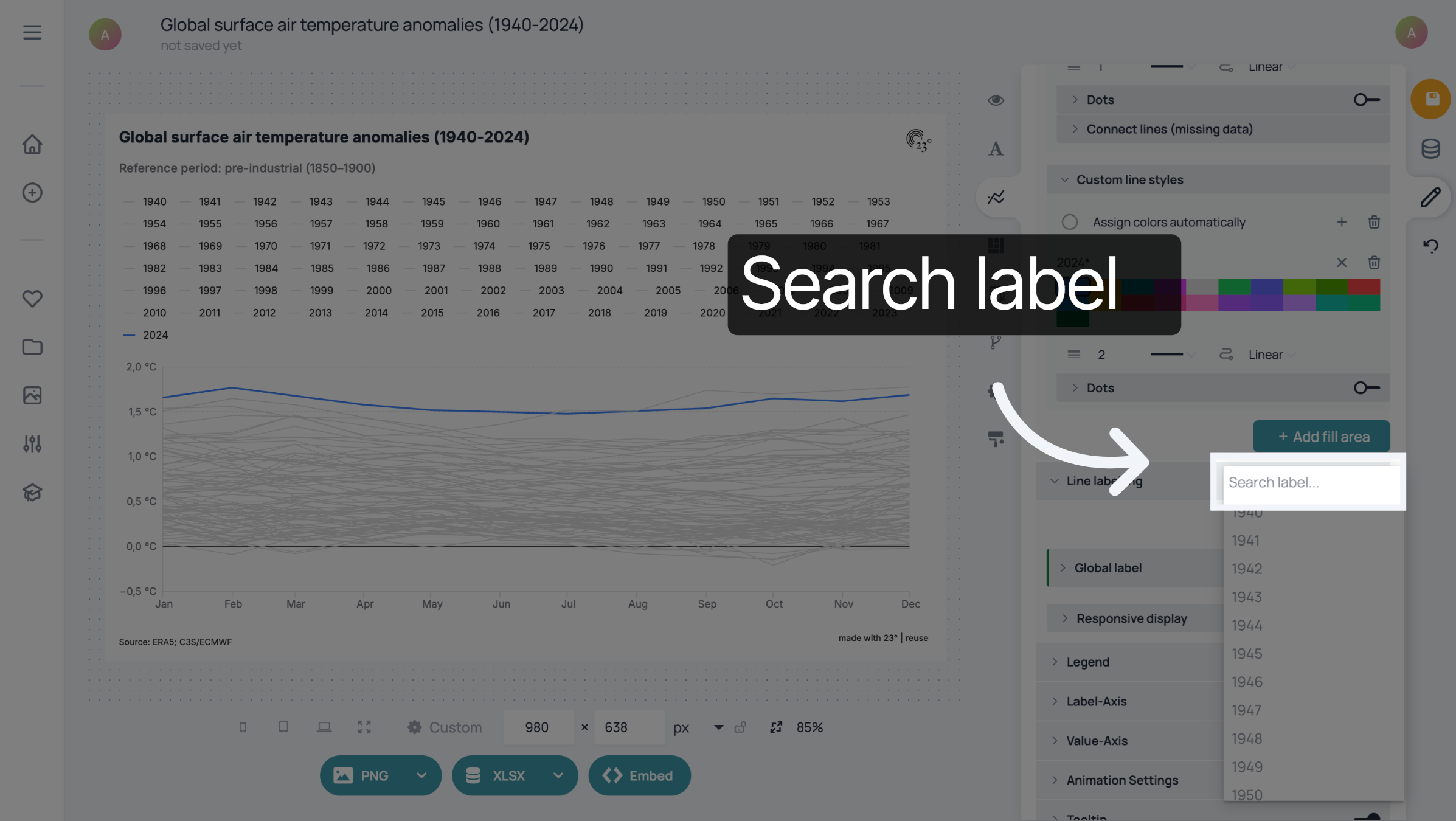
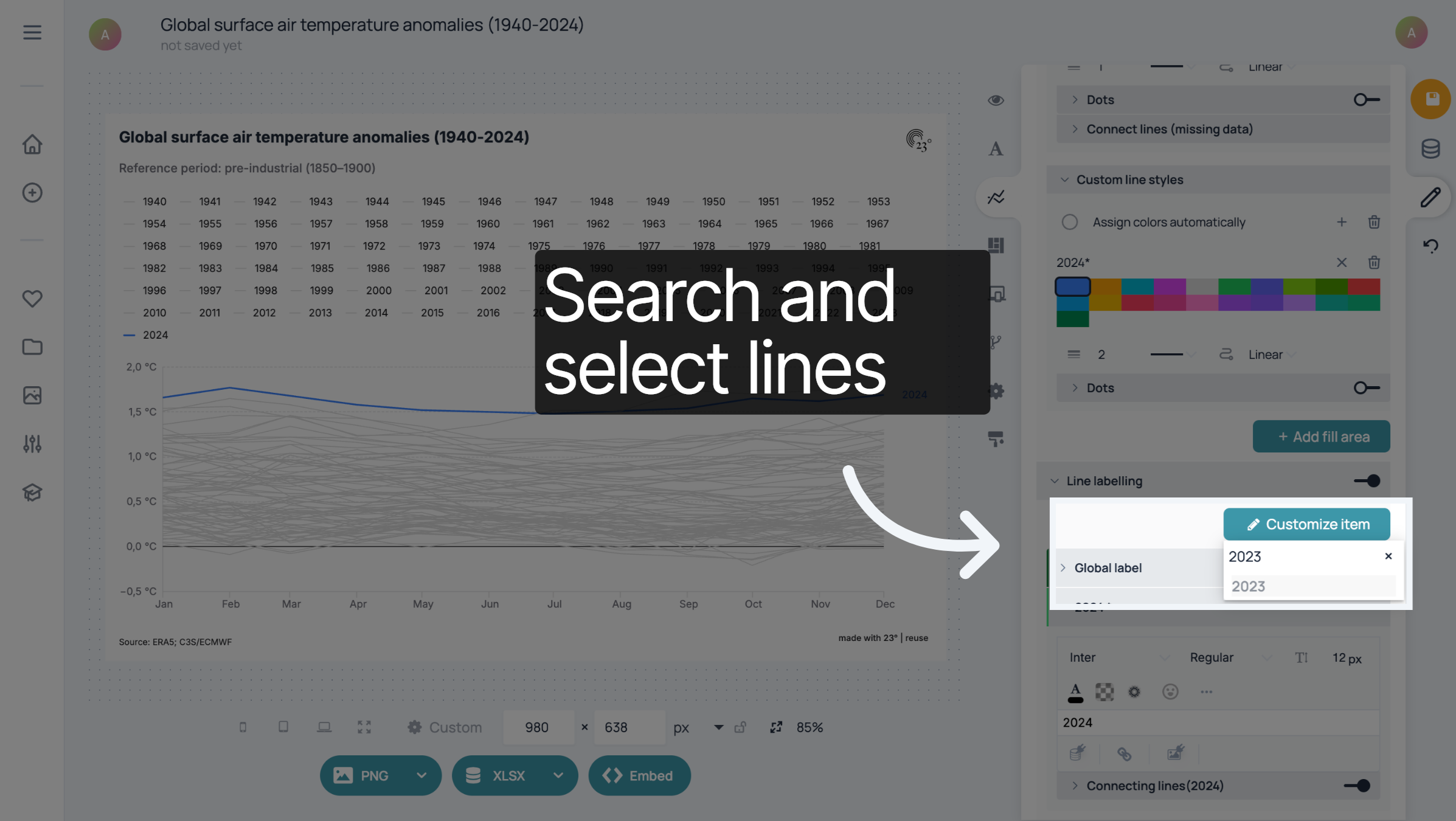
Click into the "Search label..." field and type in the name of the line.
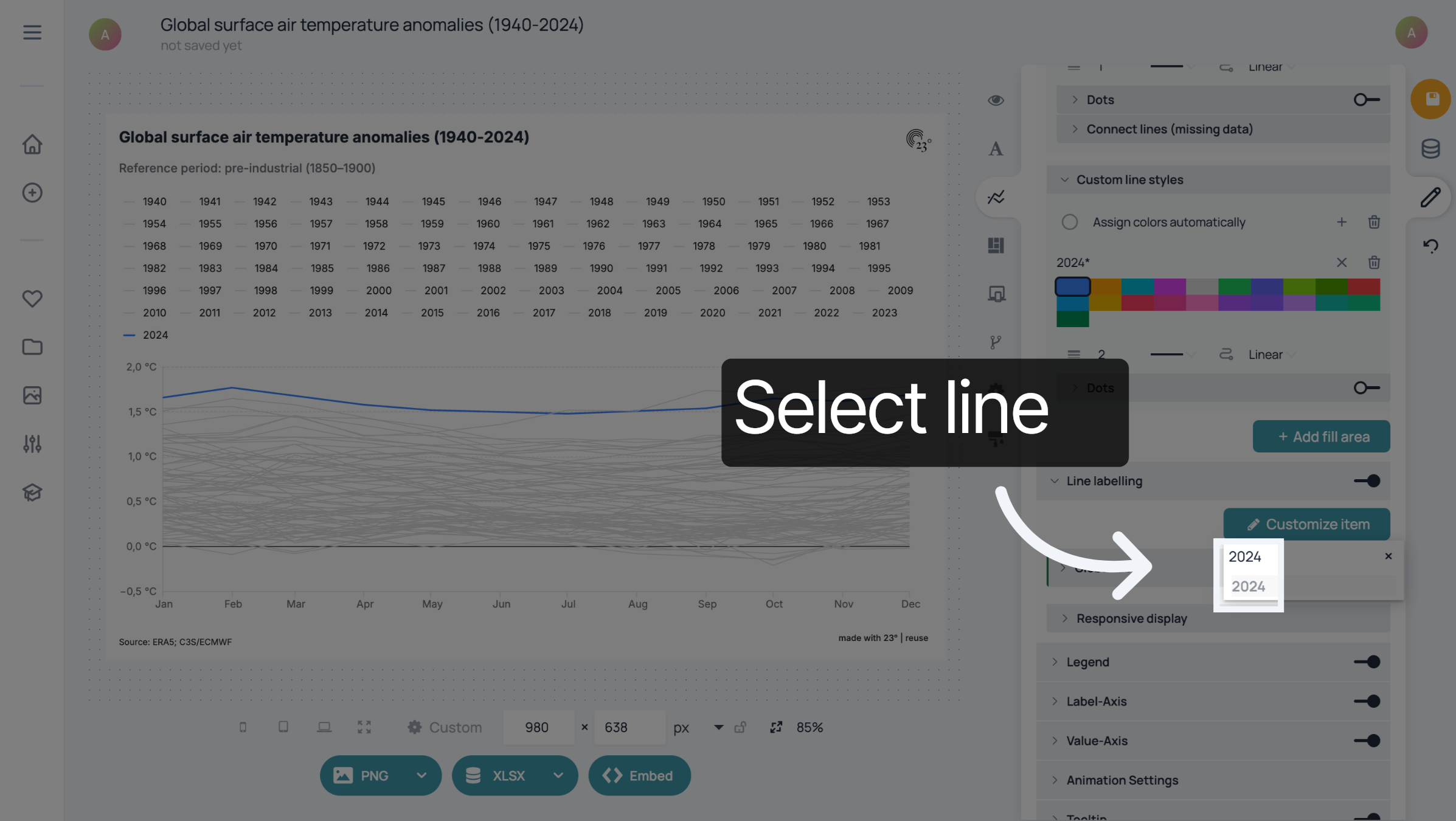
Select the label you want to customize.
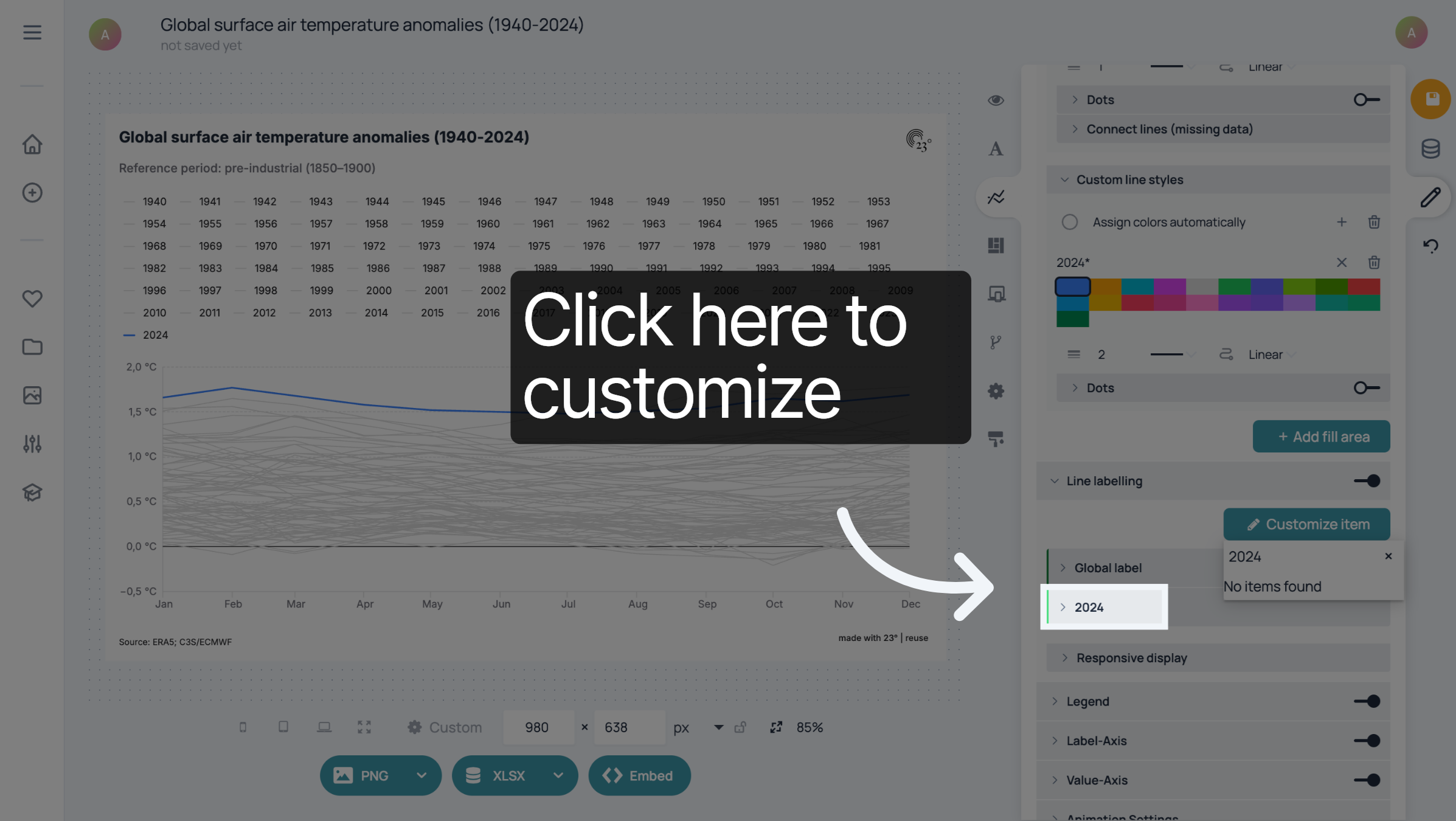
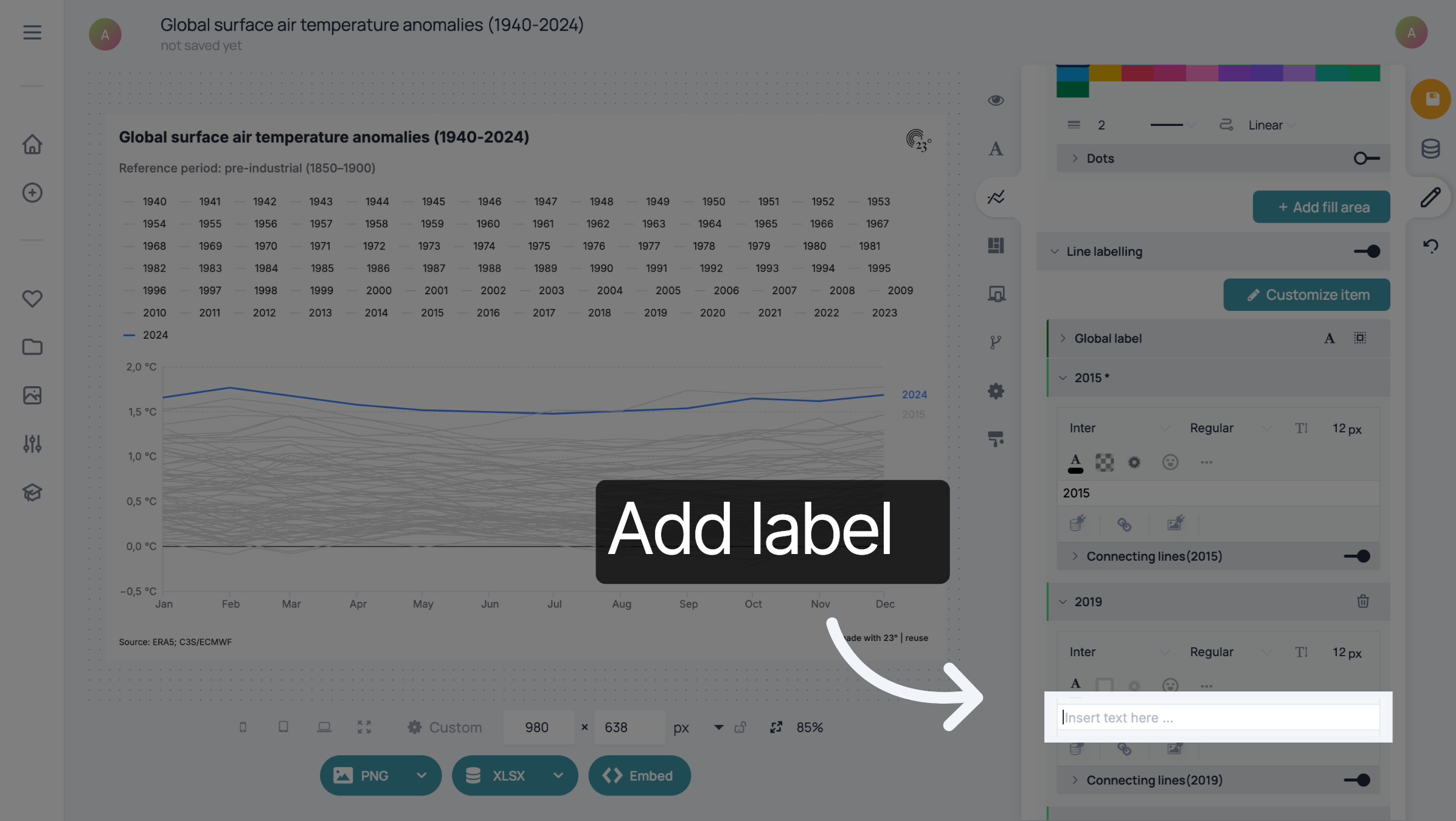
After you have selected the line, you can expand the settings of the label by clicking here.
In this case, we want to label the three lines that end on a similar level. To do that, repeat the steps from above.
Search and select the lines.
Enter the labels for the lines.
In this case, it does not make sense to keep the legend in the linechart because most lines have the same colour.
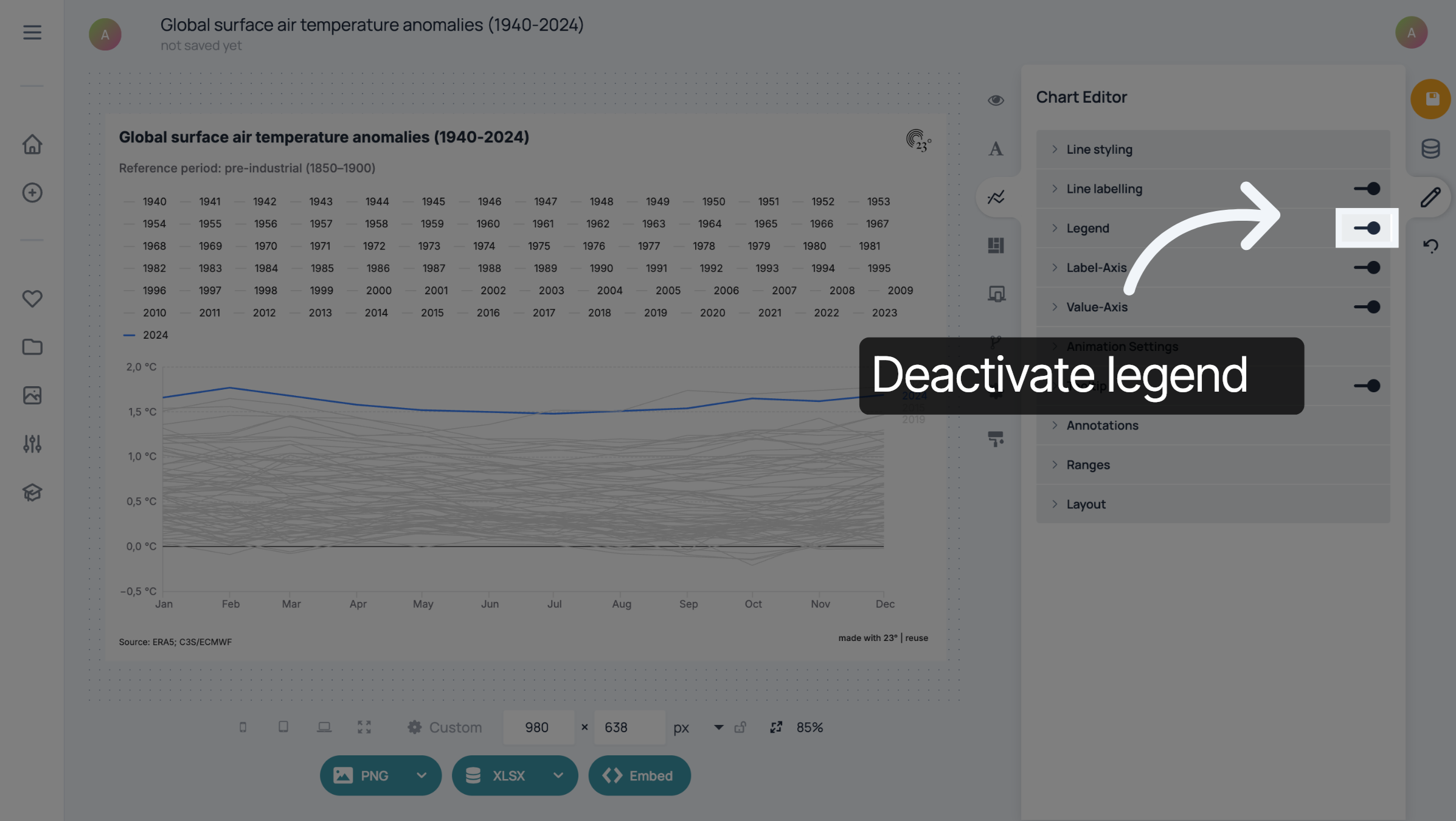
You have highlighted a specific line in a 23° linechart by changing the colour and the labels.