Change Font Scale Settings in Your Embeds
This tutorial explains how to adjust the font scale in your embedded content to improve readability and appearance.
You will learn to navigate the editing interface and configure font scaling settings effectively.
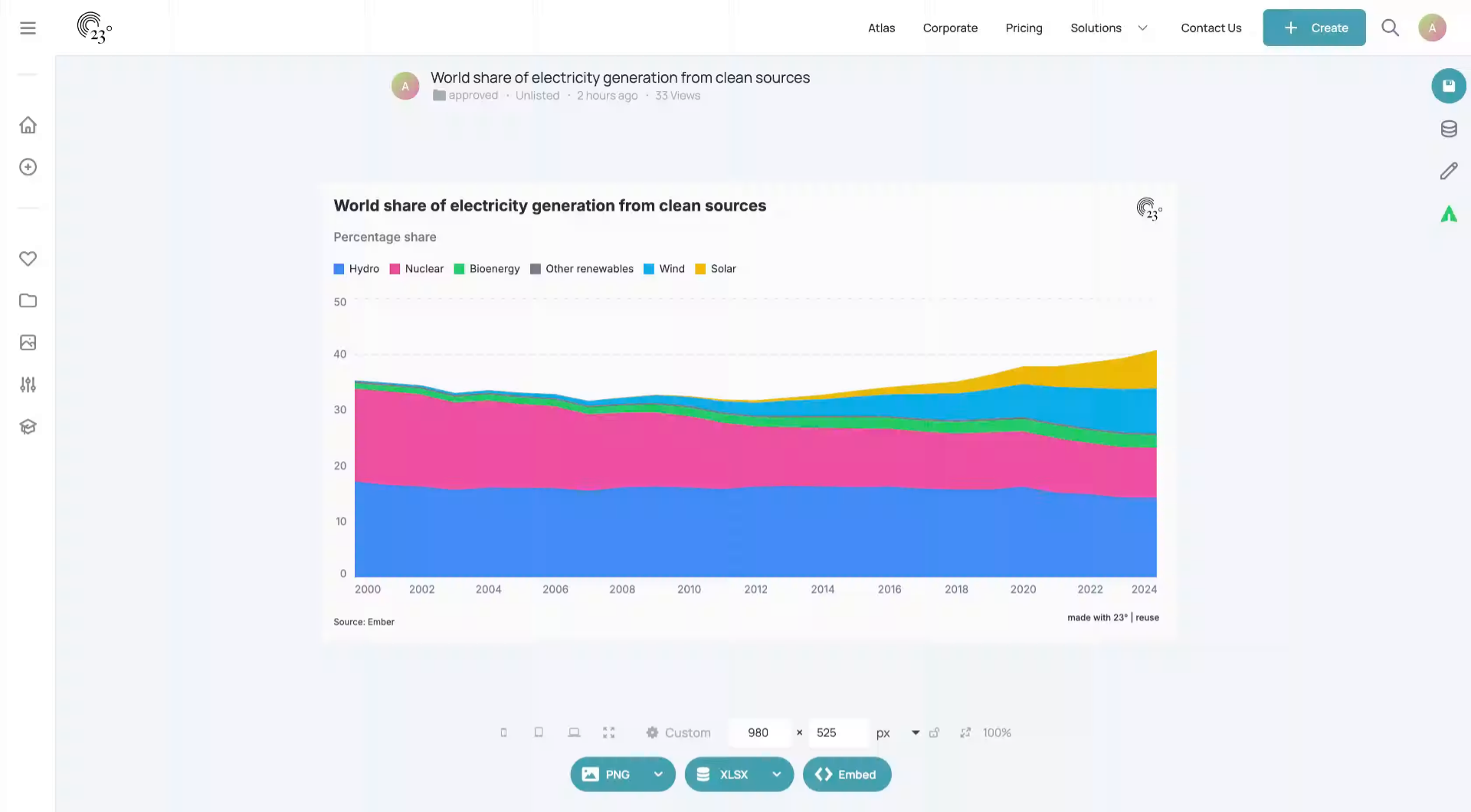
Click the Start editing button to begin modifying your embed settings.
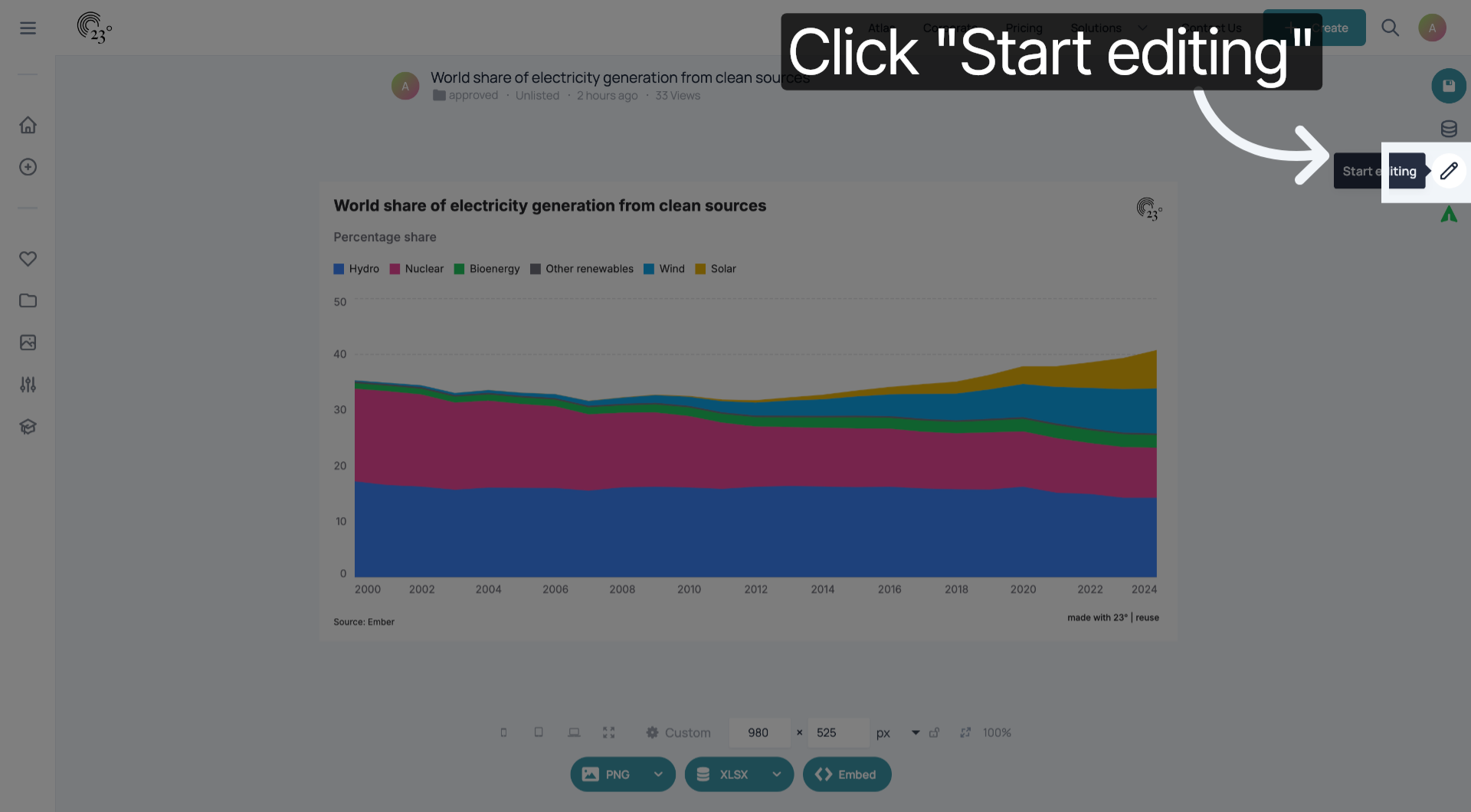
Click the designated area to open the font settings menu where you can adjust scale options.
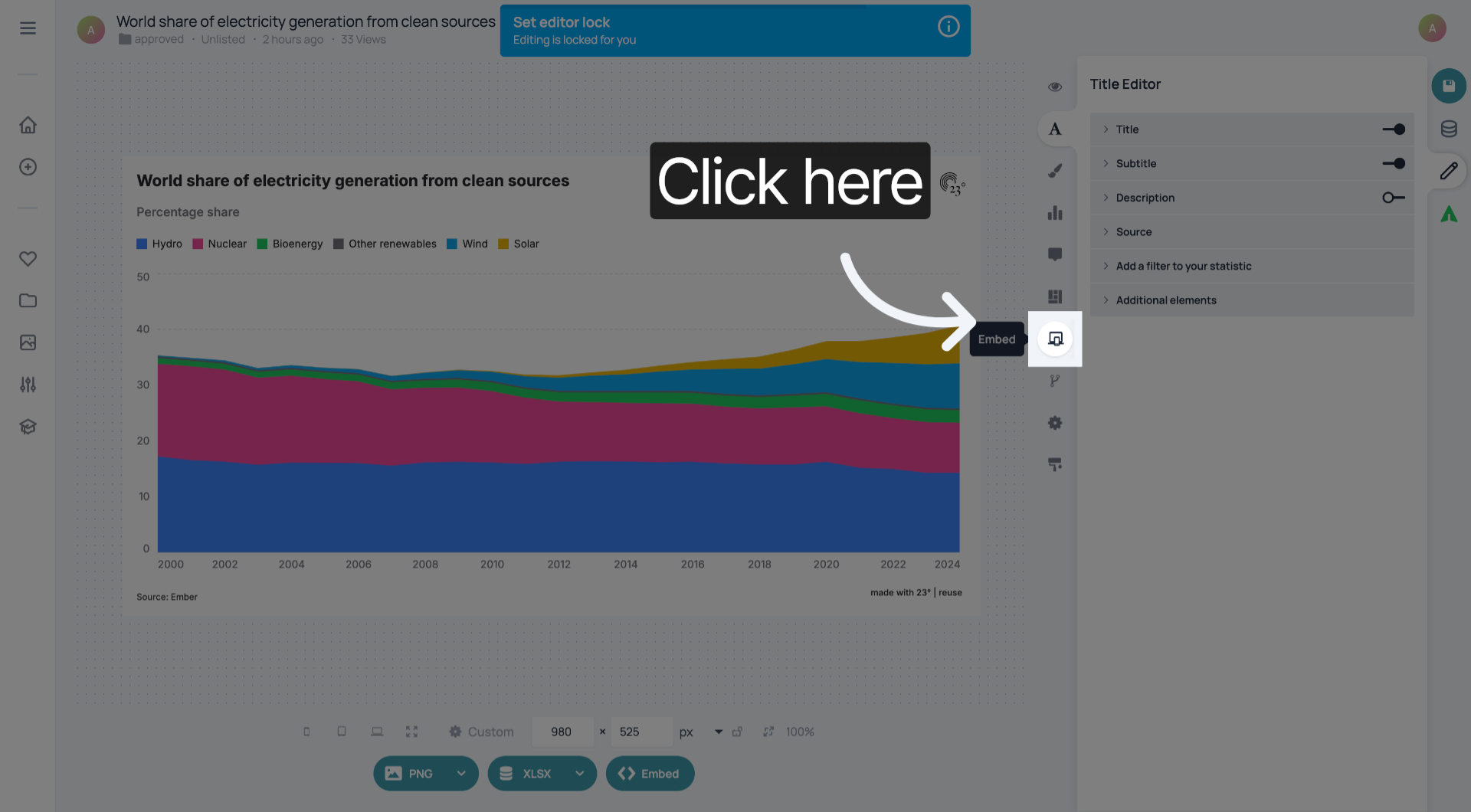
Click the appropriate section to access the font scale configuration options.
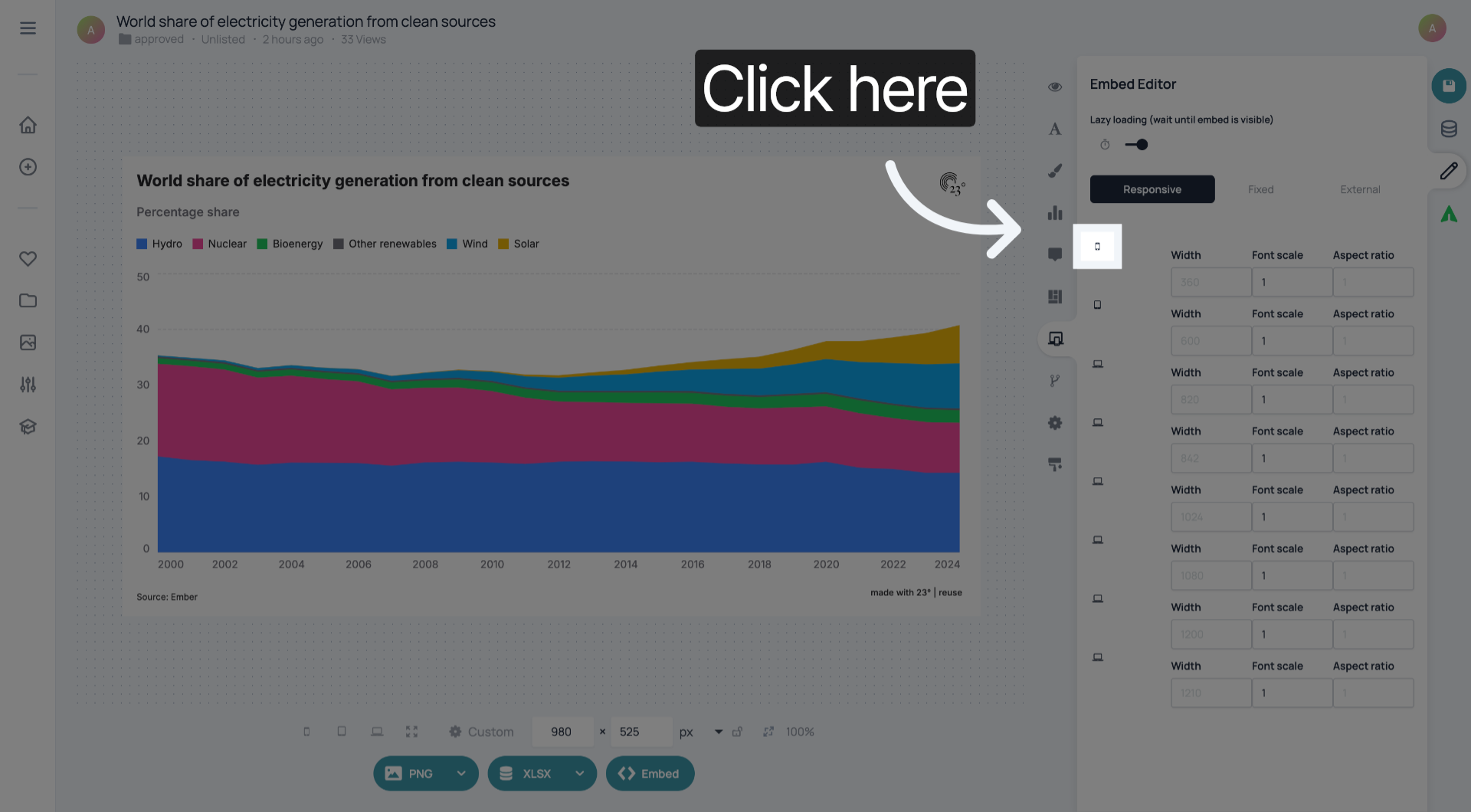
Click the font scale preset labeled 1 to choose the default scale setting.
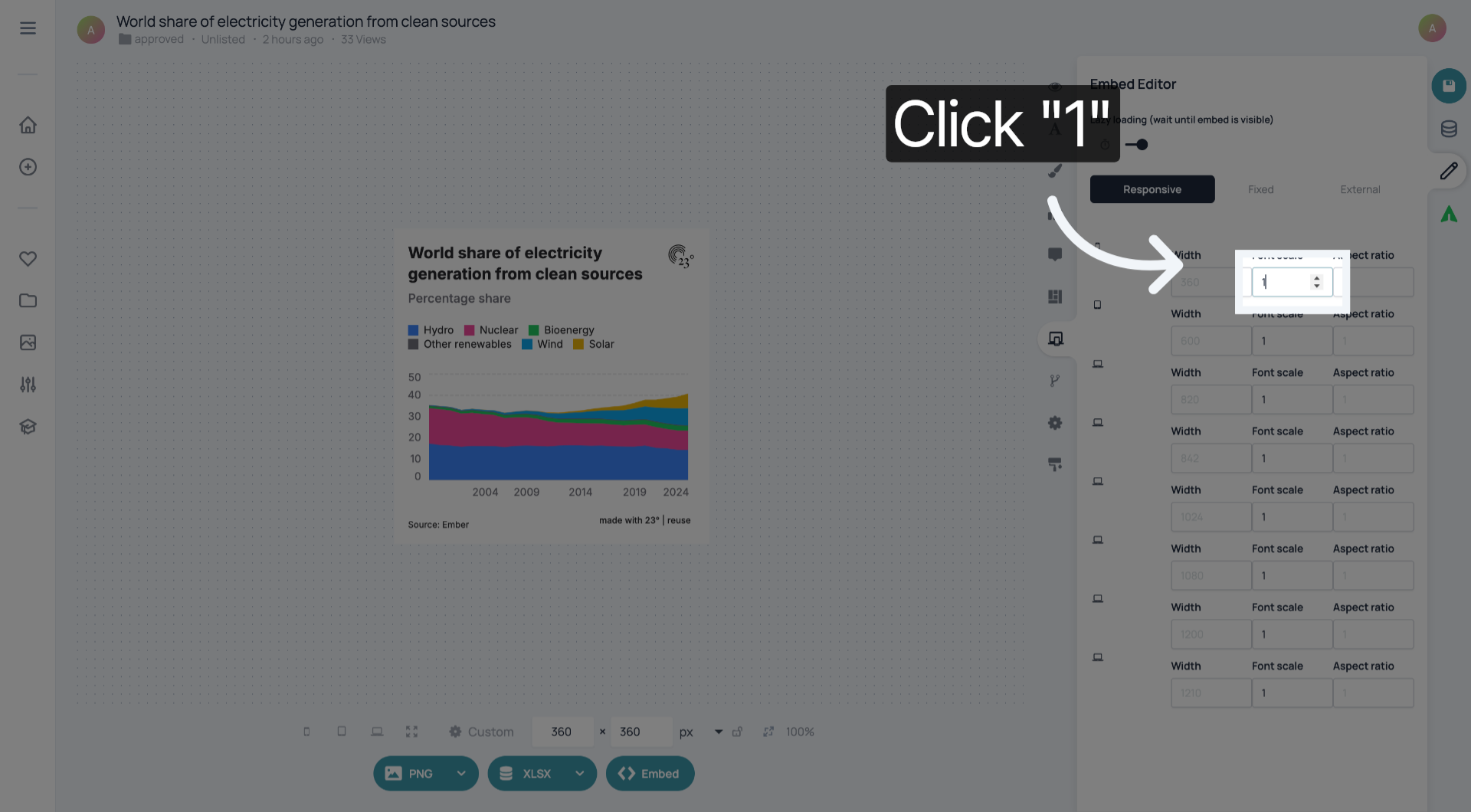
Enter 0.8 to set a custom font scale value for your embed.
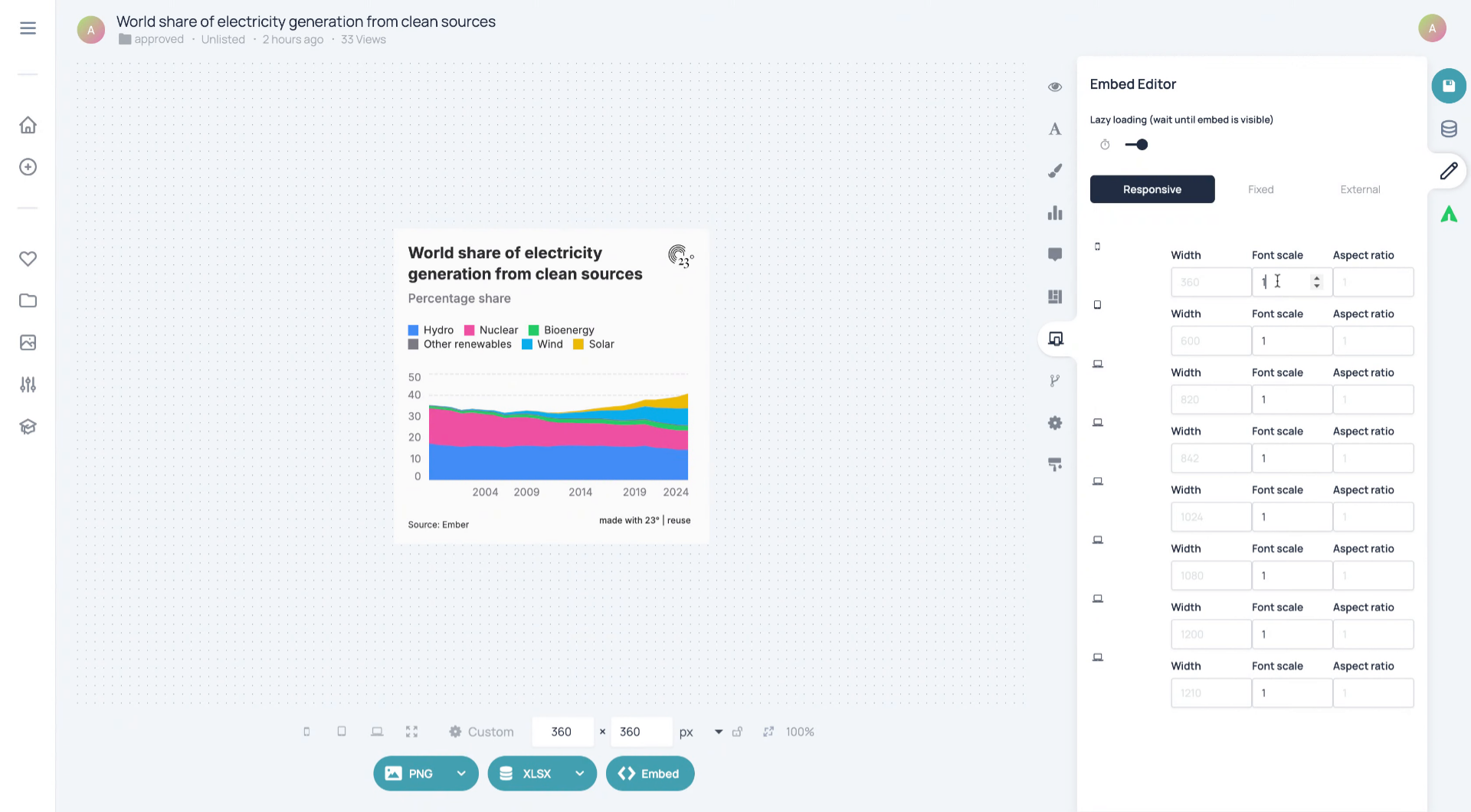
Click the confirmation area to apply the custom font scale value you entered.
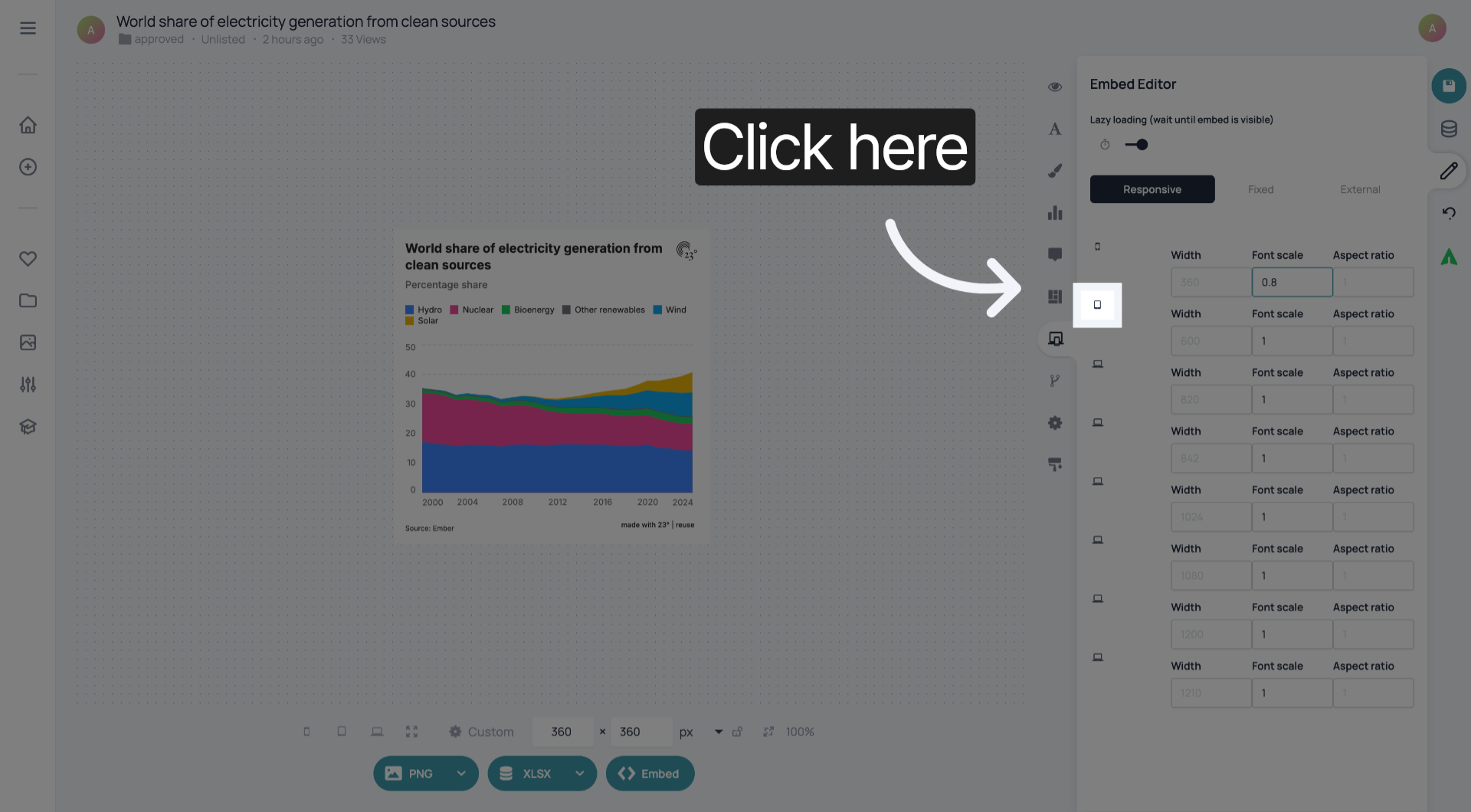
Click the next area to reveal more embed configuration options.
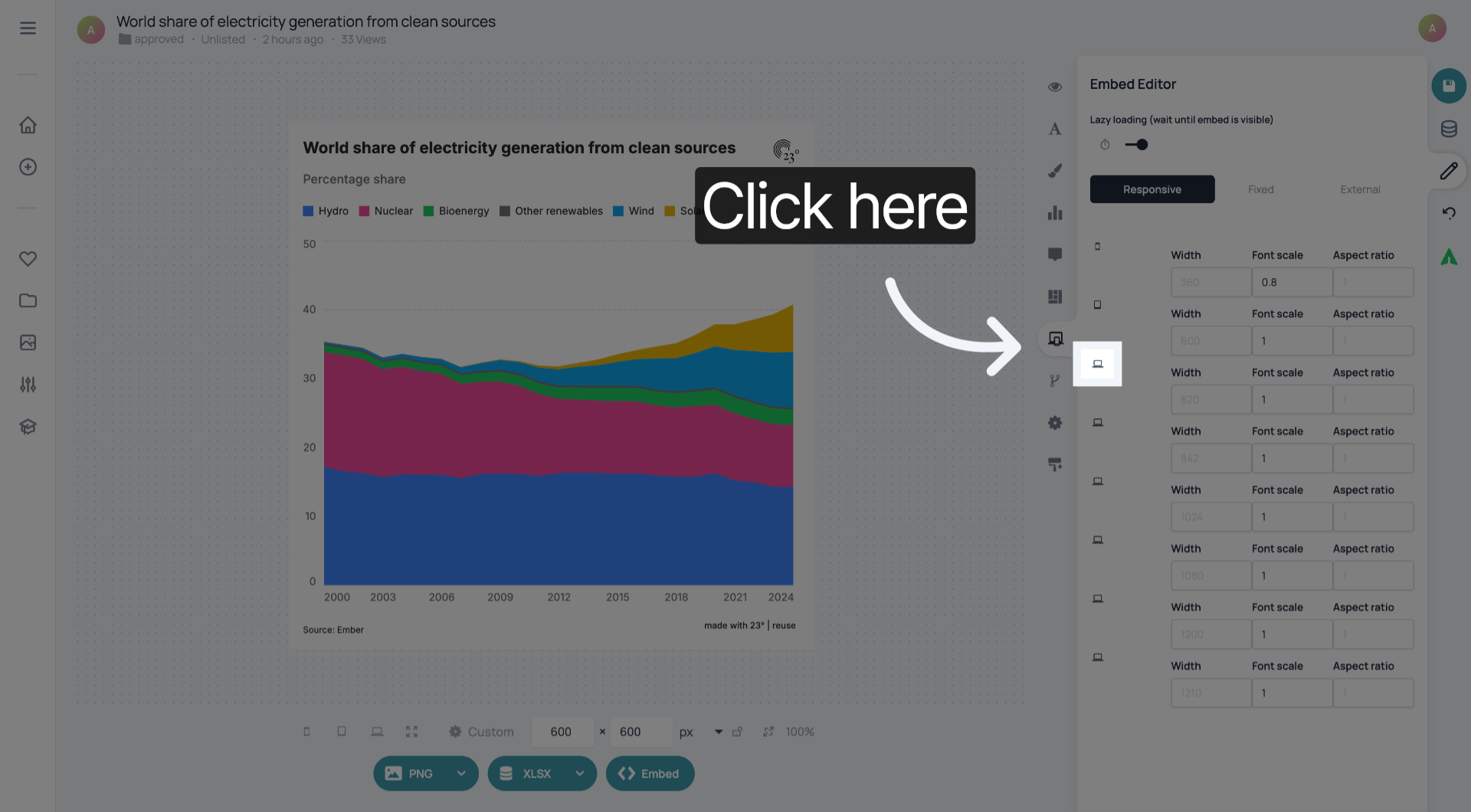
Click the responsive settings section to adjust how your embed behaves on different devices.
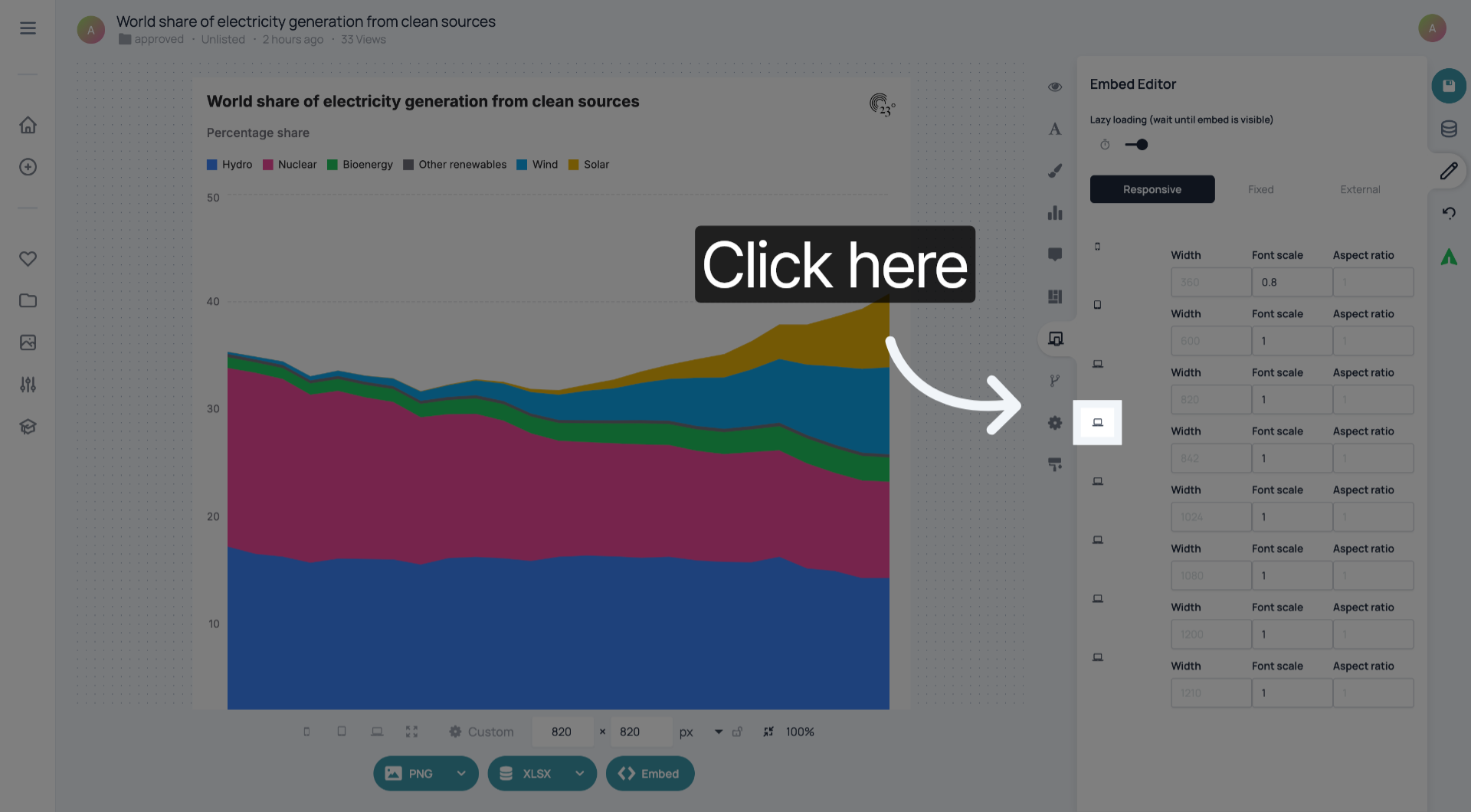
Click the font scale control to modify scaling parameters further.
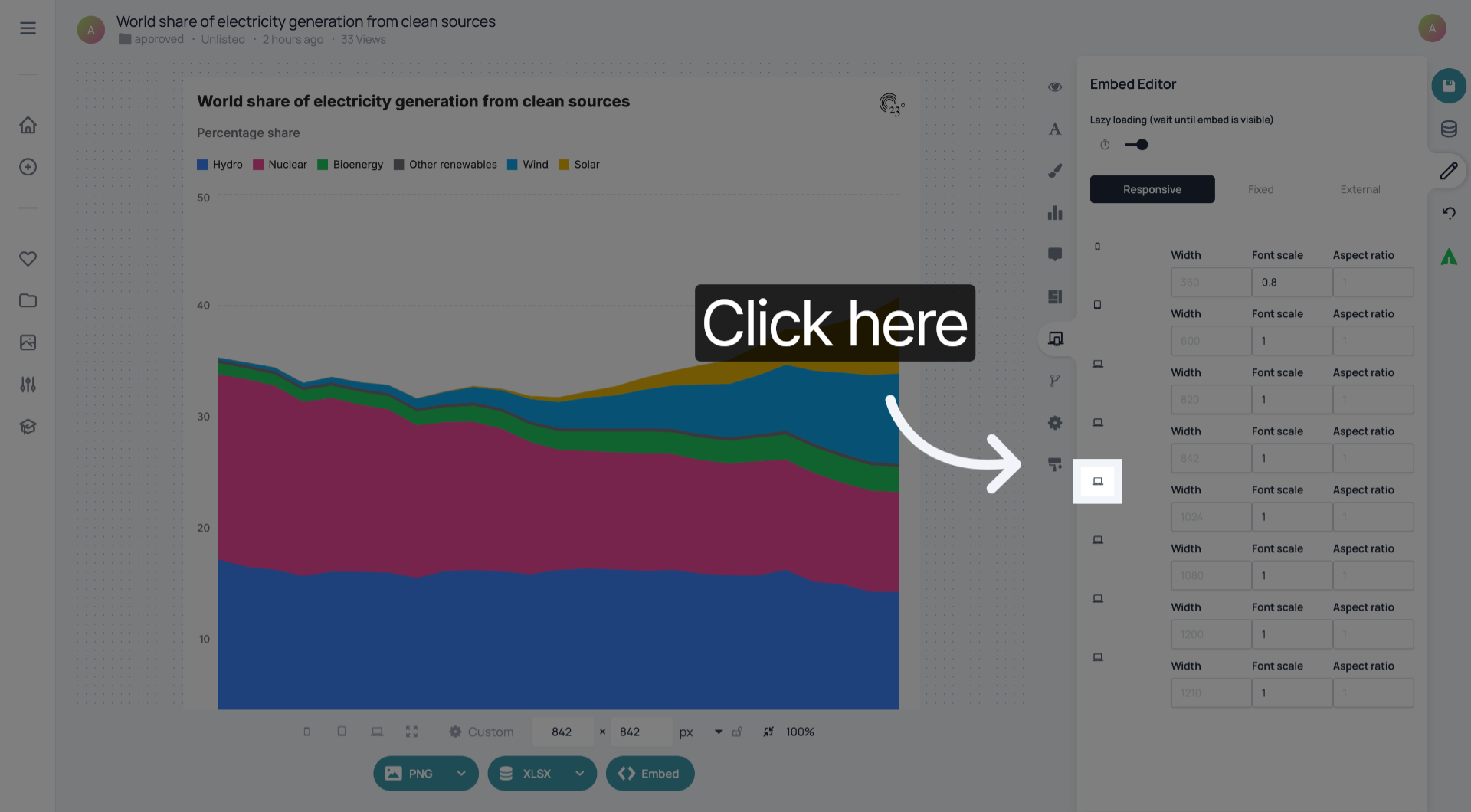
Click the dropdown menu to view available font scale options.
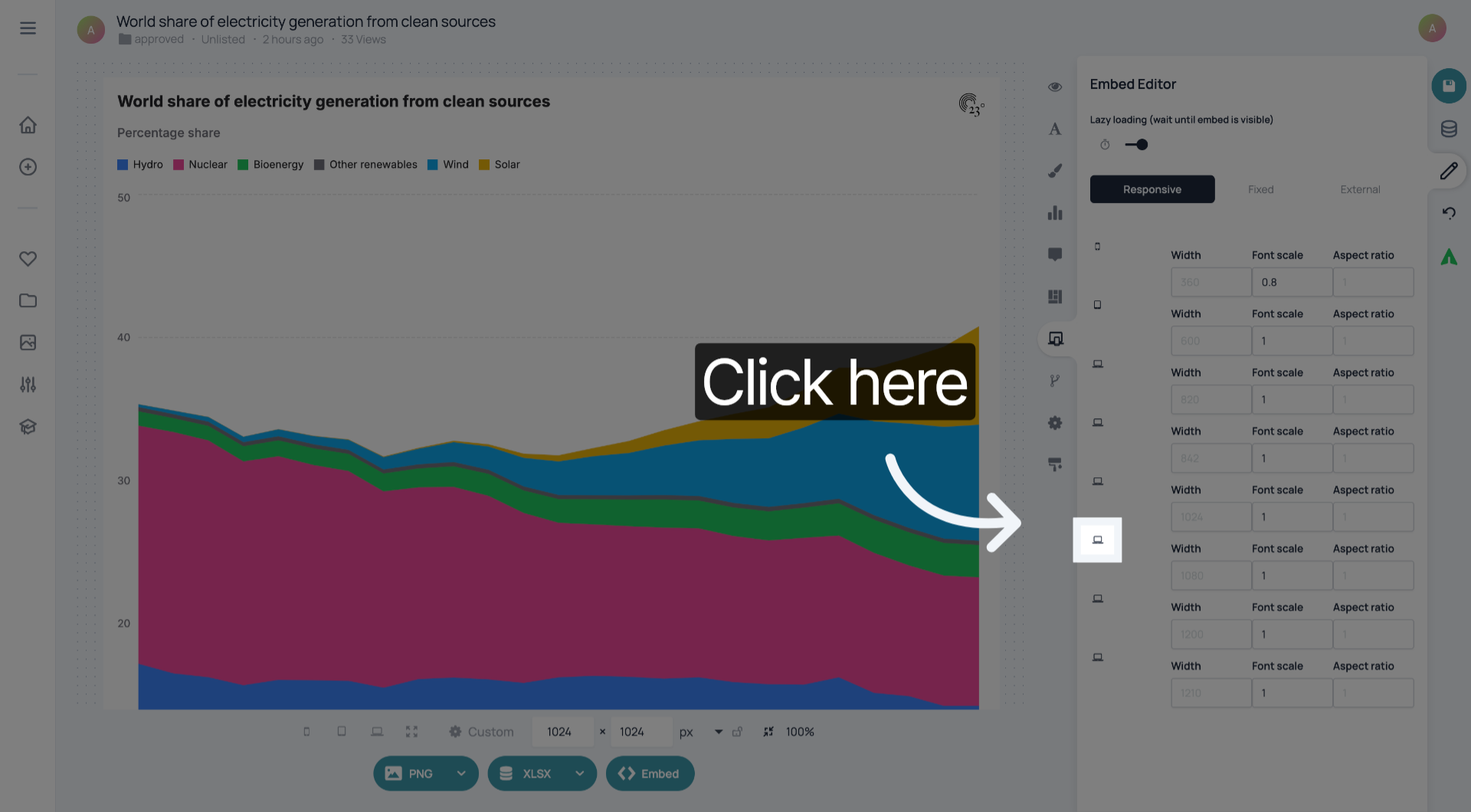
Click the font scale value labeled 1 to select the current scale.
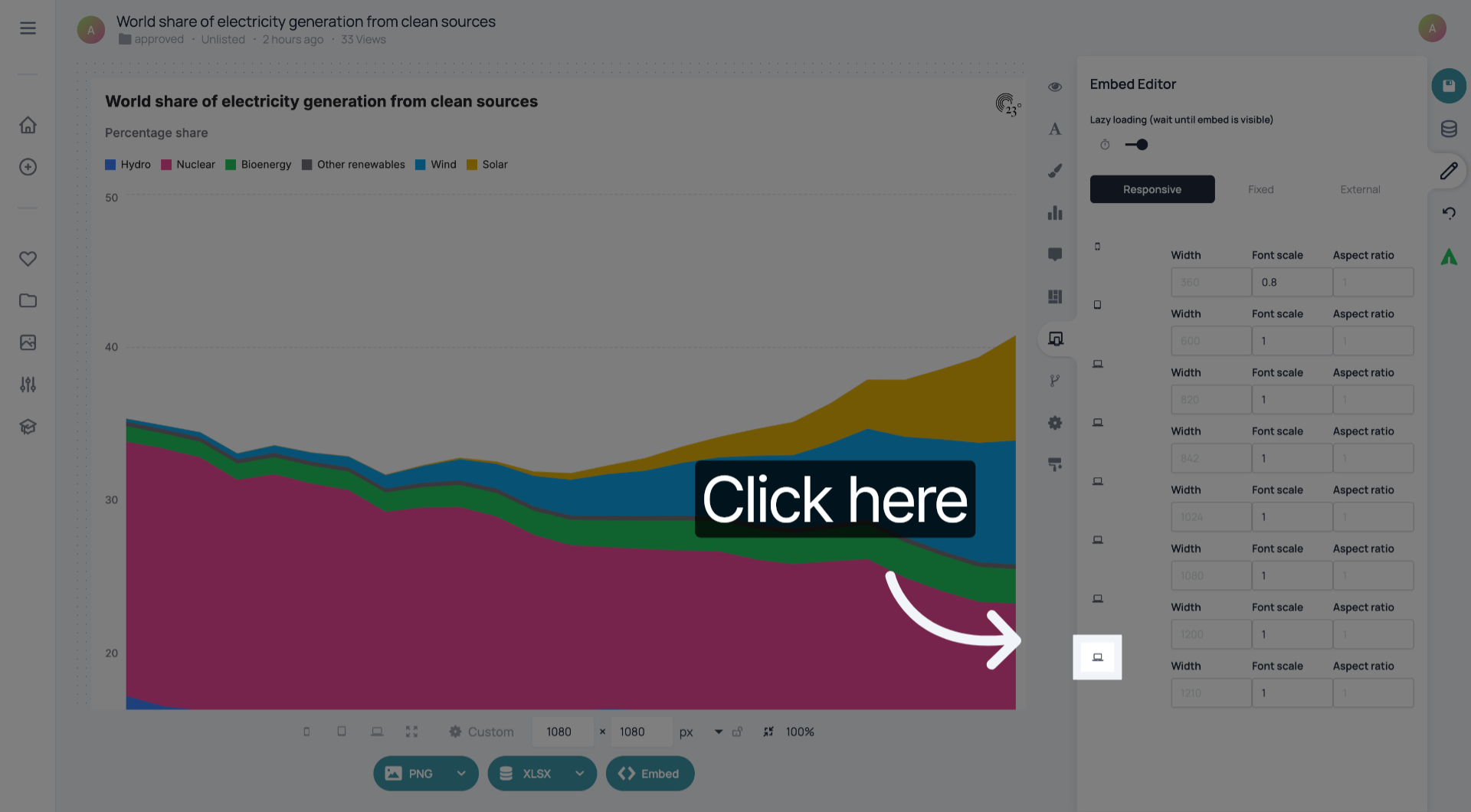
Click the font scale preset labeled 1 to prepare for a new scale input.
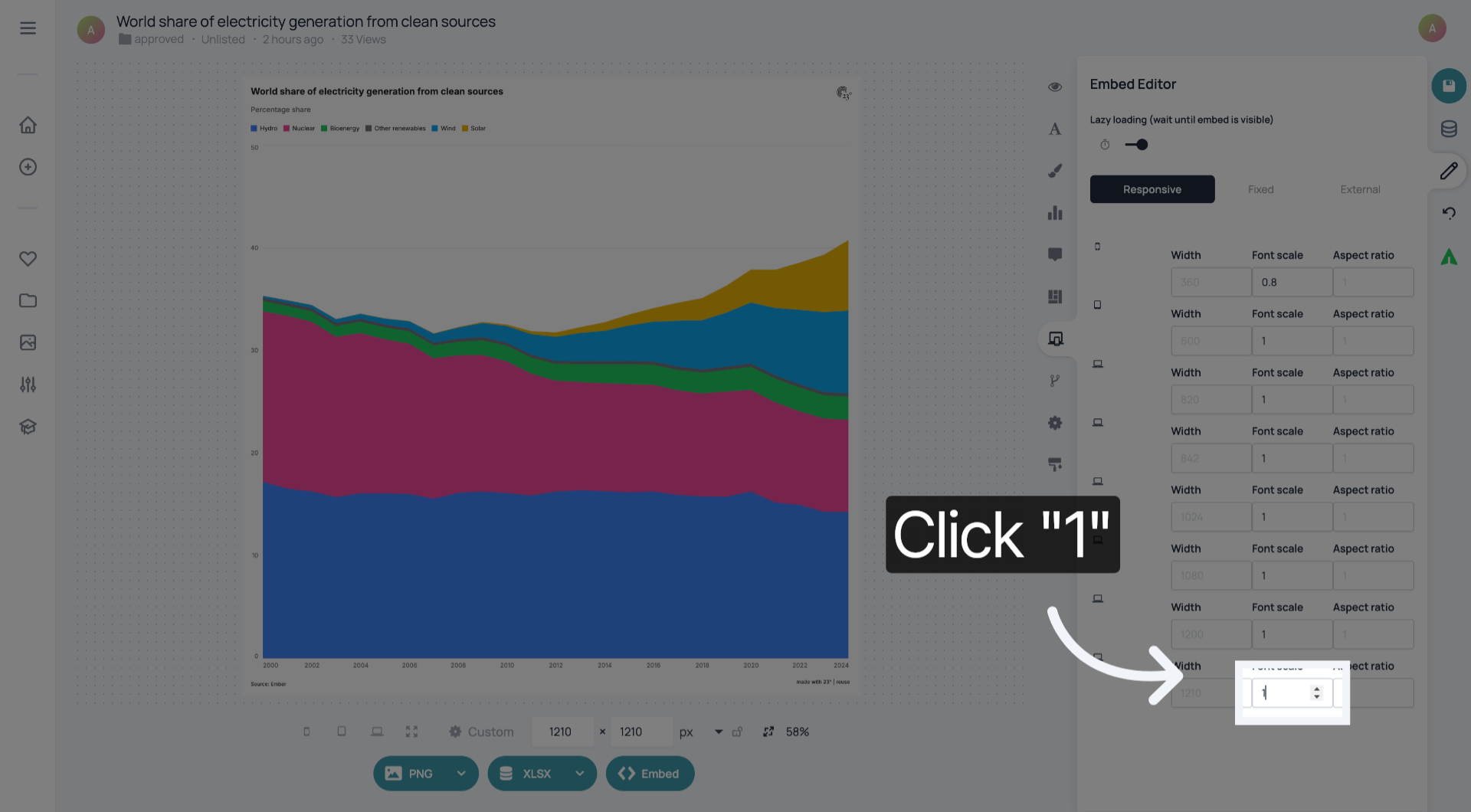
Enter 1.5 to update the font scale to a larger size for better visibility.
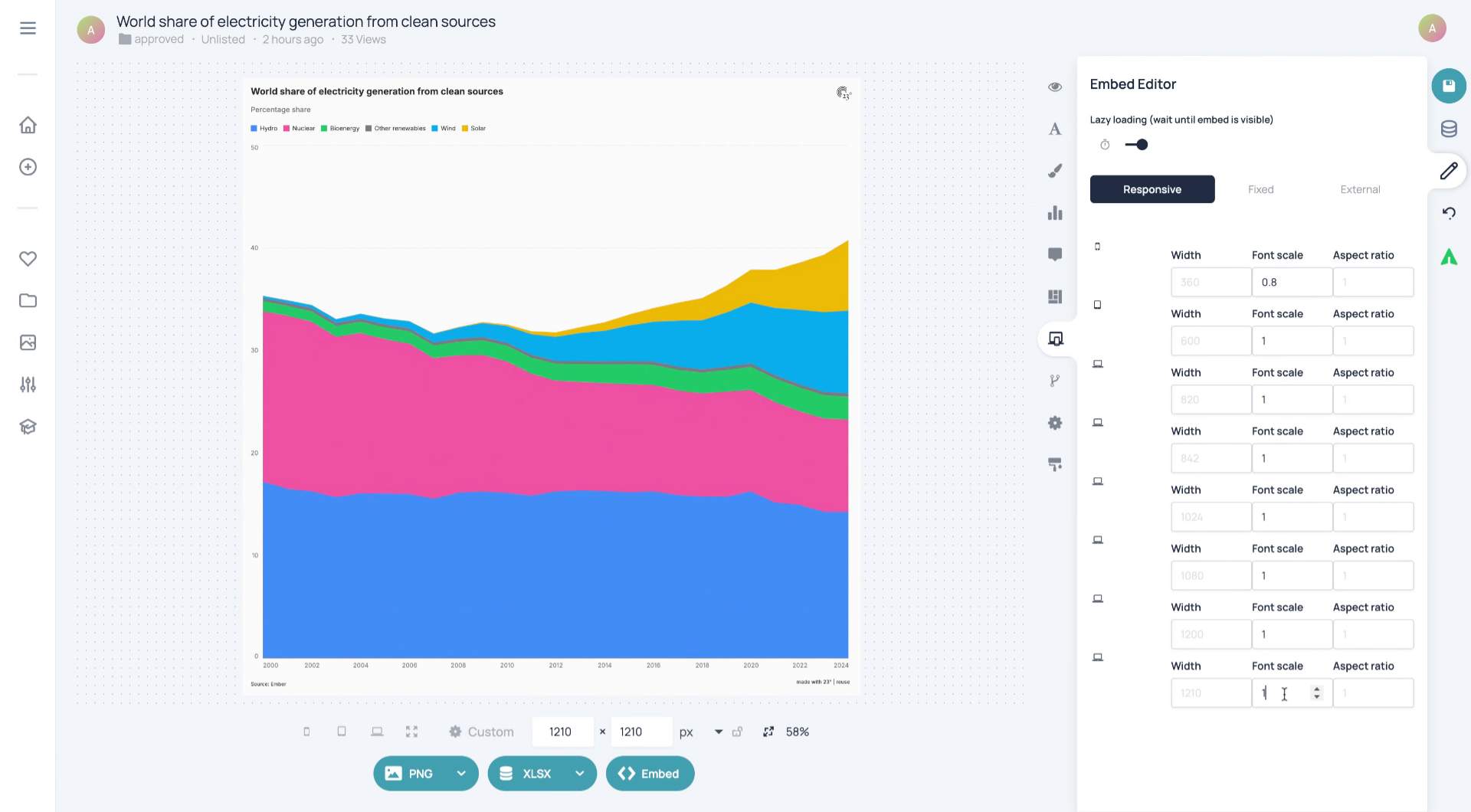
Click the Lazy loading option to configure how the embed loads based on visibility.
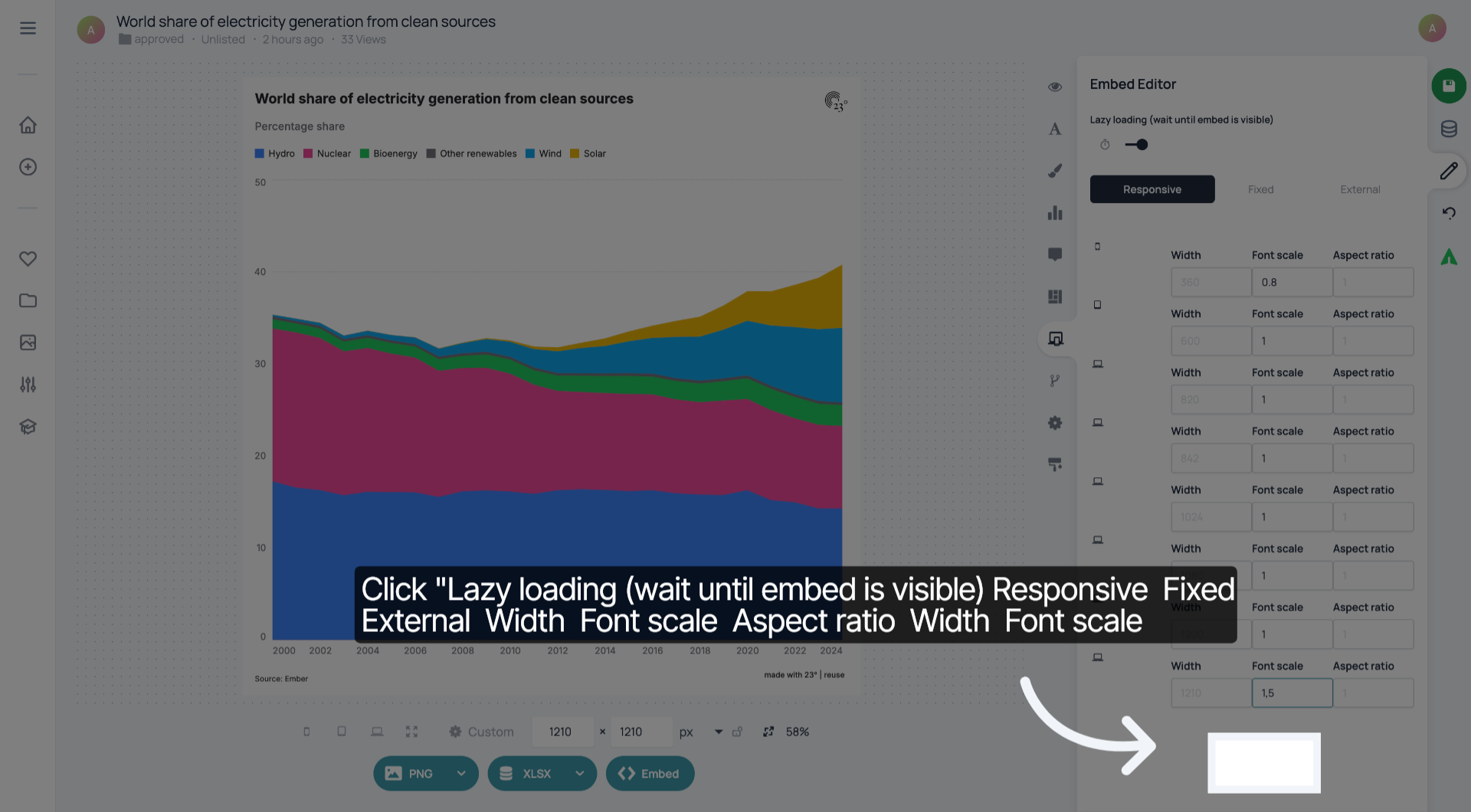
Click the font scale value labeled 1.5 to apply the updated scale setting.
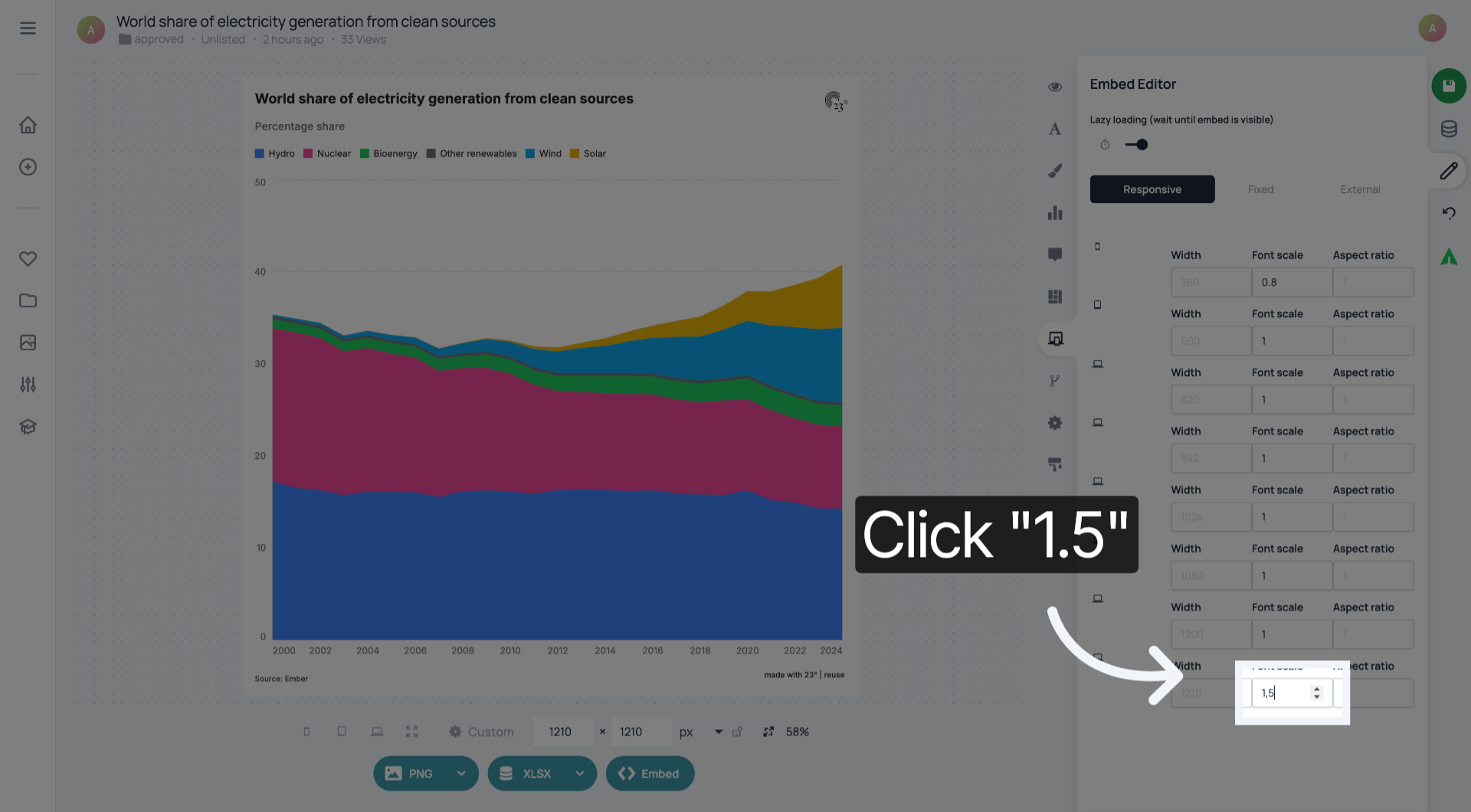
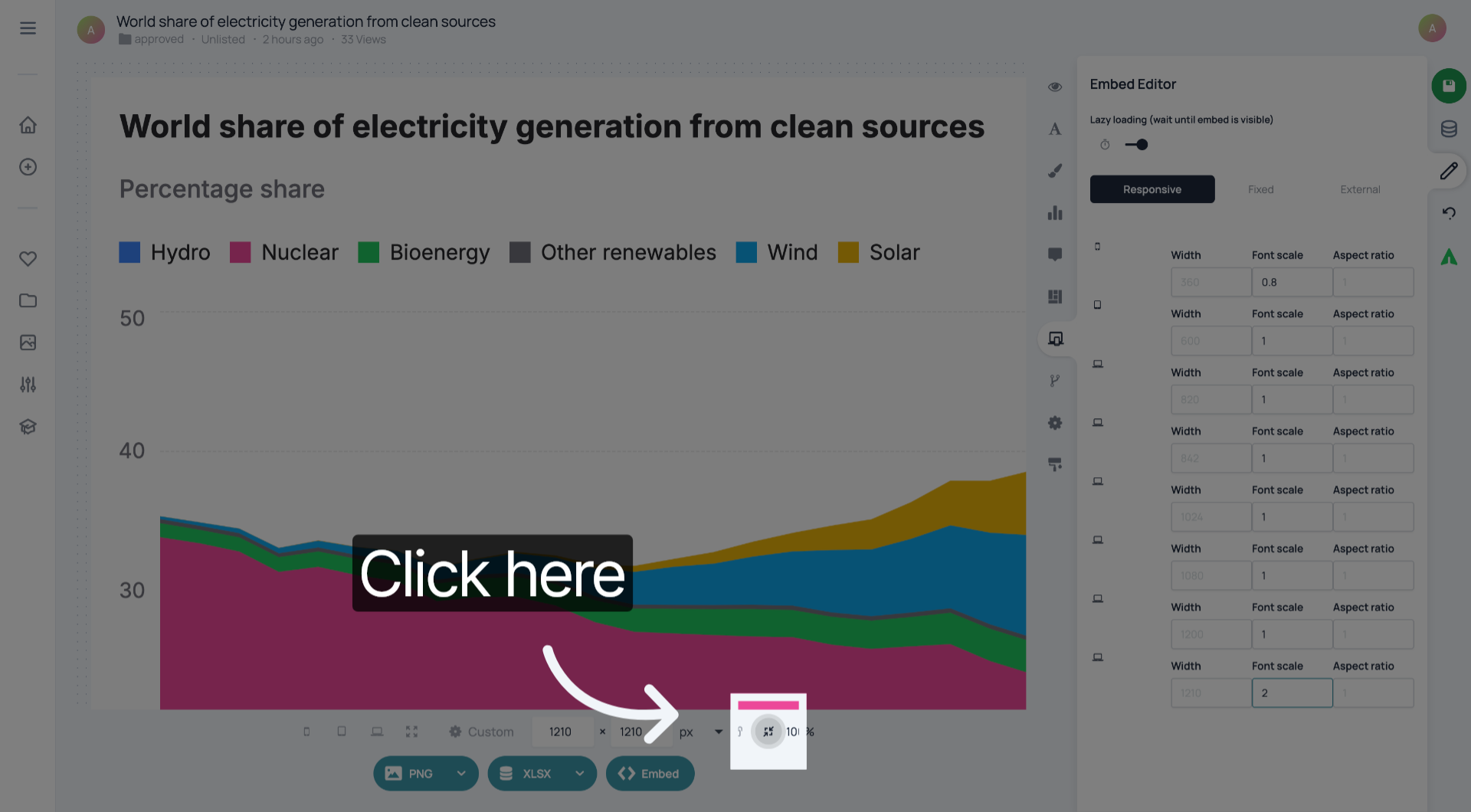
Enter 2 to set the maximum font scale for your embed content.
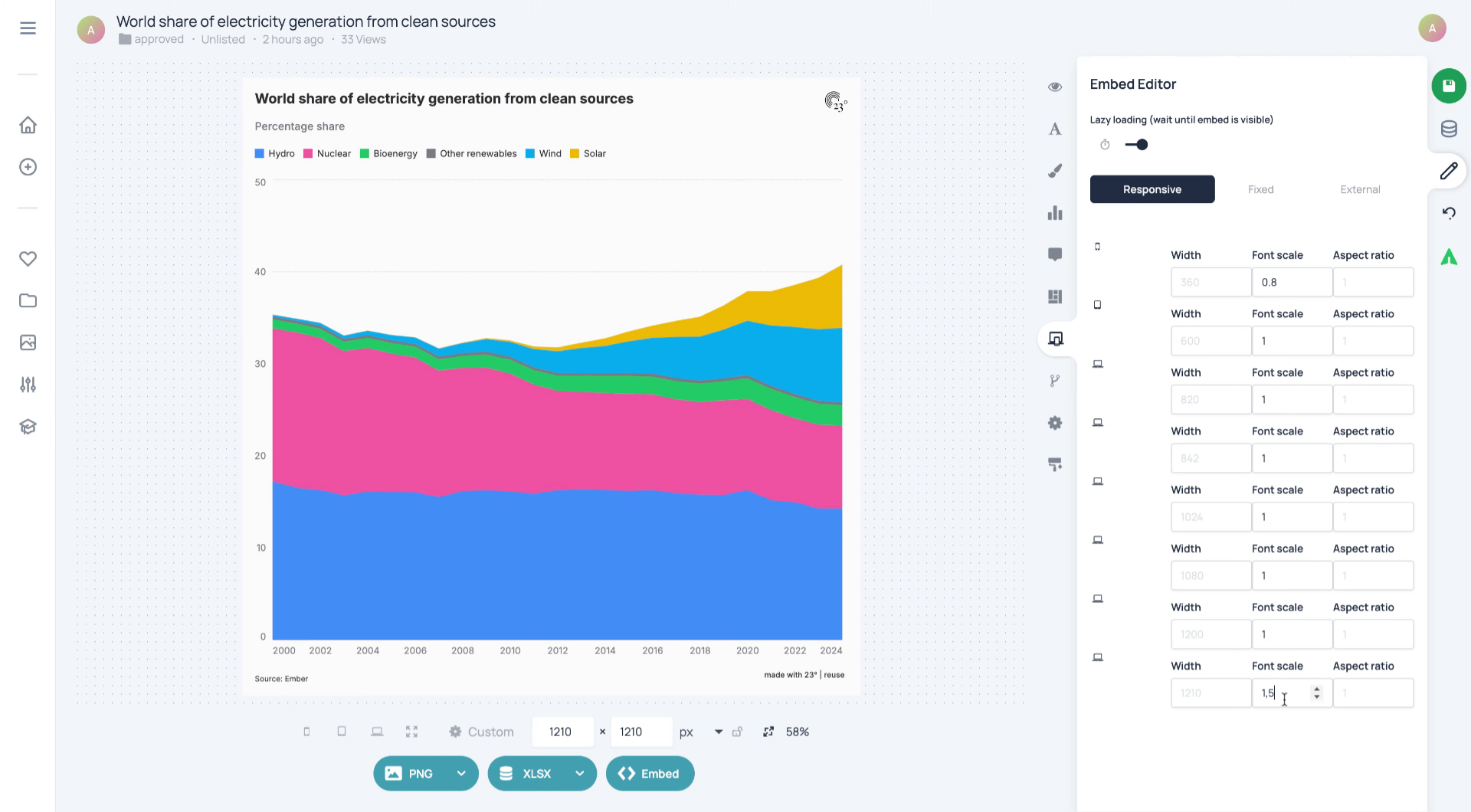
Click the area that allows you to save your changes and finalize the font scale settings.
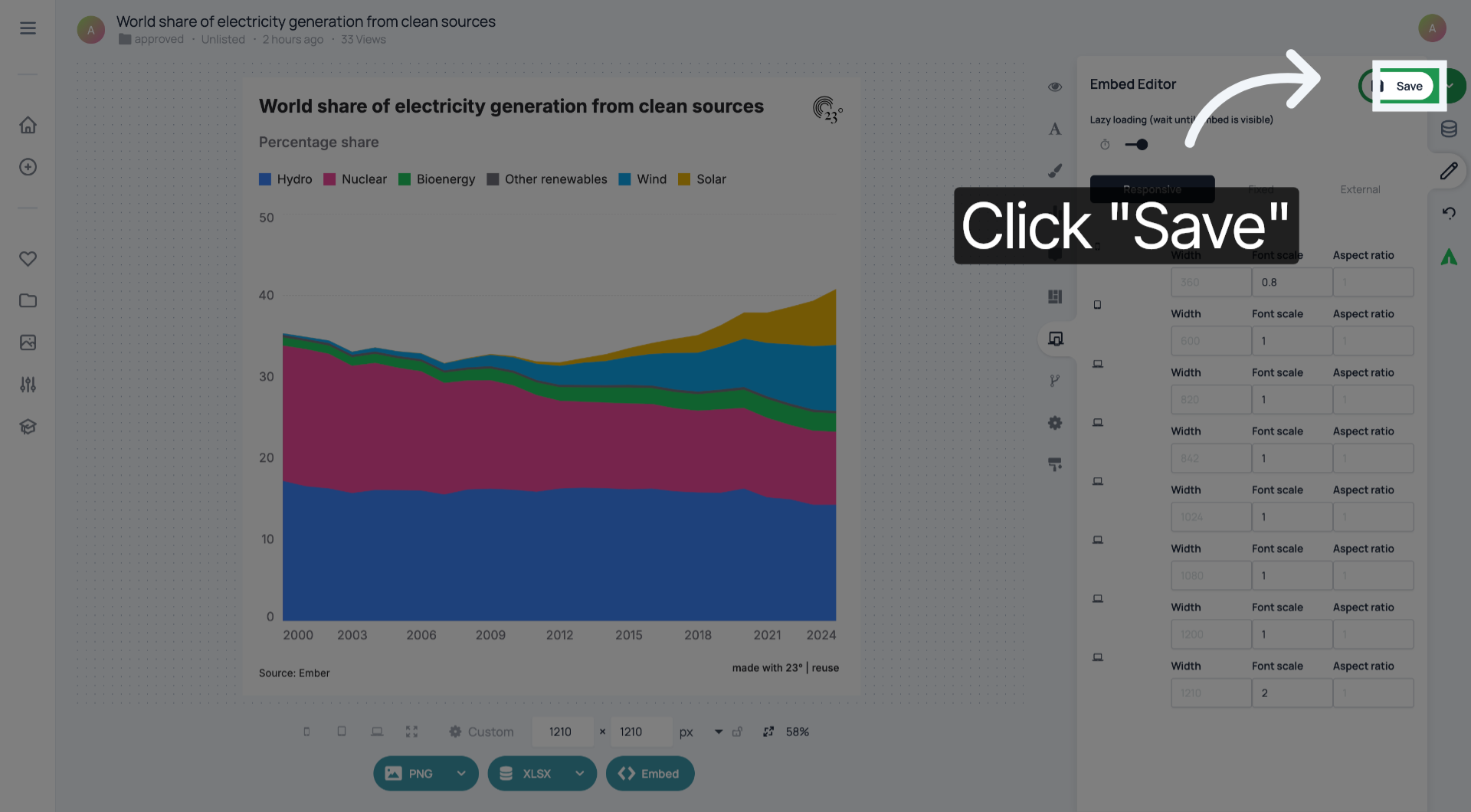
Click the Save button to confirm and apply all font scale adjustments to your embed.
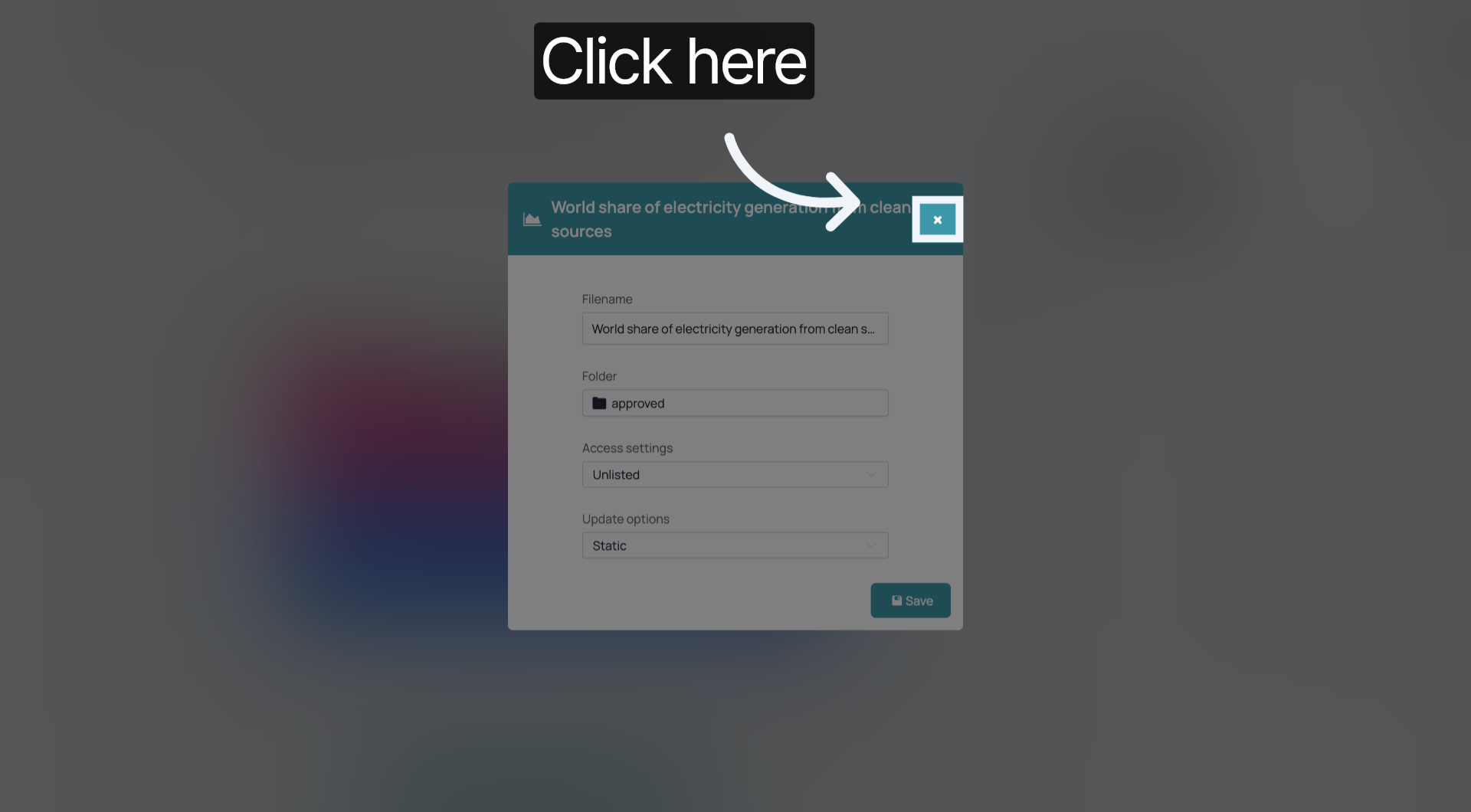
Click the final area to exit the settings interface and return to your main workspace.
You have successfully changed the font scale settings in your embeds to customize text size and improve display. For further customization, explore additional embed styling options or consult the help resources.