Change Column Type From Text To Date In 23degrees
This tutorial guides you through changing a column type from text to date in 23degrees.
To change the column type from text to date open the data editor of your visualisation.
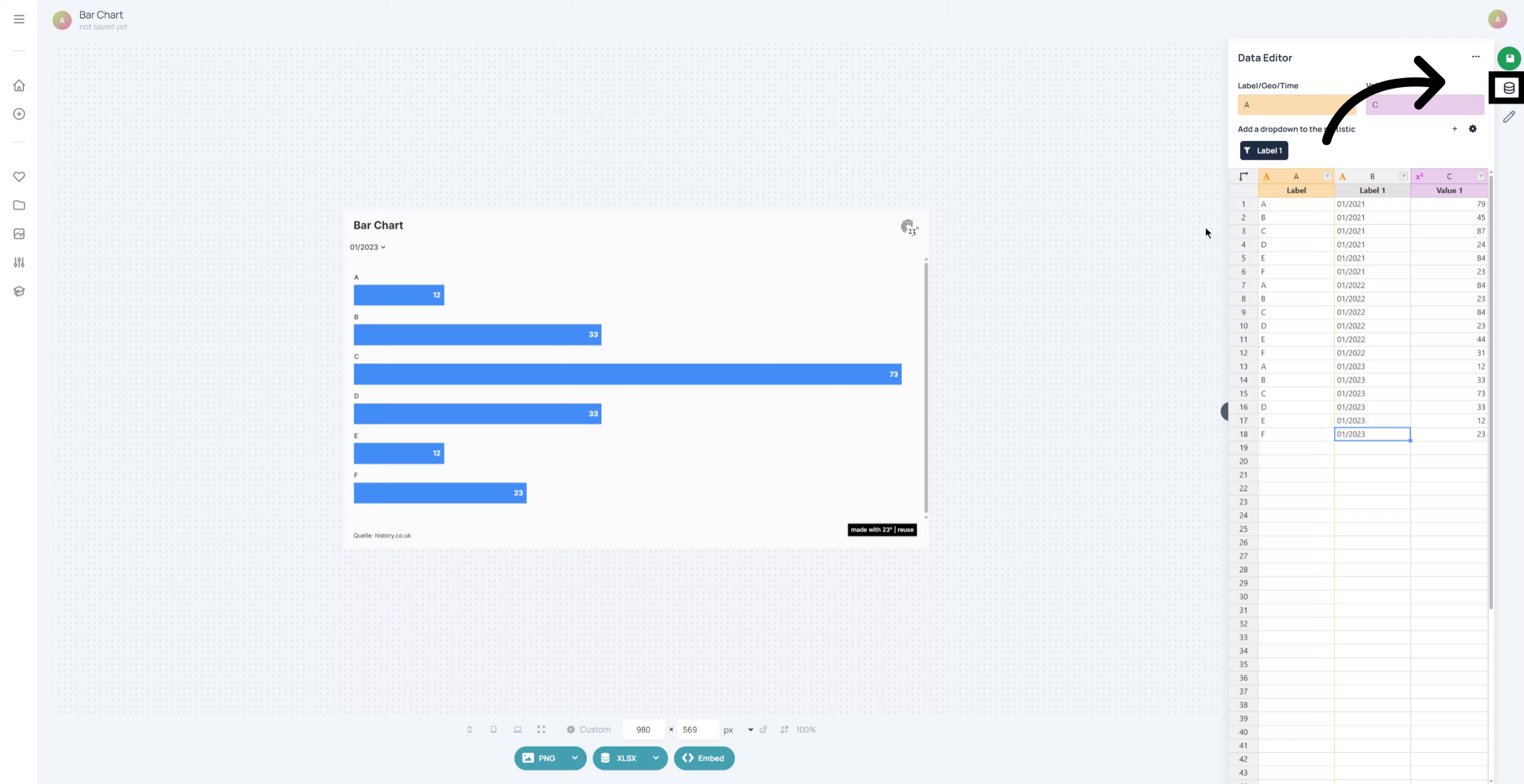
Click on the column type icon of the column you wish to edit.
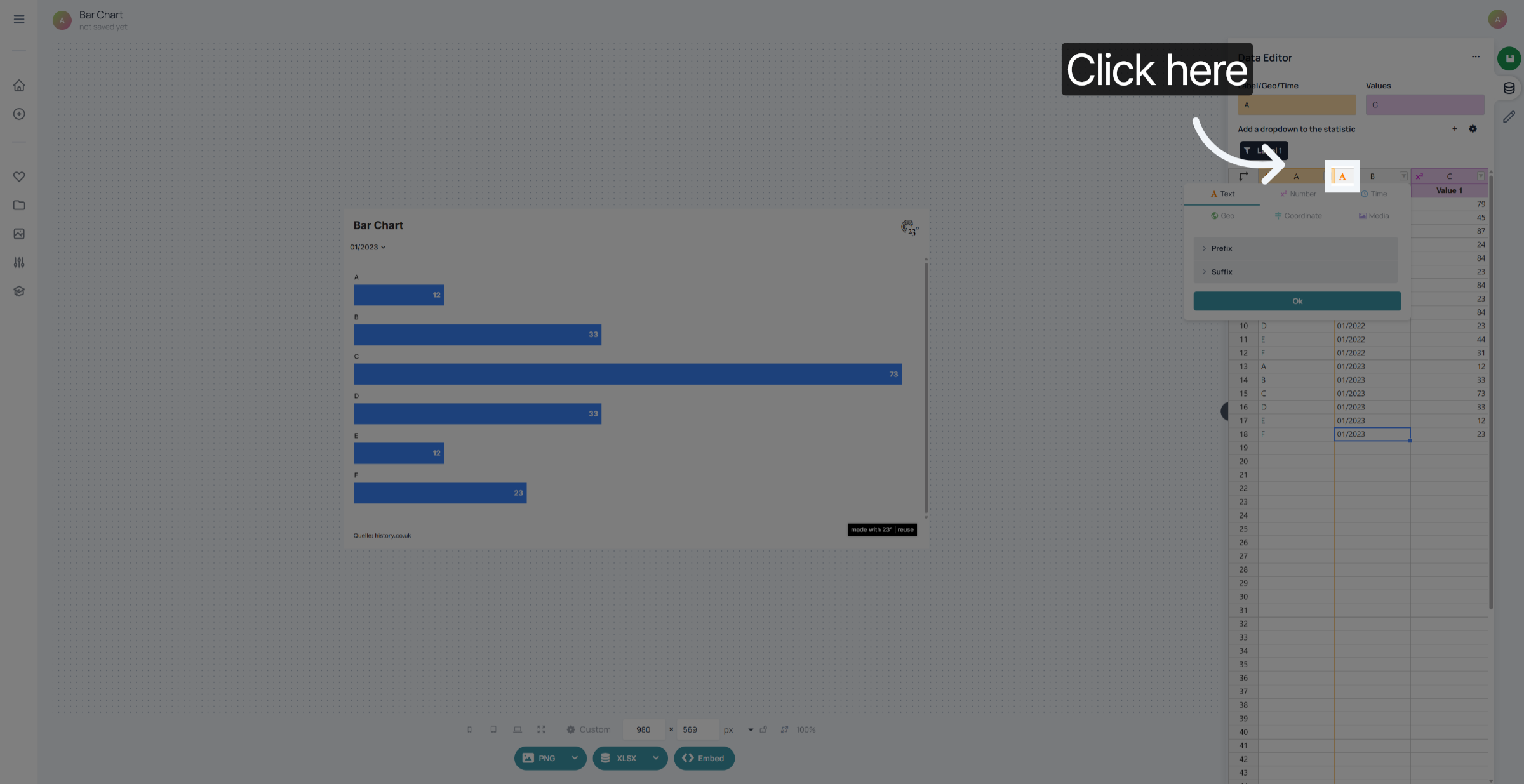
Select "Time".
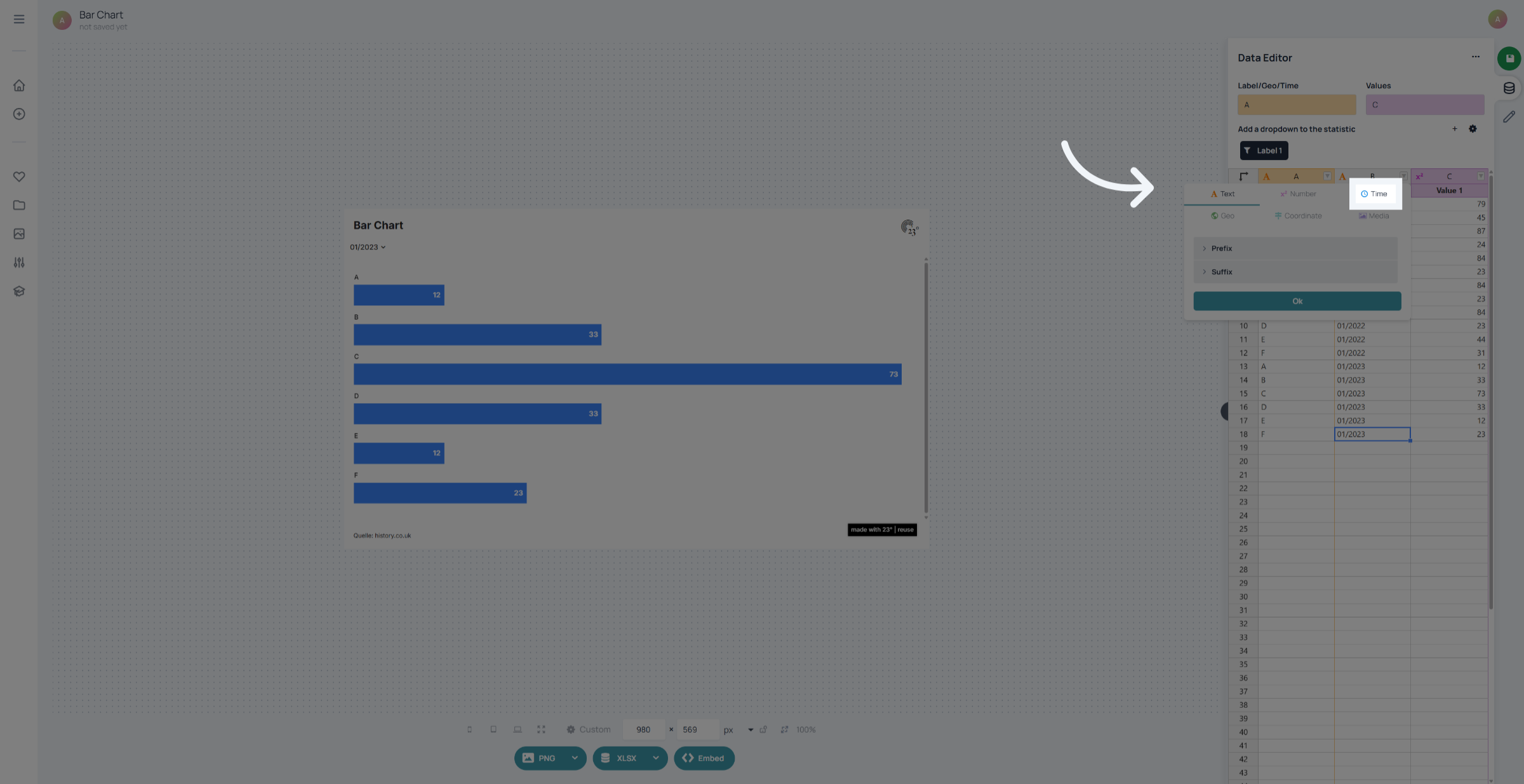
First select the language you whish your date is going to displayed in. This makes especially sense if how type with written days, weeks or months are displayed.
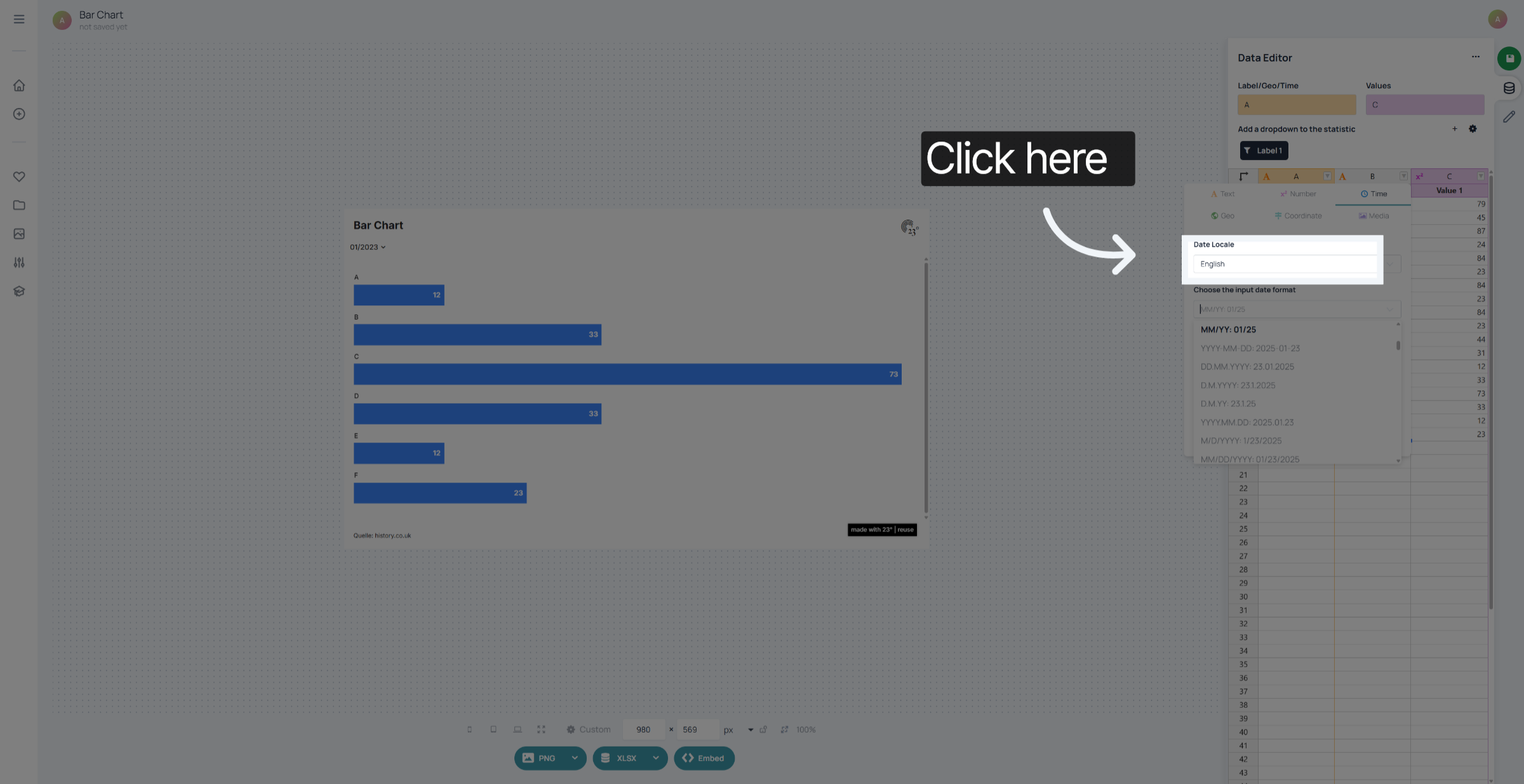
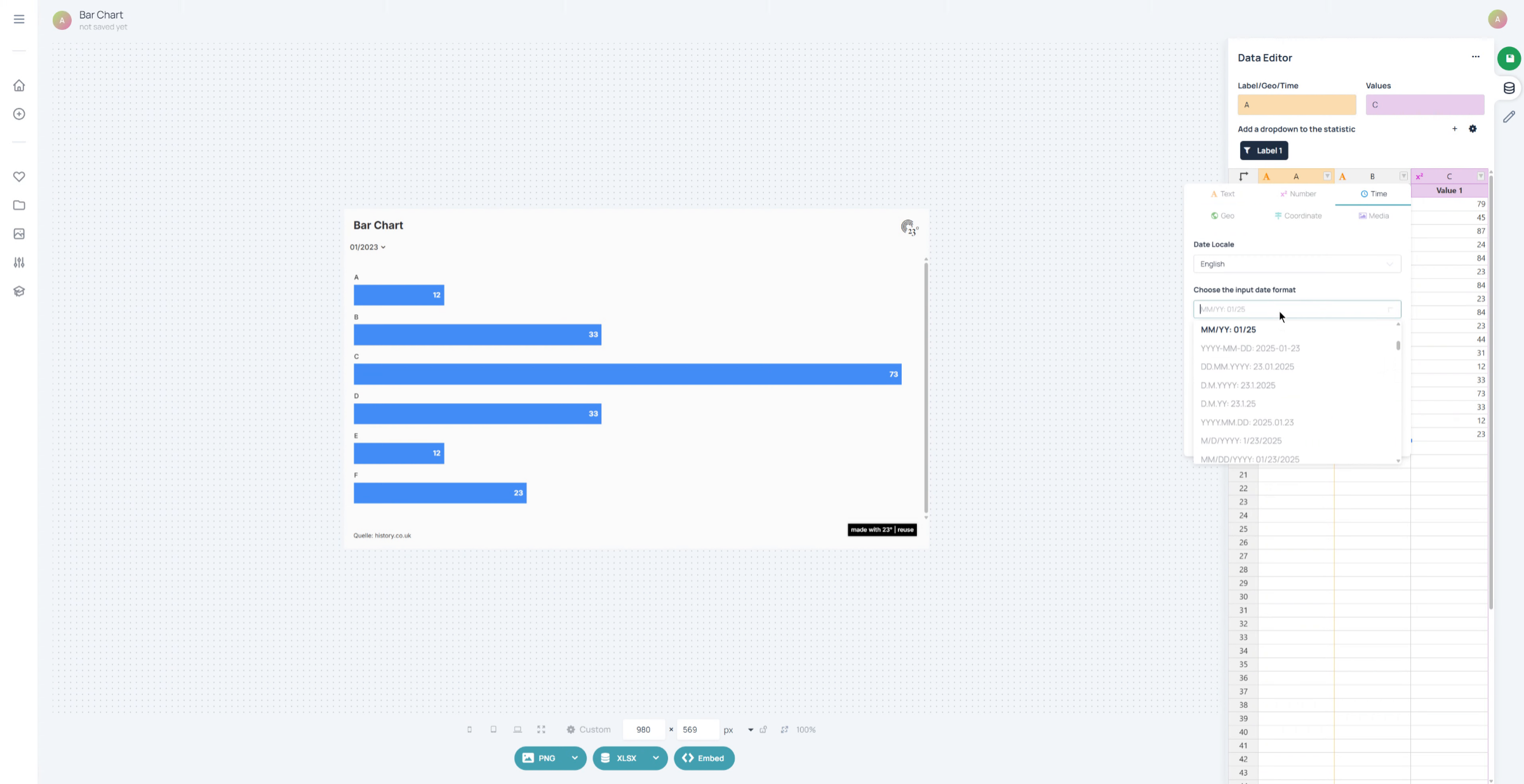
Enter the input format of your data. In this case we have a mm/yyyy format. We can look for it but just typing out our input format or scrolling through the options.
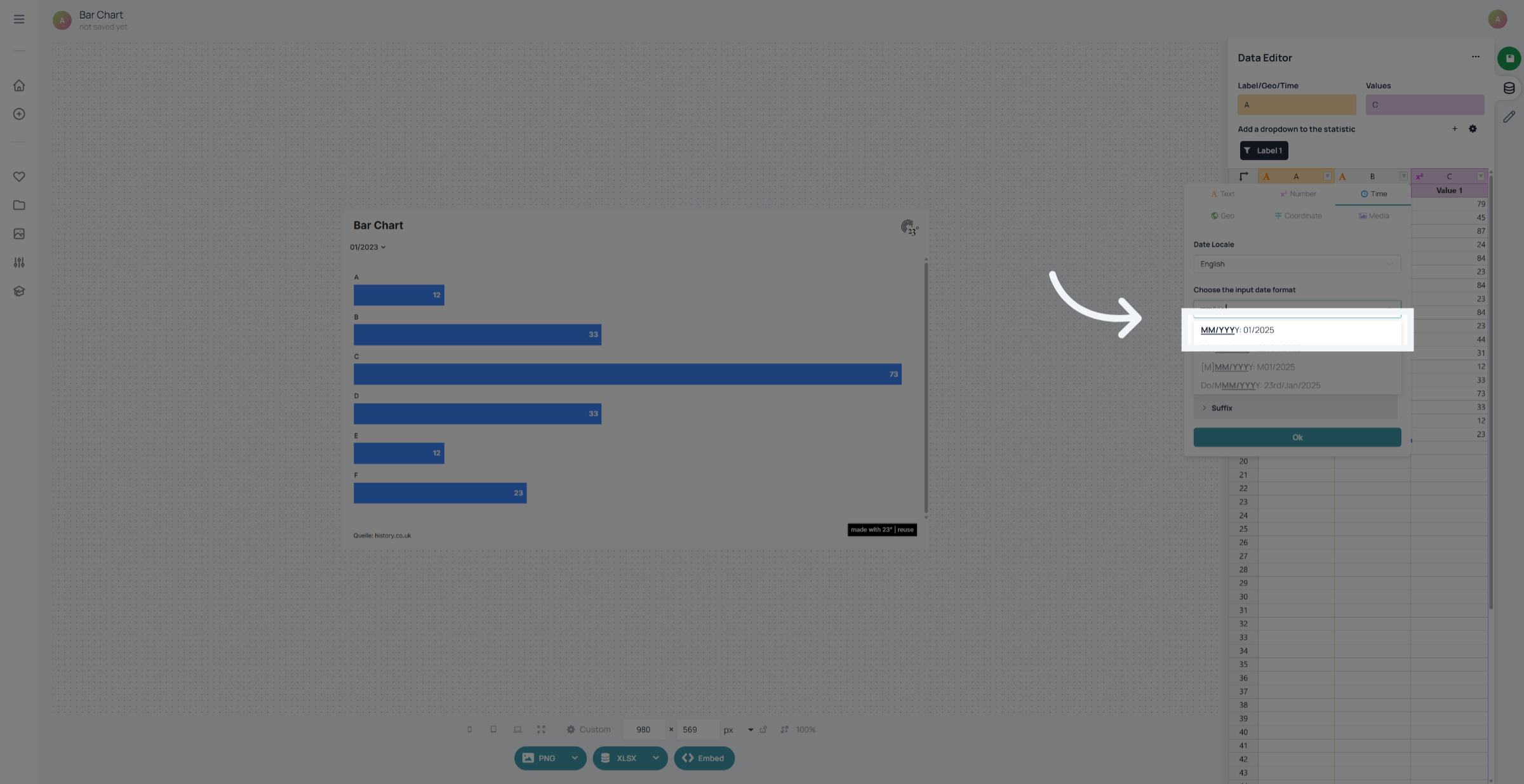
Select the format.
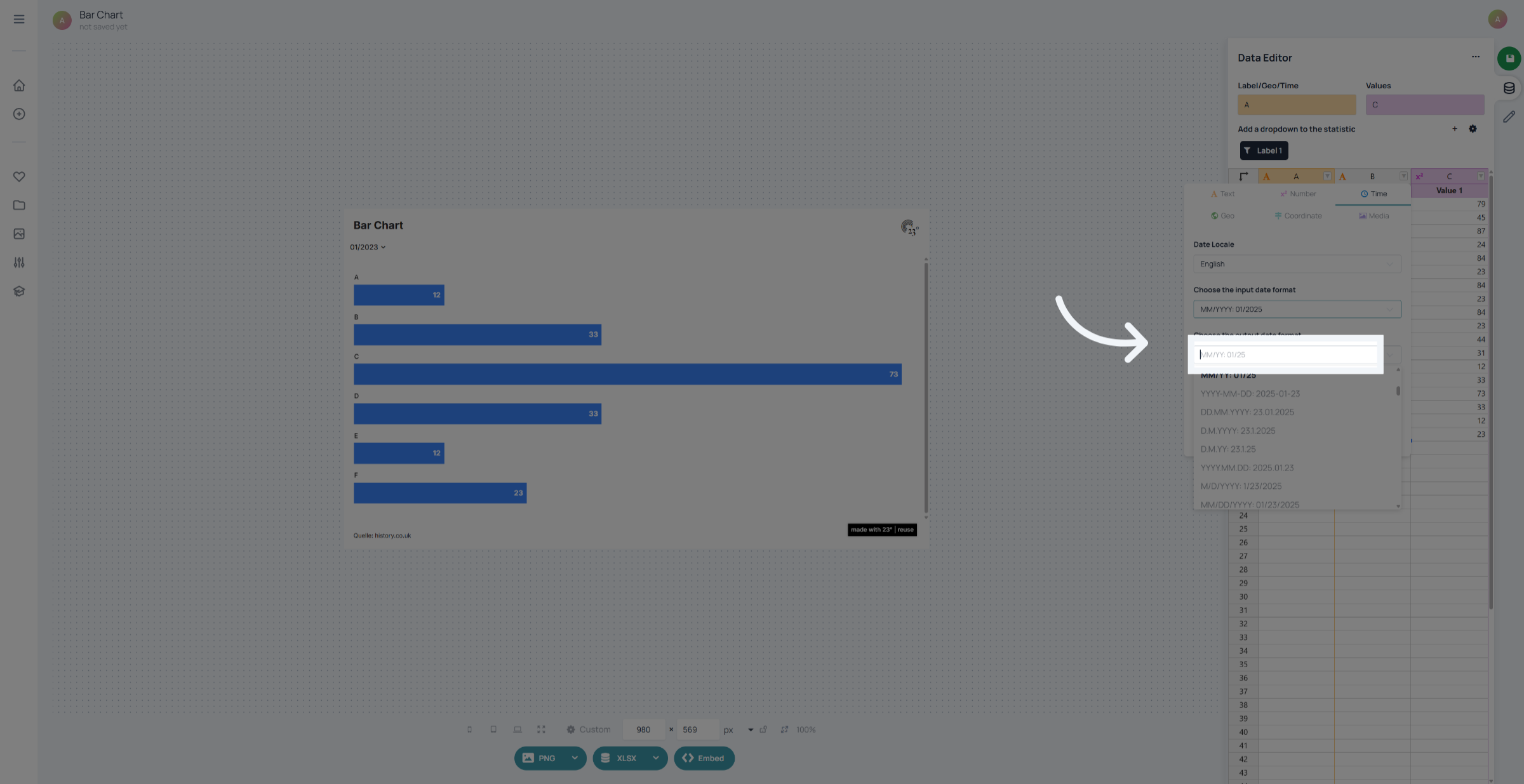
We also have to input an output format. it can be the same as our input format but it can also be a different one
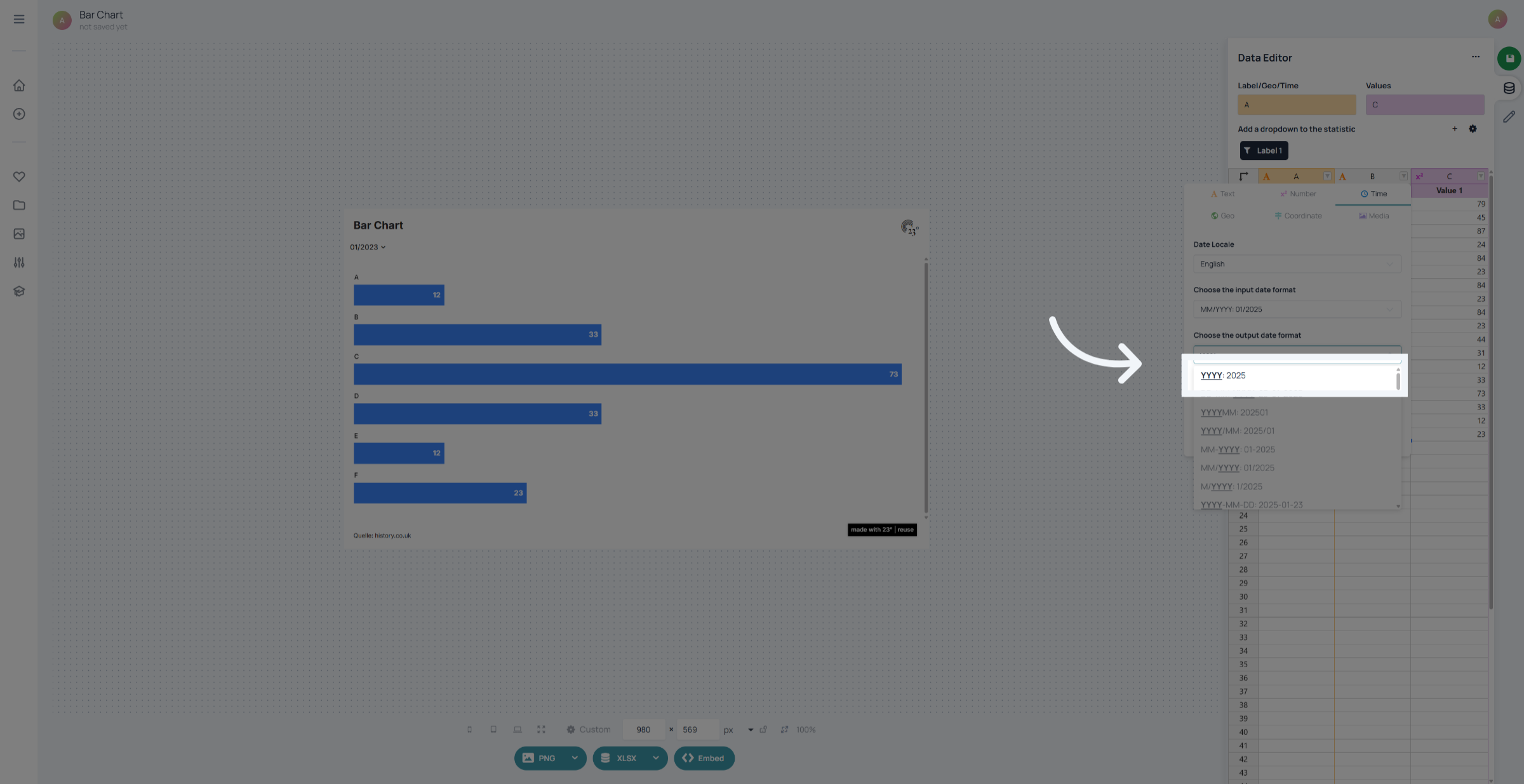
In this case we are going to select a different format that only displays the year.
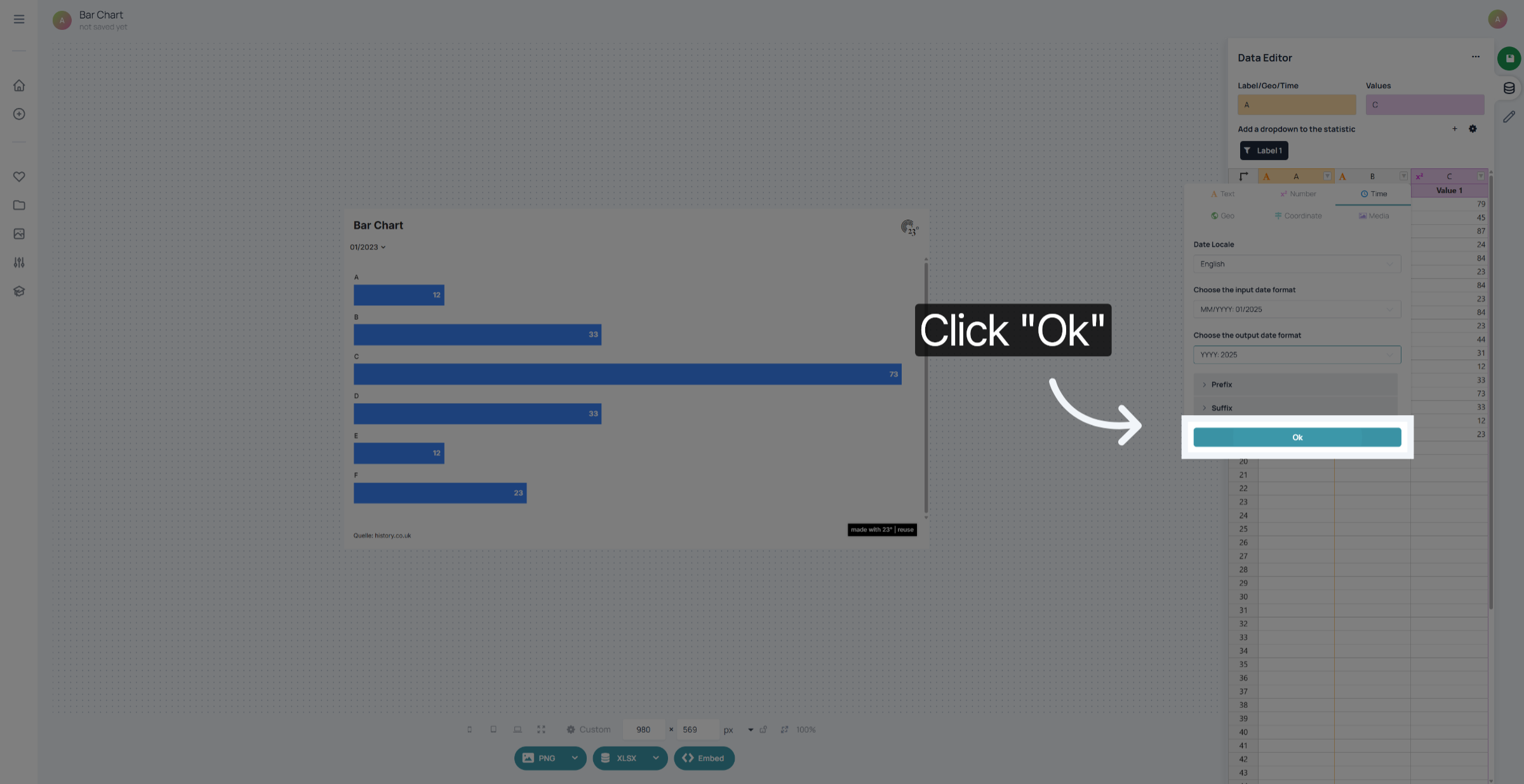
Click "Ok" to confirm the settings.
You can now see that our output format is different from our date format in the dataset by checking the chart dropdown.
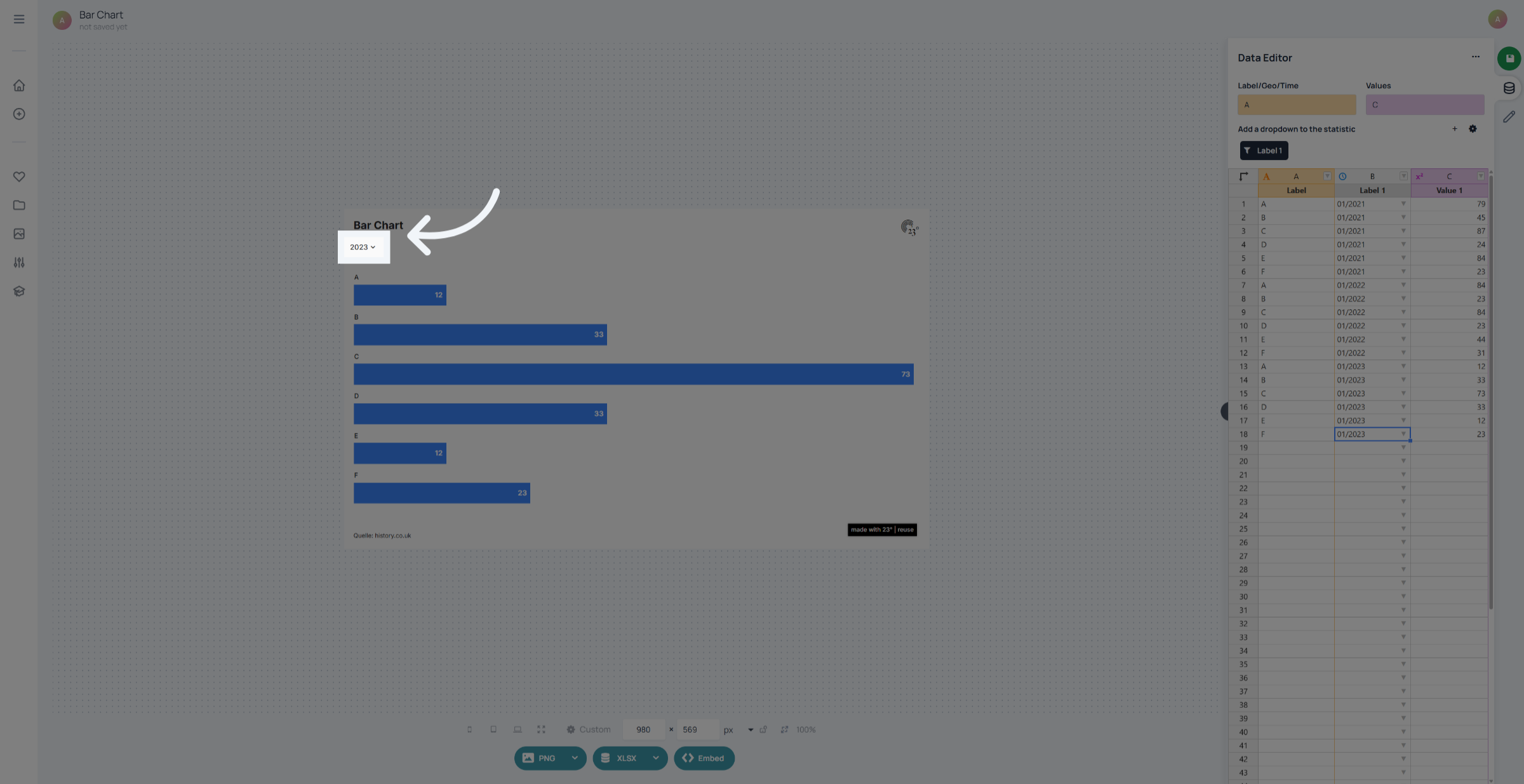
You have successfully changed the column type from text to date and configured date formats in 23degrees. Verify the changes by checking the column displays dates correctly. For further customization, explore additional date format options or related data formatting tutorials.