Display Empty Areas On Maps In 23degrees
This tutorial demonstrates how to display empty areas on maps using 23degrees.
1. Introduction
You will learn to enable the feature that highlights empty areas for better map orientation
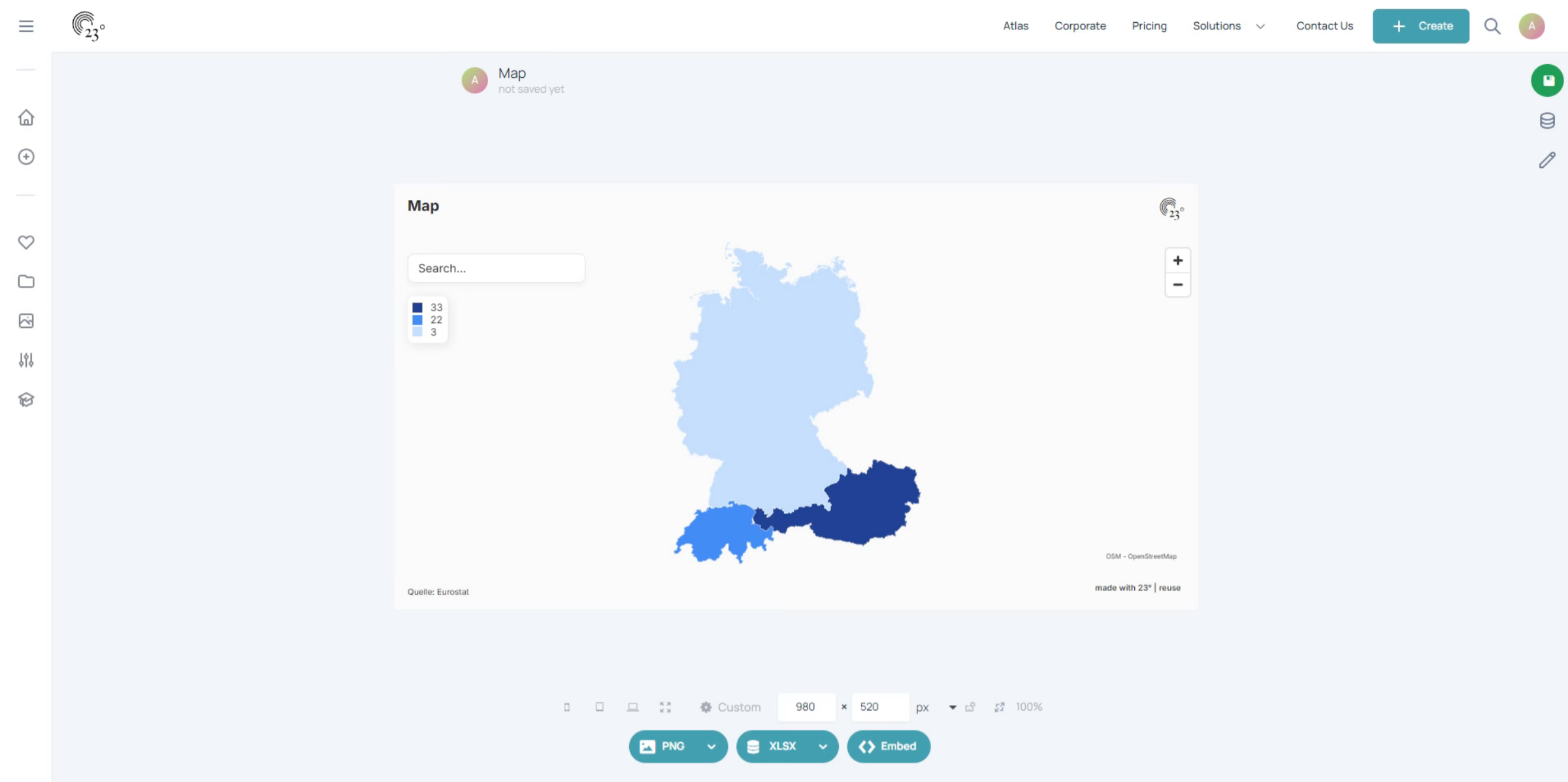
2. Click Start Editing
Click the Start editing button to begin modifying your map settings.
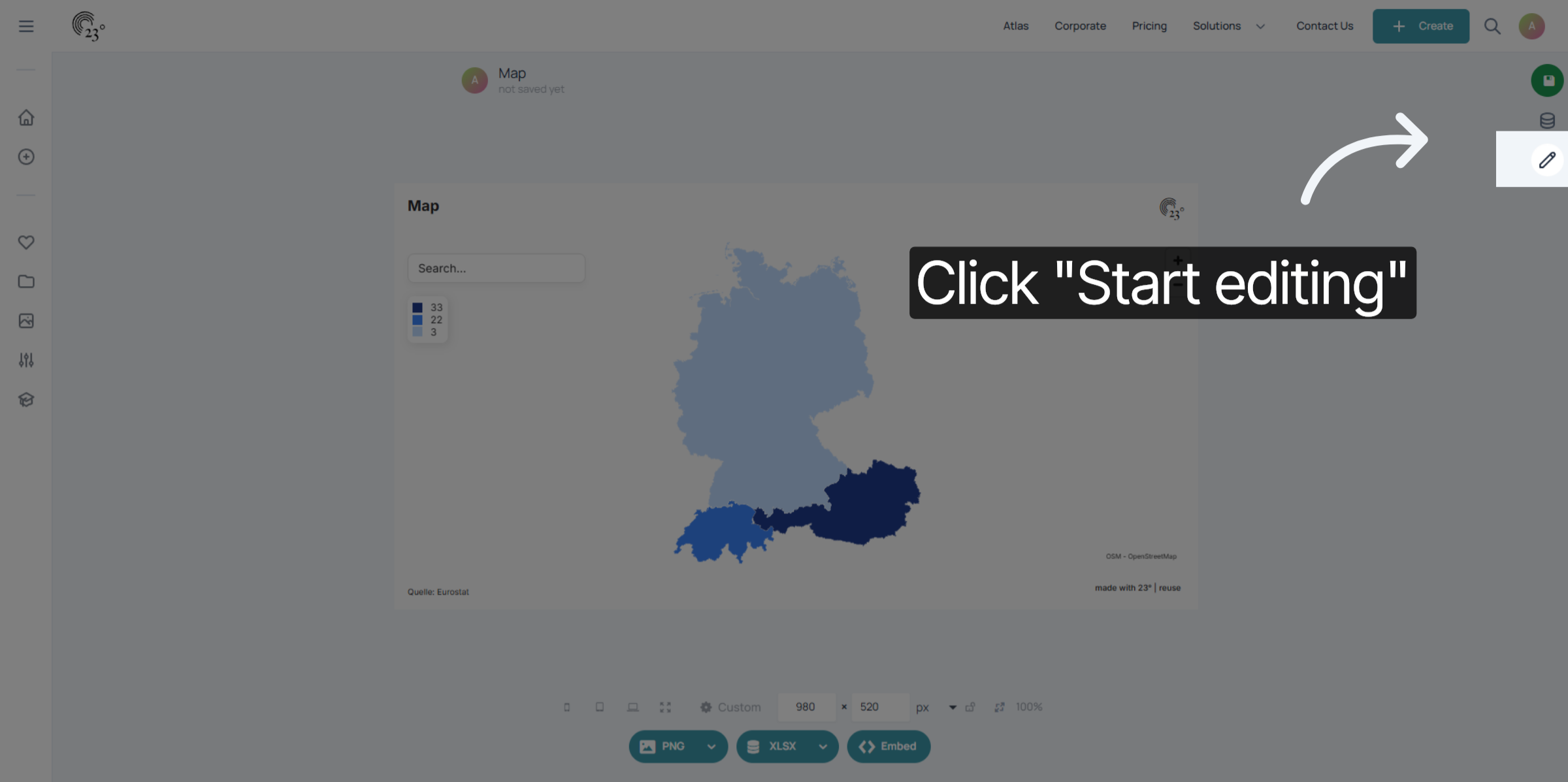
3. Select Map Tab
Go to the map editor.
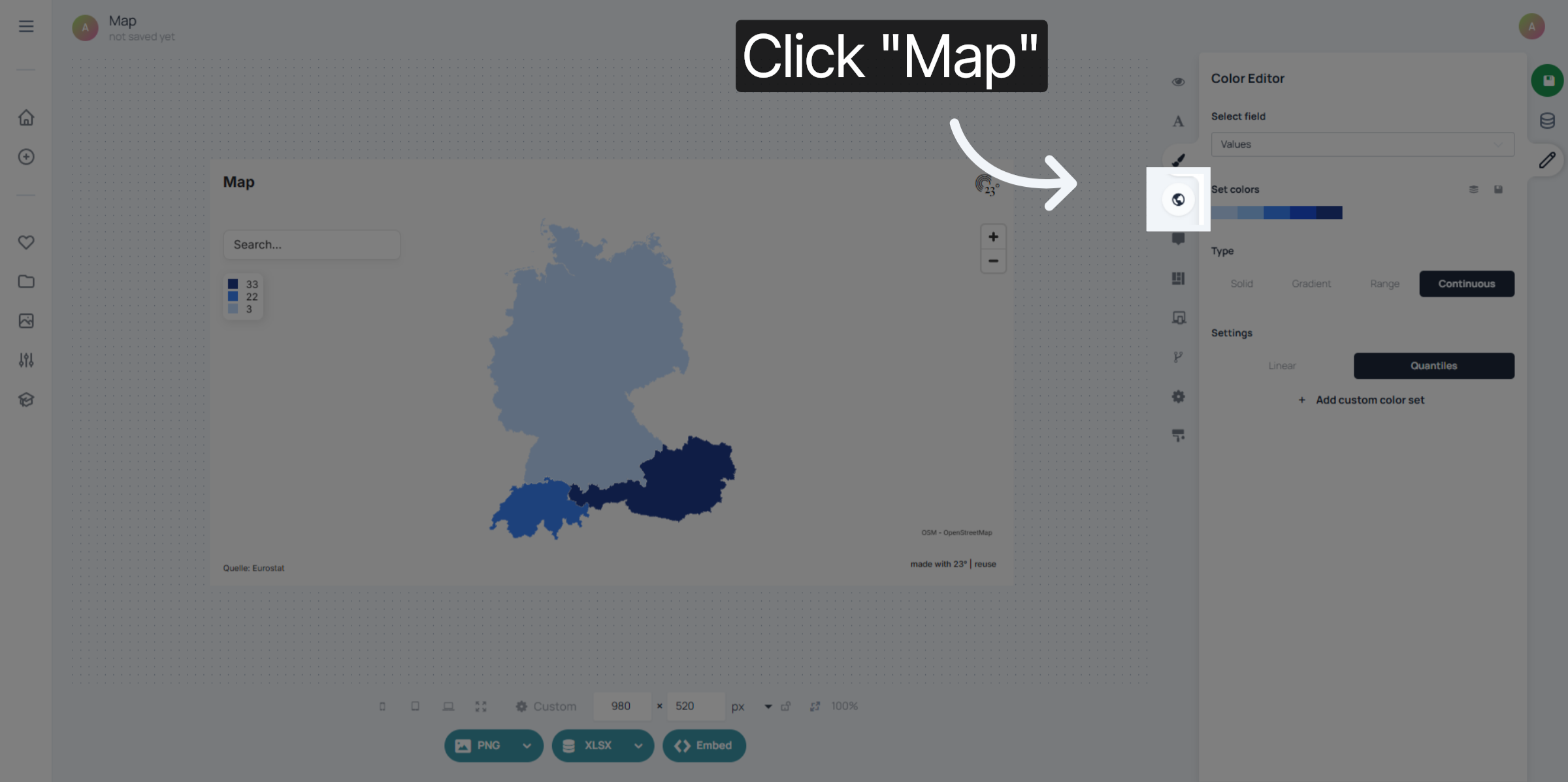
4. Open Additional Settings
go to the map settings menu
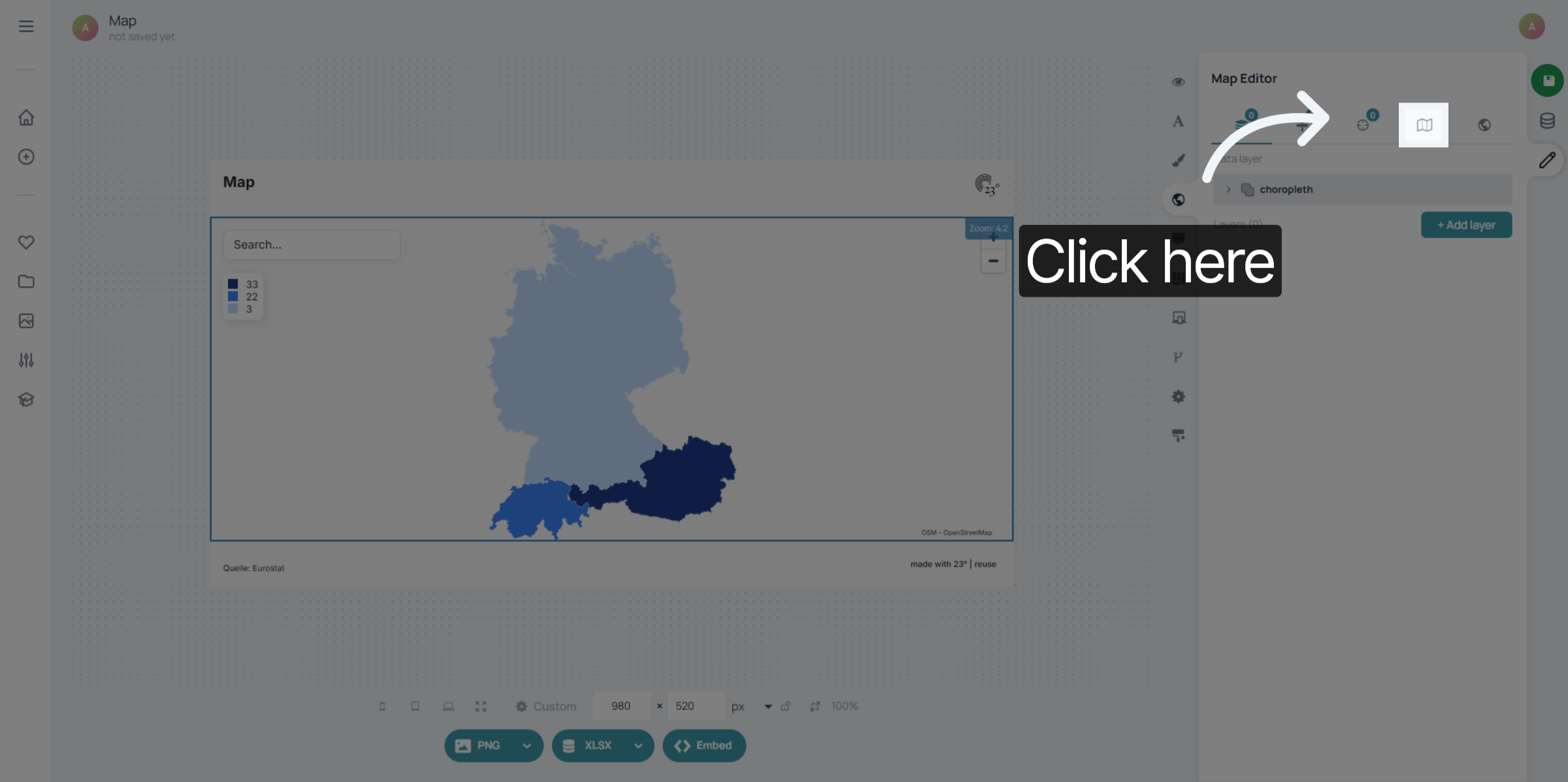
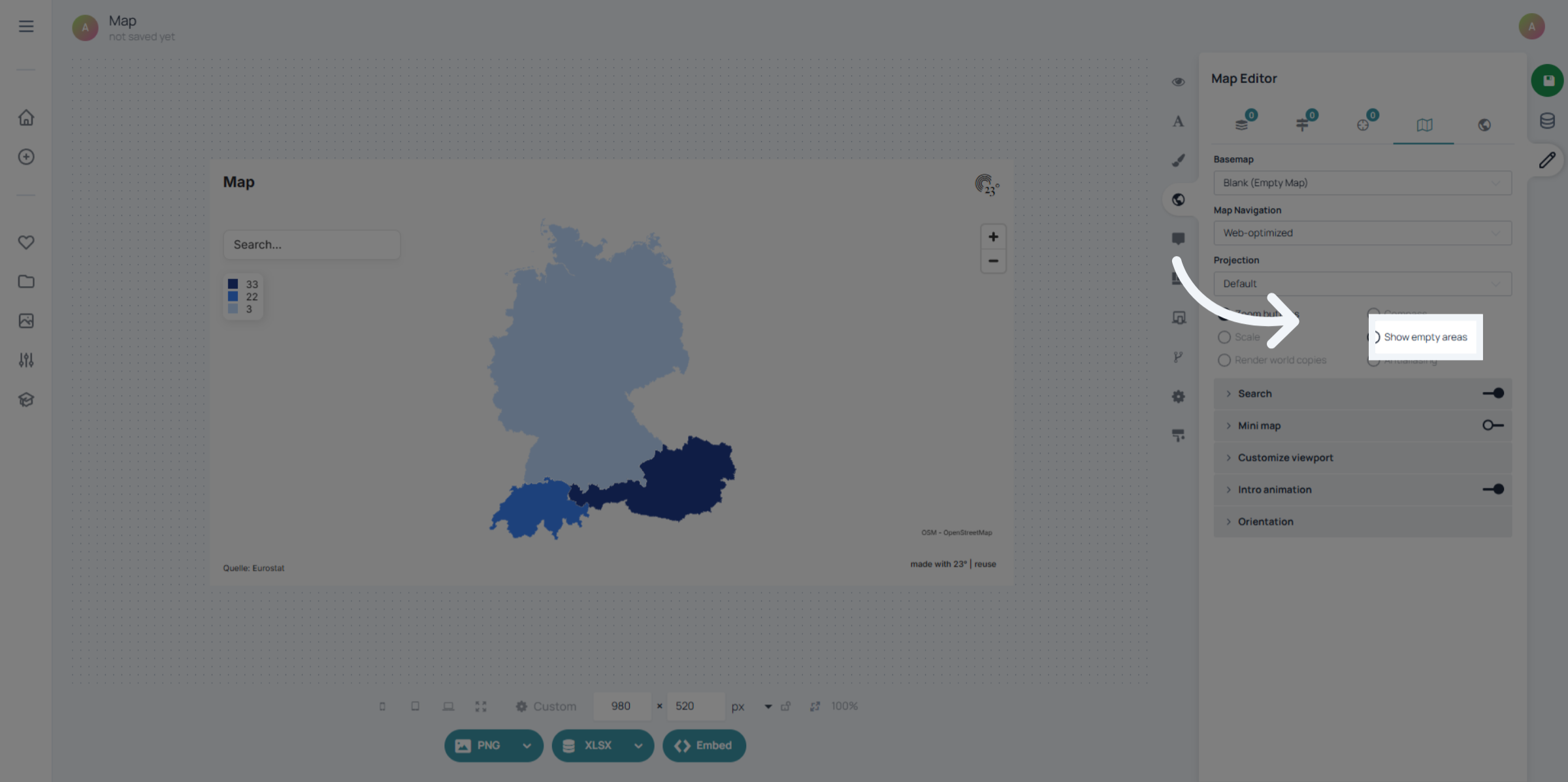
5. Enable Show Empty Areas
Click the Show empty areas option to highlight regions on the map without data.
6. Confirm Selection
Now your Map is showing all the empty areas without data. This helps with better user navigation especially when areas are unfamiliar.
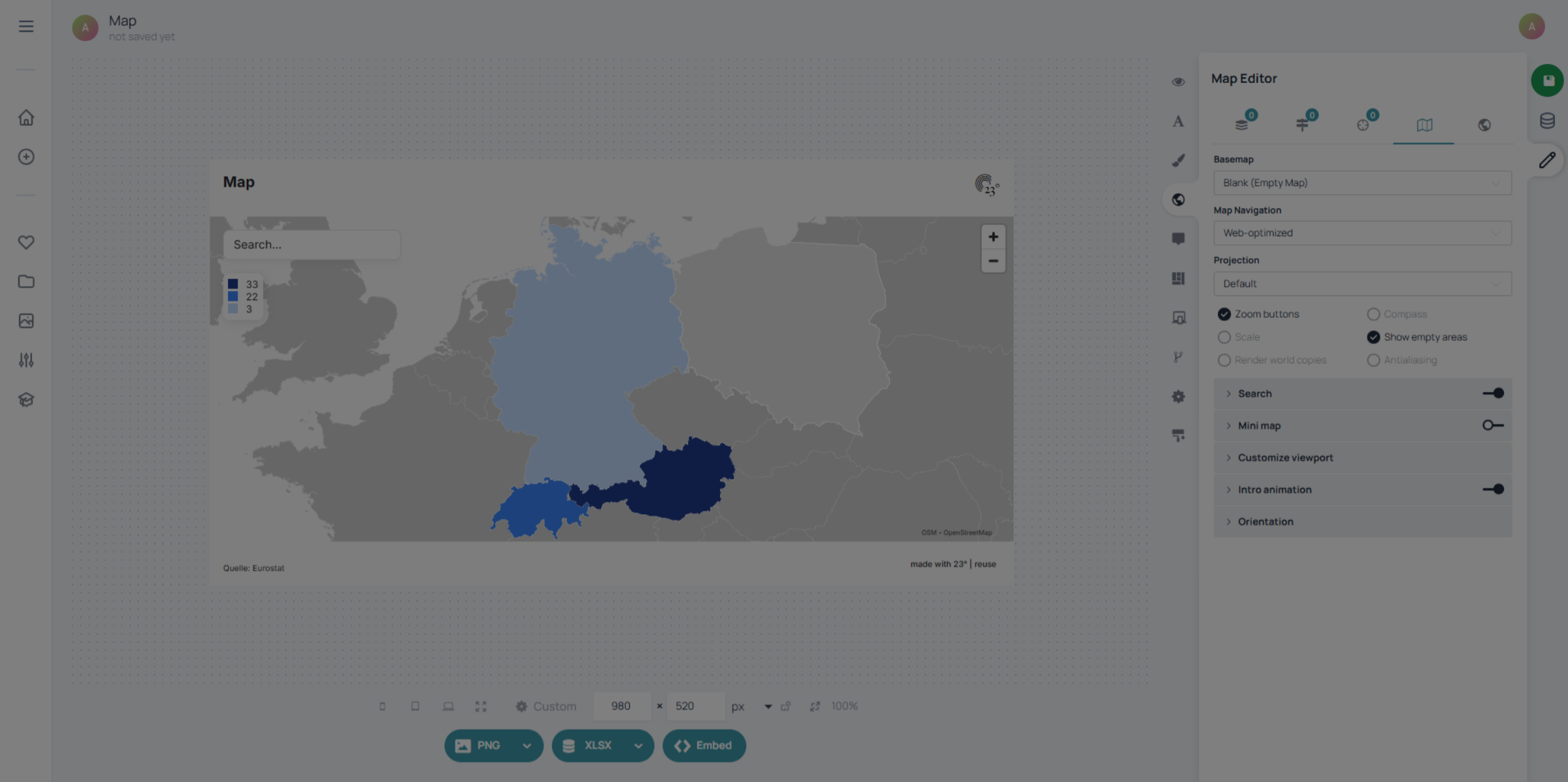
You have successfully enabled the display of empty areas on your map in 23degrees.