Fix Spelling And Alternative Labels In Geo Columns
This tutorial guides you through correcting spelling and alternative labels in geographic columns.
While creating maps you will sooner or later come across a label that cannot be matched to the current selected layer in your dataset. In this tutorial i will show you how to fix spelling or alternative label errors.
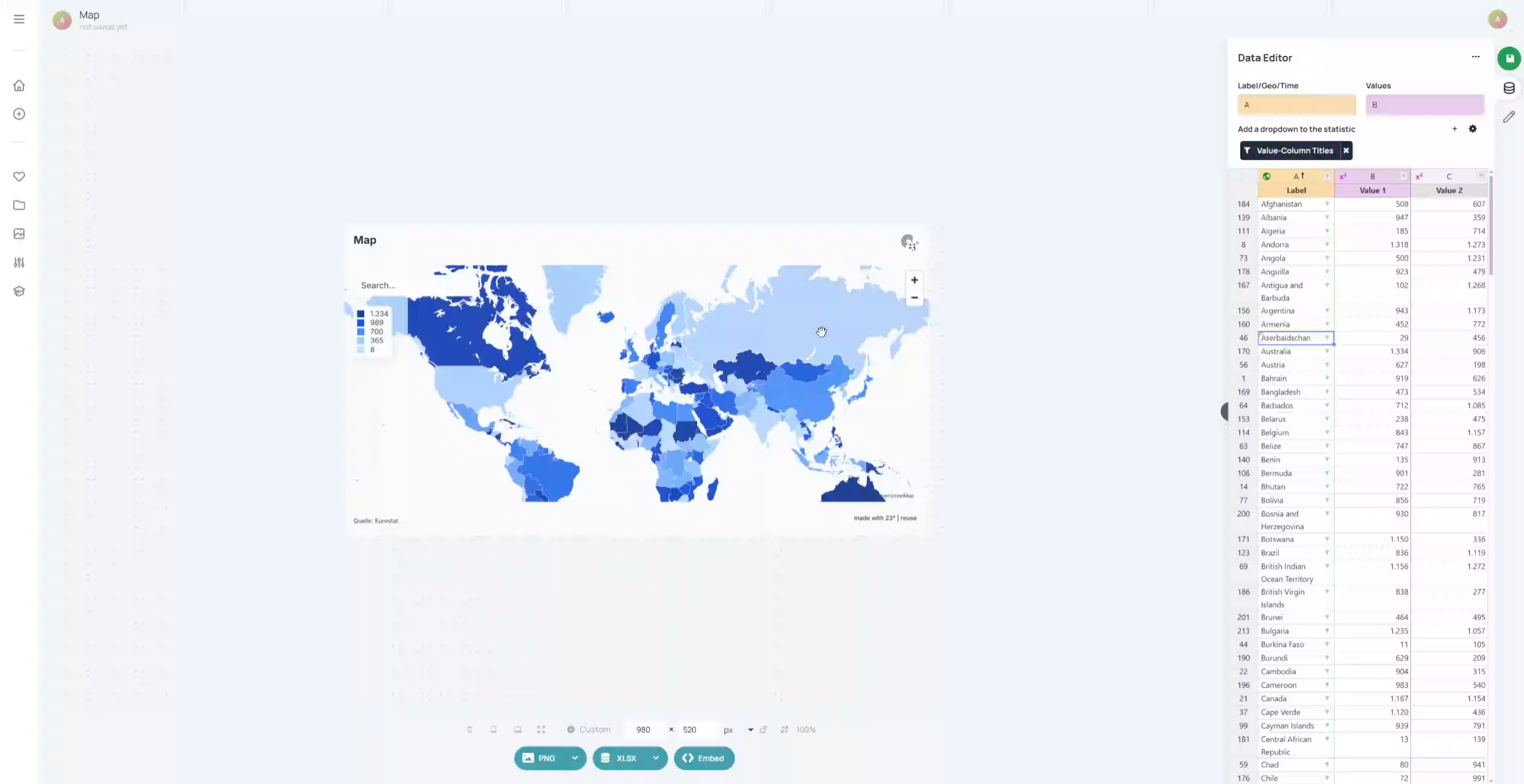
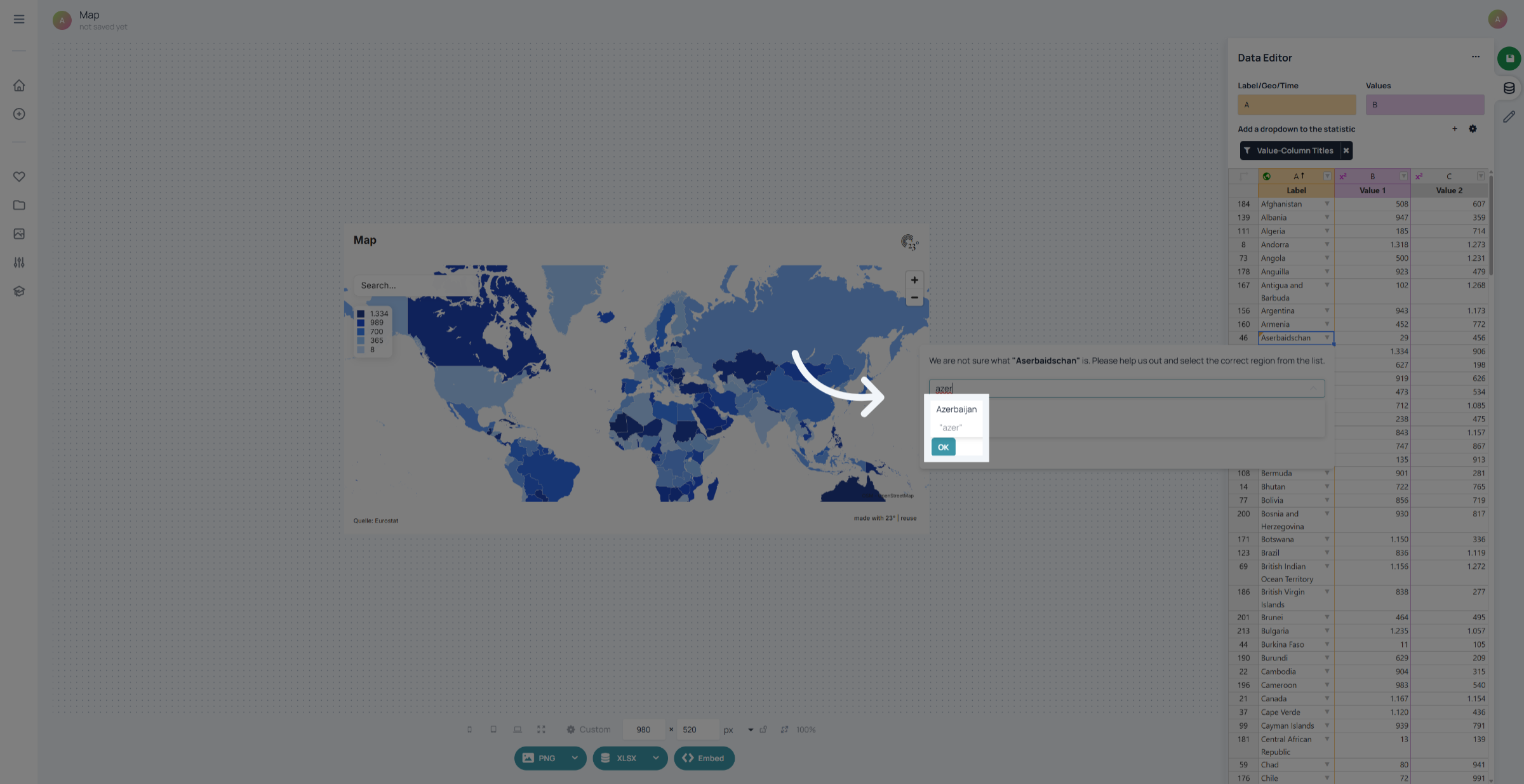
In this example we have an error with Azerbaijan being spelled in german and therefore it cannot be mapped to our english "Countries worldwide" Layer. It is indicated by the orange triangle in the top left of the cell.
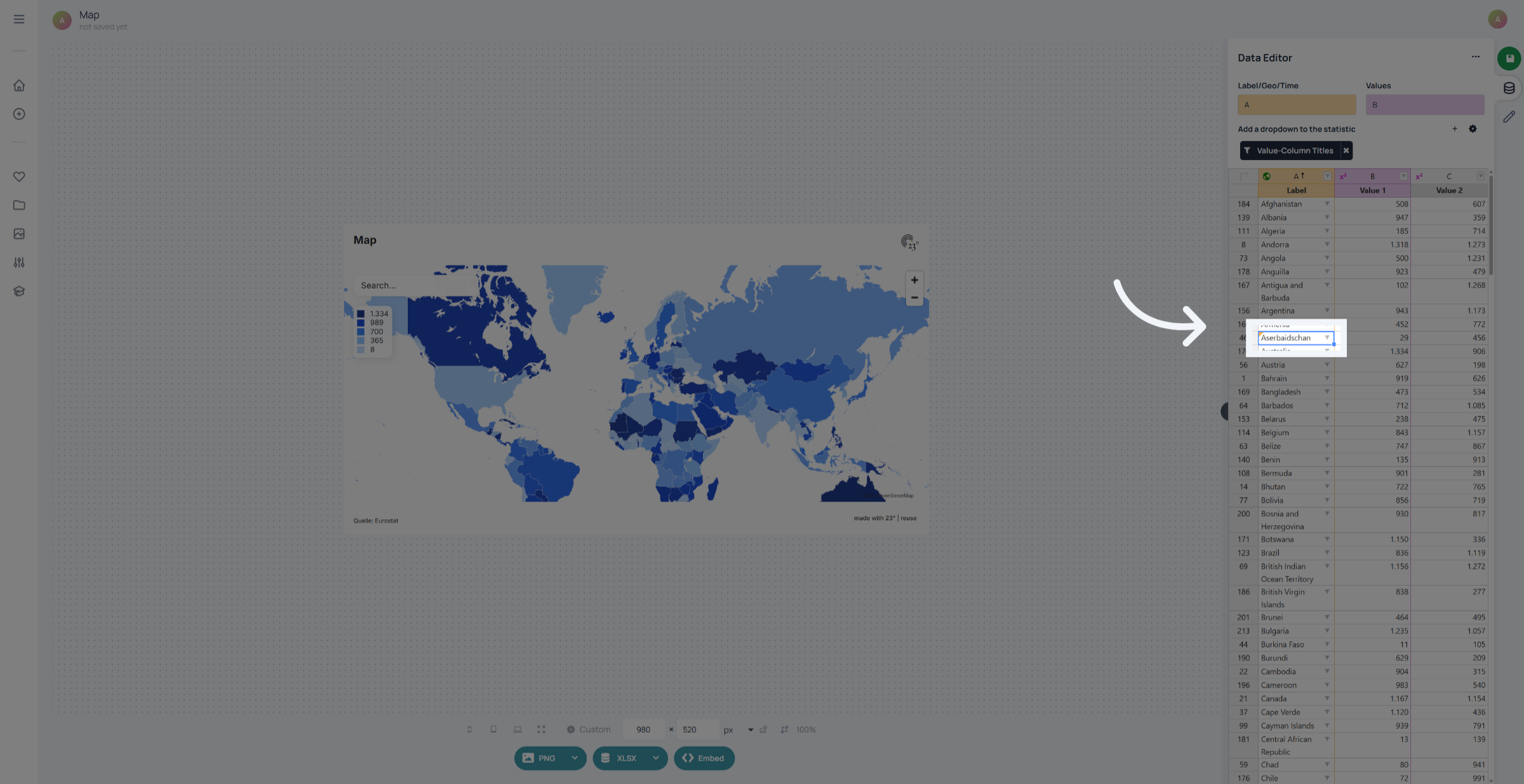
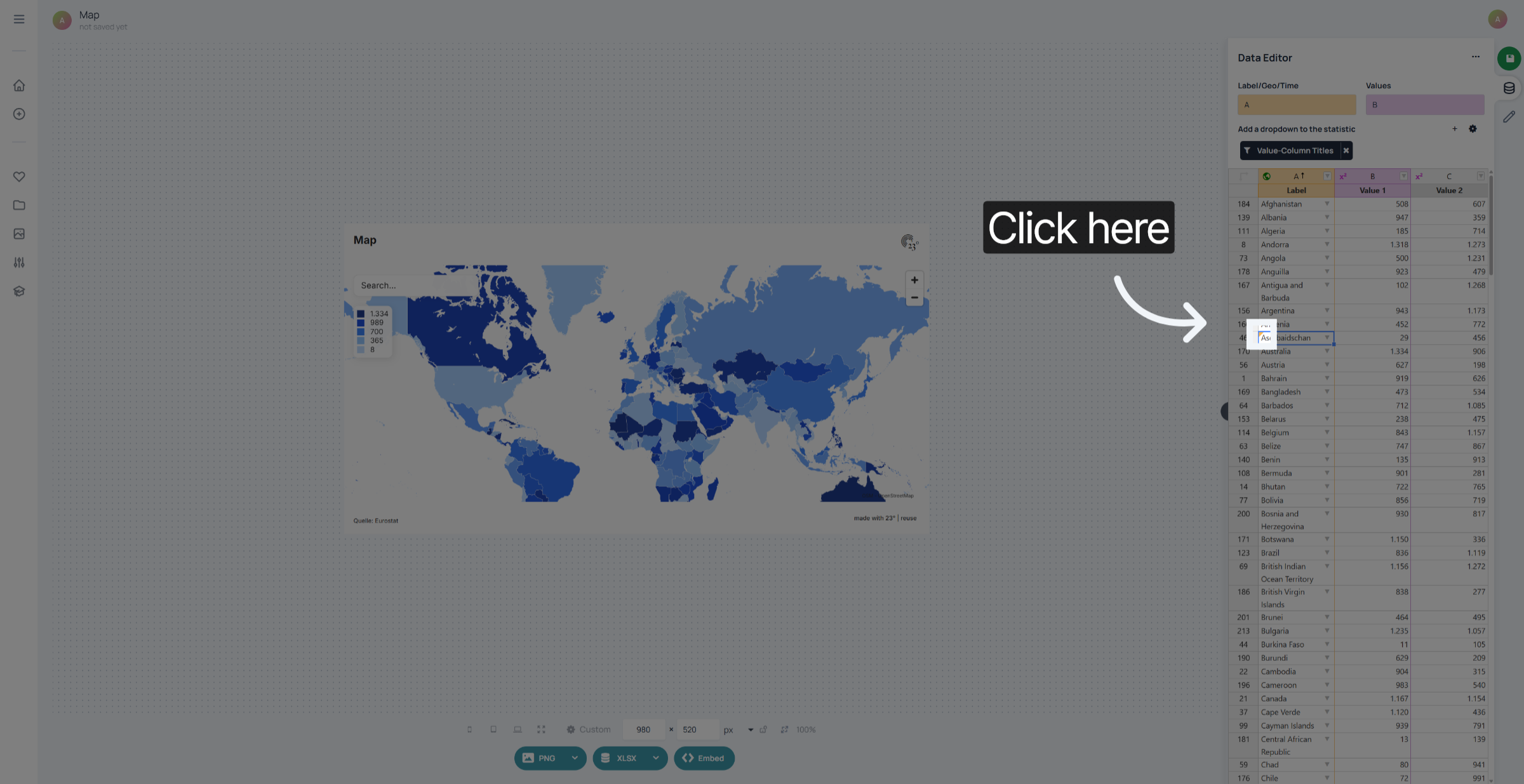
Click on the orange error to fix the error.
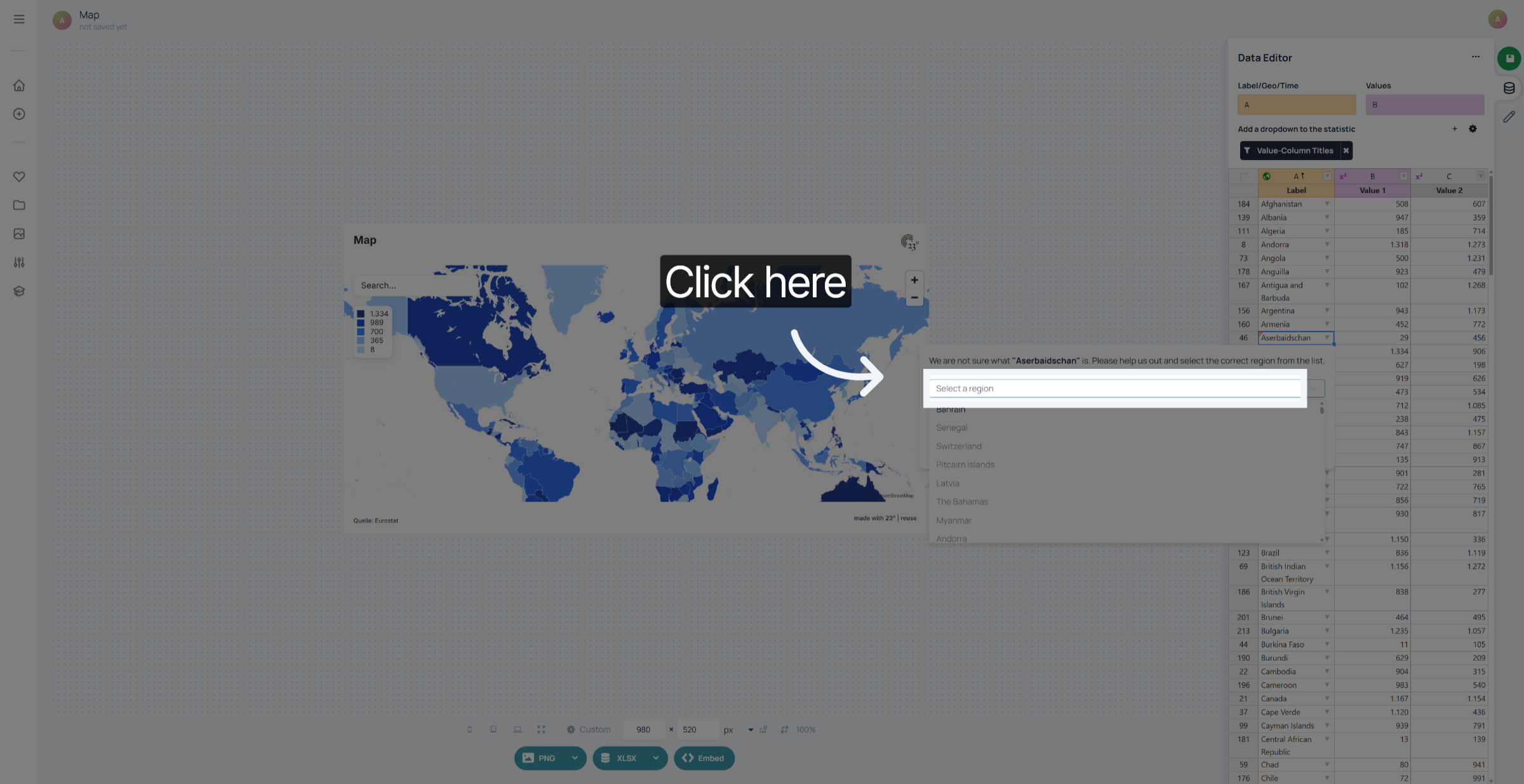
We can fix the label by selecting the correct region from the available regions in the layer.
Here we are selecting the english label "Azerbaijan" and confirm it by pressing "Ok".
If you already now how to fix the label spelling you can just overwrite the label in the cell as well.
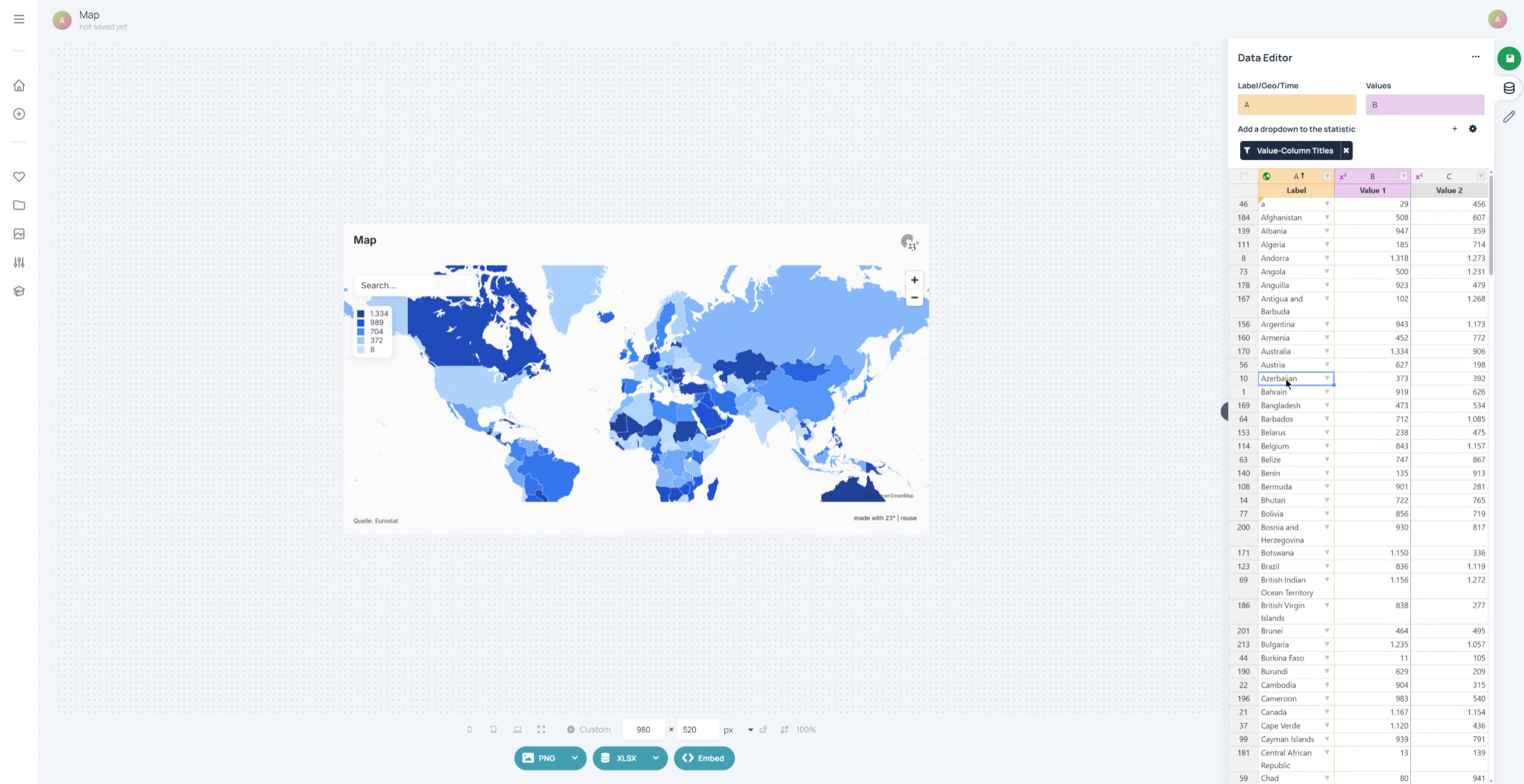
You have successfully corrected spelling and alternative labels in the geographic columns. The location names now accurately reflect the intended entries.