Configure No Data Available Message In 23degrees
This tutorial guides you through configuring the no data message in 23degrees maps and tooltips.
In this example we have a map where Afghanistan does not have any data and is therefore greyed out. I am going to show you how you can customize a no data availble message for the tooltip and the chart legend.
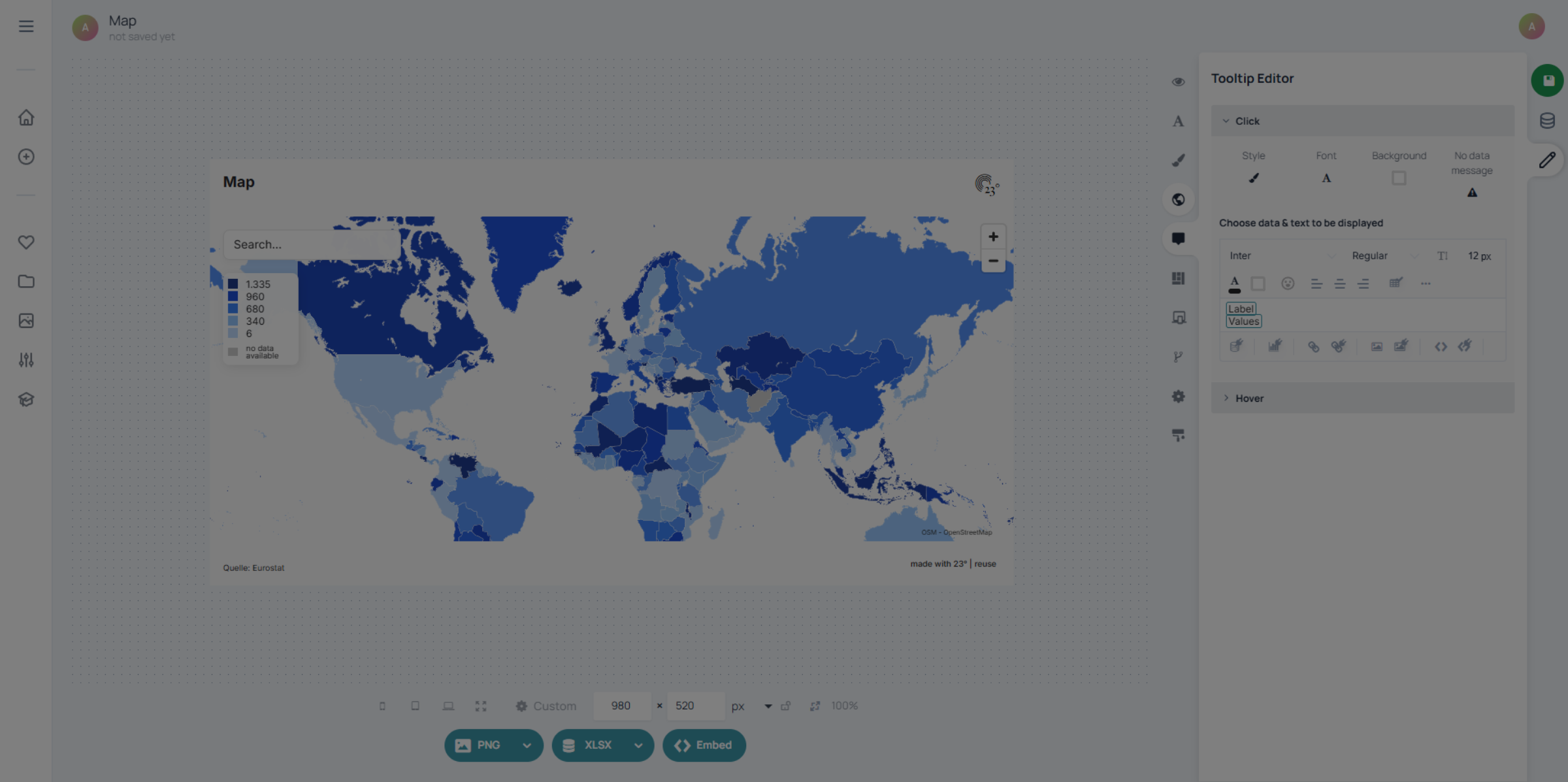
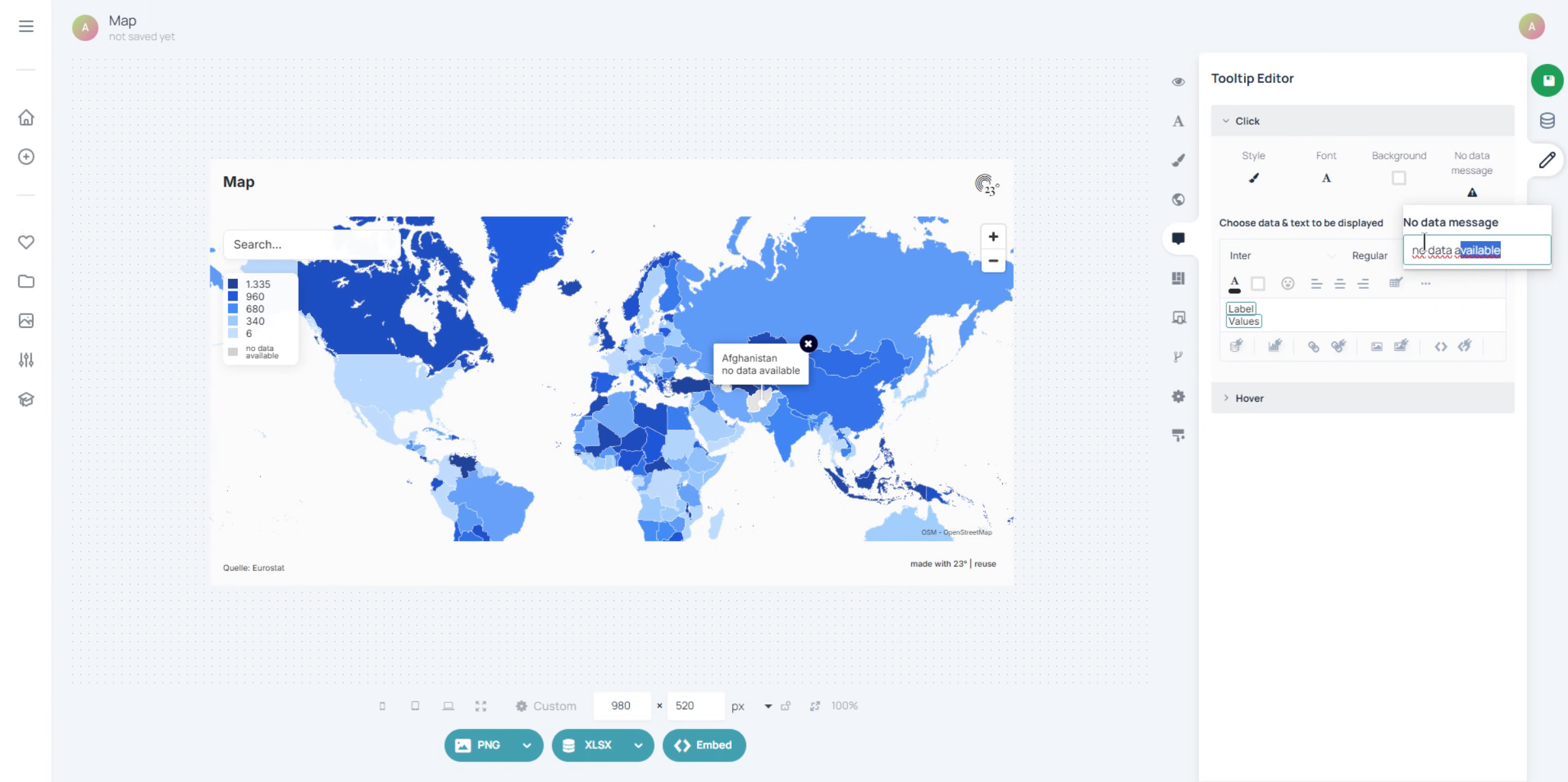
For the tooltip display display click on the tooltip editor.
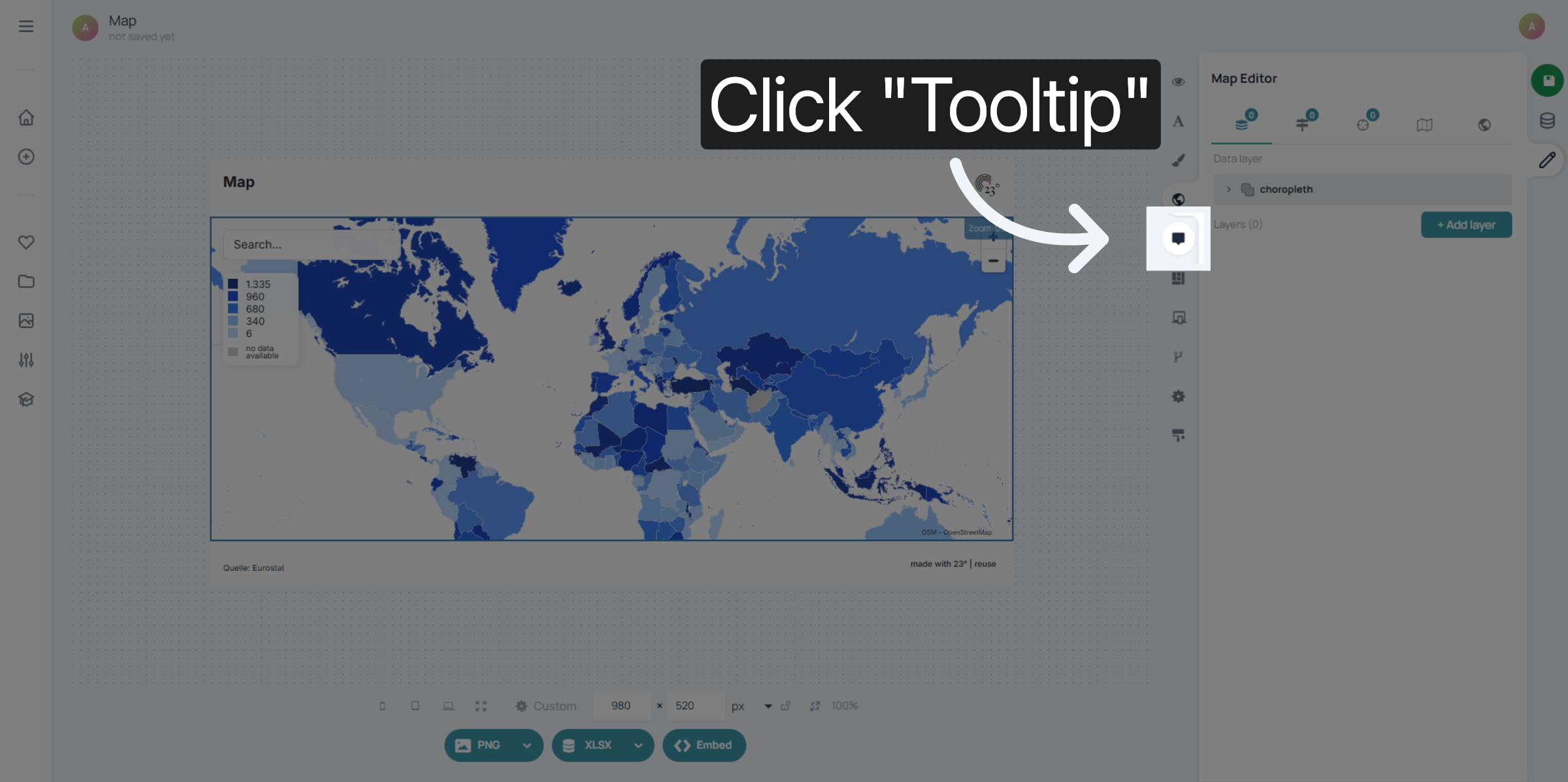
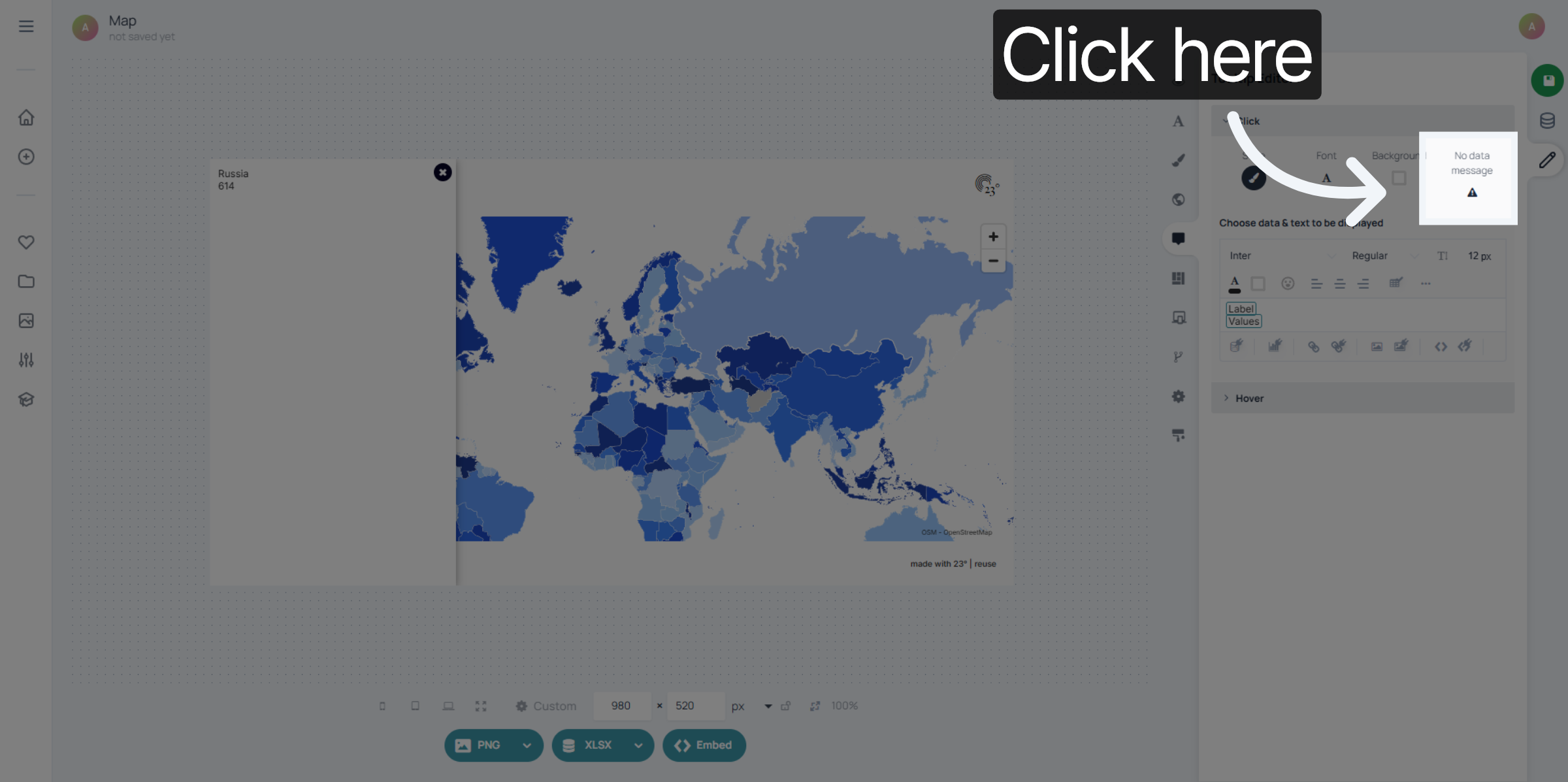
Click on "no data message"
Enter your custom message
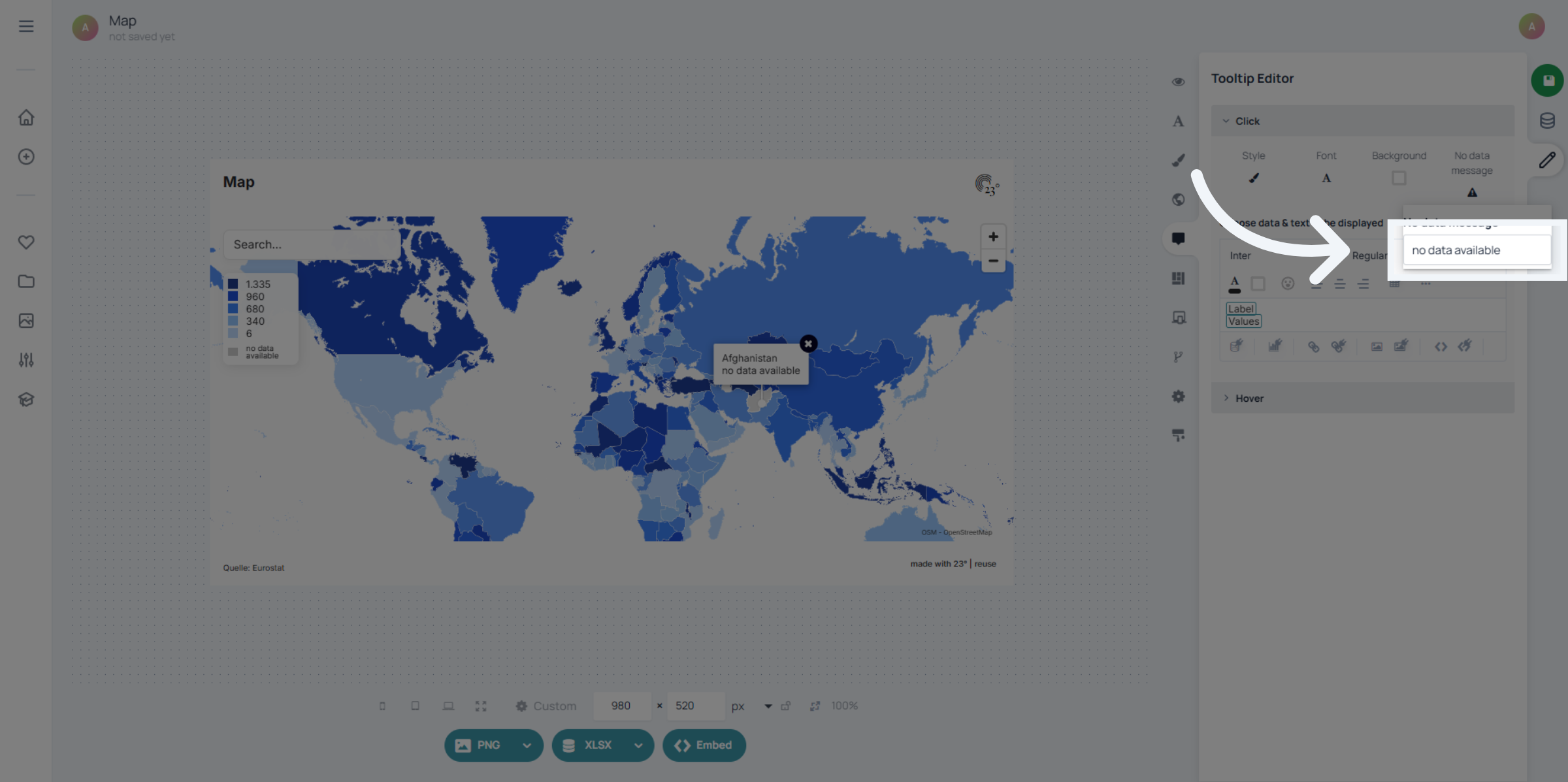
Now when clicking the no data country the message we typed in is displaying.
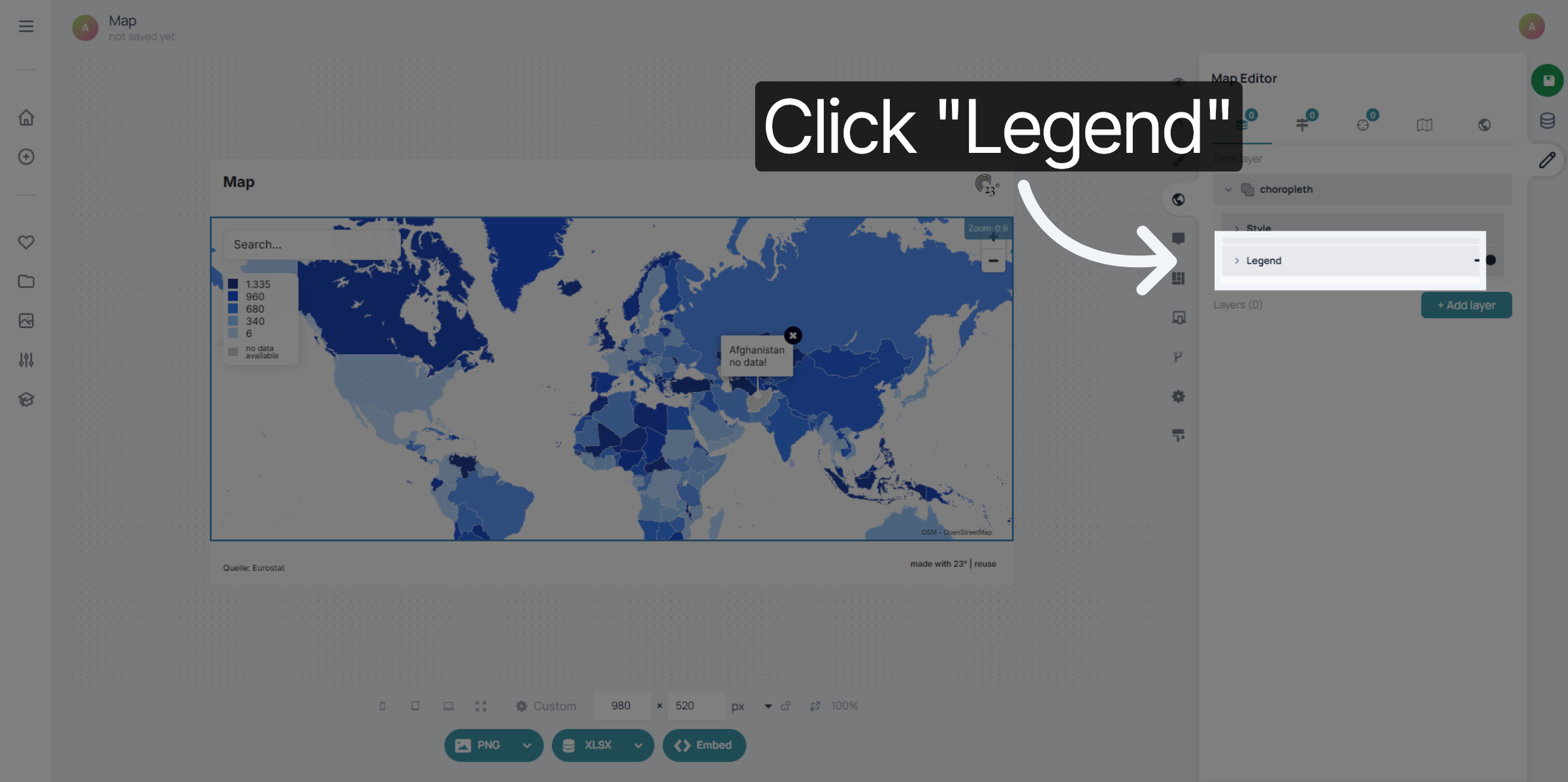
For the Legend no data display go to the map settings and select legend
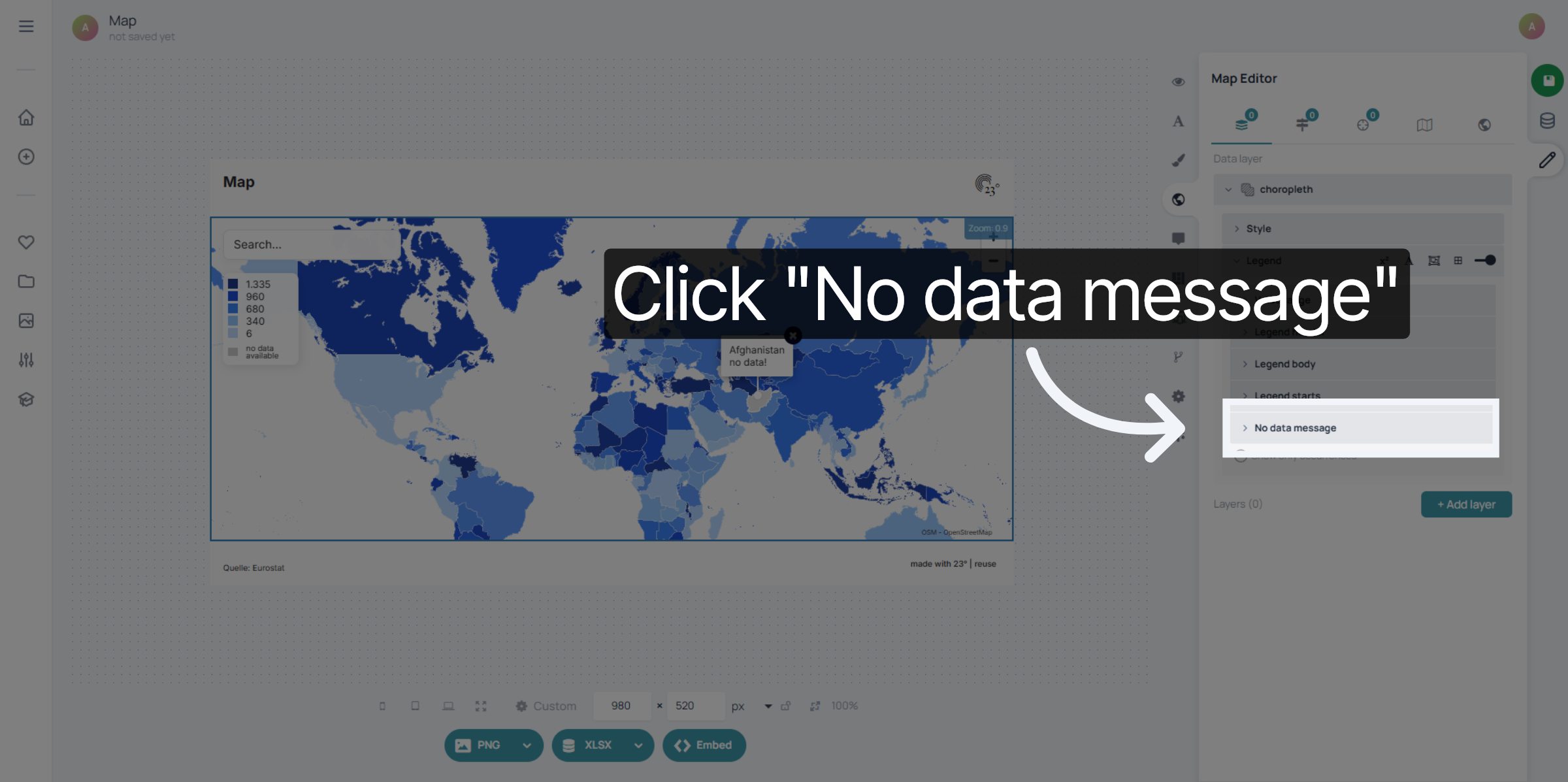
Go to no data message.
Enter your no data message.
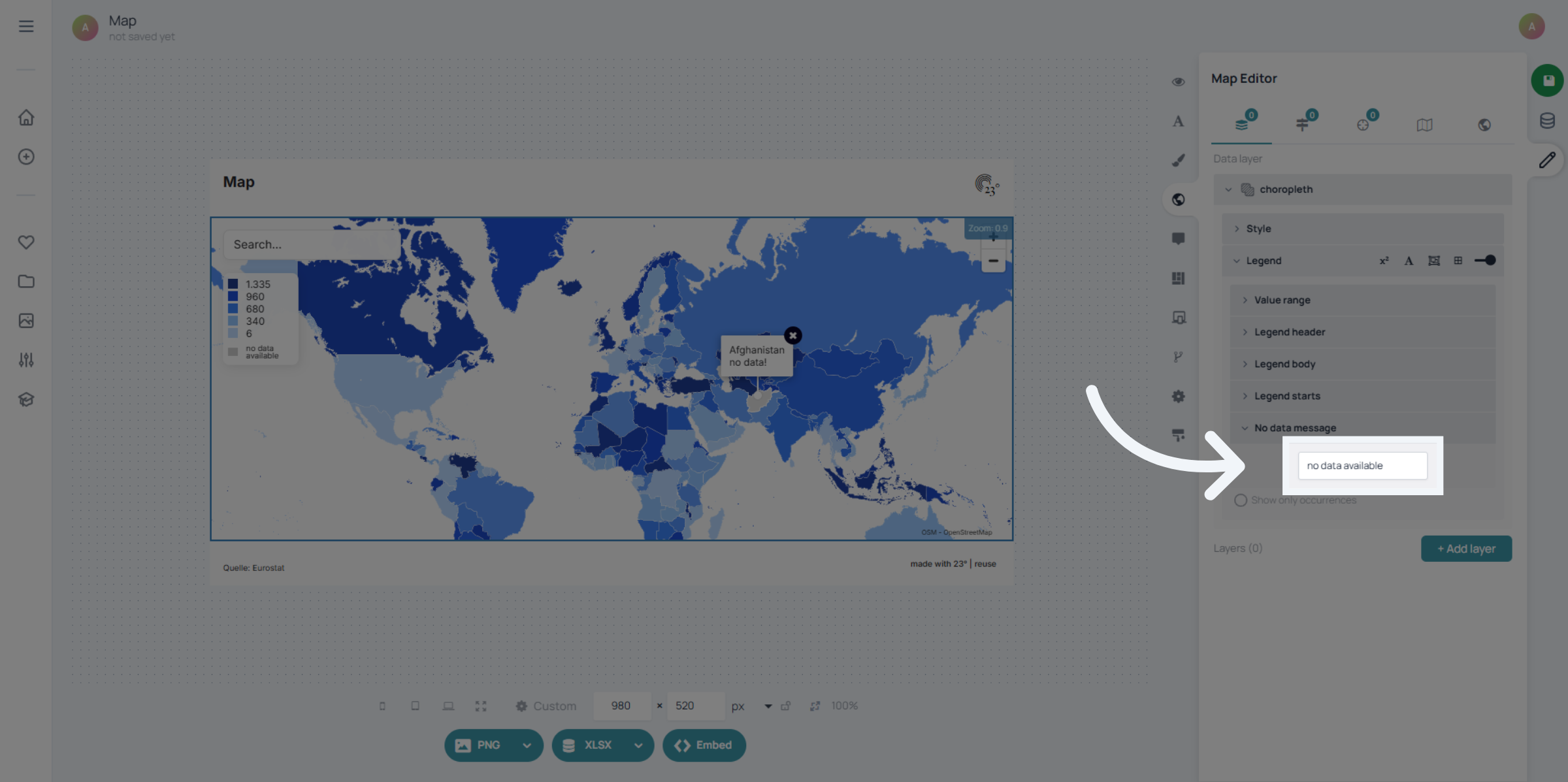
You have successfully configured the no data available message and related map legend settings in 23degrees. This ensures clear communication to users when no data is present on the map, enhancing overall usability.