Upload Data by Copy Pasting in 23degrees
This tutorial demonstrates how to upload data by copy & paste within the 23degrees application.
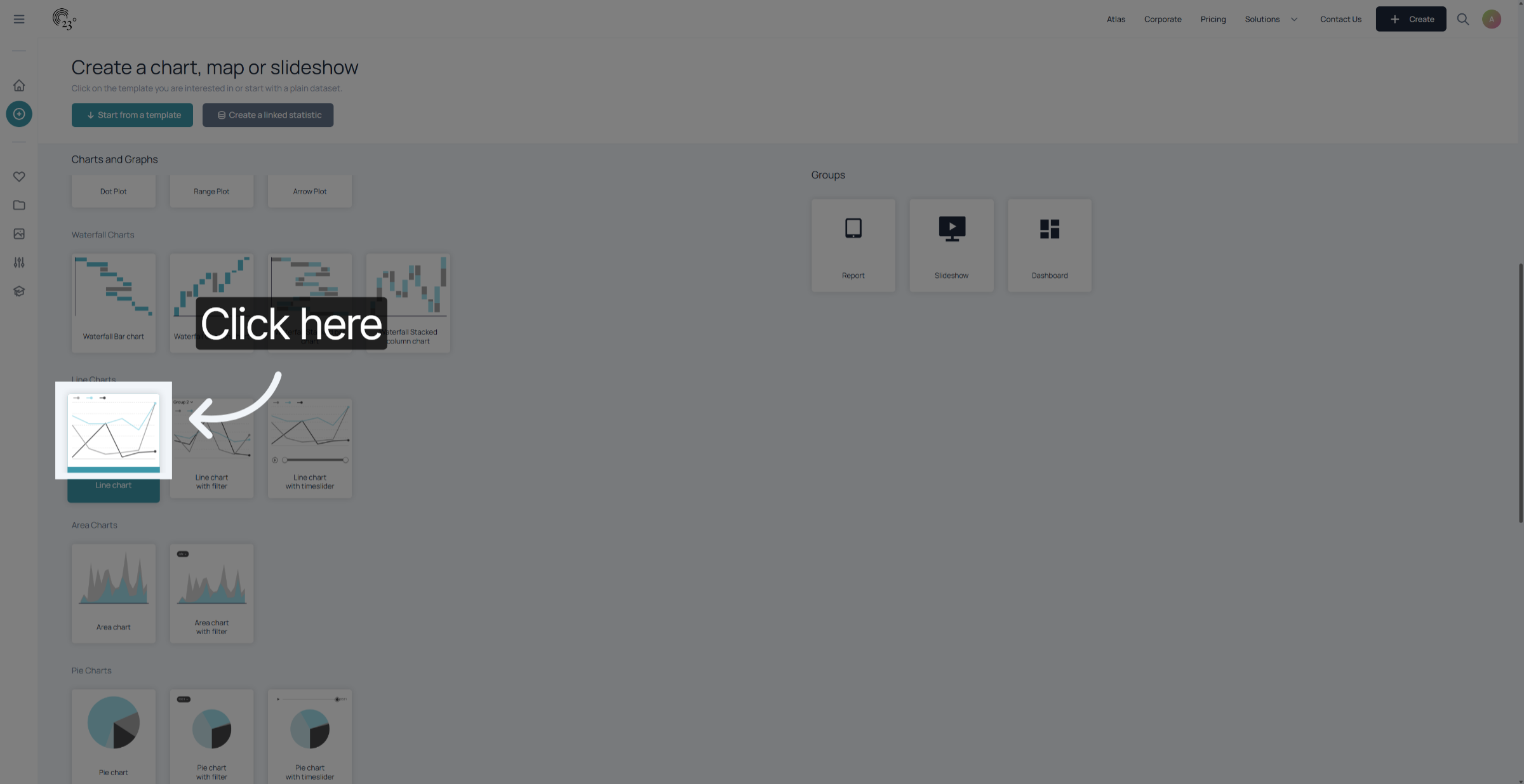
1. Click Data Upload Area
Select the visualisation that you want to create. In this example we want to visualise U.S Population projections over time. Therefore we are going to use a linechart do display the data.
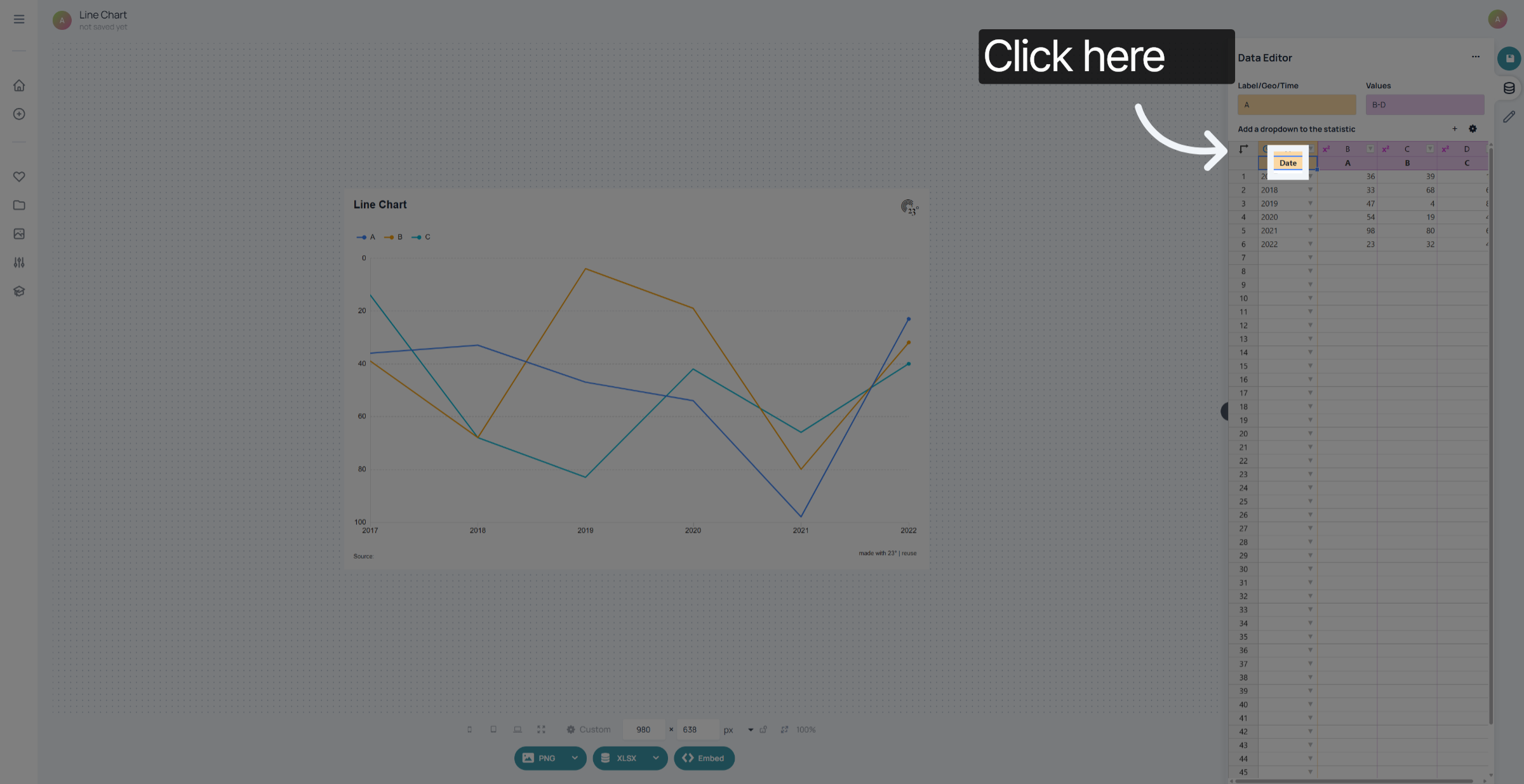
2. Select Date Column
Click in the first header cell in the data editor of the visualisation.
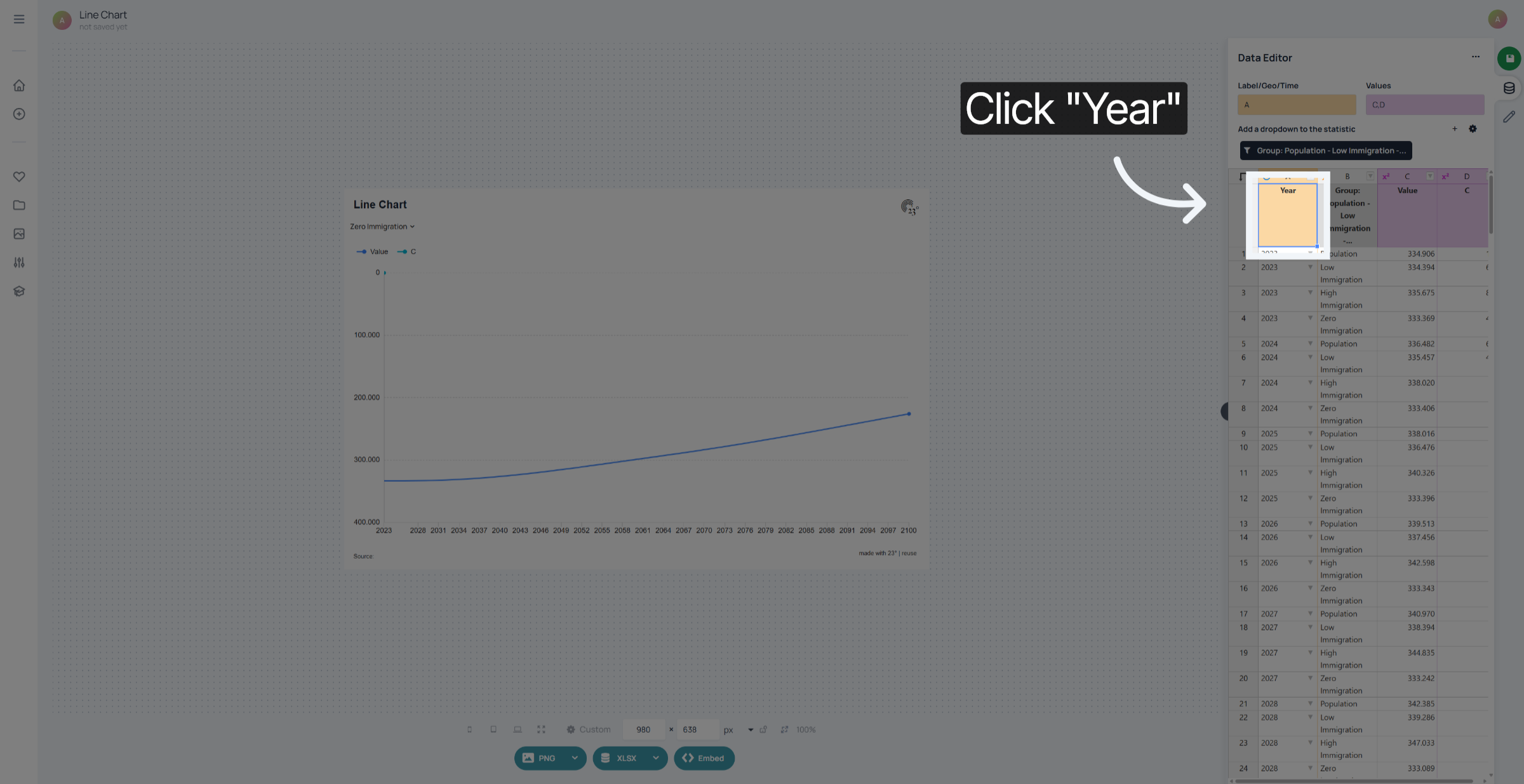
3. Choose Year Option
Paste your Data by pressing ctrl+v.
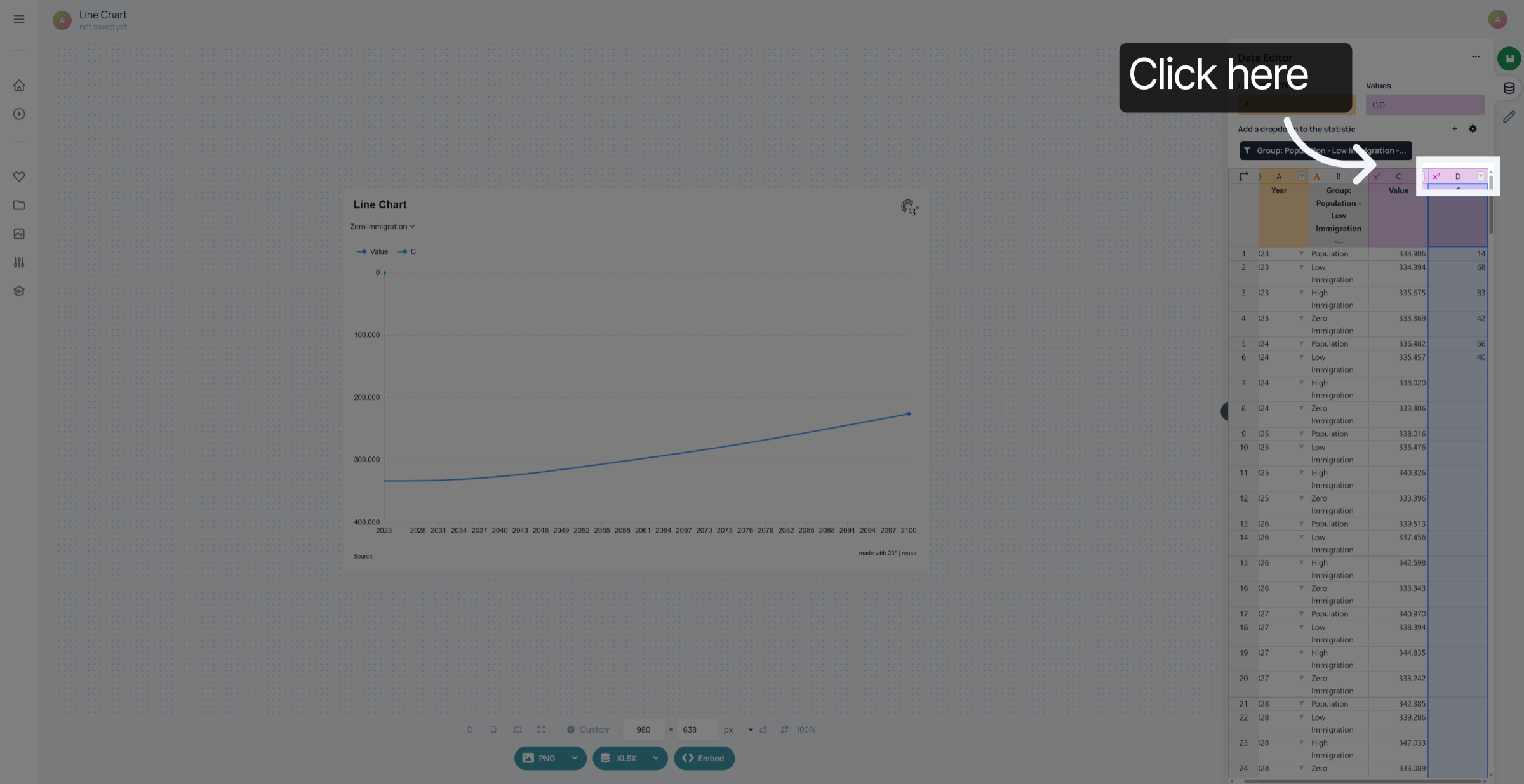
4. Select First D Column
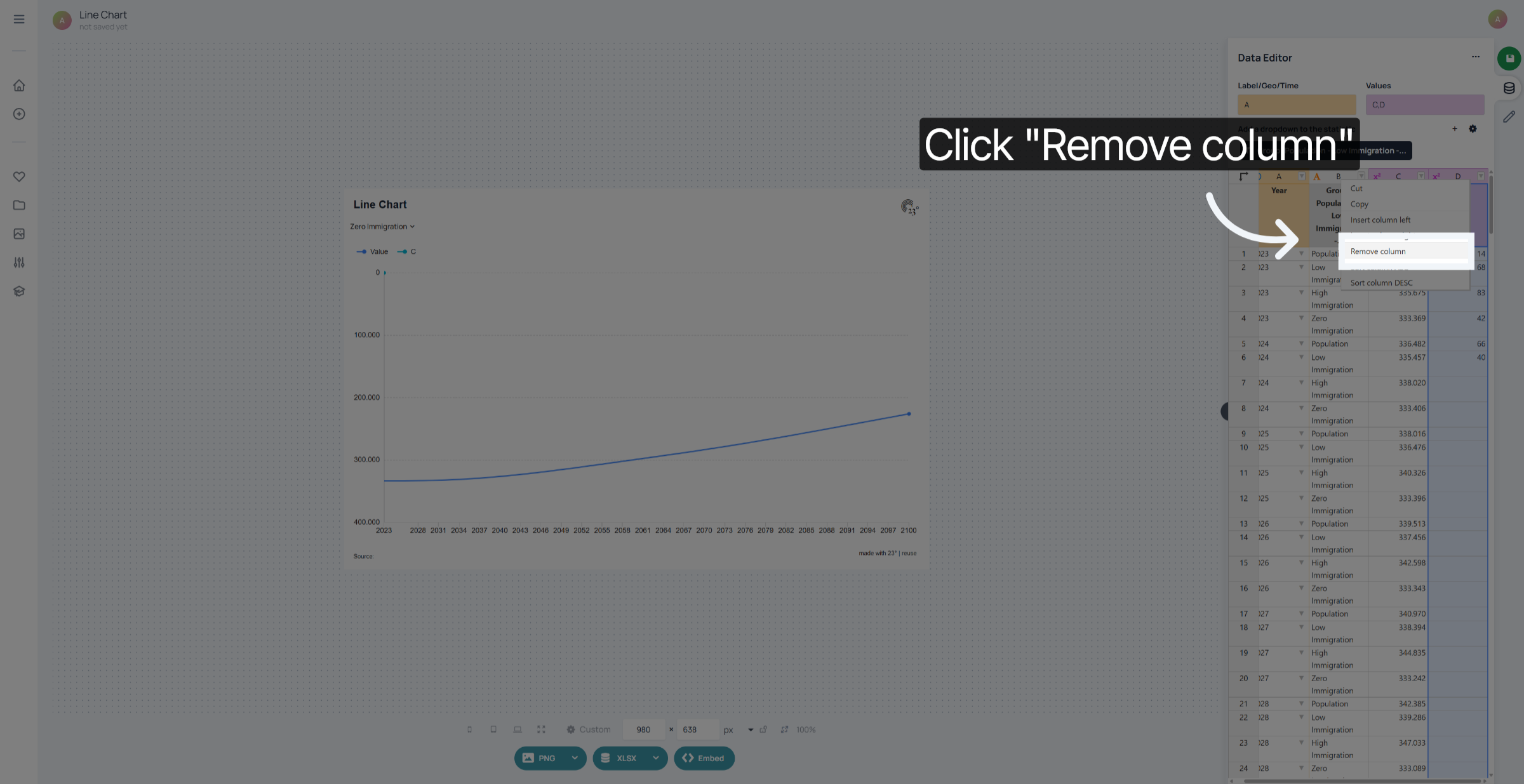
Remove any unwanted columns by right clicking on the unwanted column.
5. Remove Unnecessary Column
Click "Remove column" to delete any unwanted column and clean up your data view.
You have successfully uploaded and configured your data by copying and pasting in 23degrees.