How to add a search bar to a choroplethe map
This tutorial demonstrates how to add a search bar to a choroplethe map.
Click here to go to the Map Editor.
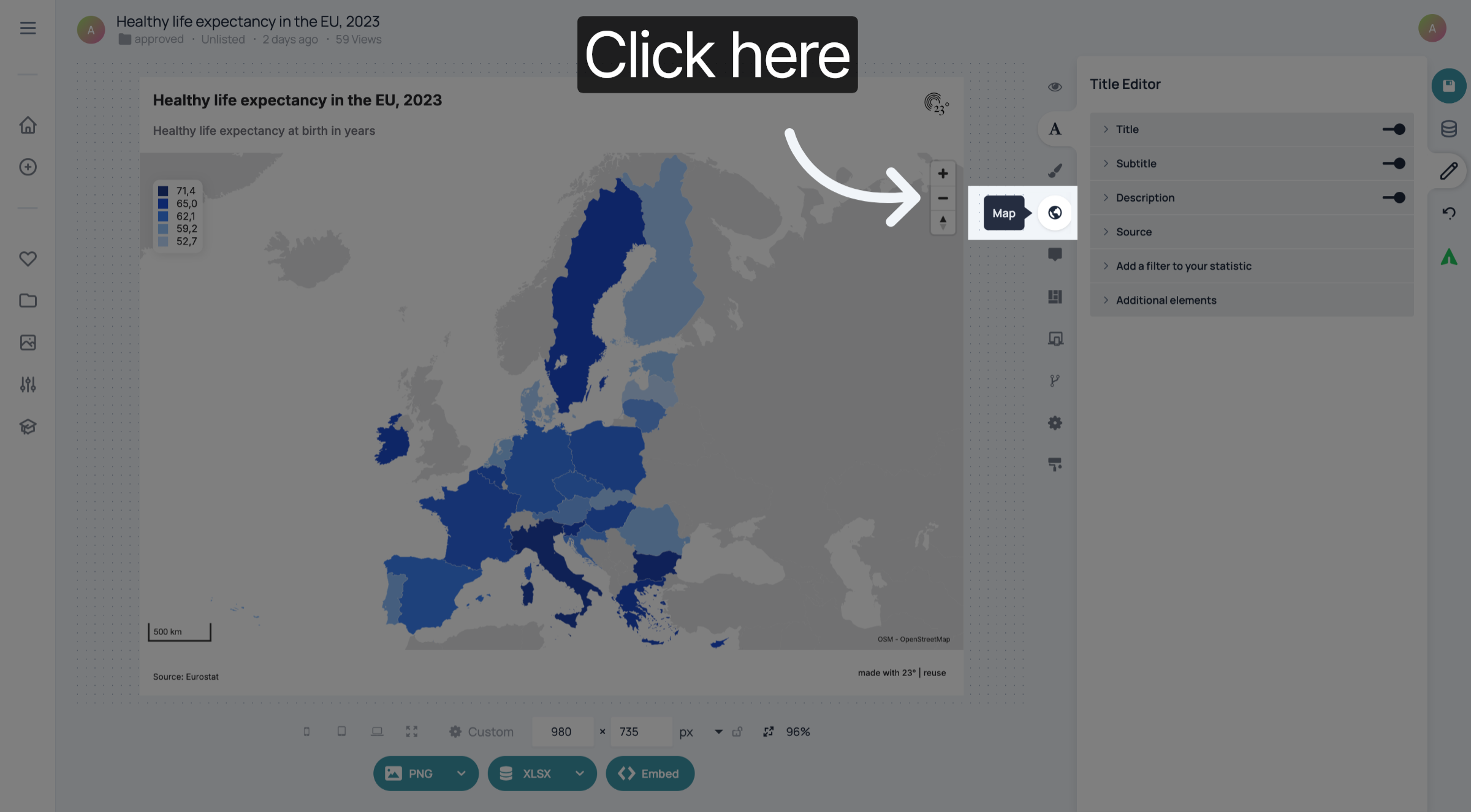
Click here to go to the Map Settings.
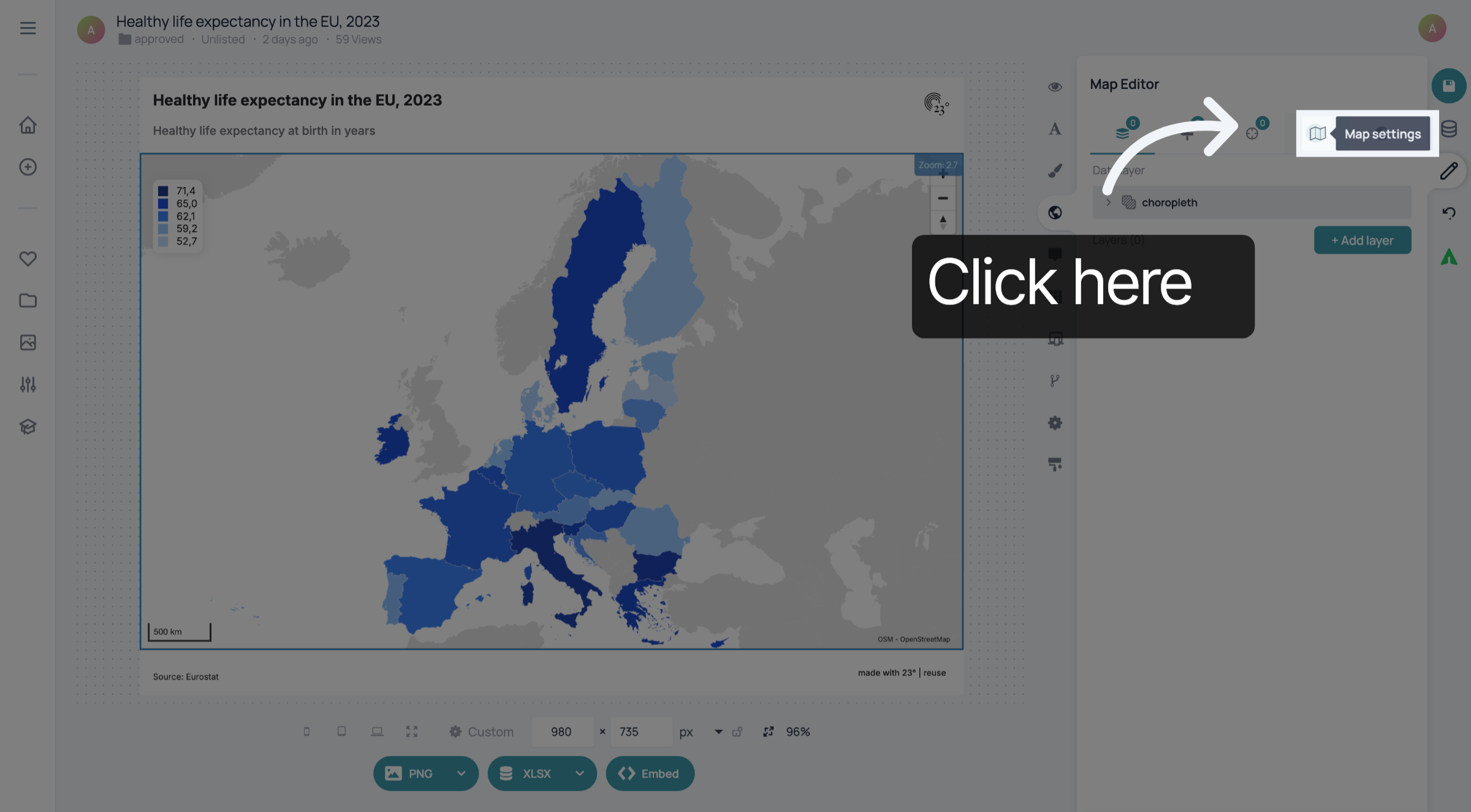
Click here to access the search bar options.
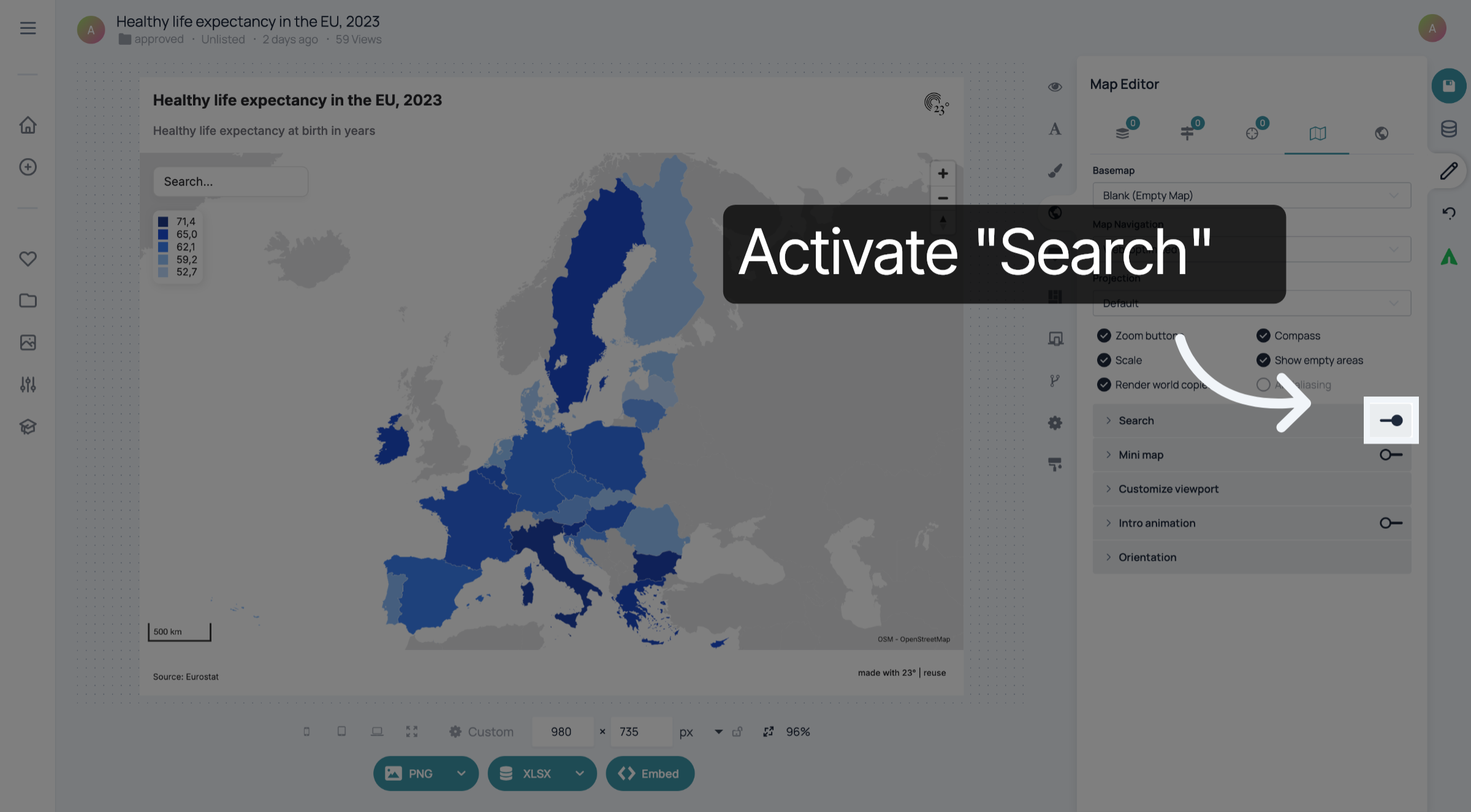
Click 'Country' to set the search filter to country names.
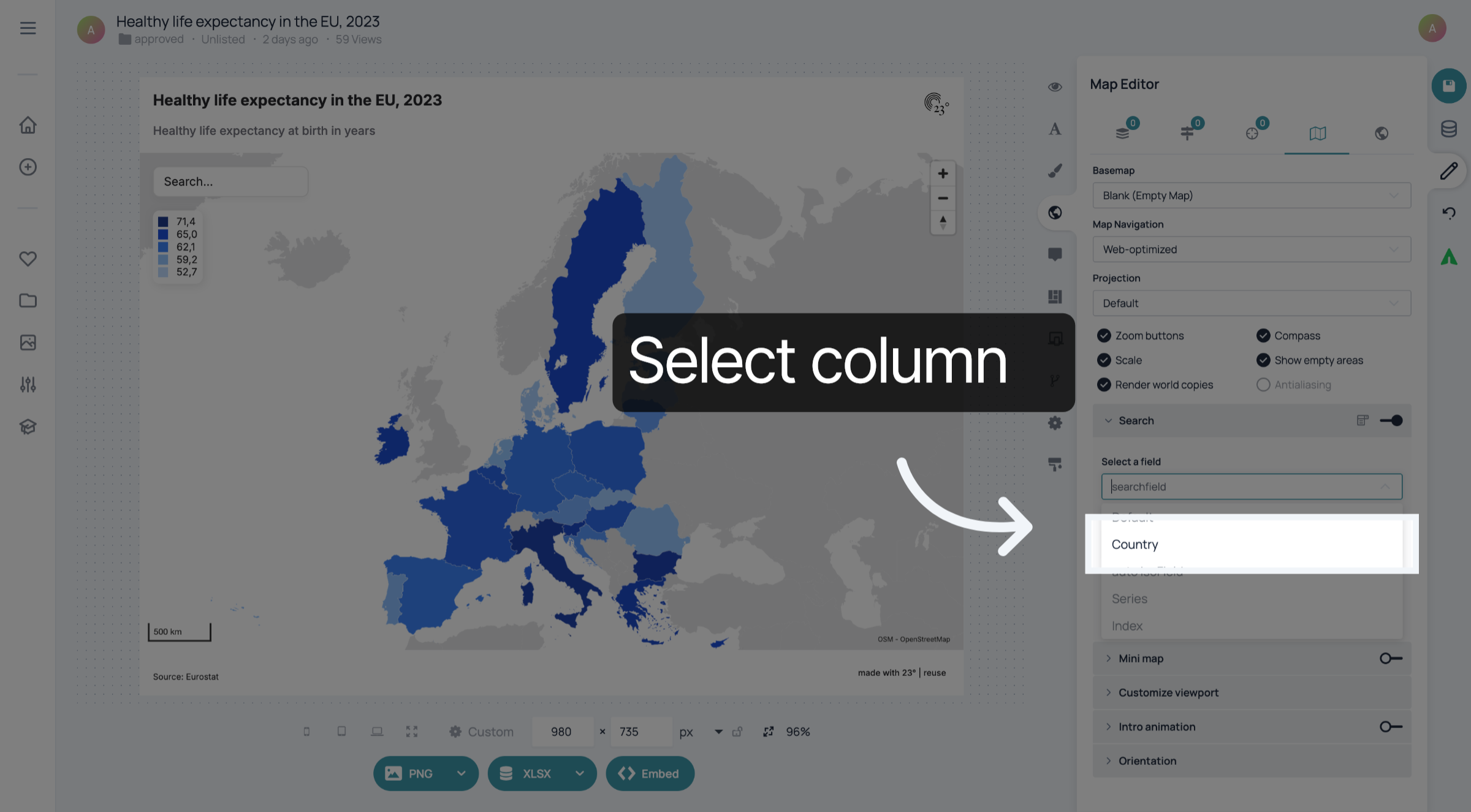
Click the 'Search...' input field to prepare for search term entry.
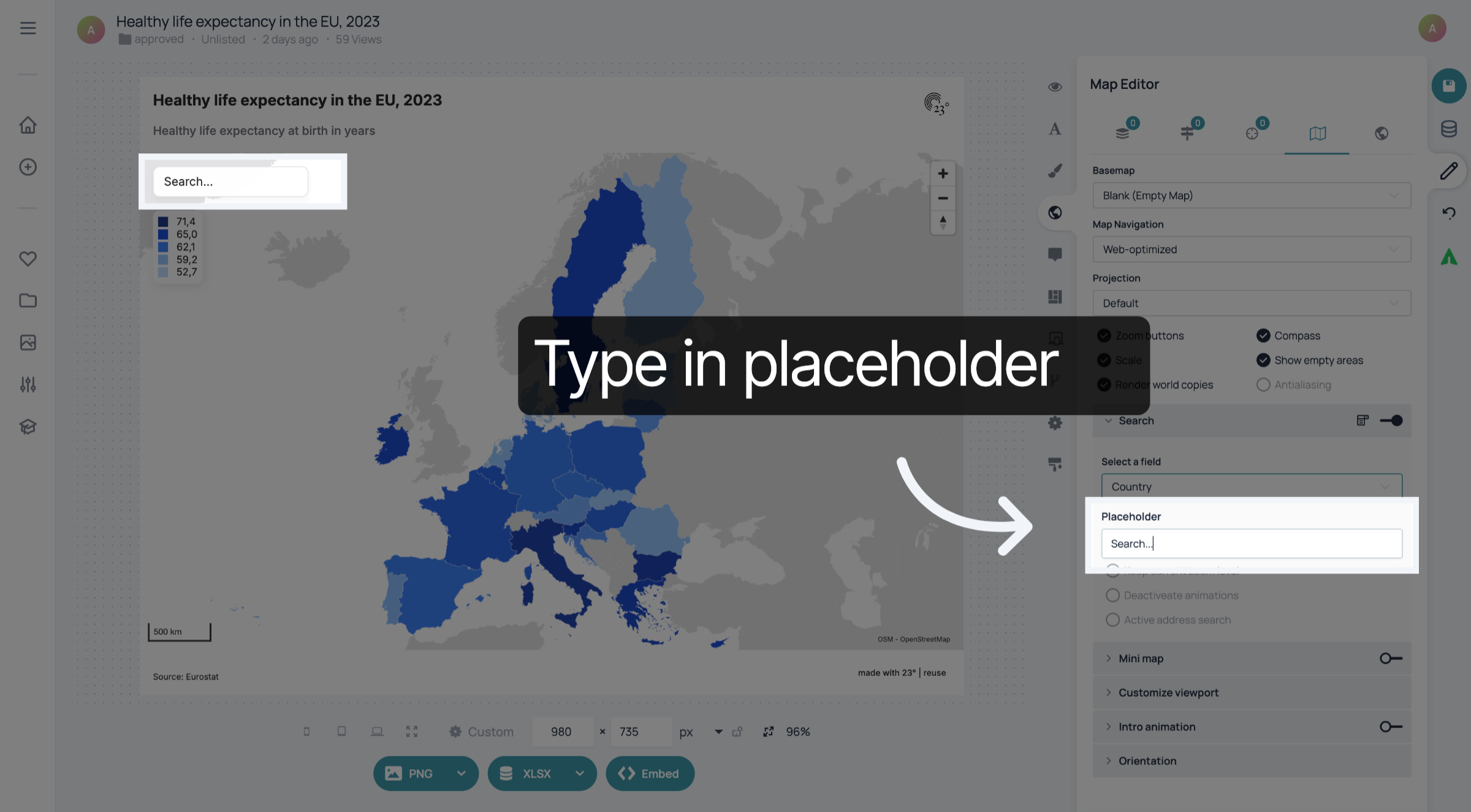
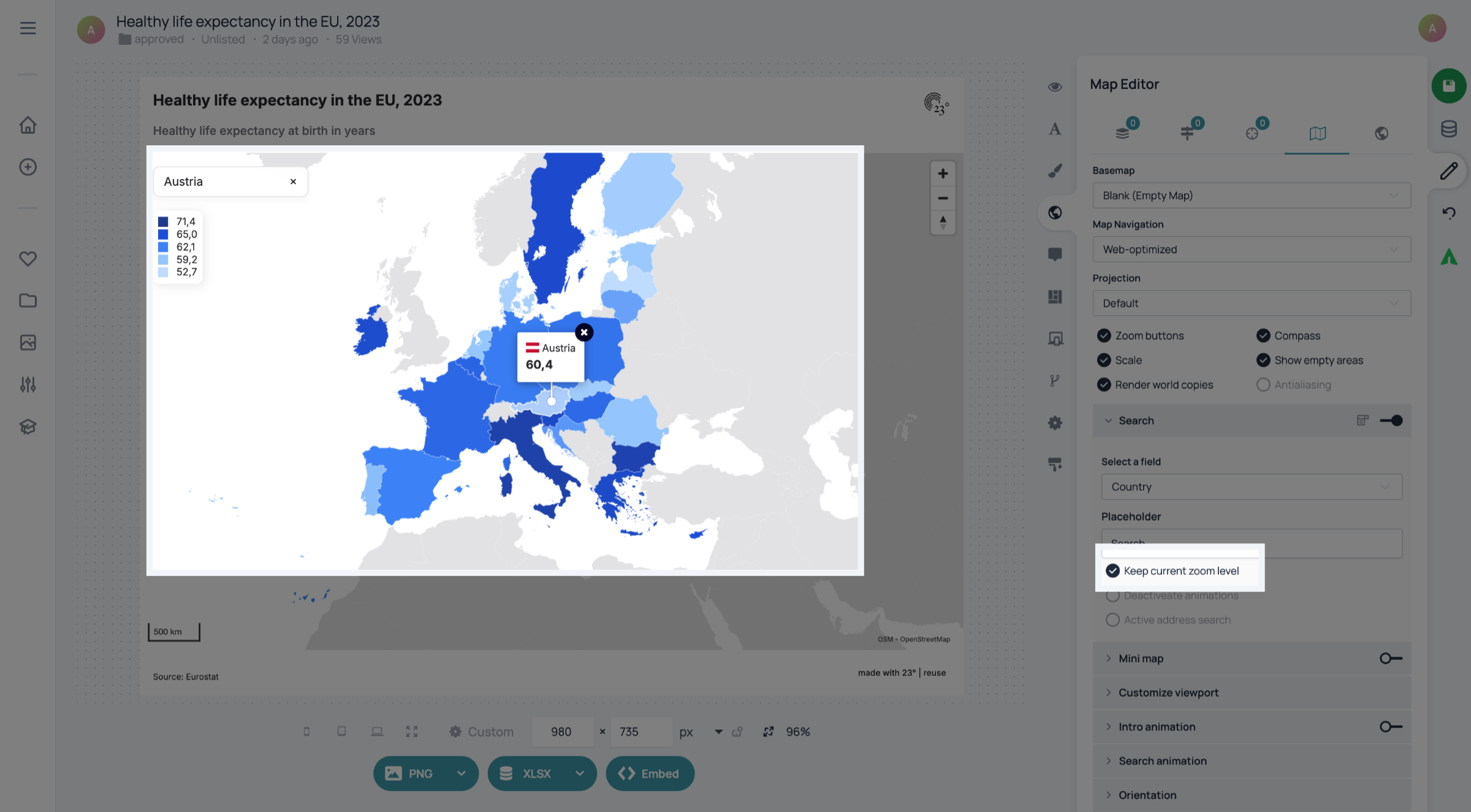
You can activate "Keep current zoom level" if you want the map to stay at the same zoom level when you search for one country.
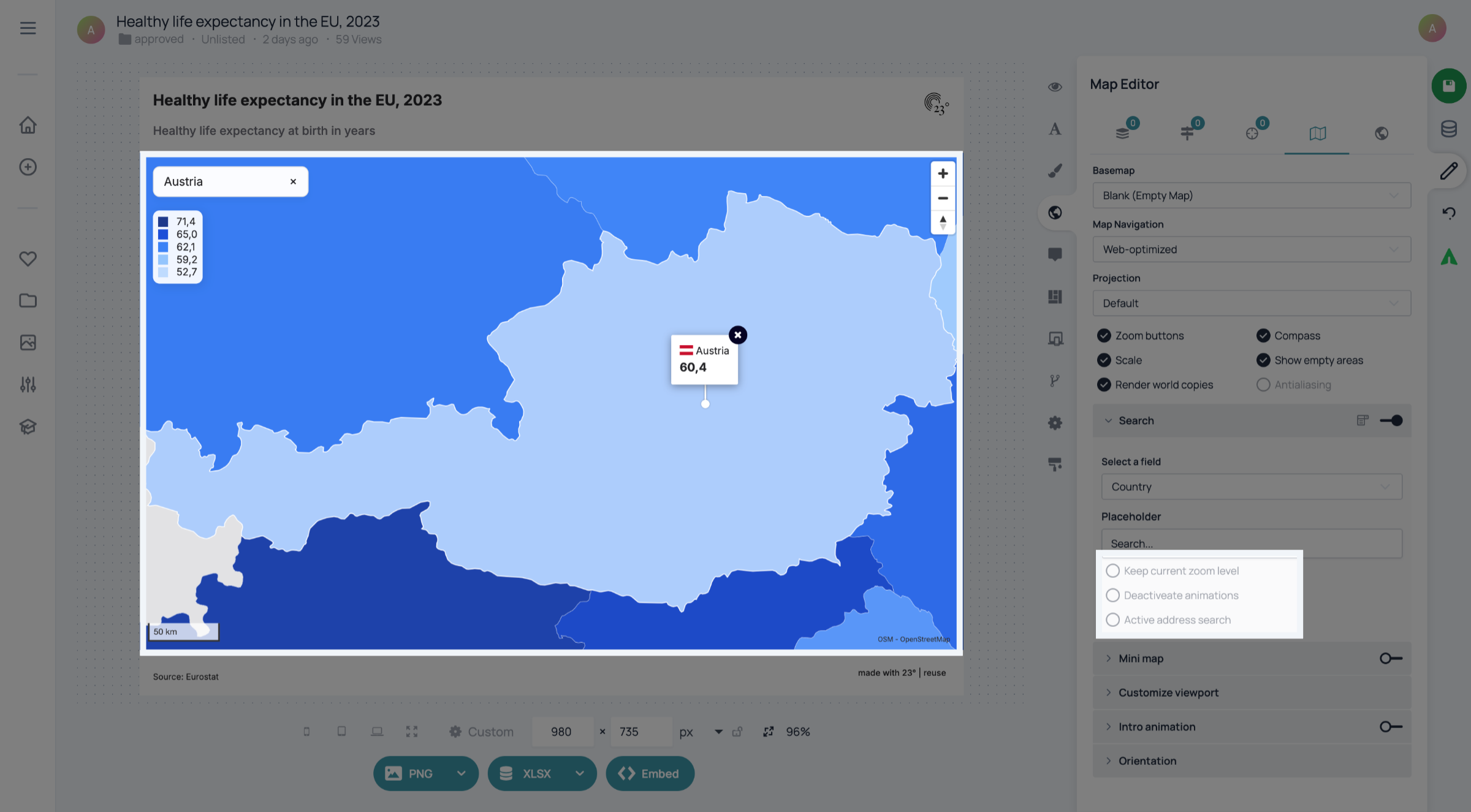
If you deactivate "Keep current zoom level", the map will zoom onto the country you searched for. You can also activate and deactivate the animation to change how the zoom onto the country you searched for is animated.
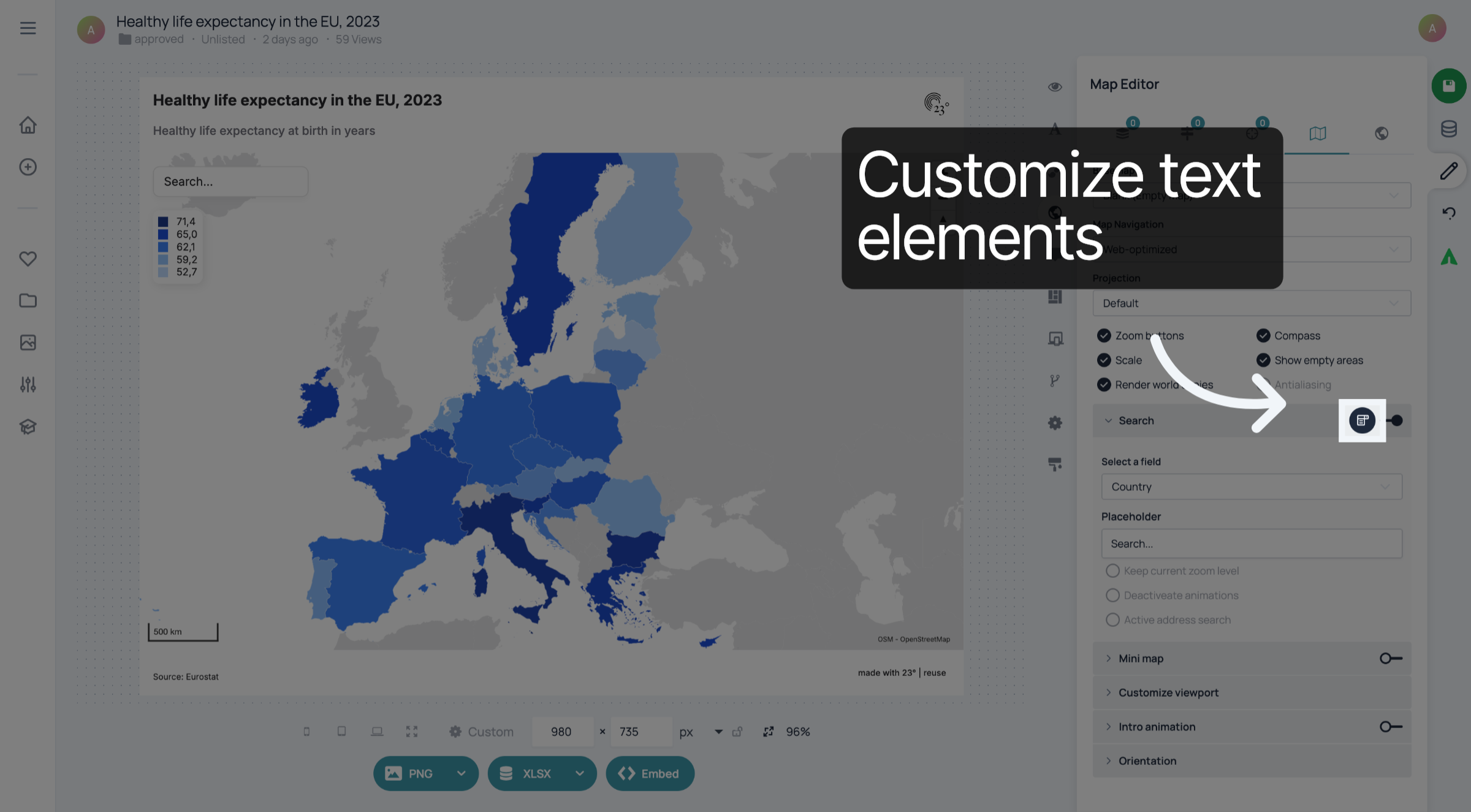
Click here to customize the text elements of the search bar.
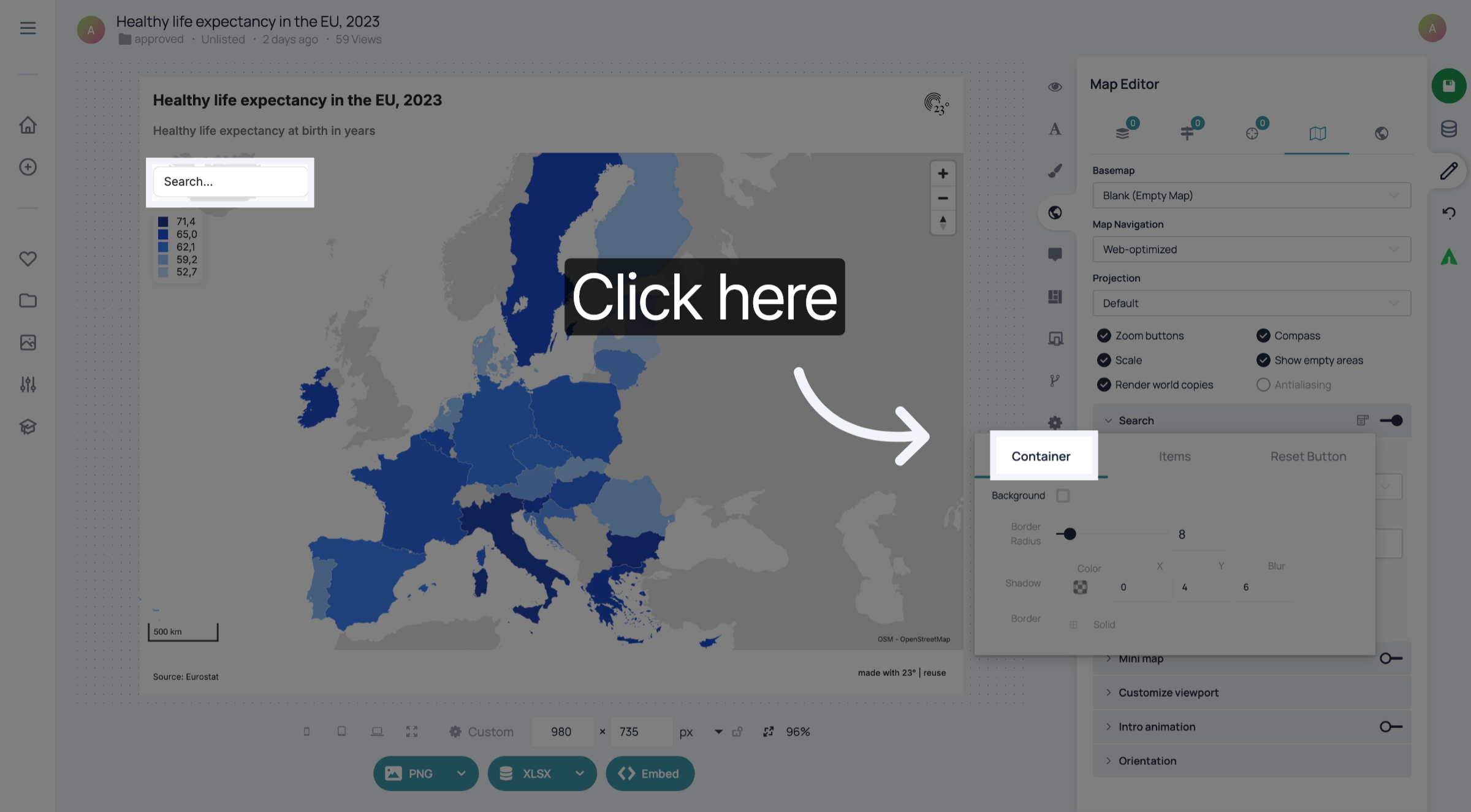
In the "Container" settings, you can customize the general look of the Search field. You can change the background, shadow, the border and the border radius
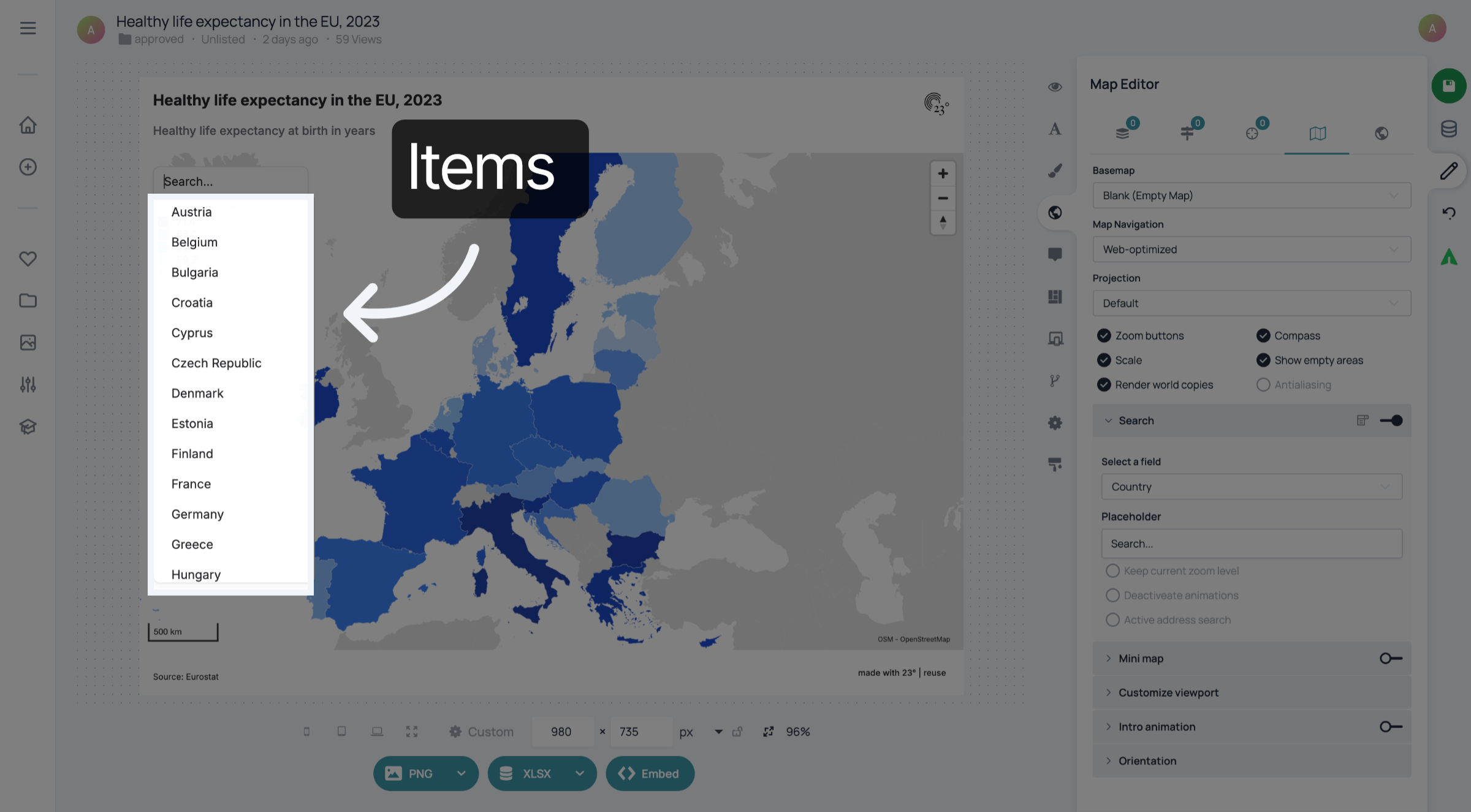
In the "Items" settings, you can change the font and colour of the items in the dropdown.
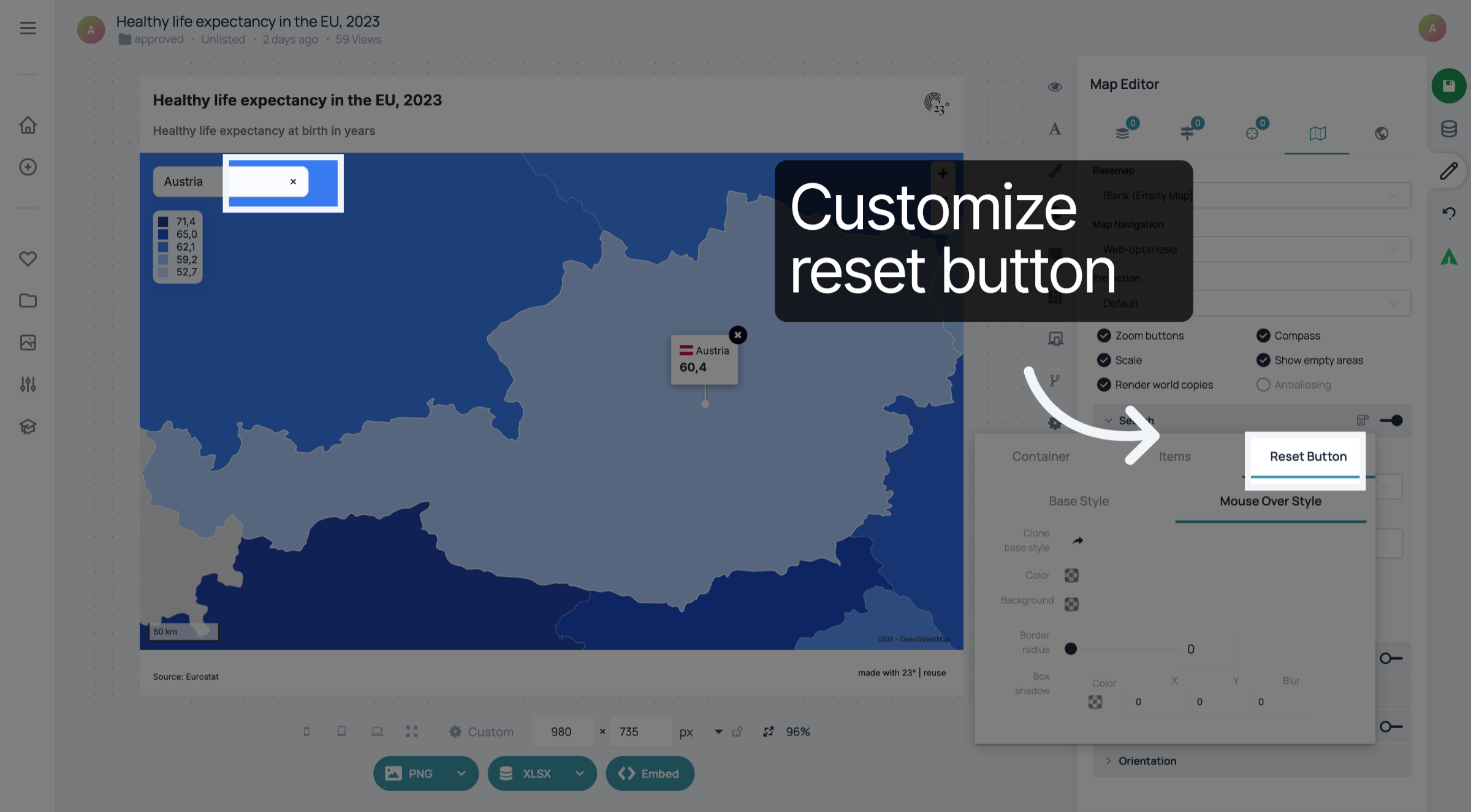
In the "Reset button" settings, you can customize the style of the button that users will use to deselect the country they searched for in the search field.
Don't forget to save your changes.
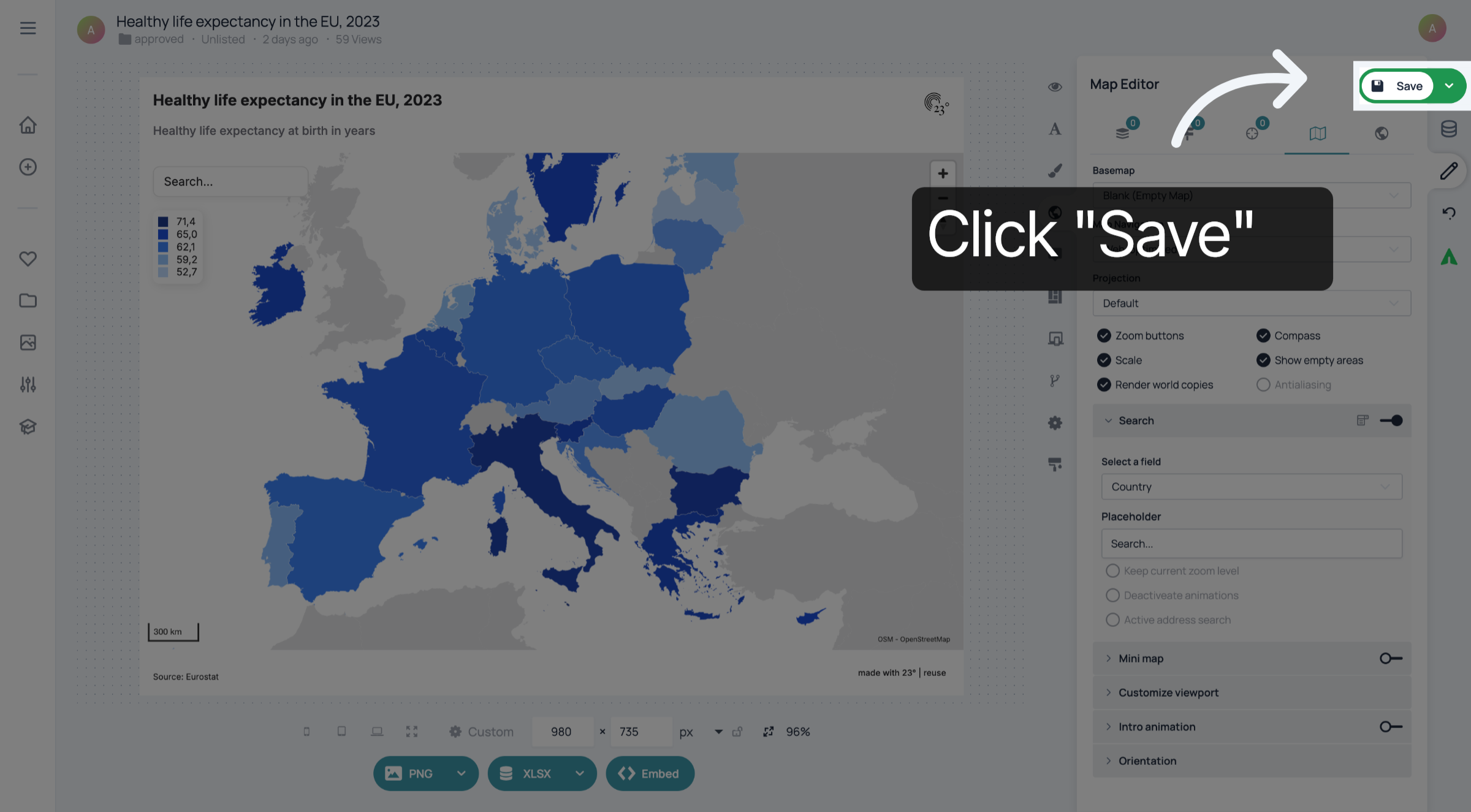
You have successfully added and styled a search bar on a choropleth map.