Map Search 23degrees Maps
This tutorial guides you through adding a map search to your 23degrees maps.
You will learn how to configure search parameters and adjust map settings for optimal results.
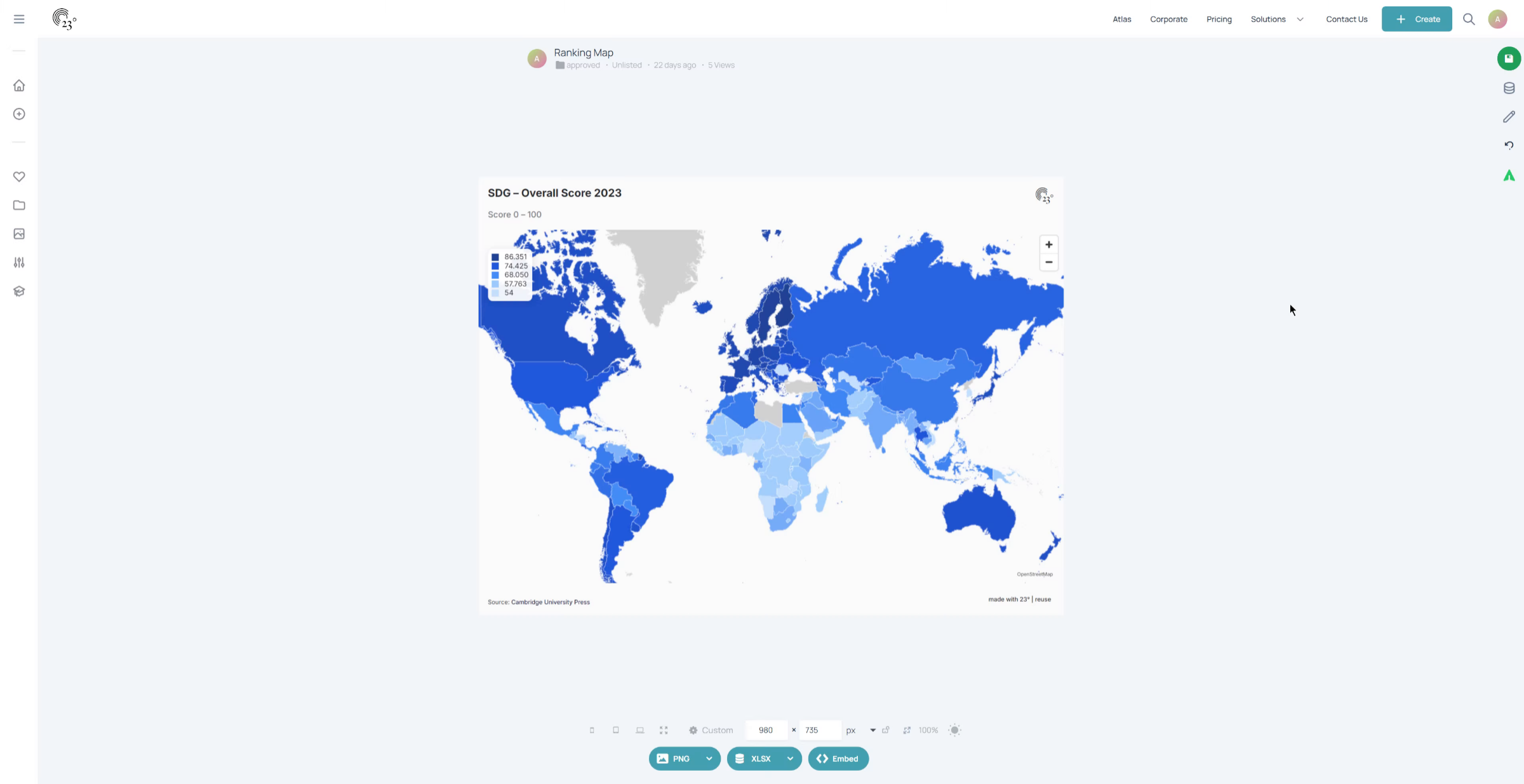
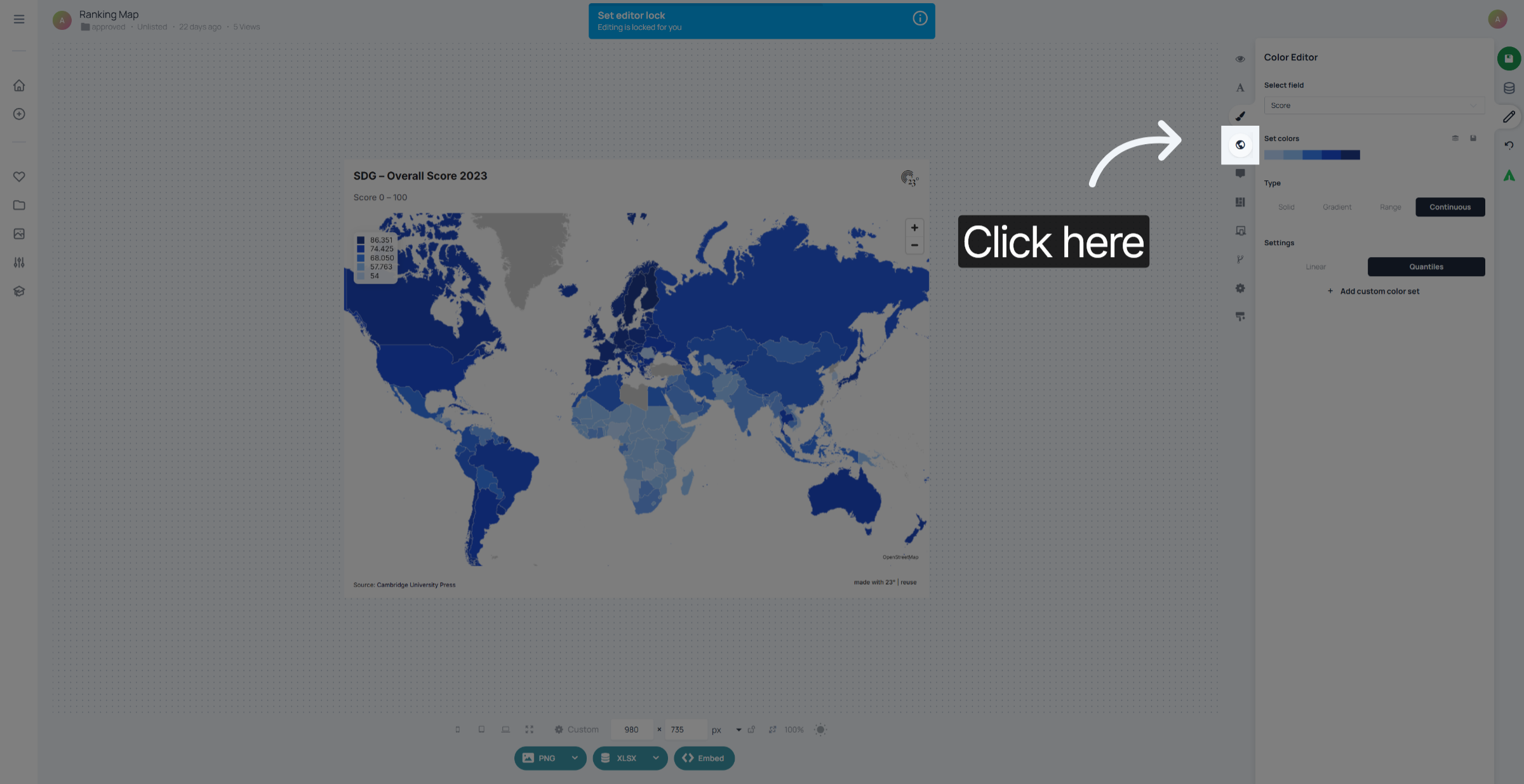
Click on the Map Editor.
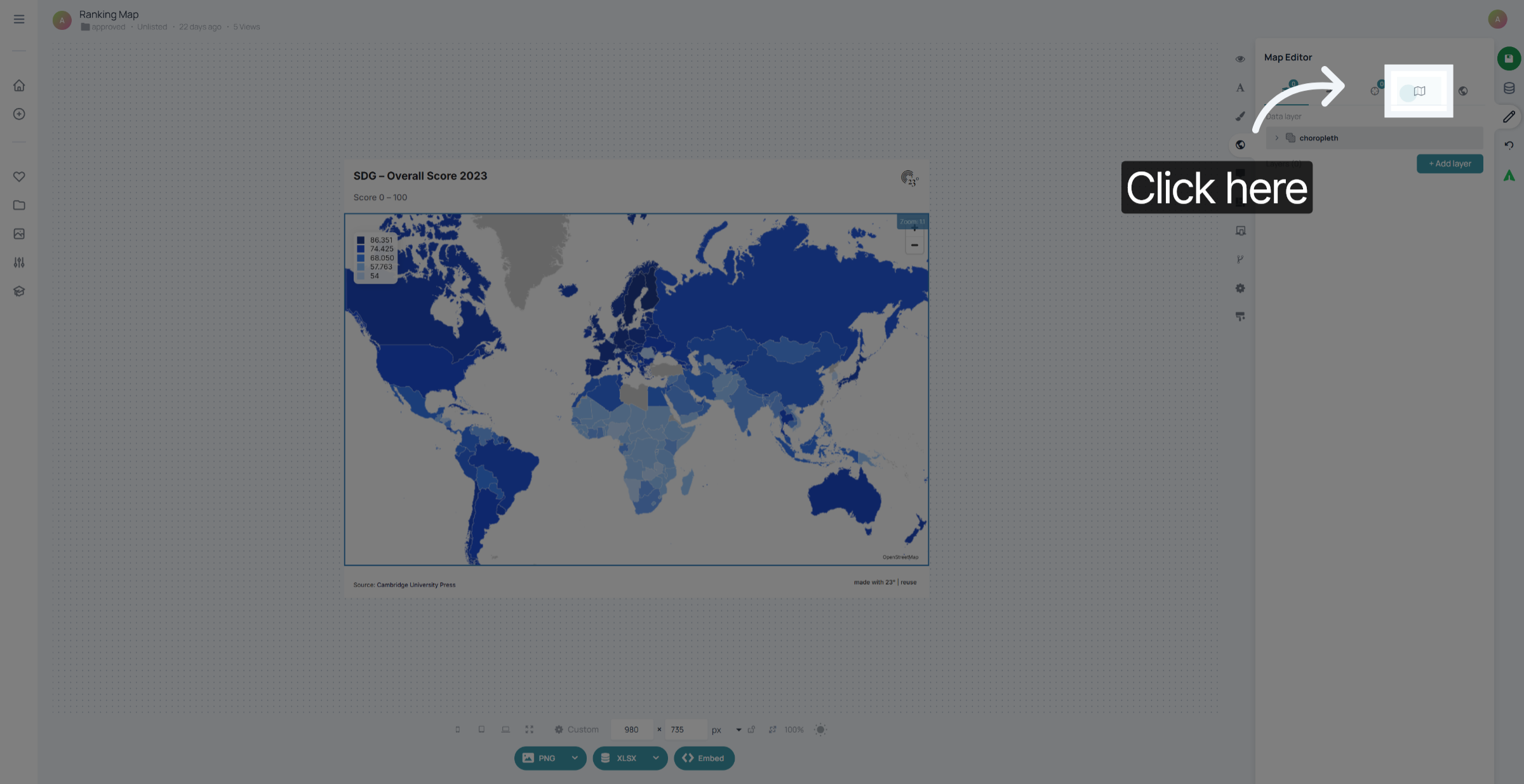
Go to the Map Settings.
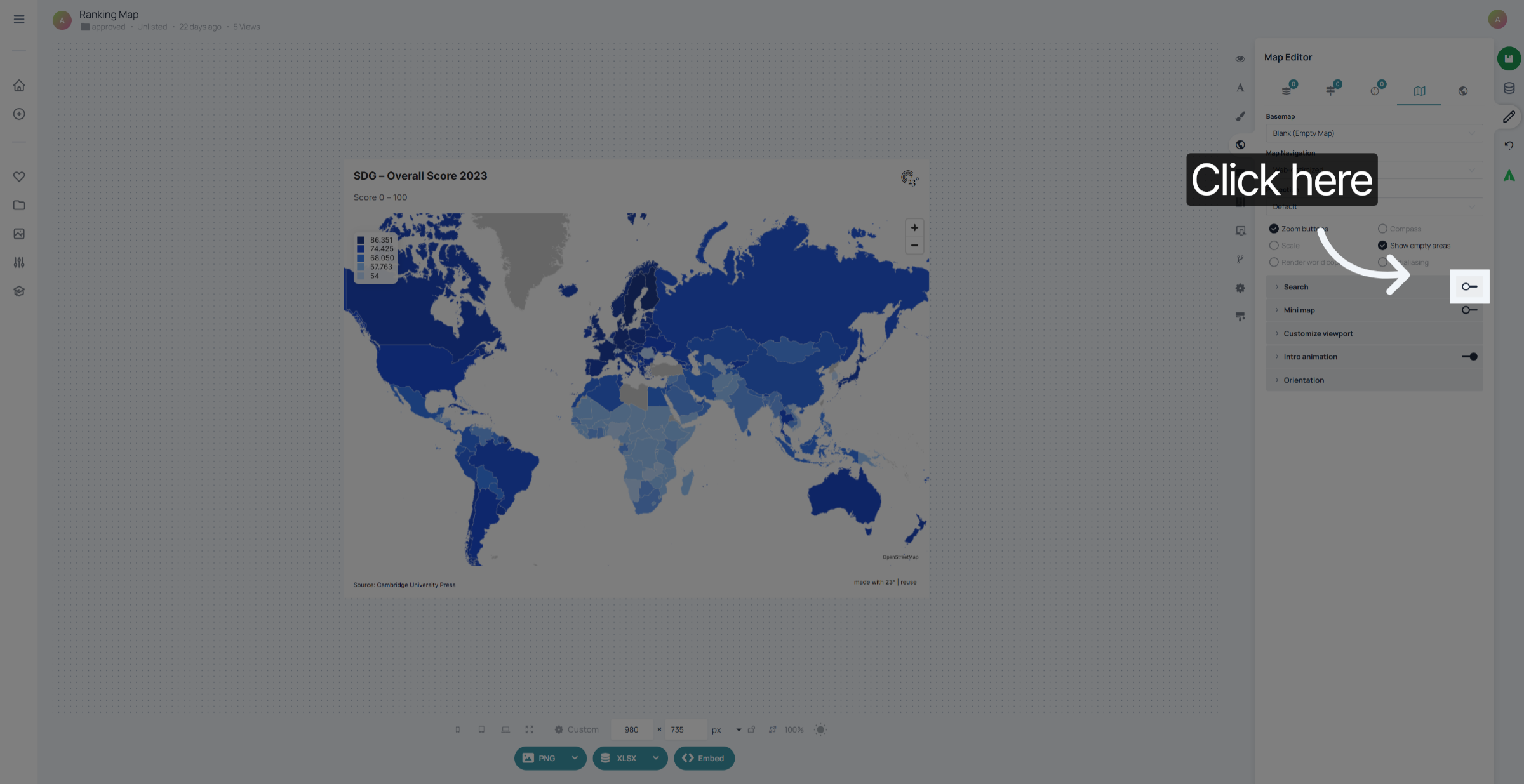
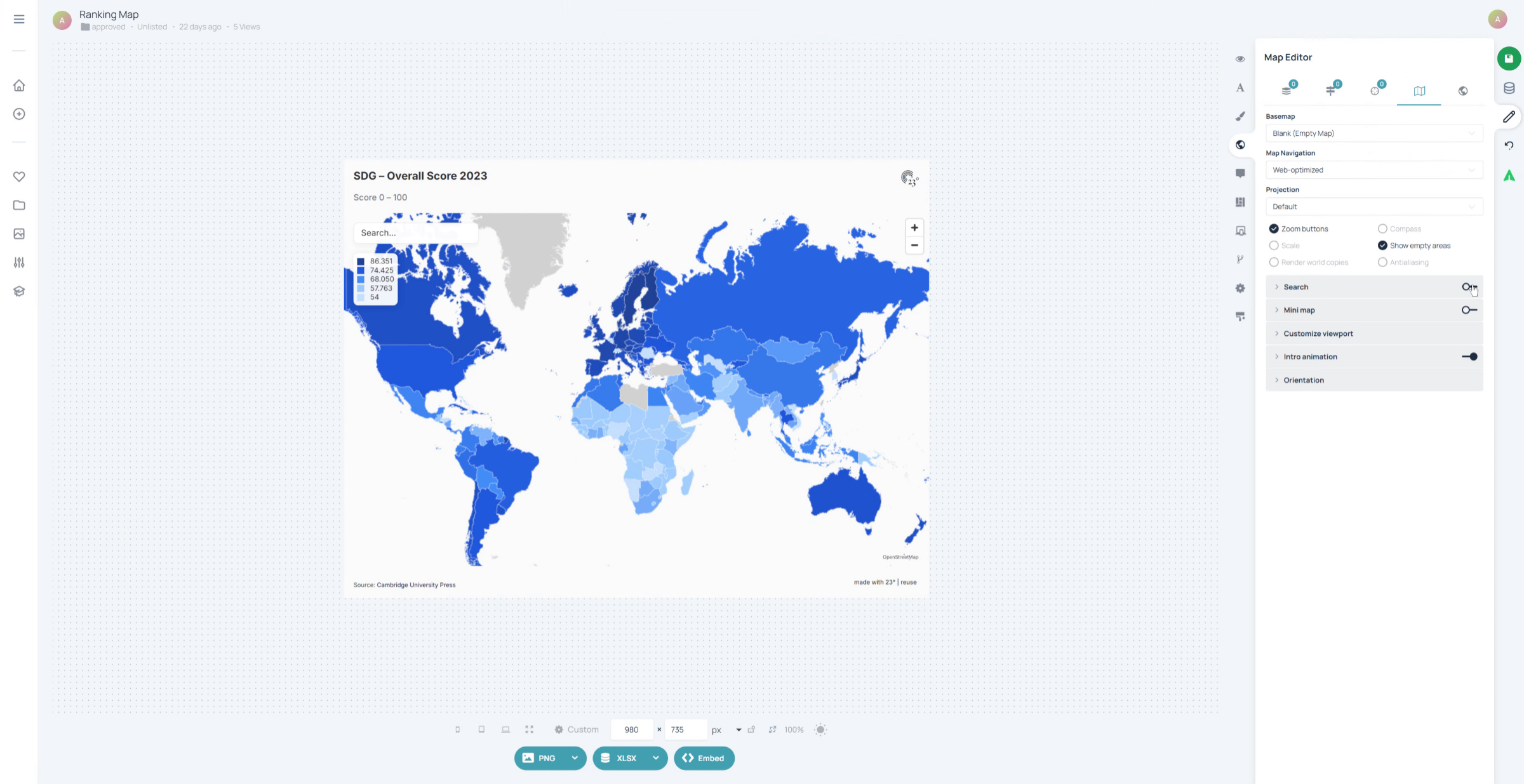
Click here to activate the Map Search.
The Map Search field now appears within the map. You can now select different different regions through the search
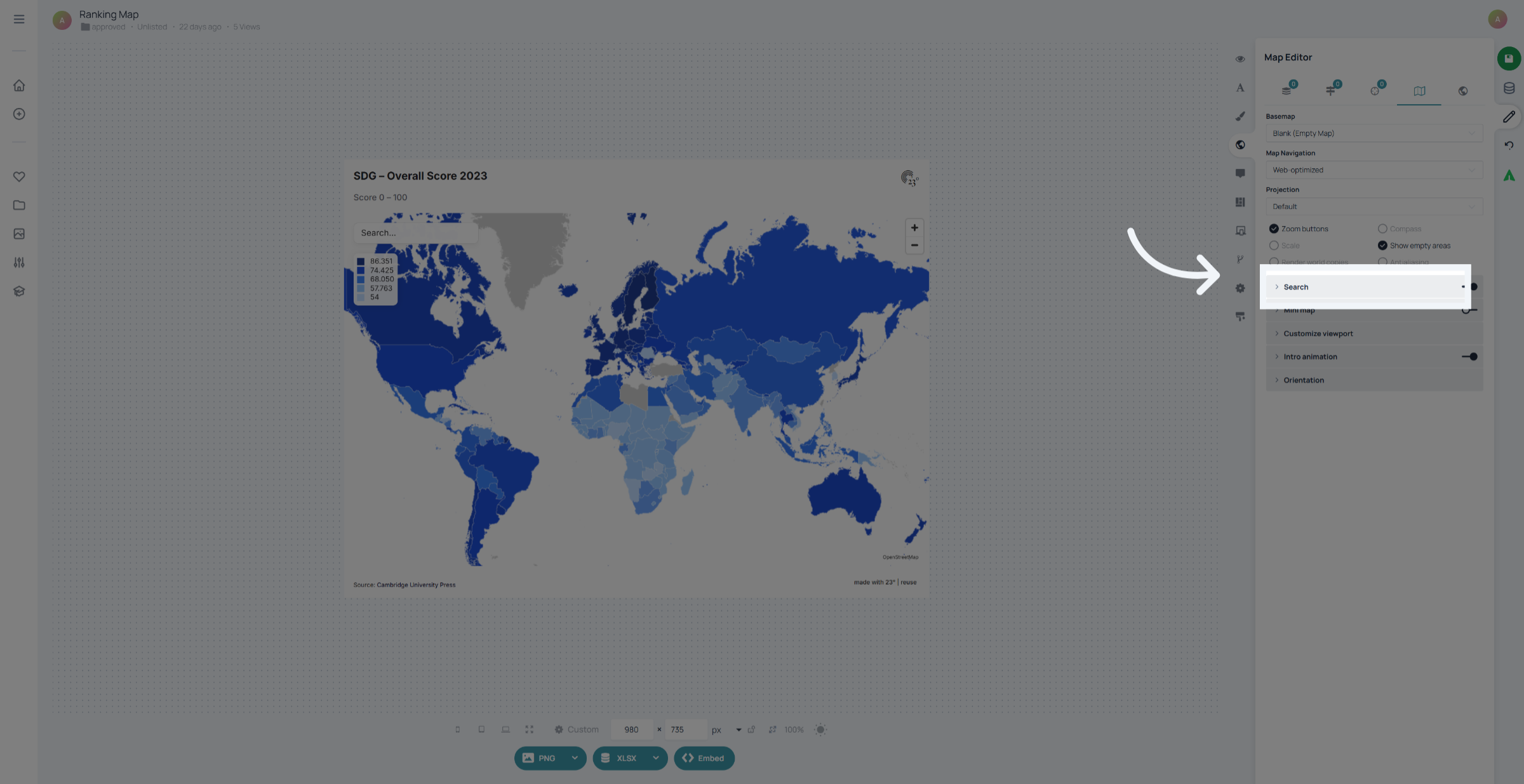
Click here to open up additional Map Settings.
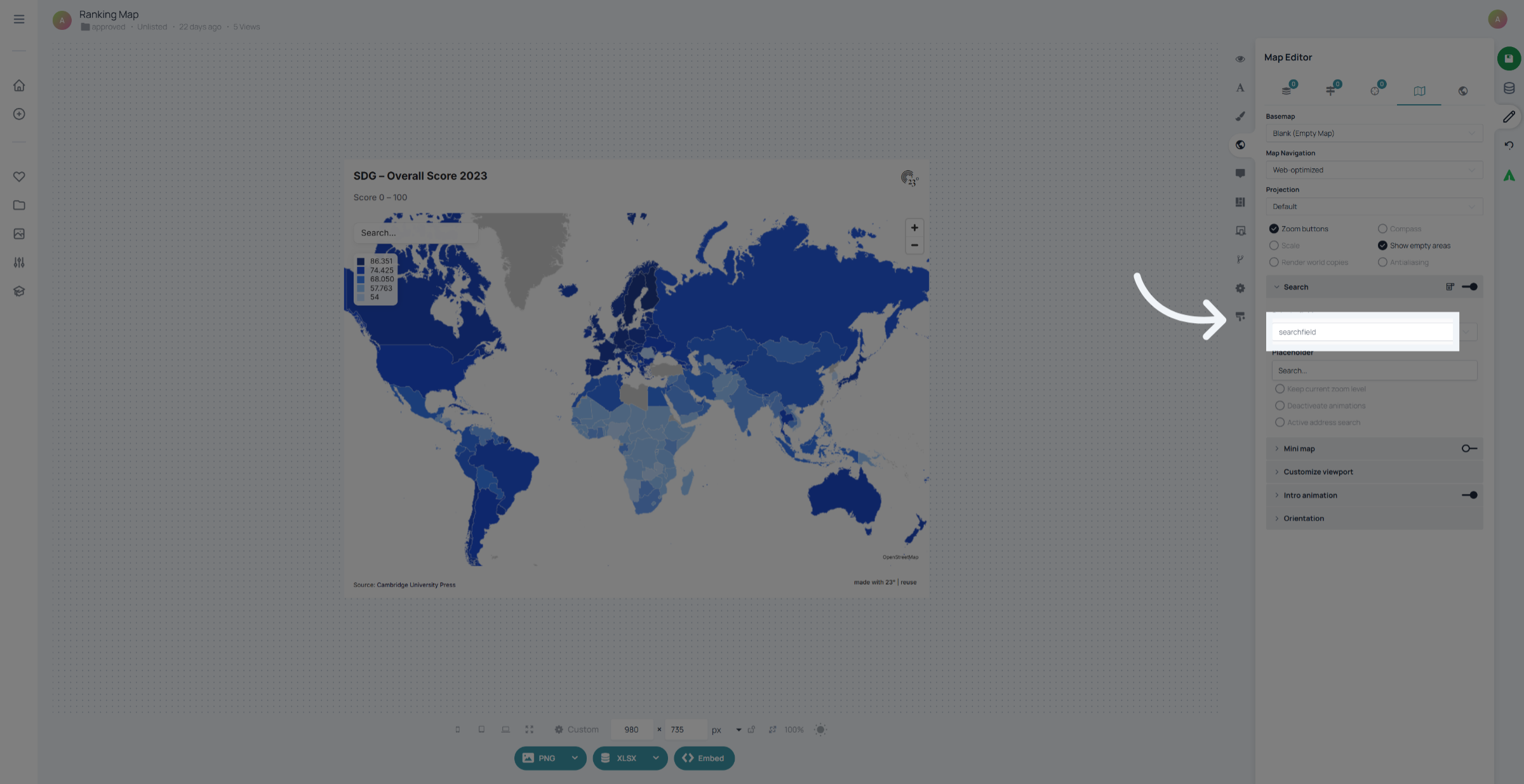
Here you can choose a column from your dataset that you want to use as the base for the map search.
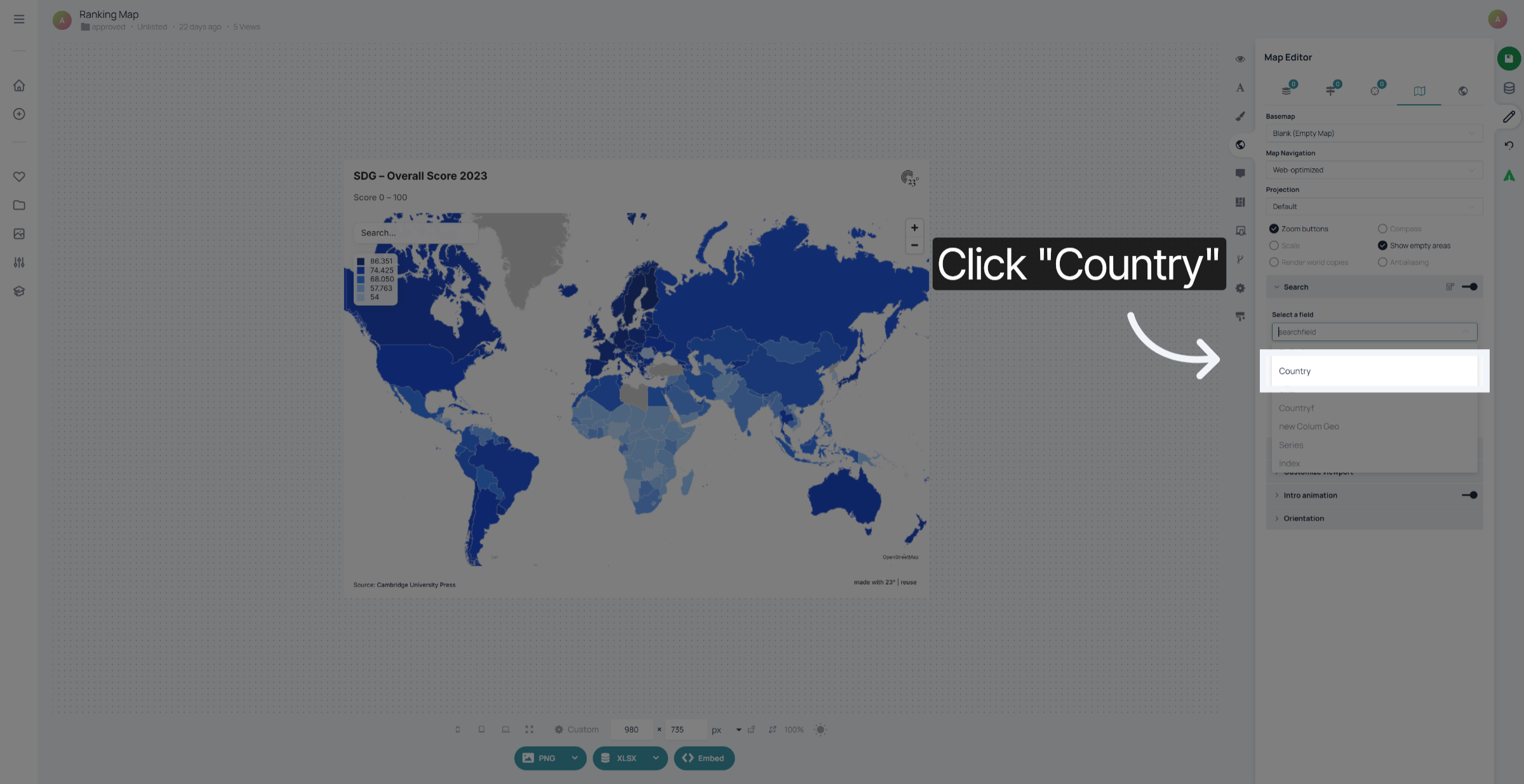
In this case we want the map search to be country based.
Here you can edit the text that you want to be depicted in the search bar.
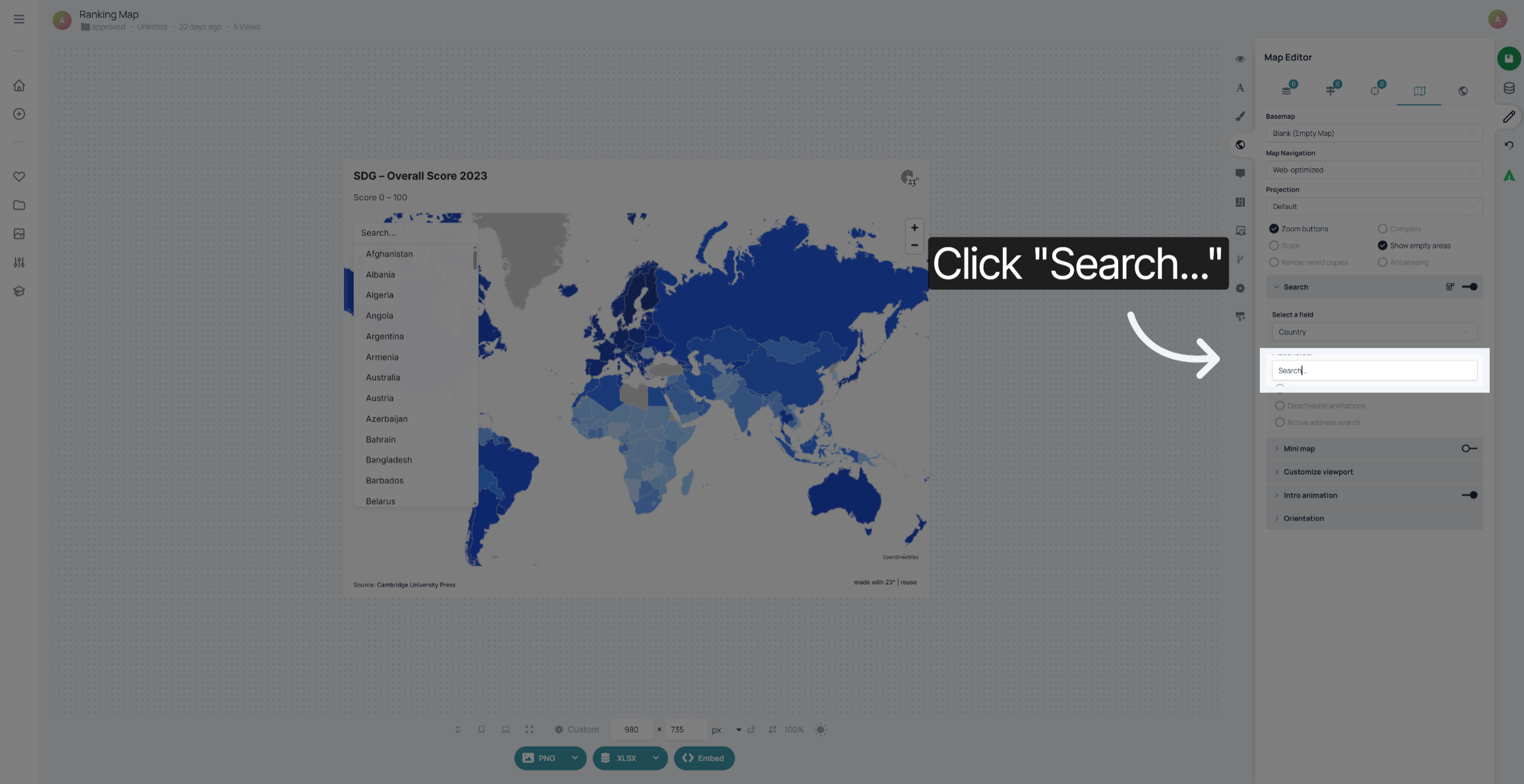
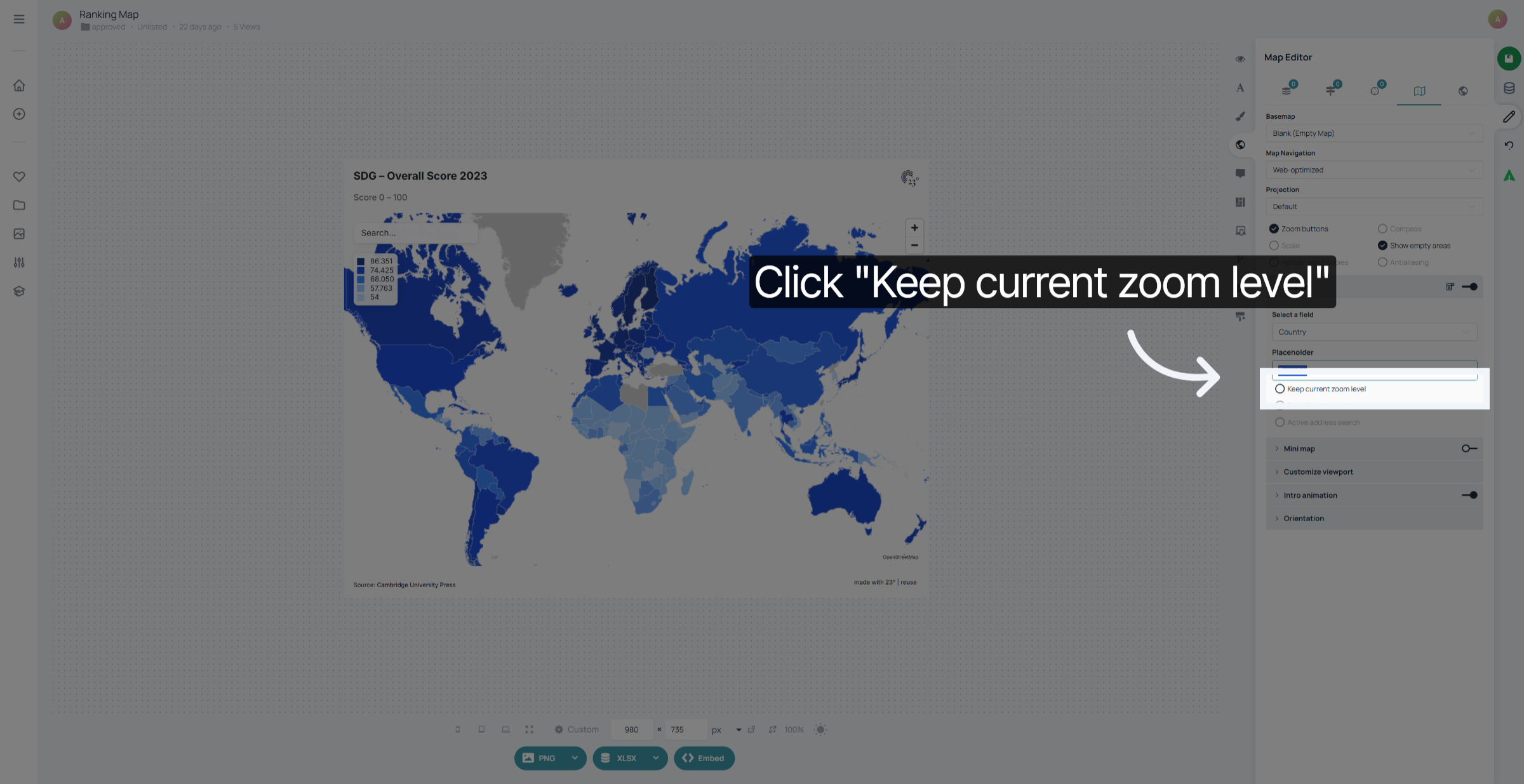
Activate this option if you want to keep the same zoom level when selecting a region from the search. If not active, the selected country will be zoomed in
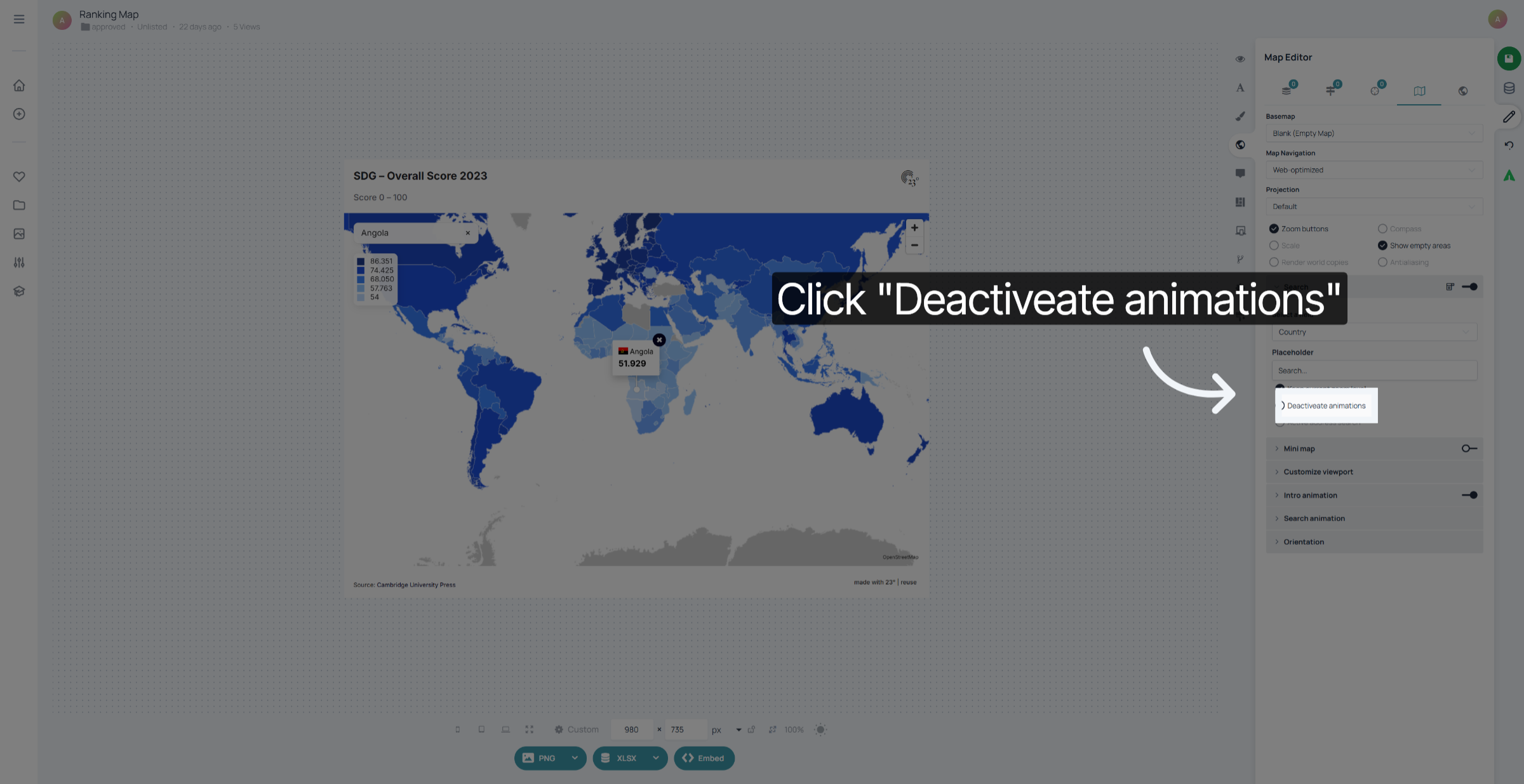
Here you can deactivate the animation when selecting a country from the search
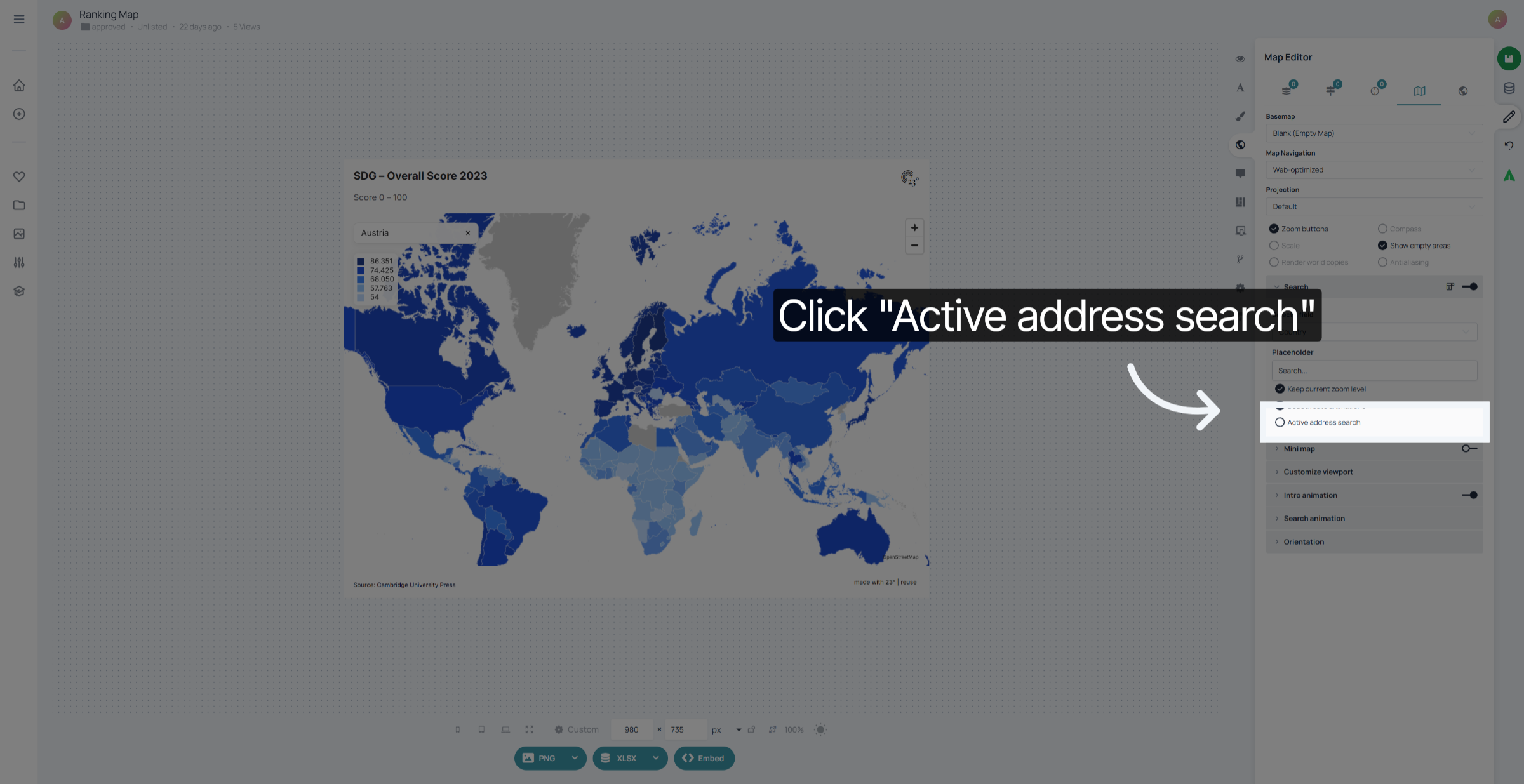
Click "Active address search" to include address-level search. This way you can type in an address and the search result will select the area that is contained within the selected address
You have successfully activated the map search and configured various settings in the 23degrees application.