Configure Prefixes And Suffixes For Data Display
This tutorial explains how to configure prefixes and suffixes for data display in 23degrees charts.
You will learn to add custom text before and after data values to enhance readability and context.
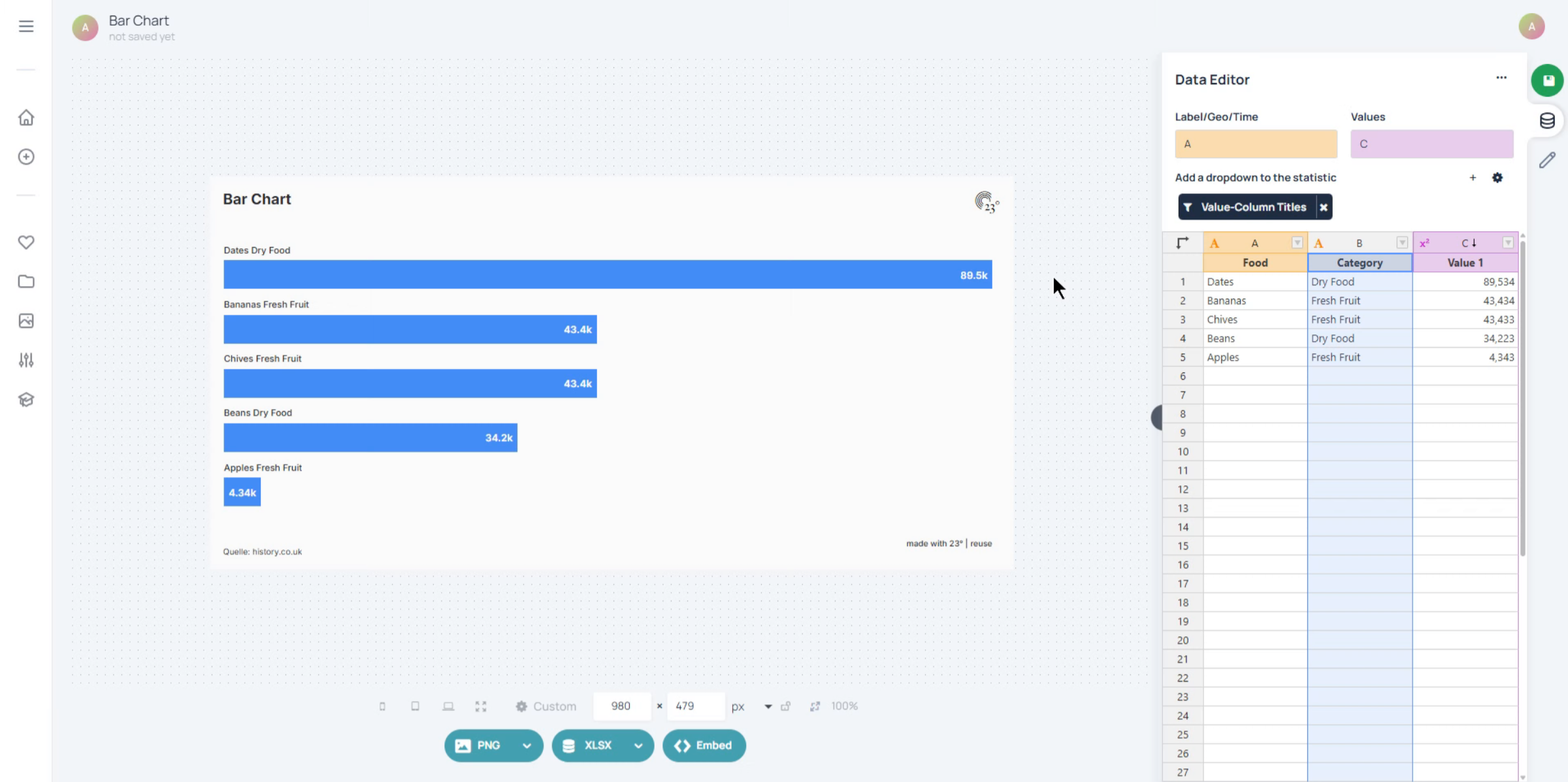
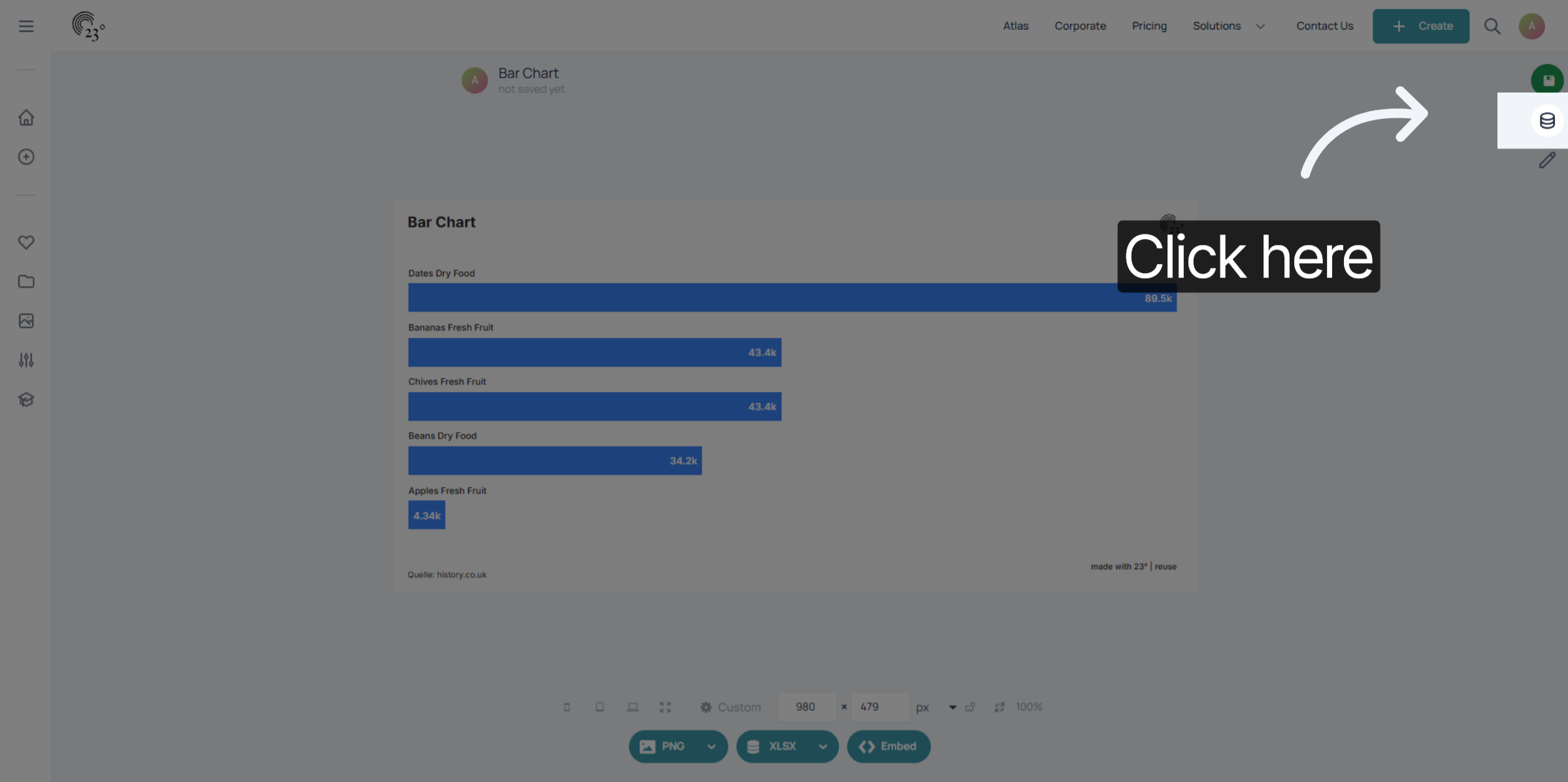
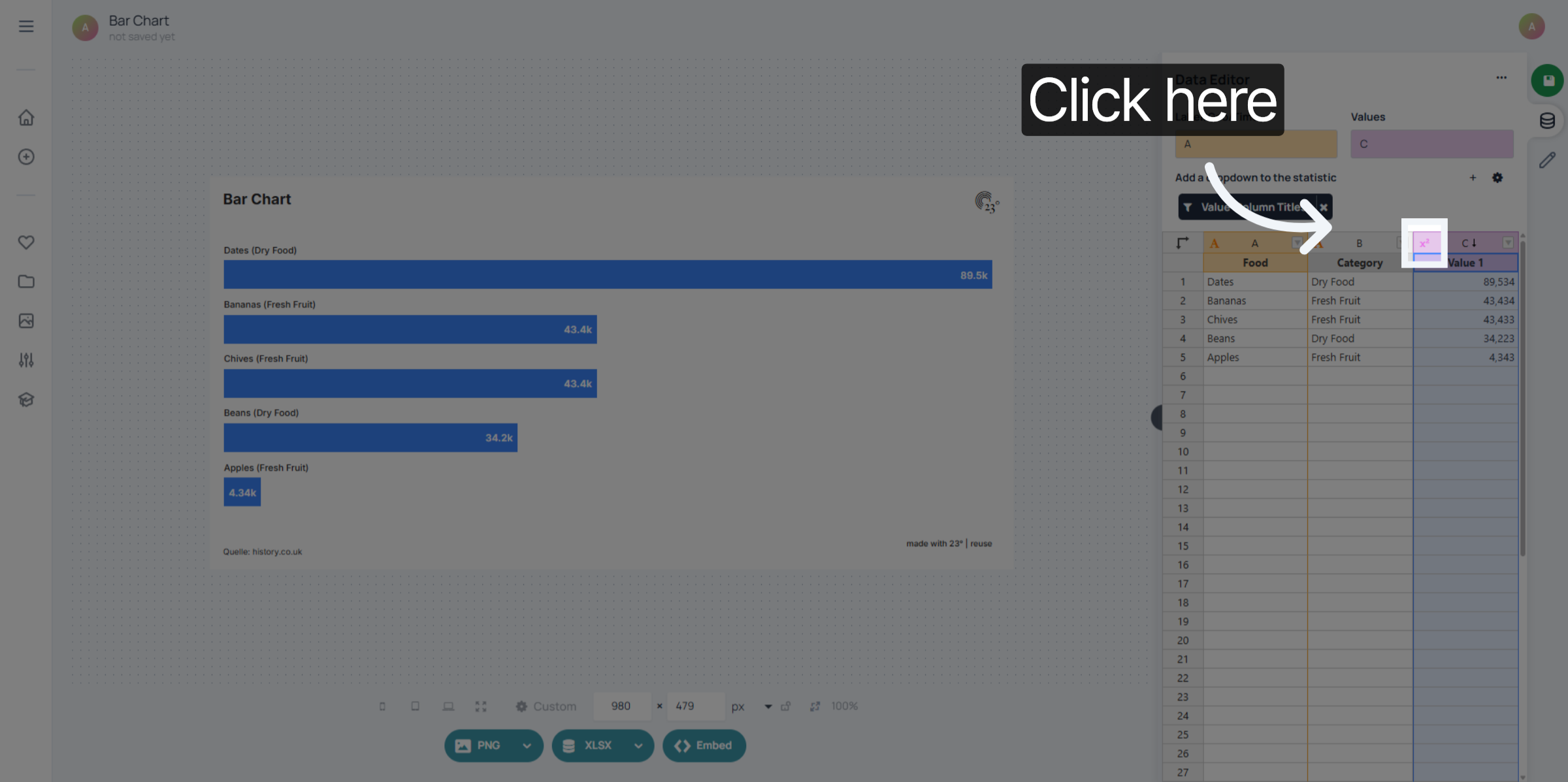
Click here to access the data editor menu
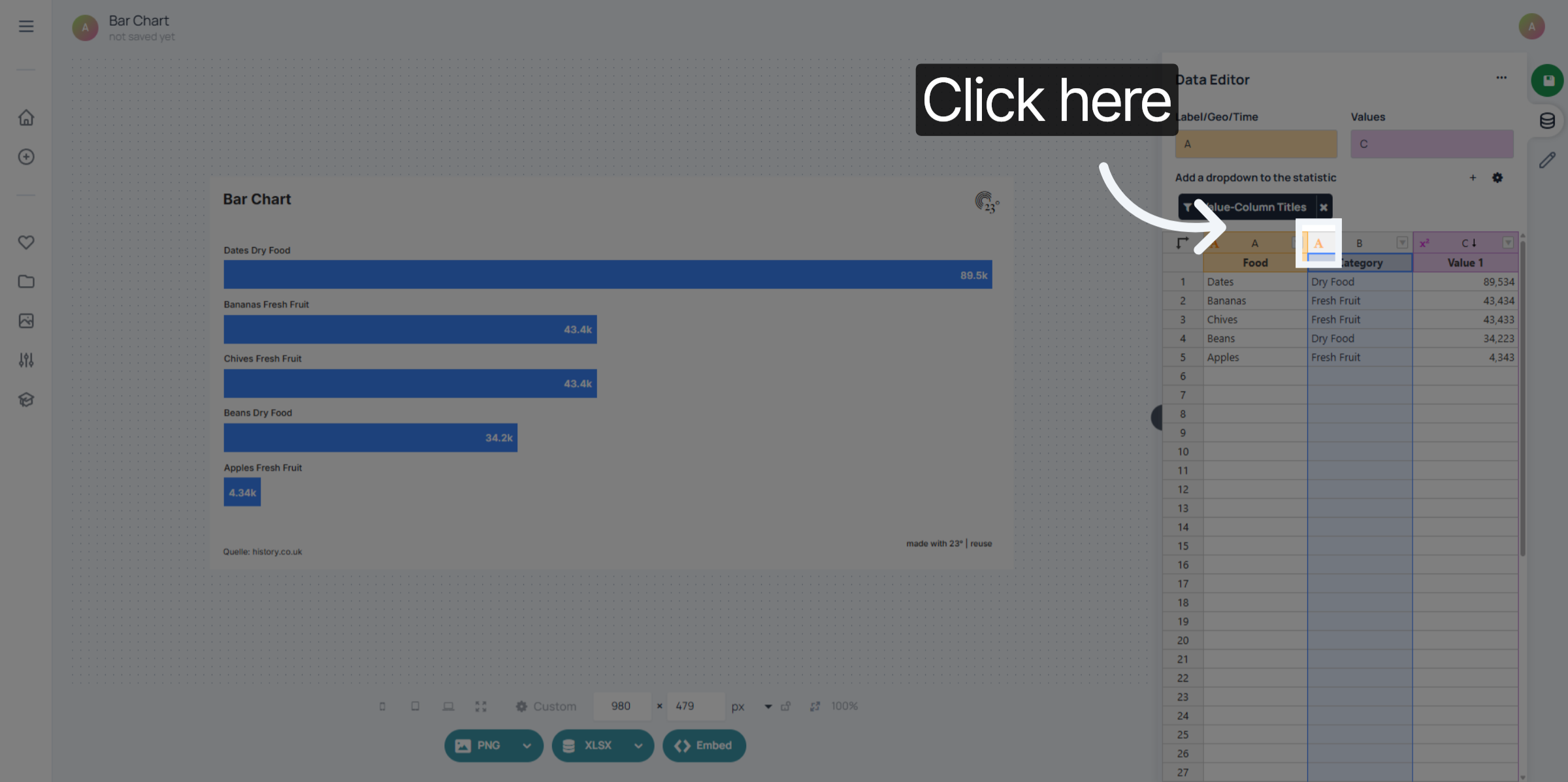
Select the column you whish to edit by clicking on the column icon
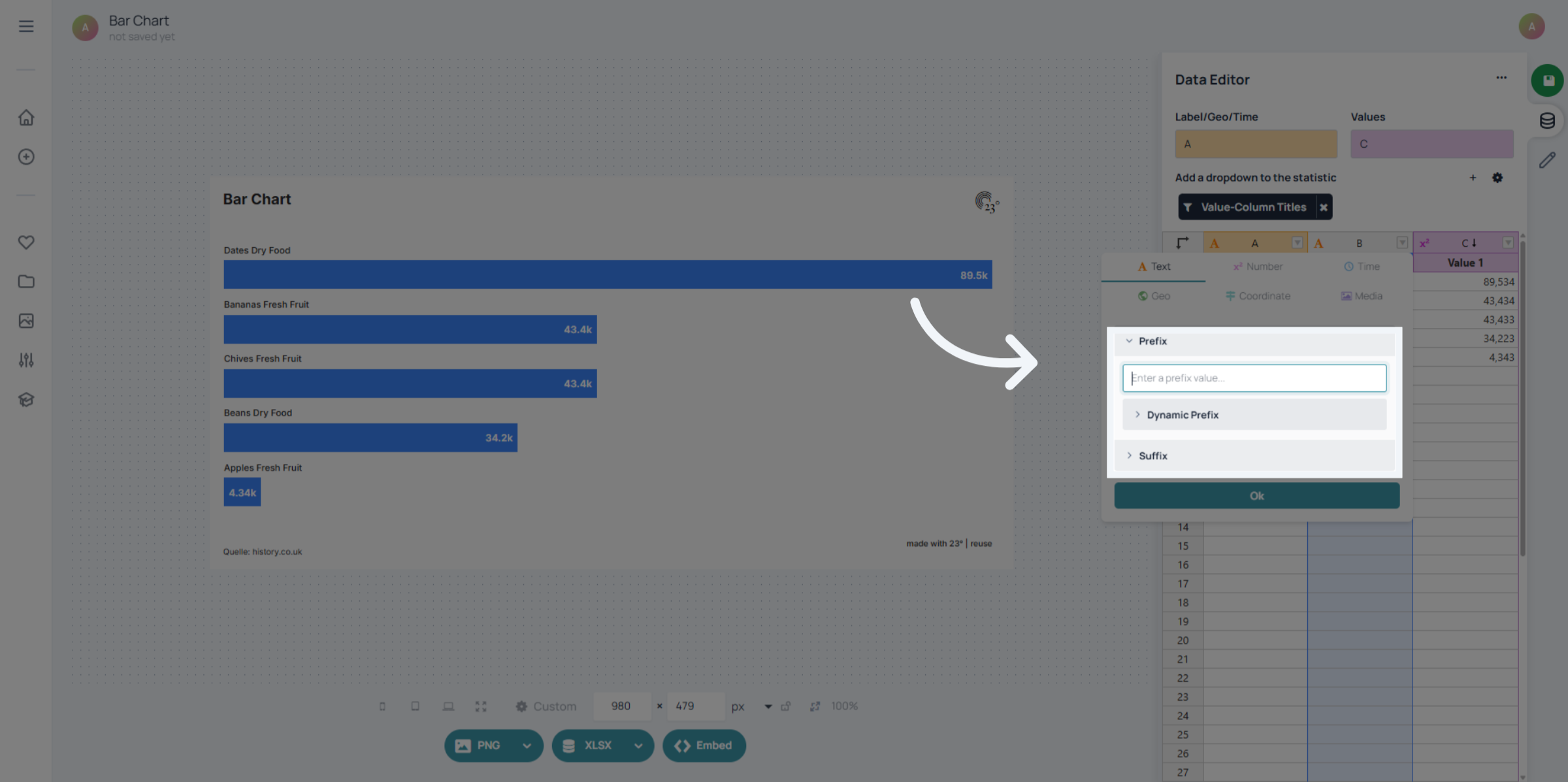
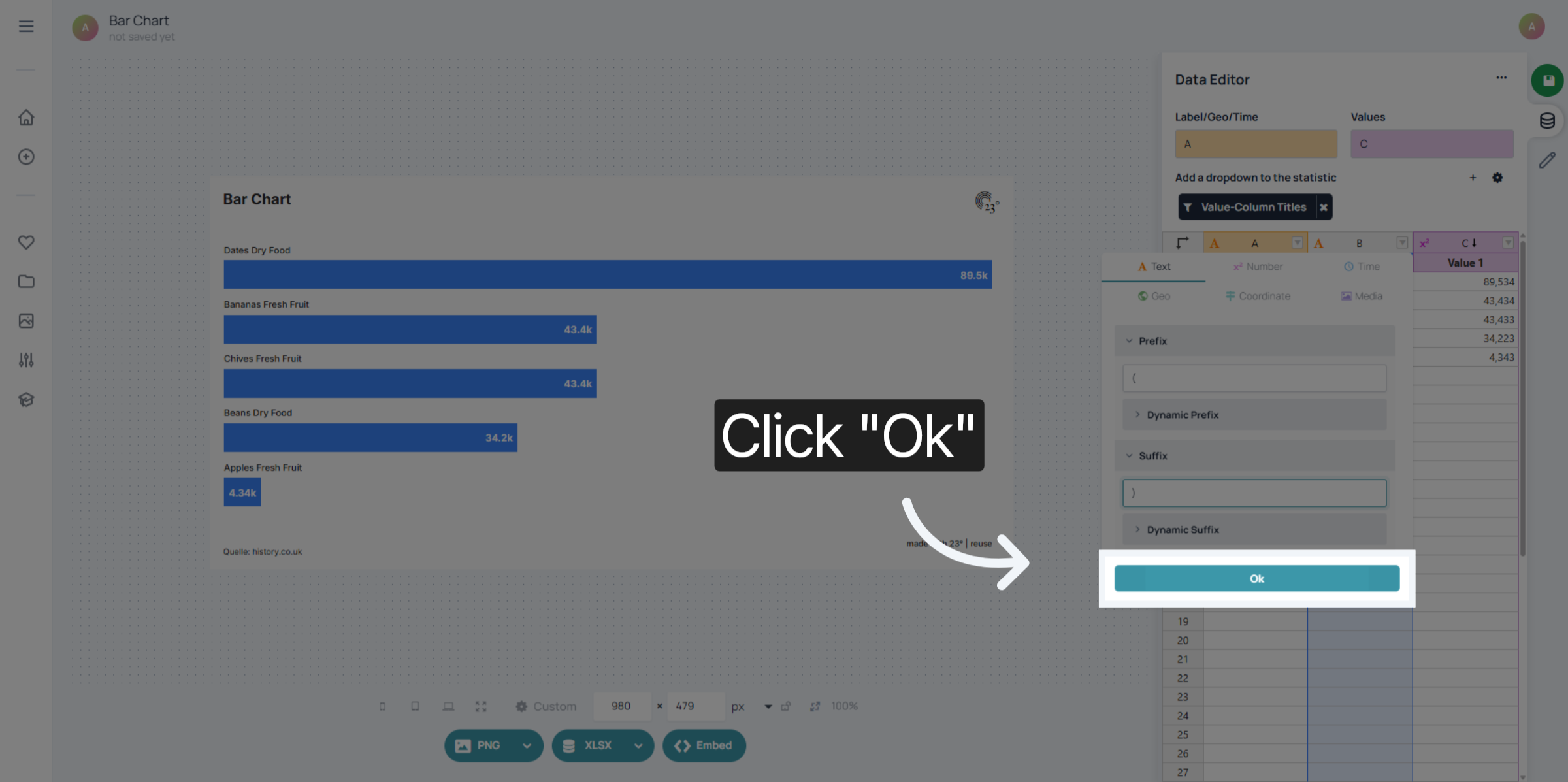
Click on the Prefix or Suffix to enter a value. In this case we want to put our category into paranthesis so that the label and the category in the chart are more distinguished from each other.
Click Ok to save your prefix and suffix settings for the data display.
You can add prefixes and suffixes for values, geographies and date time column types. For that you also just have to click on the column icon
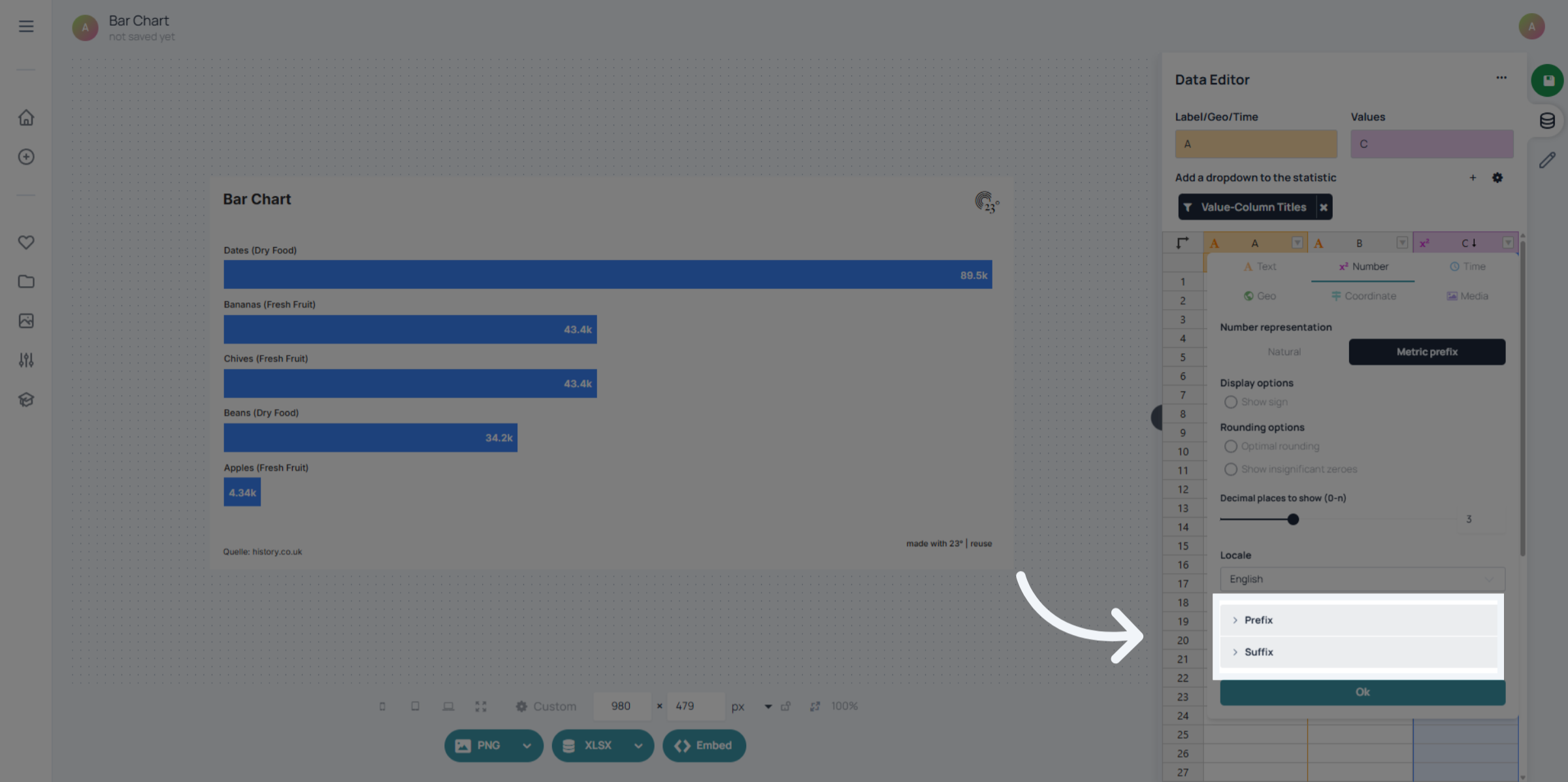
and apply the prefix and suffix the same way as in the text column
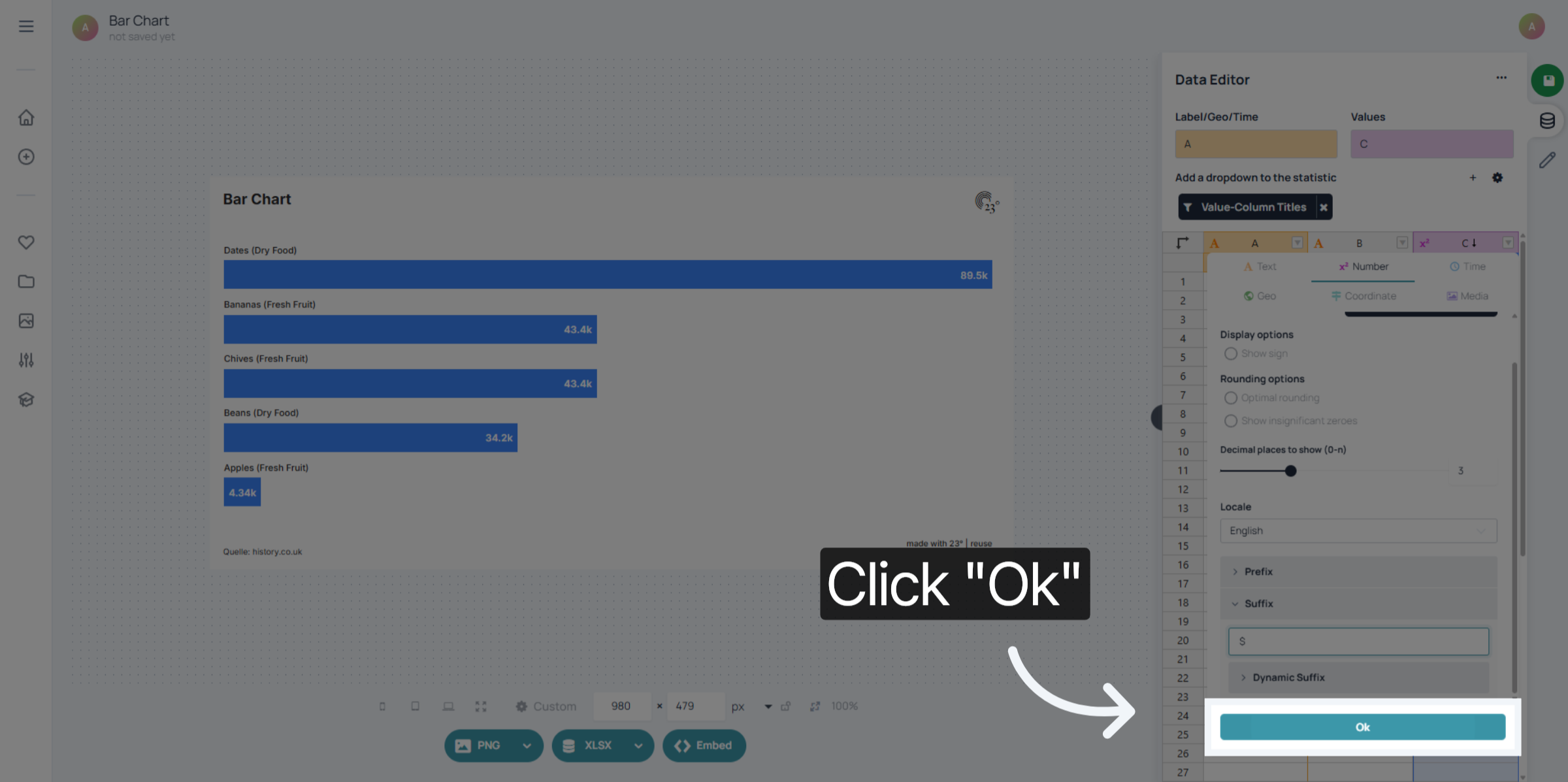
Click Ok to save the suffix configuration and apply it to your data display.
You have successfully configured custom prefixes and suffixes to enhance your data display. This setup improves data clarity by adding contextual text before and after values. Consider exploring additional formatting options to further tailor your display.