How to customize display of annotations in linecharts in a mobile legend
You created a line chart with annotations and want to customize the way they are displayed on a smaller screen? This tutorial will show you how.
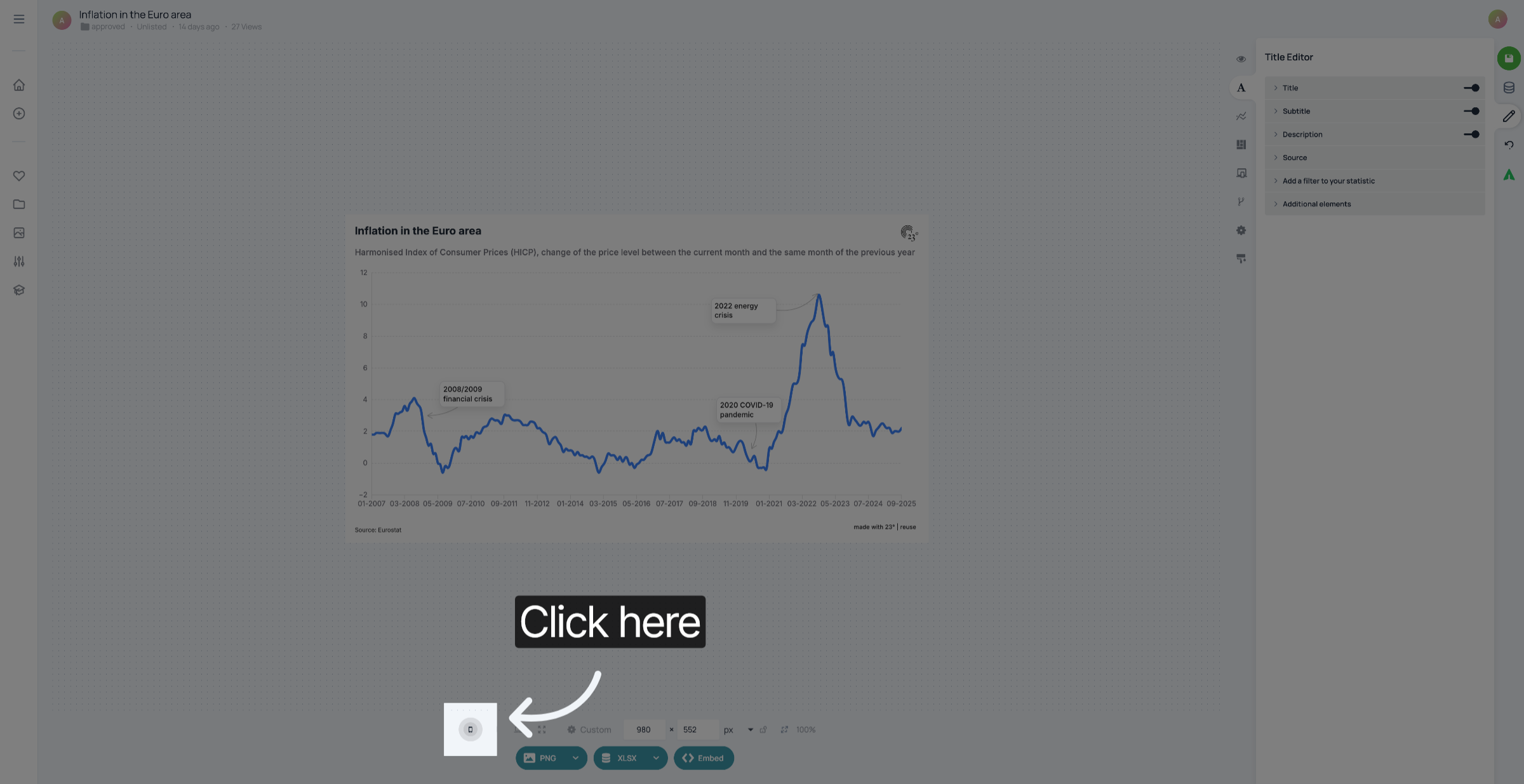
1. Preview mobile view
Click here to preview the way your linechart looks on mobile.
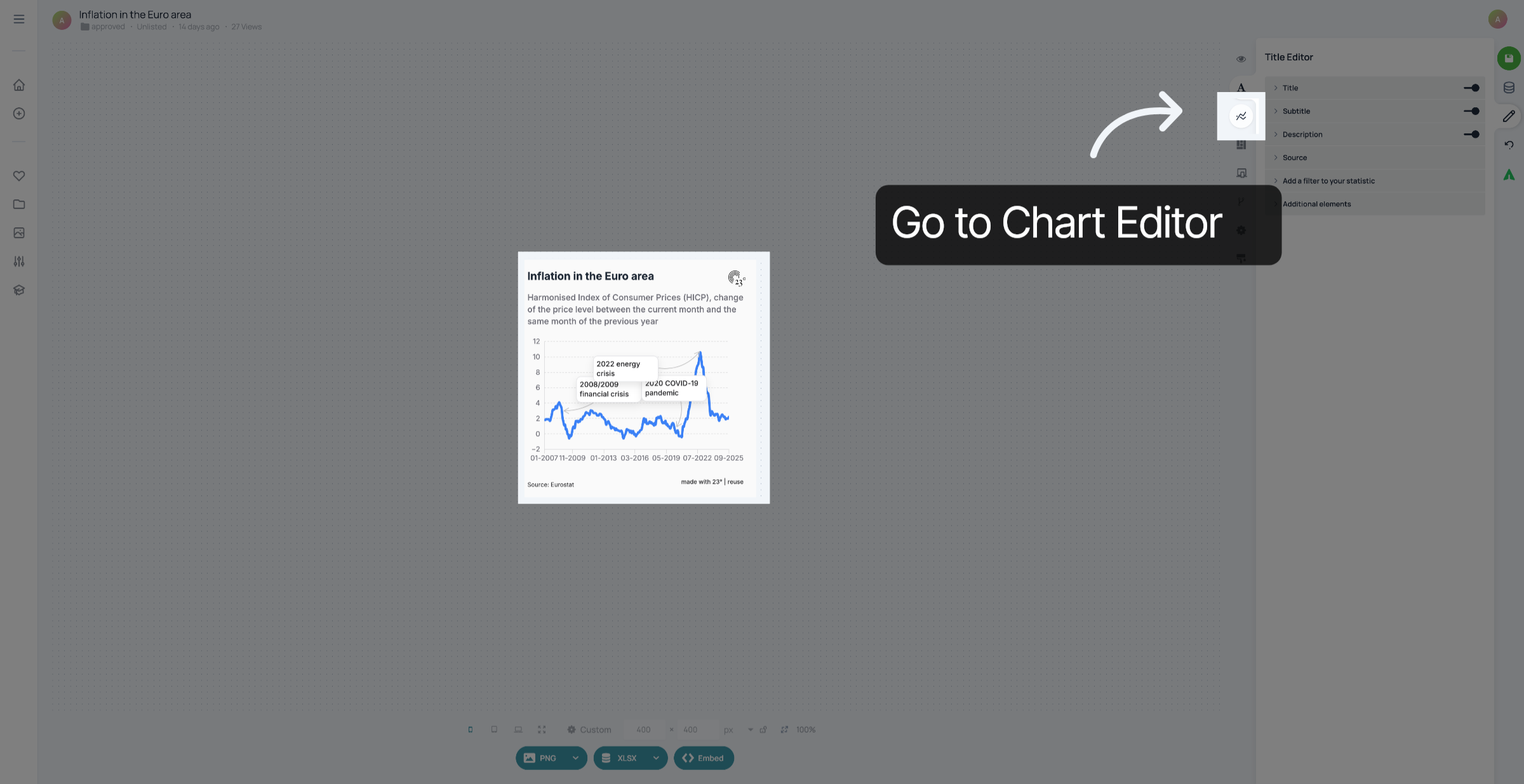
2. Go to Chart Editor
Go to the Chart Editor
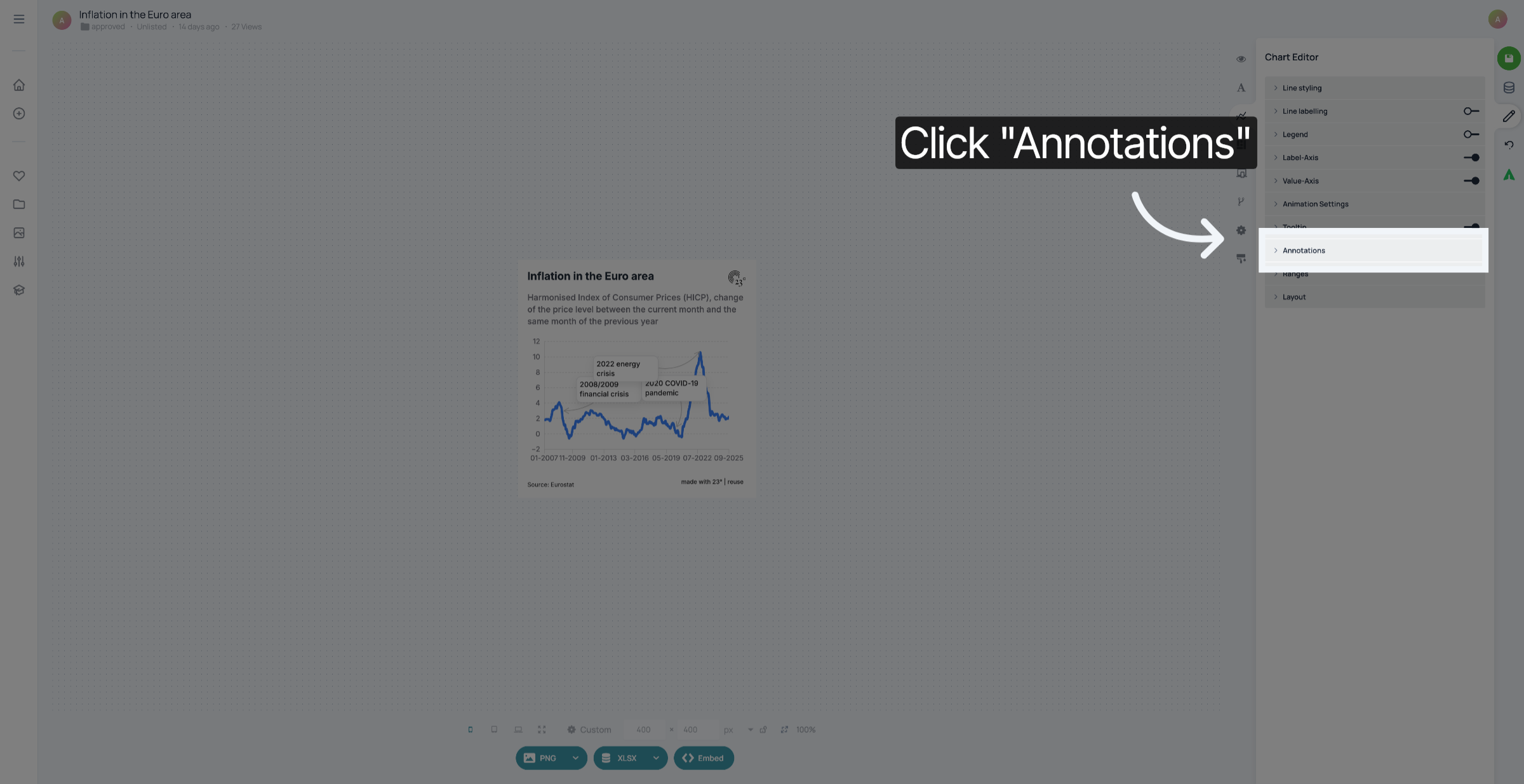
3. Click "Annotations"
Click "Annotations".
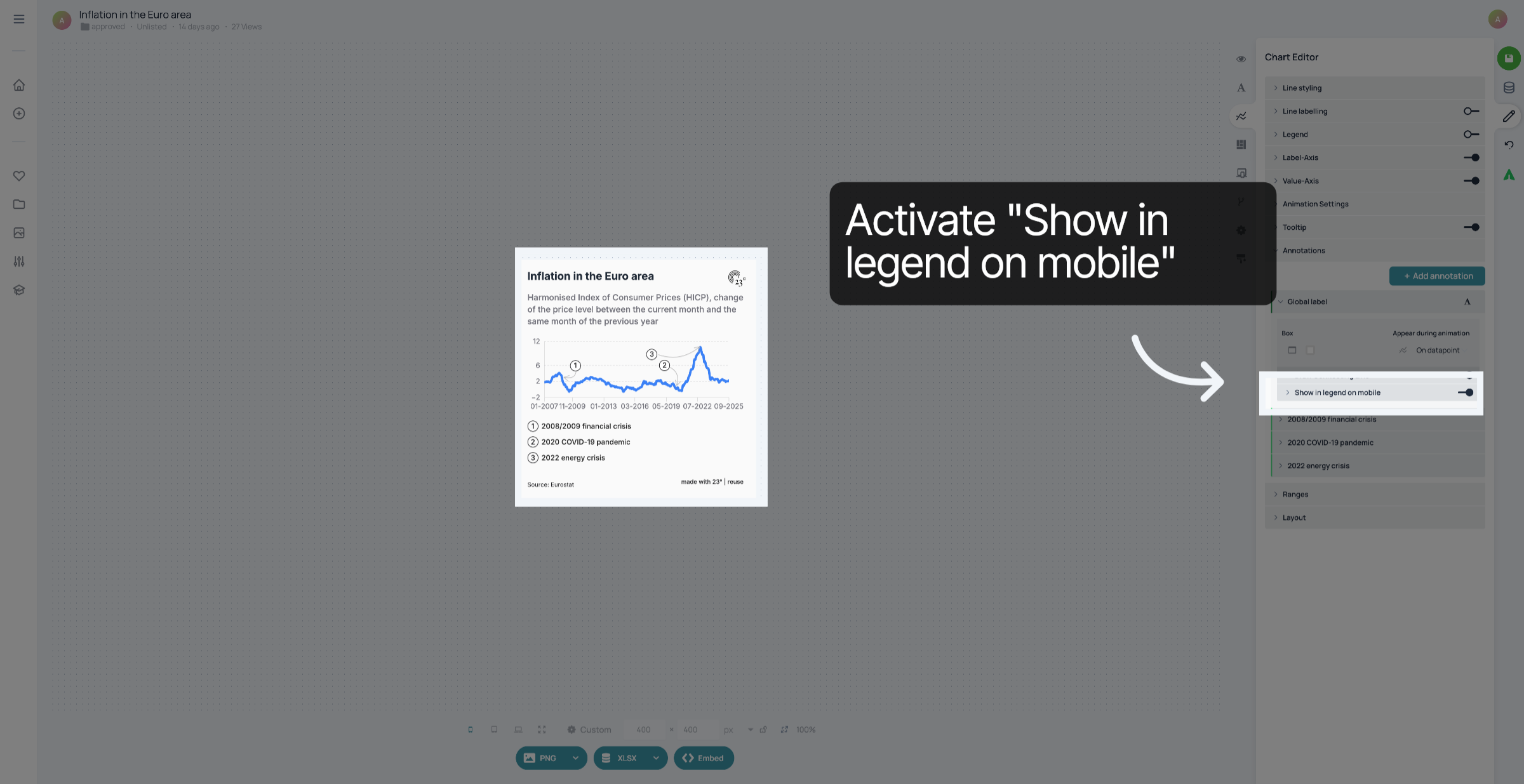
4. Activate "Show in legend on mobile"
Activate "Show in legend on mobile".
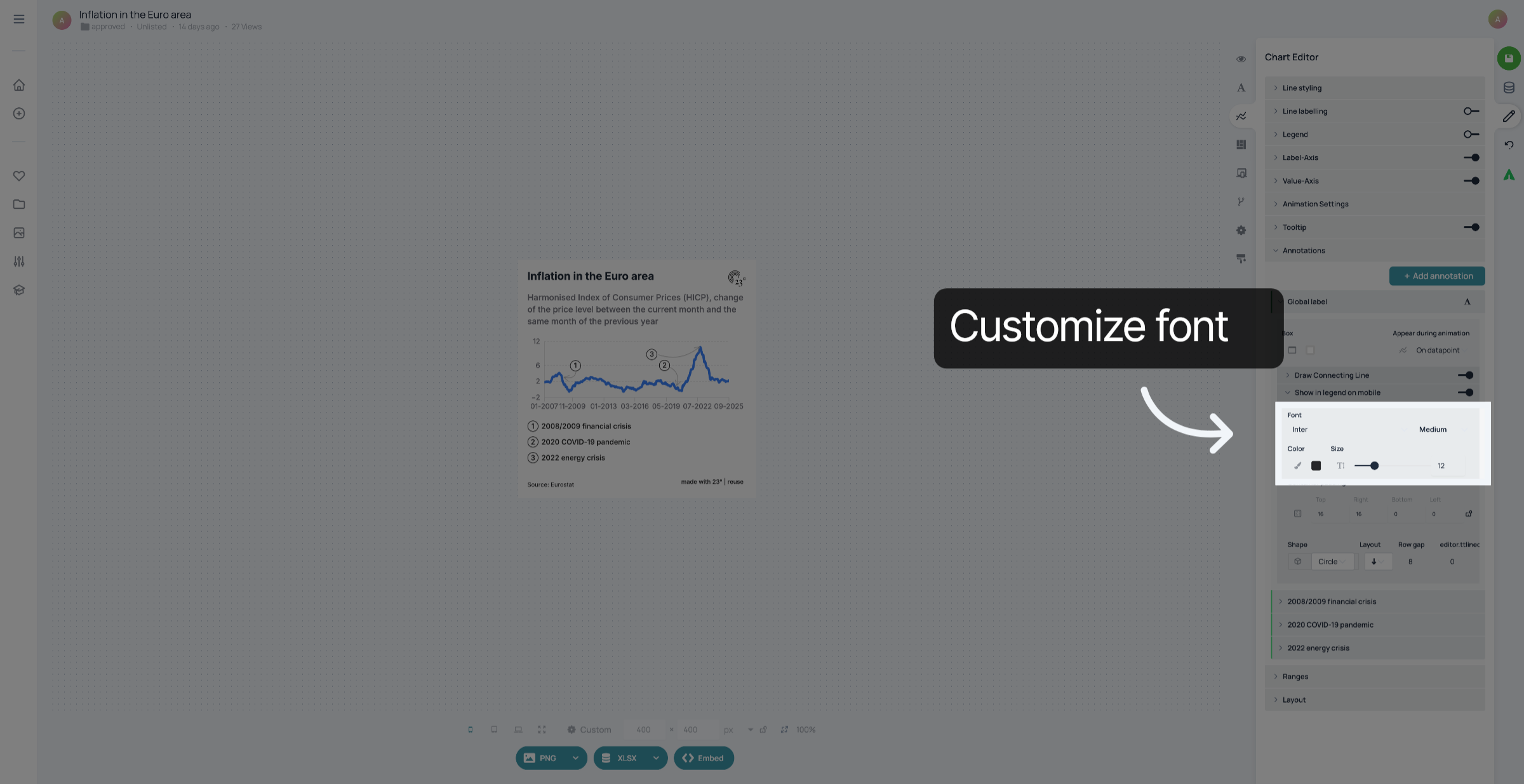
5. Customize font
You can customize the font of your legend here.
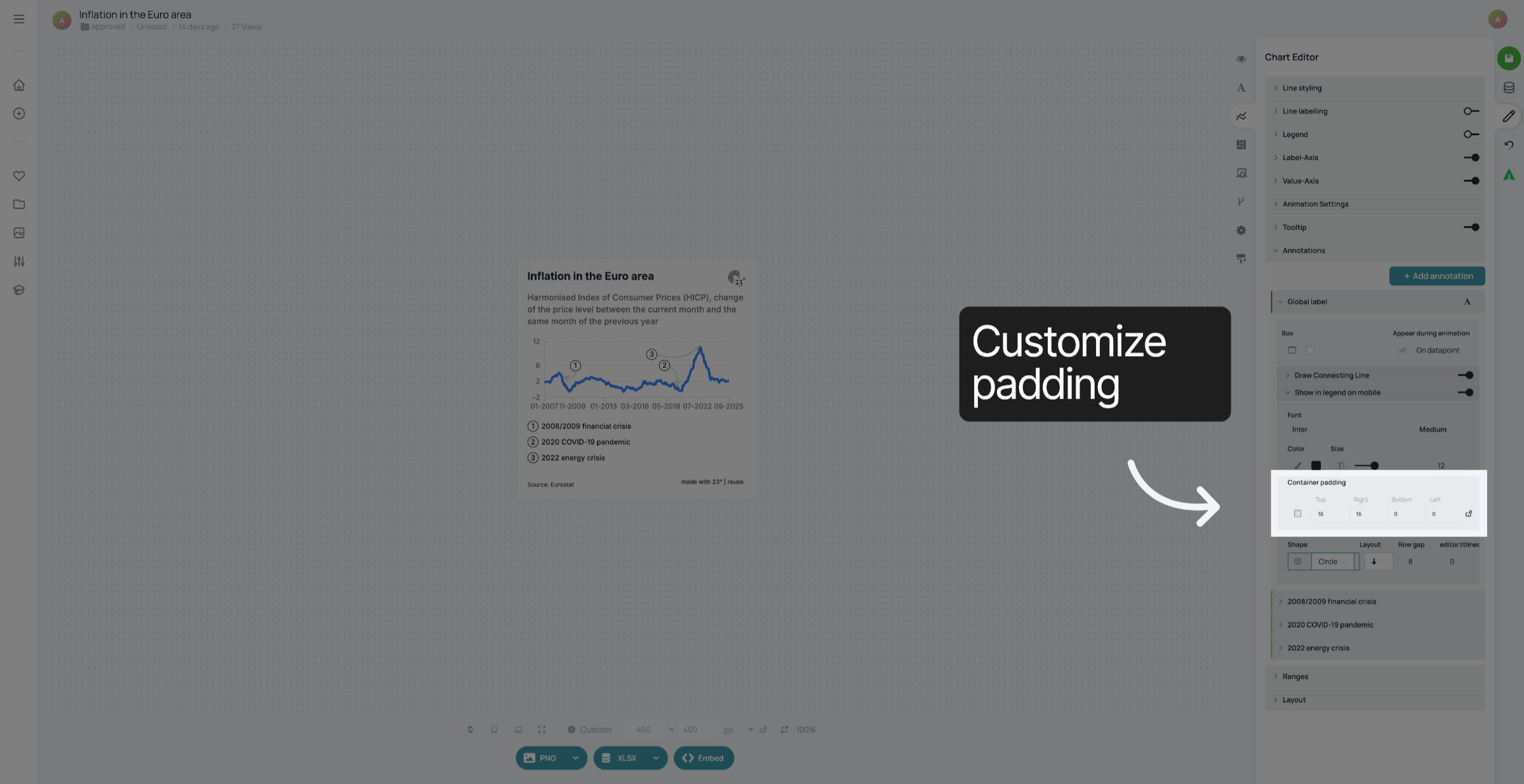
6. Customize padding
In "Container padding", you can customize the spacing around the mobile legend.
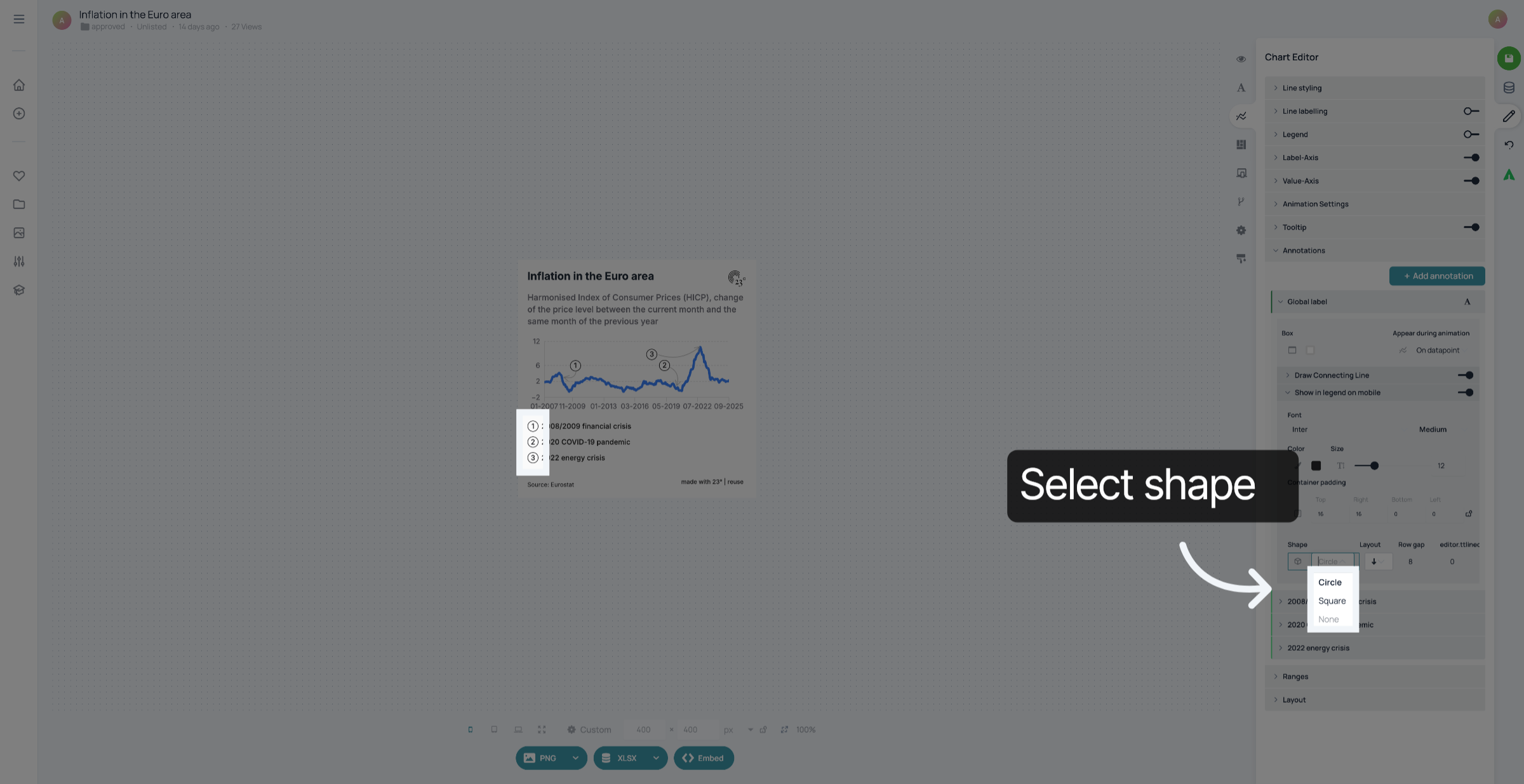
7. Select Shape
You can select if the numbers in your legend are in a circle, square or if there is no shape around them
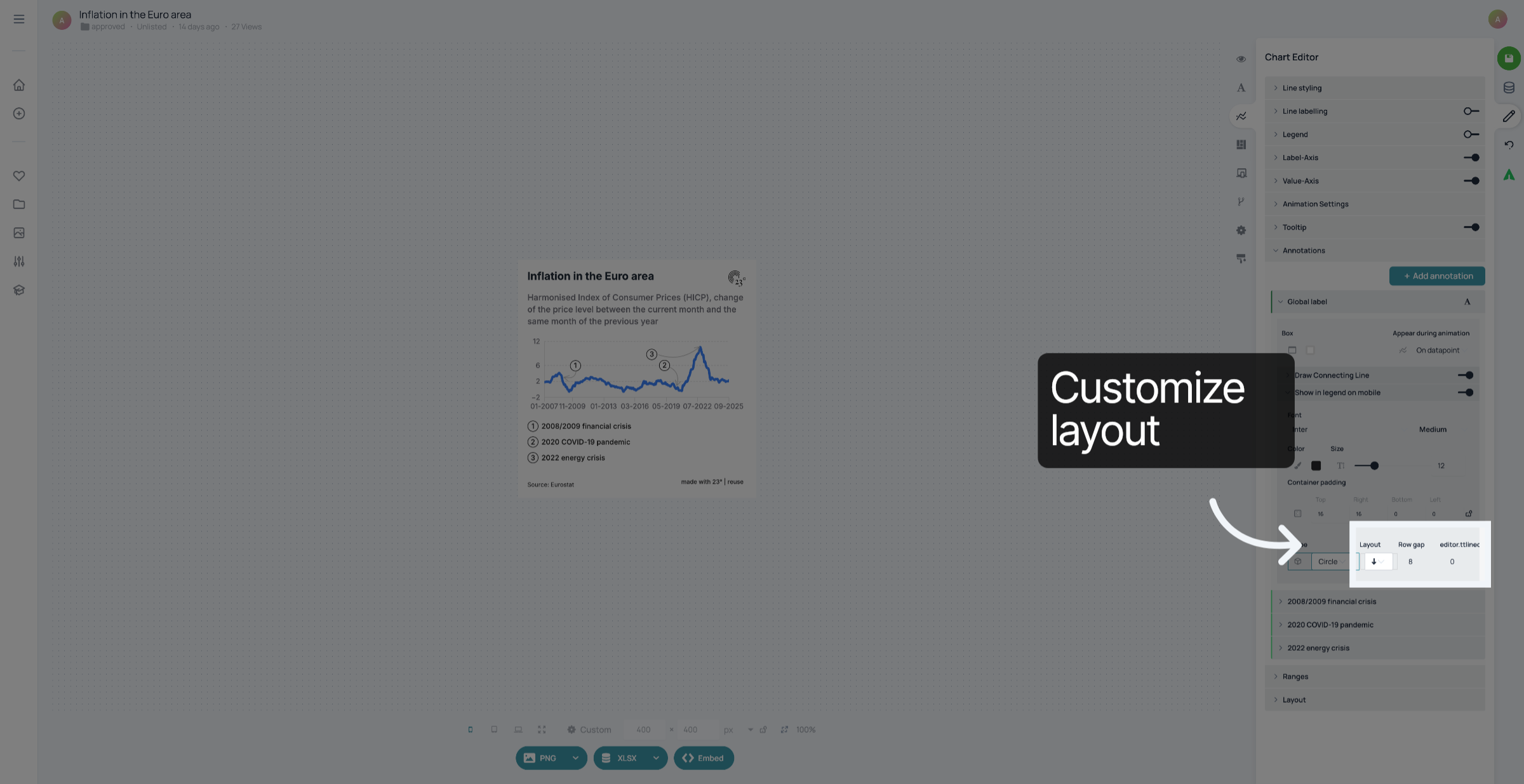
8. Customize layout
Next to the shape settings, you can select the layout of your legend and how big the gap between the lines is.
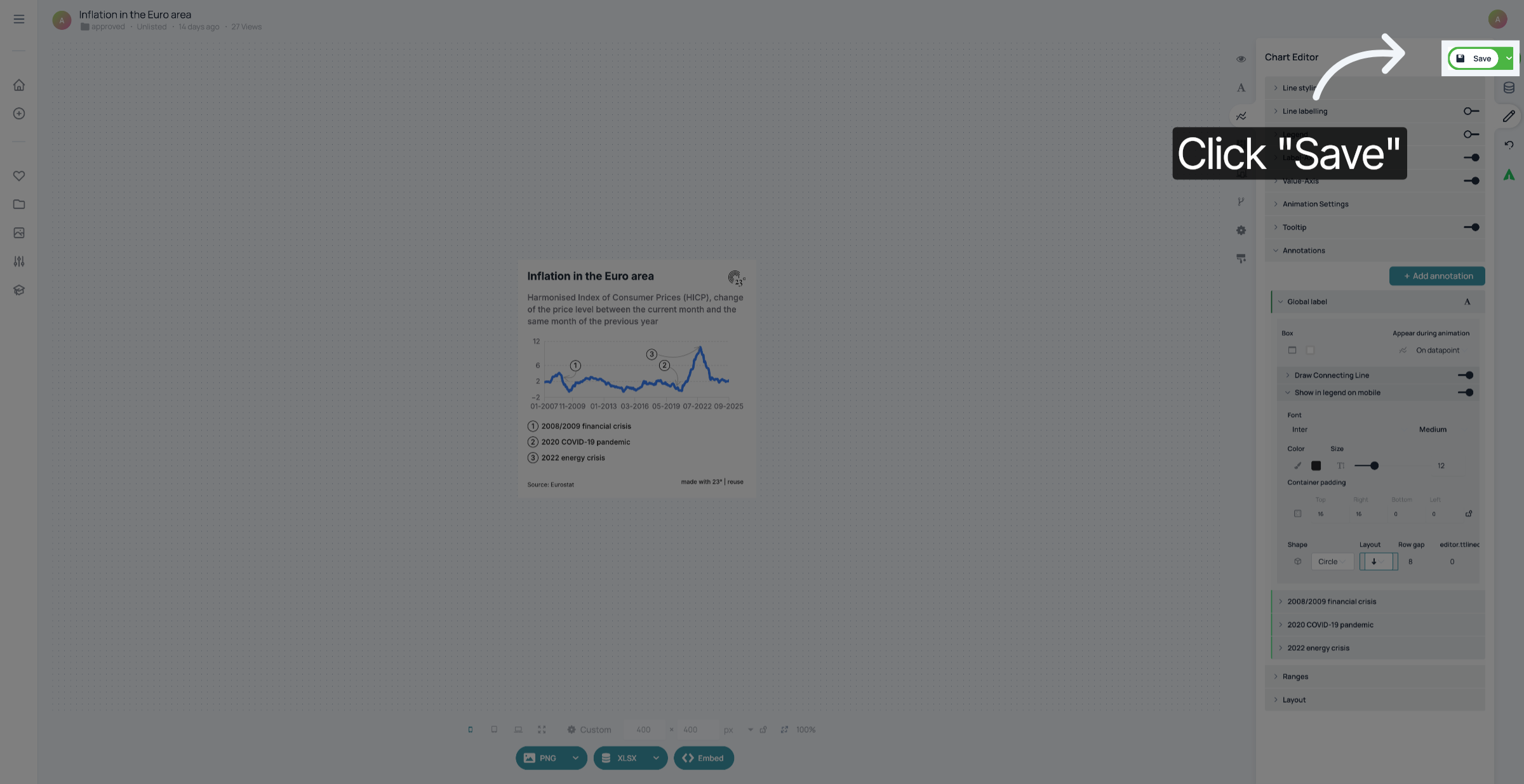
9. Save your changes
Don't forget to save your changes.
You have successfully customized the mobile display of annotations in your Line Chart.