Adjust Dashobard sizes
This tutorial will show you how to adjust the size of your dashboard.
If you created a dashboard and some information is cut off or there's not enough space to display everything, you can adjust its size and ratio.
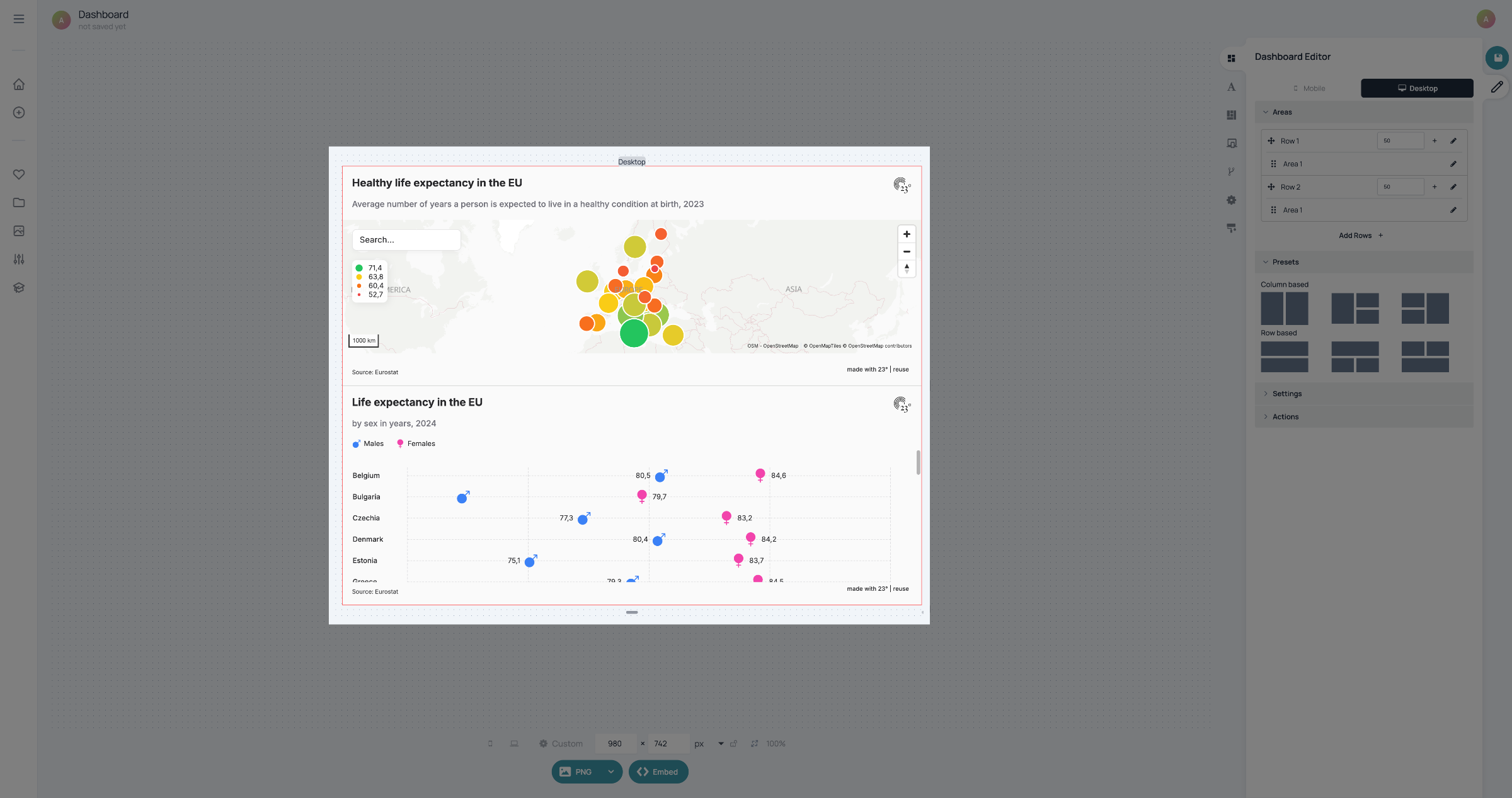
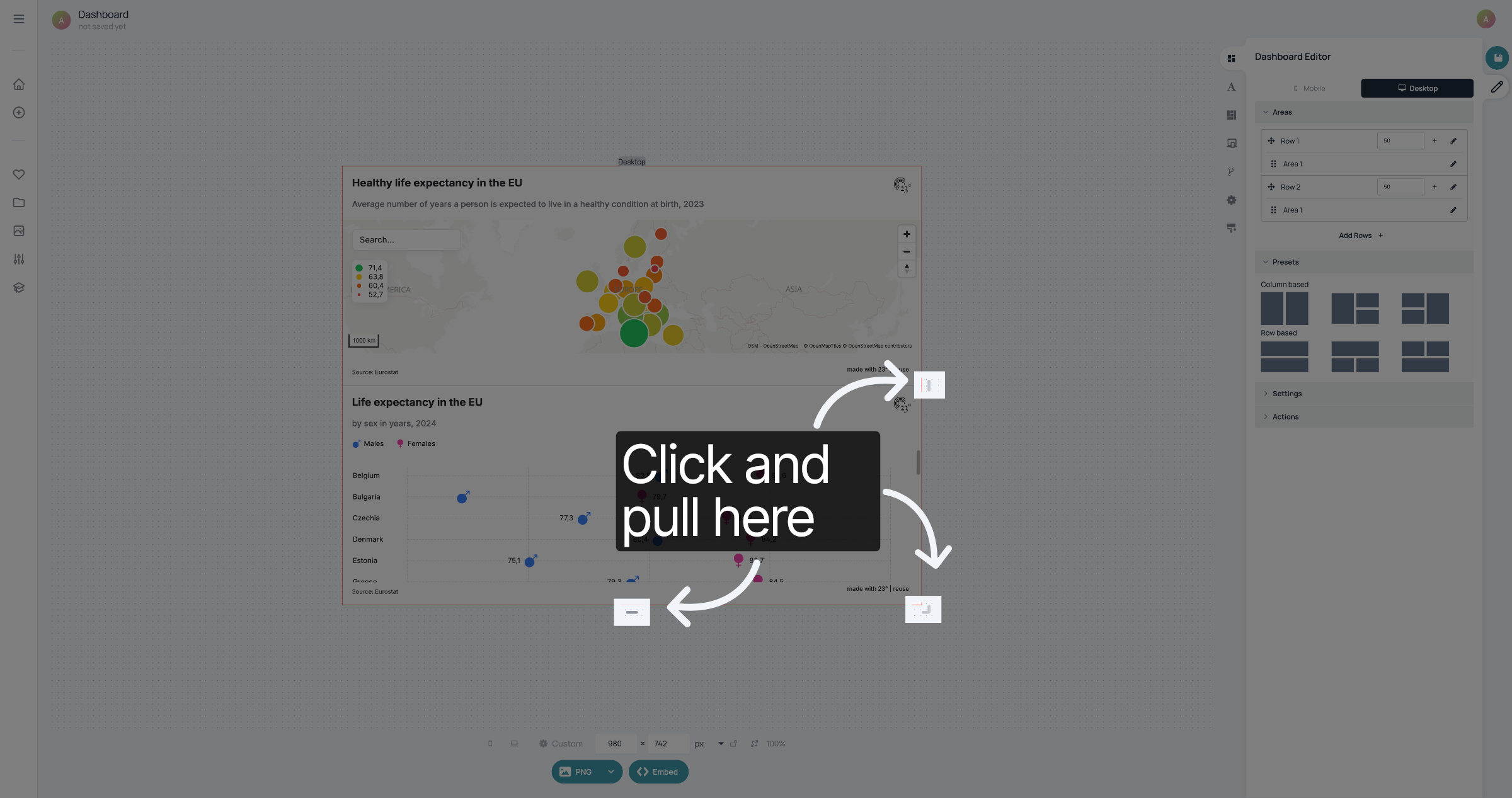
To change the size of your dashboard, you can click and pull the handles on the edges of the dashboard until you like the result.
To change the ratio of the visualisations in the dashboard you can click and pull on the border between the visualisations.
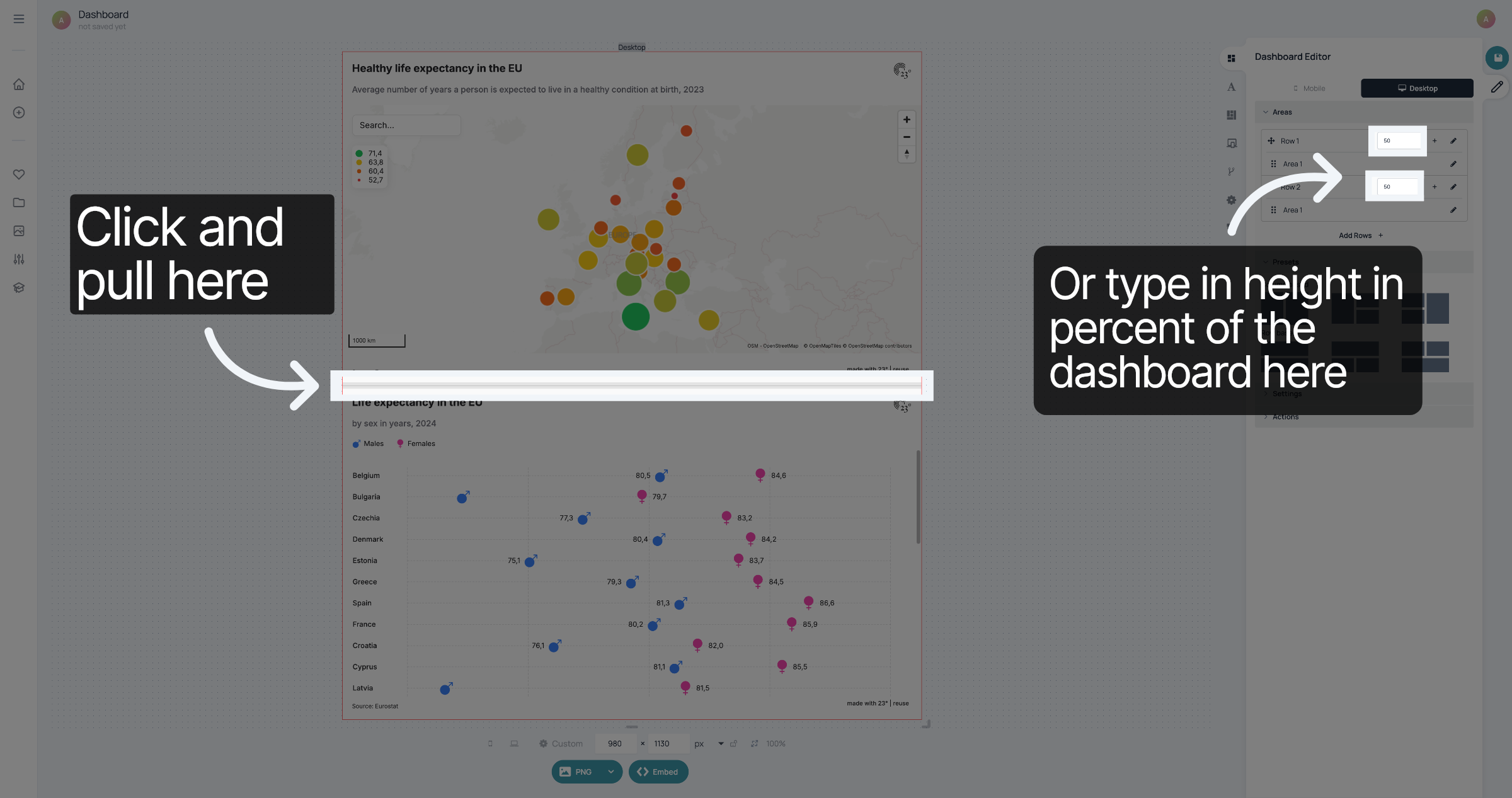
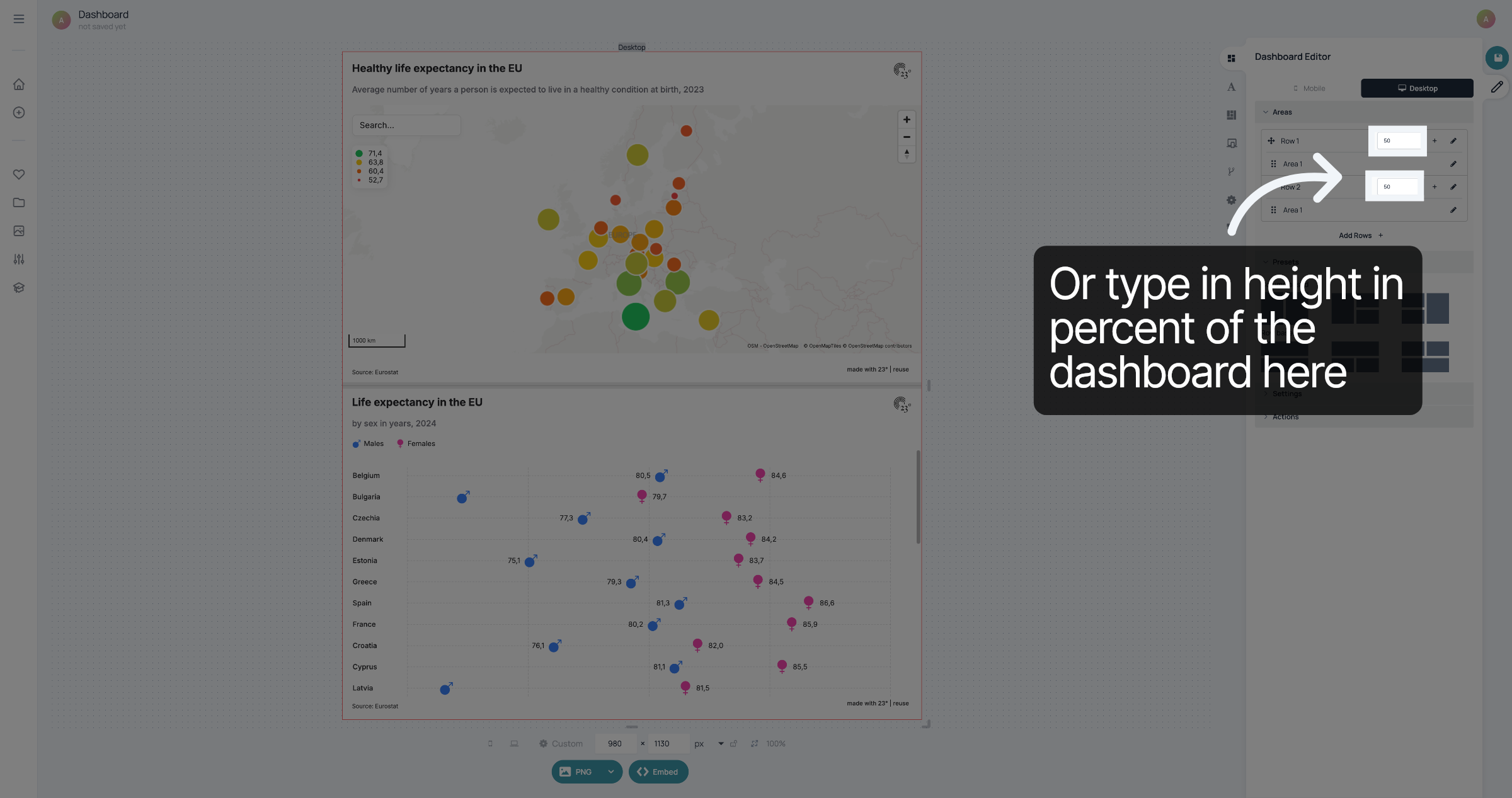
Alternatively, you can go to the rows in "Areas" and type in the height each visualisation should take up. The numbers are the percentage of the height of the dashboard. If you are using a column based dashboard, the numbers are the percentage of the width of the dashboard.
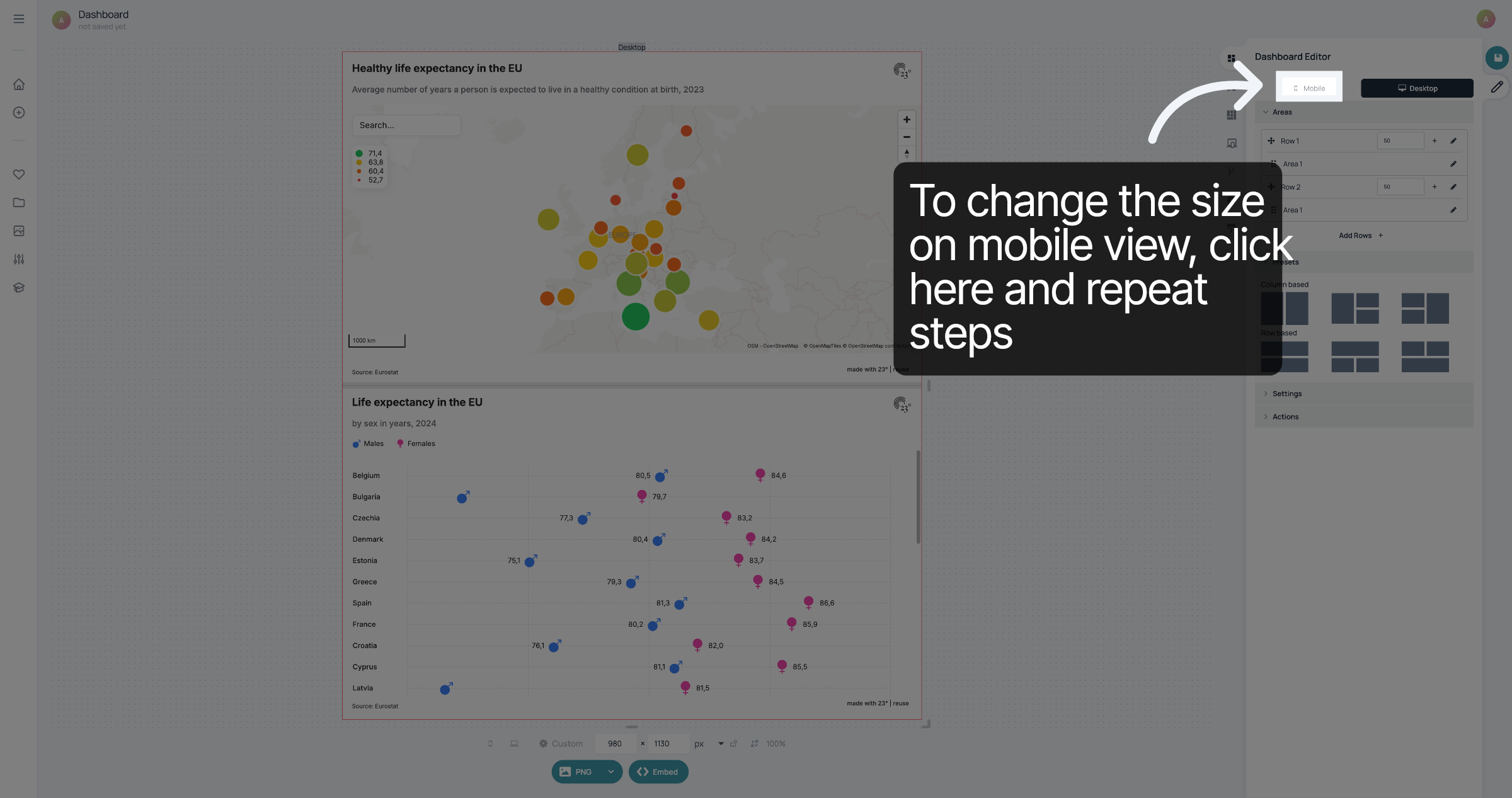
To change the way the dashboard is displayed on mobile view, click here and repeat the steps.
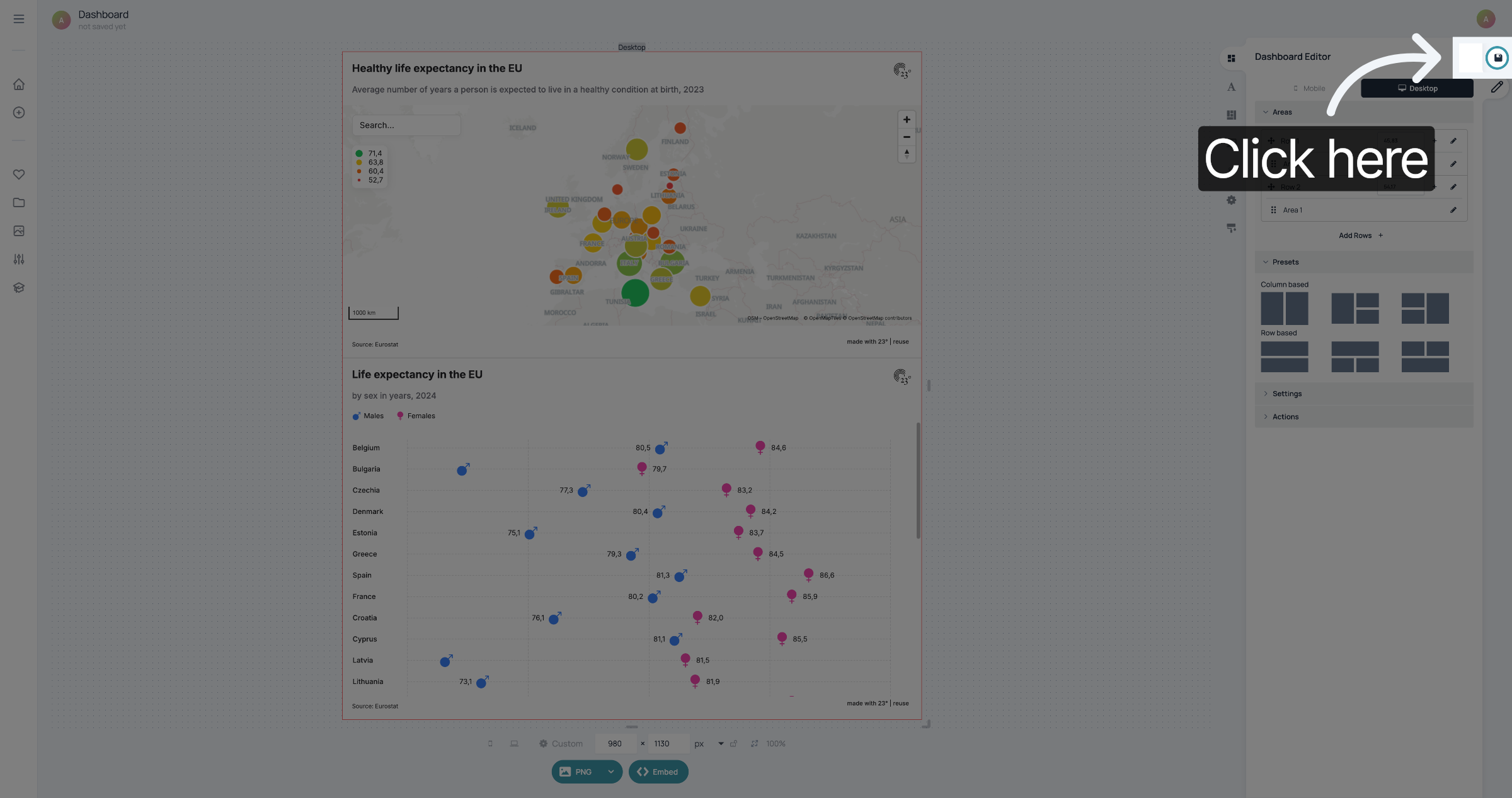
Once you're happy with your changes, don't forget to save them
You have successfully adjusted the size of your dashboard.