layout.skipToContent

How to customize clusters in Cluster Maps

This tutorial shows how to customize the clusters in a cluster map.

applicationUI.publishedAt 6 maggio 2026
2. Access Cluster Settings

Click the cluster settings option to open customization features.
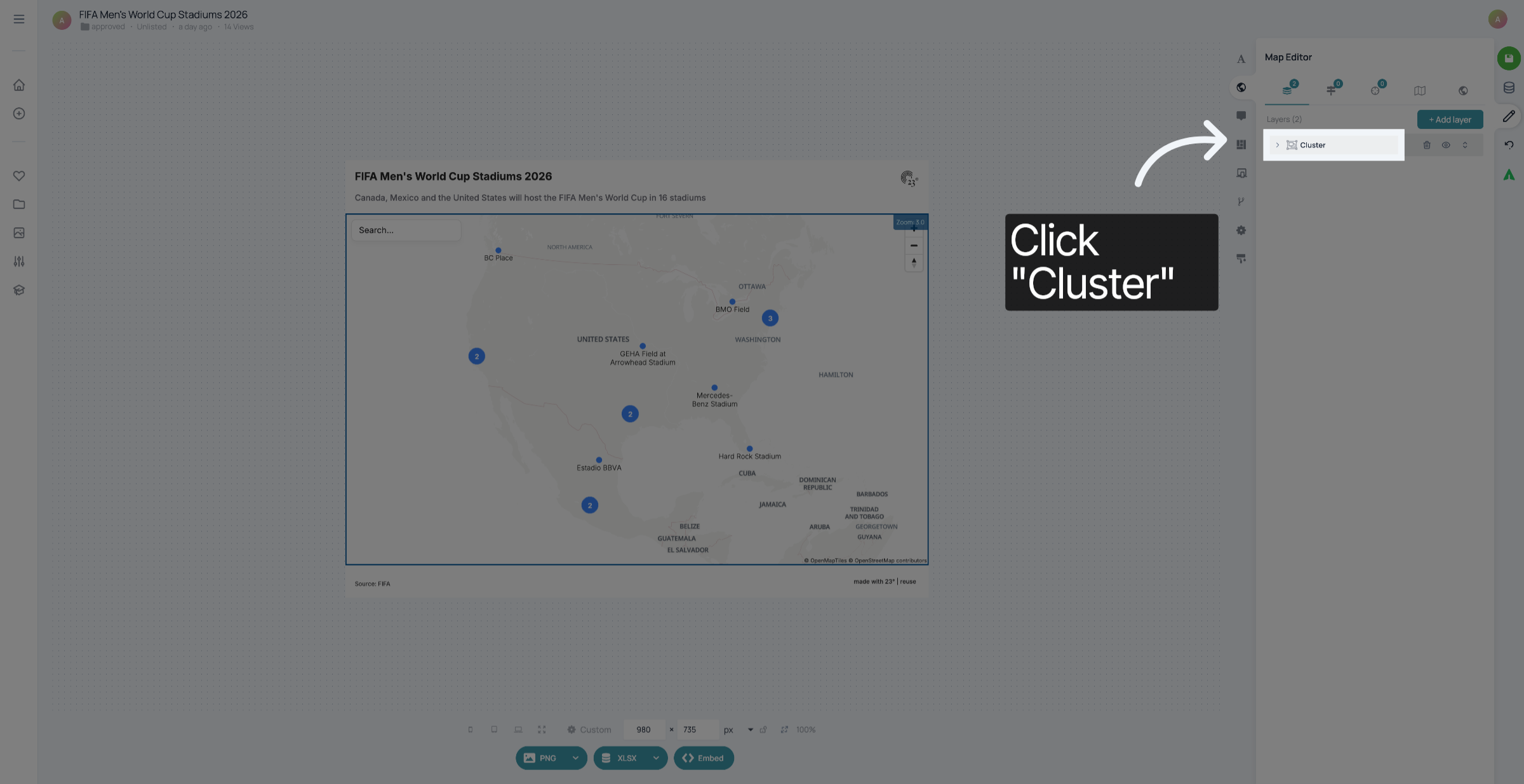
Access Cluster Settings
3. Select Cluster Options

Click the cluster options tab to view available cluster adjustments.
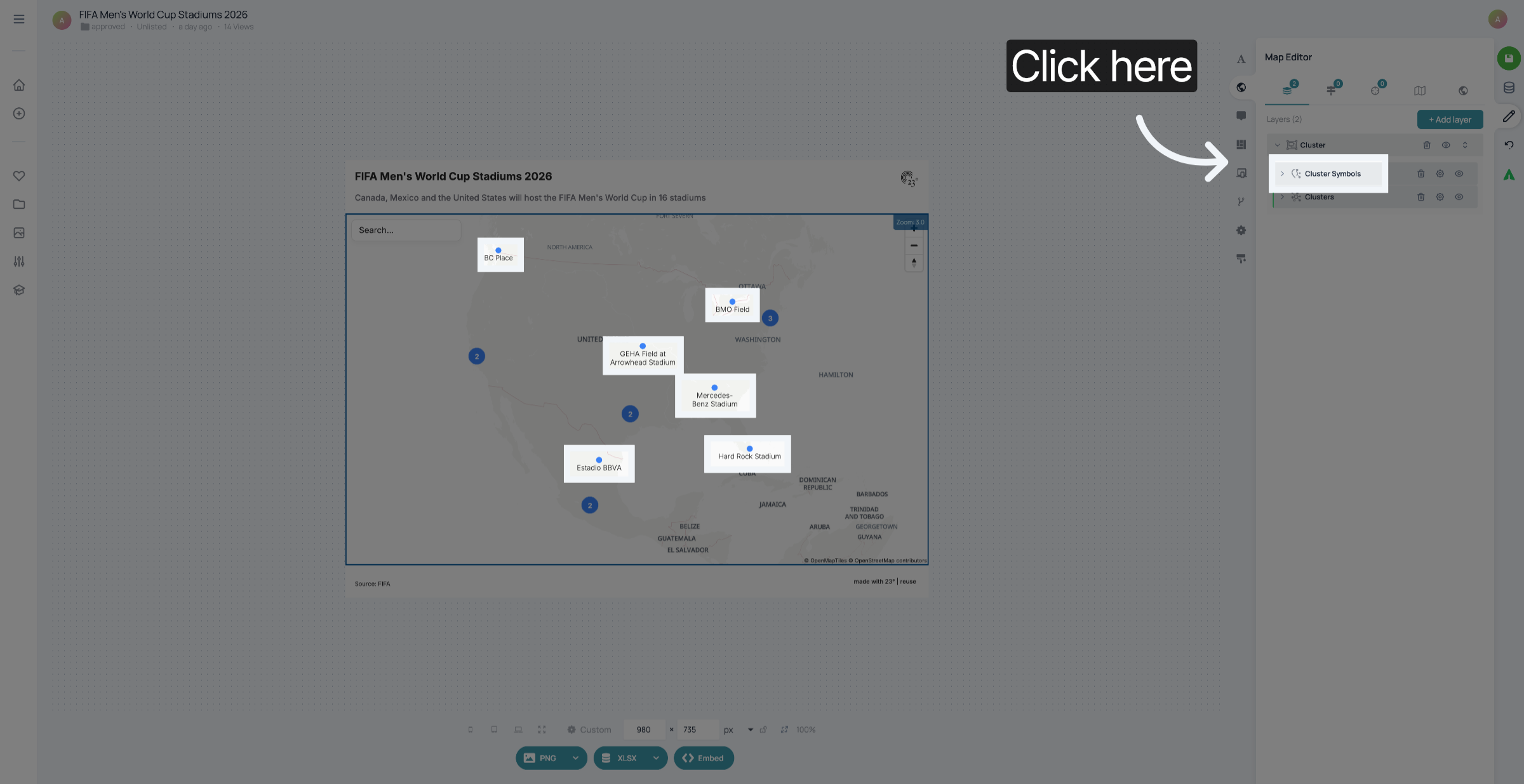
Select Cluster Options
4. Open Cluster Appearance Settings

Click the appearance settings to modify cluster visuals.
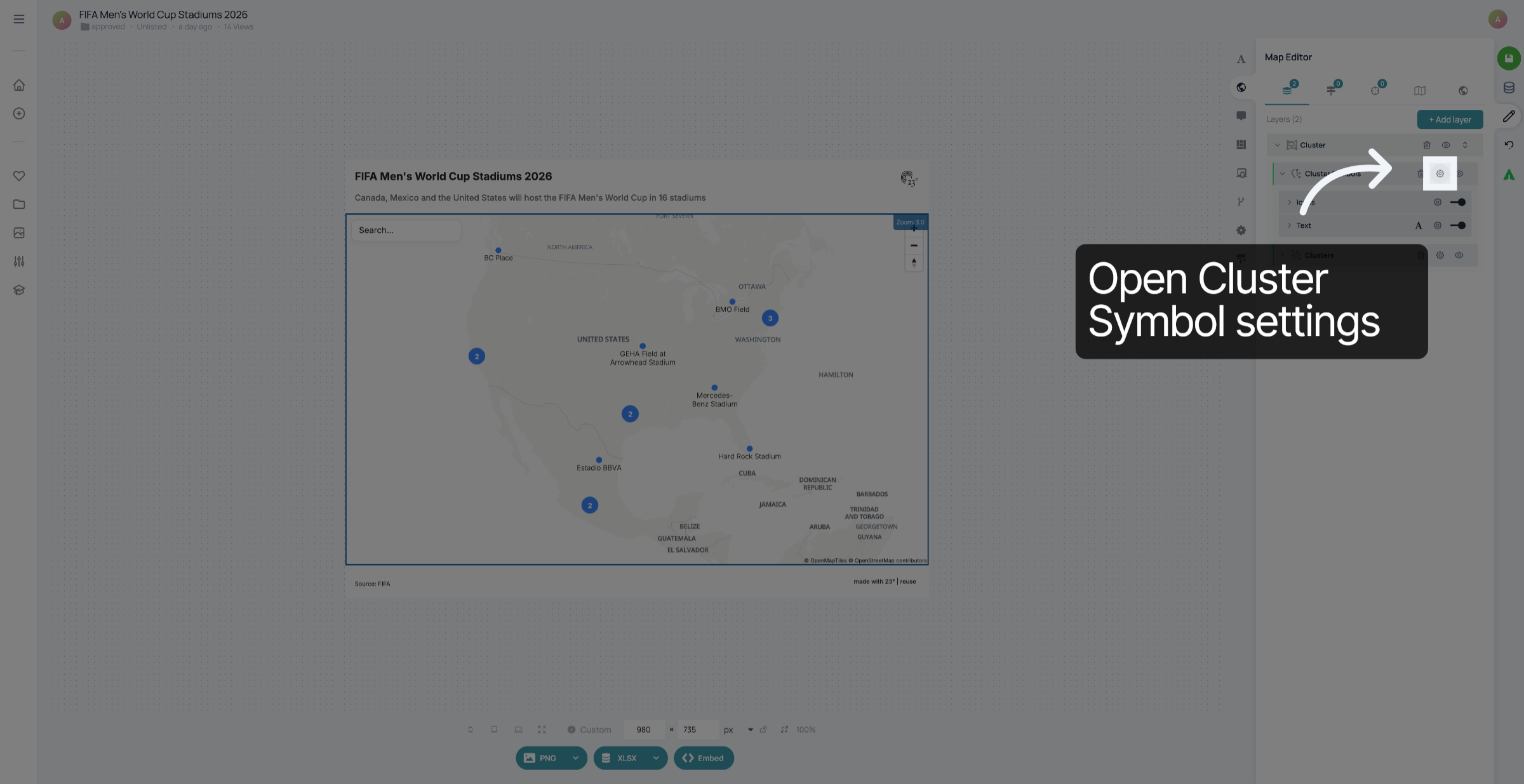
Open Cluster Appearance Settings
5. Access Cluster Color Settings

Click the color settings to change cluster colors.
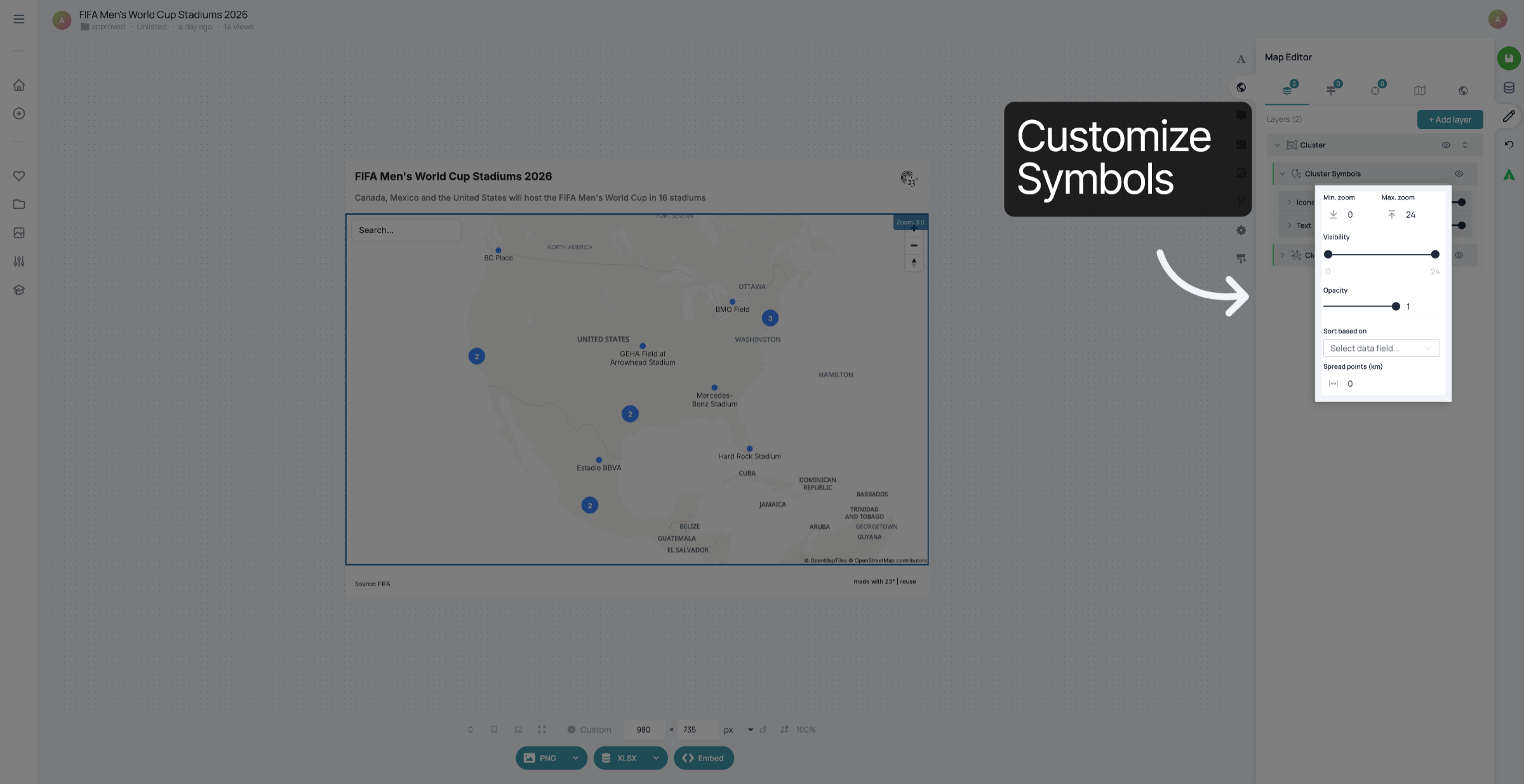
Access Cluster Color Settings
6. Choose Cluster Color

Click the desired color to apply it to your clusters.
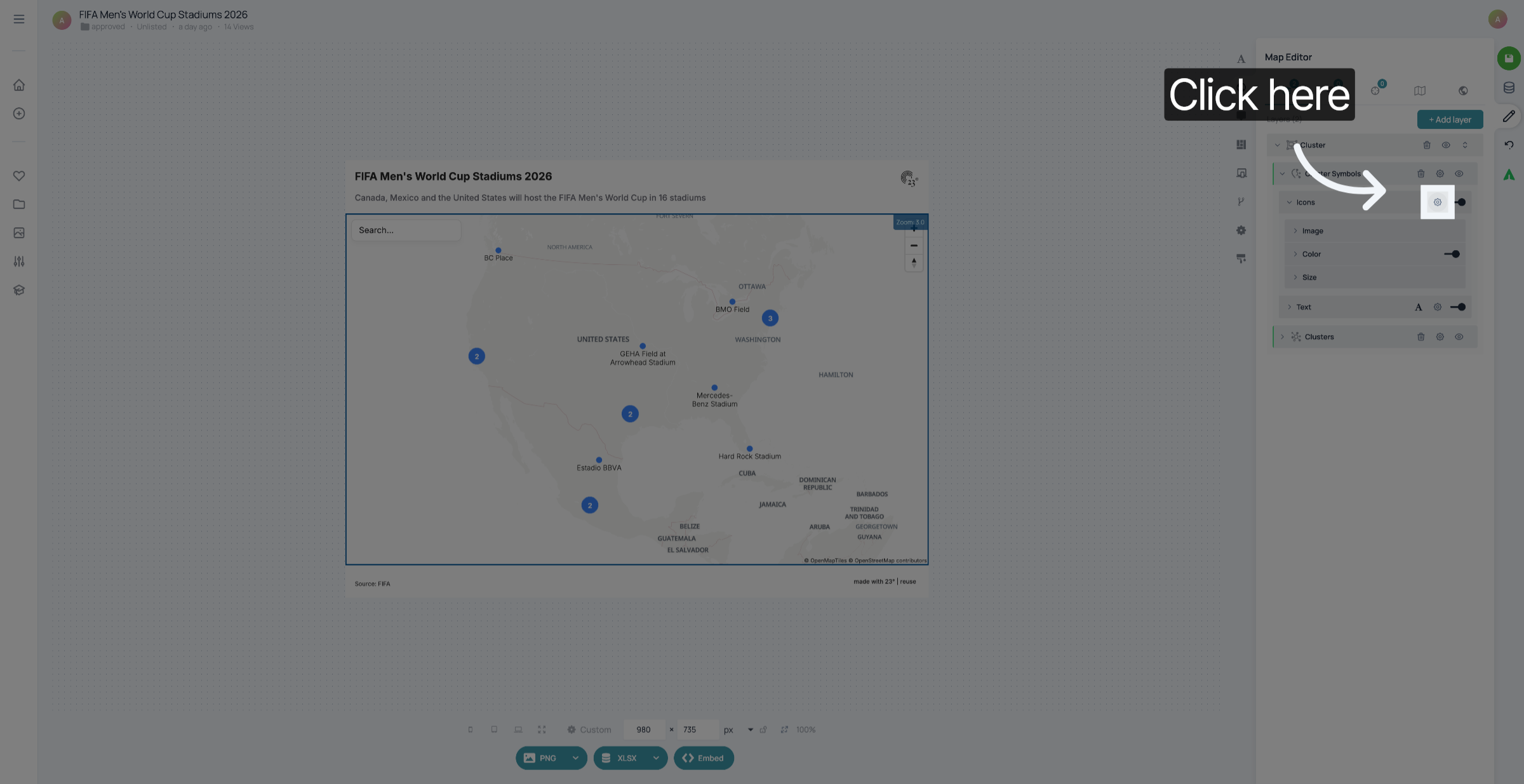
Choose Cluster Color
7. Confirm Color Selection

Click confirm to save the selected cluster color.
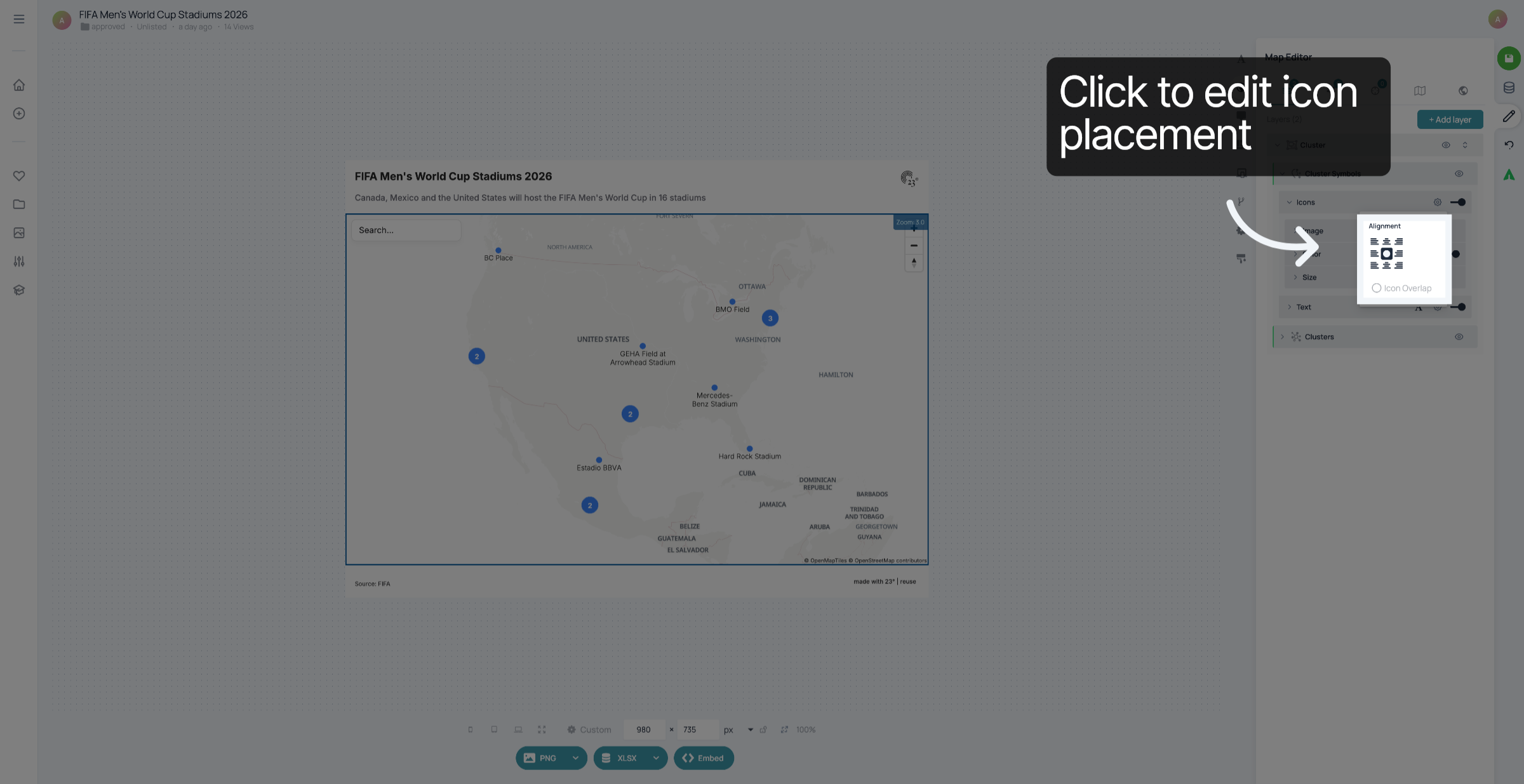
Confirm Color Selection
8. Open Text Settings

Click the text settings to change cluster label appearance.
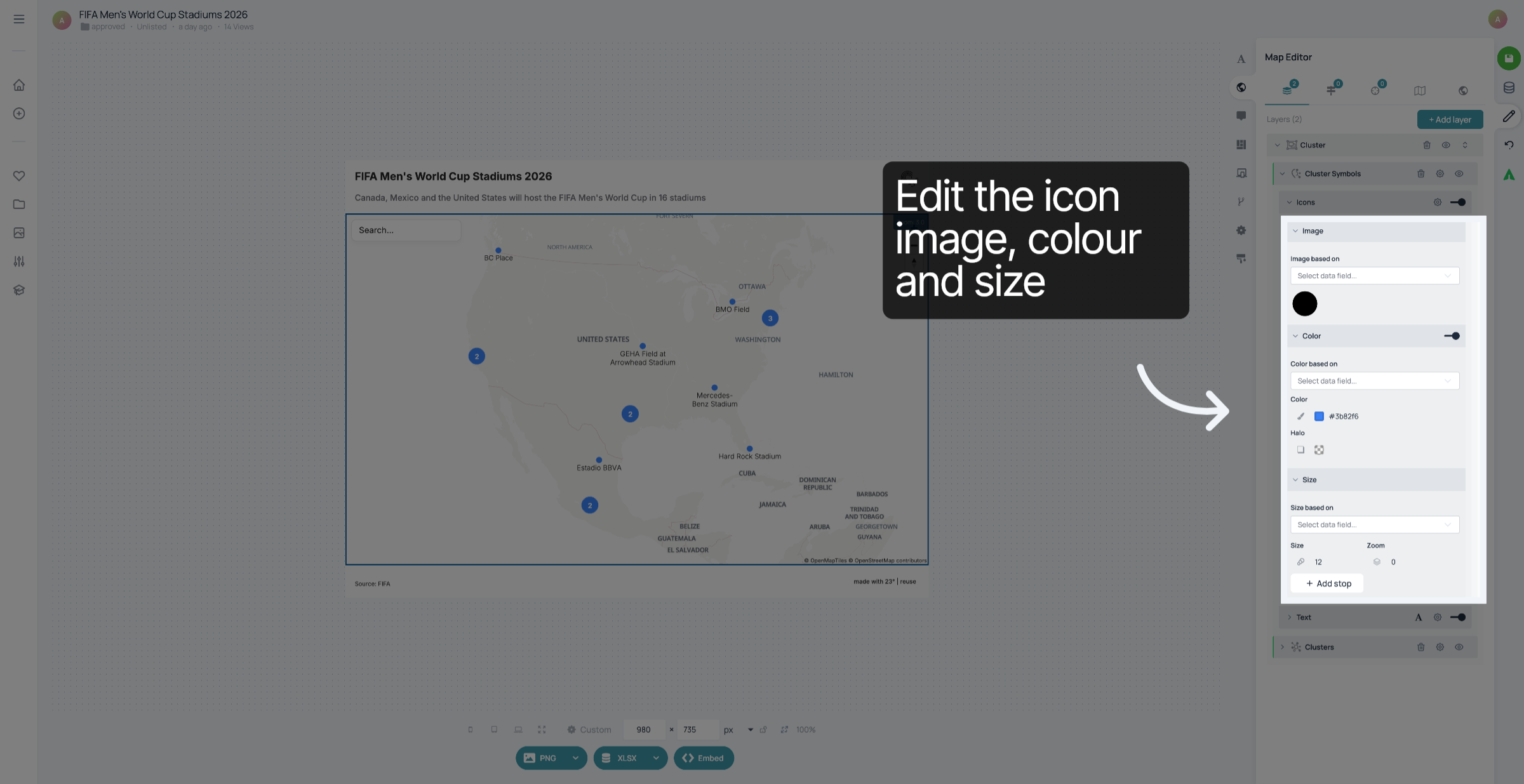
Open Text Settings
Open Text Settings
9. Select Label Font

Click the font selection to choose a label font style.
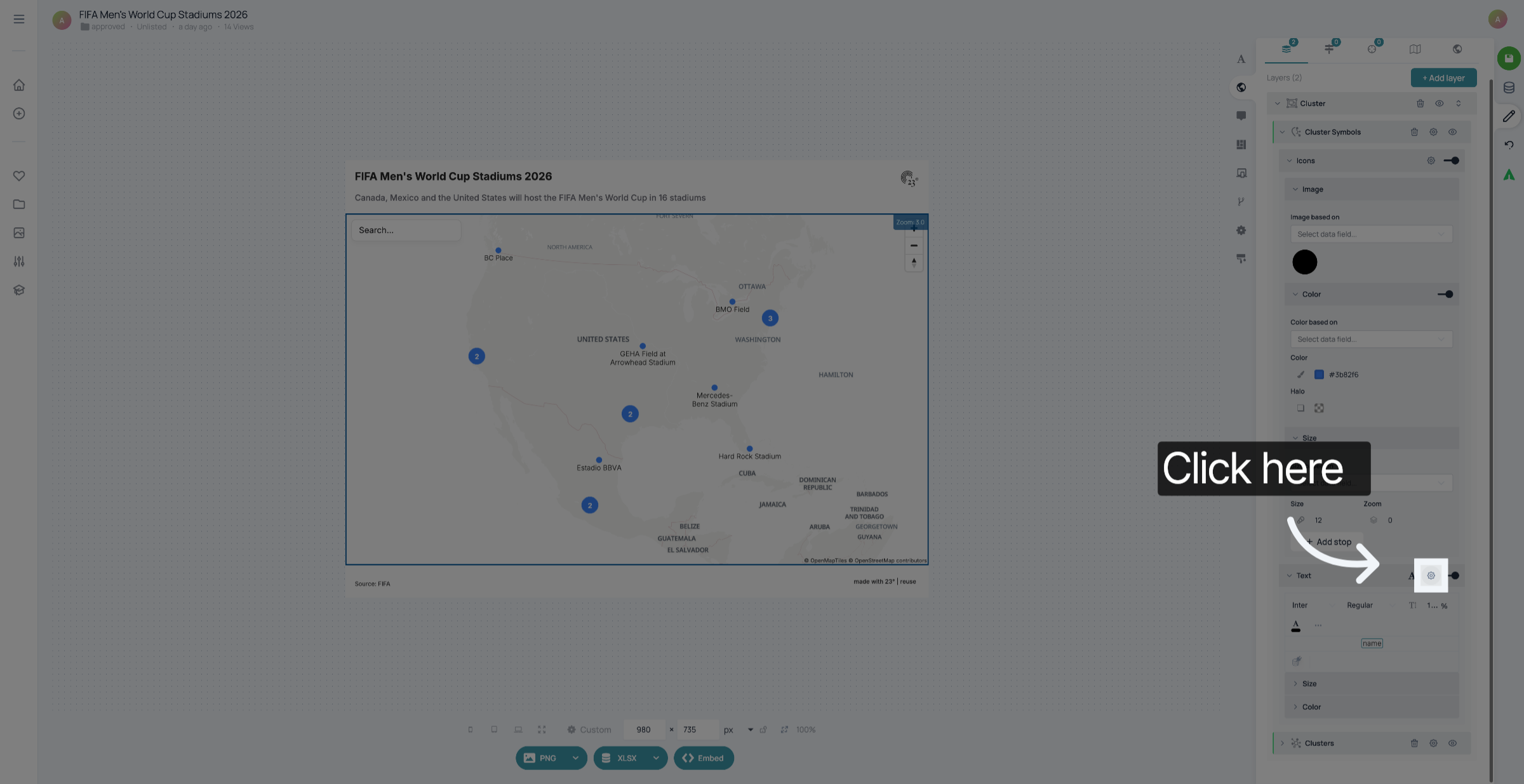
Select Label Font
Select Label Font
10. Adjust Label Size

Click the label size option to set the font size for cluster labels.
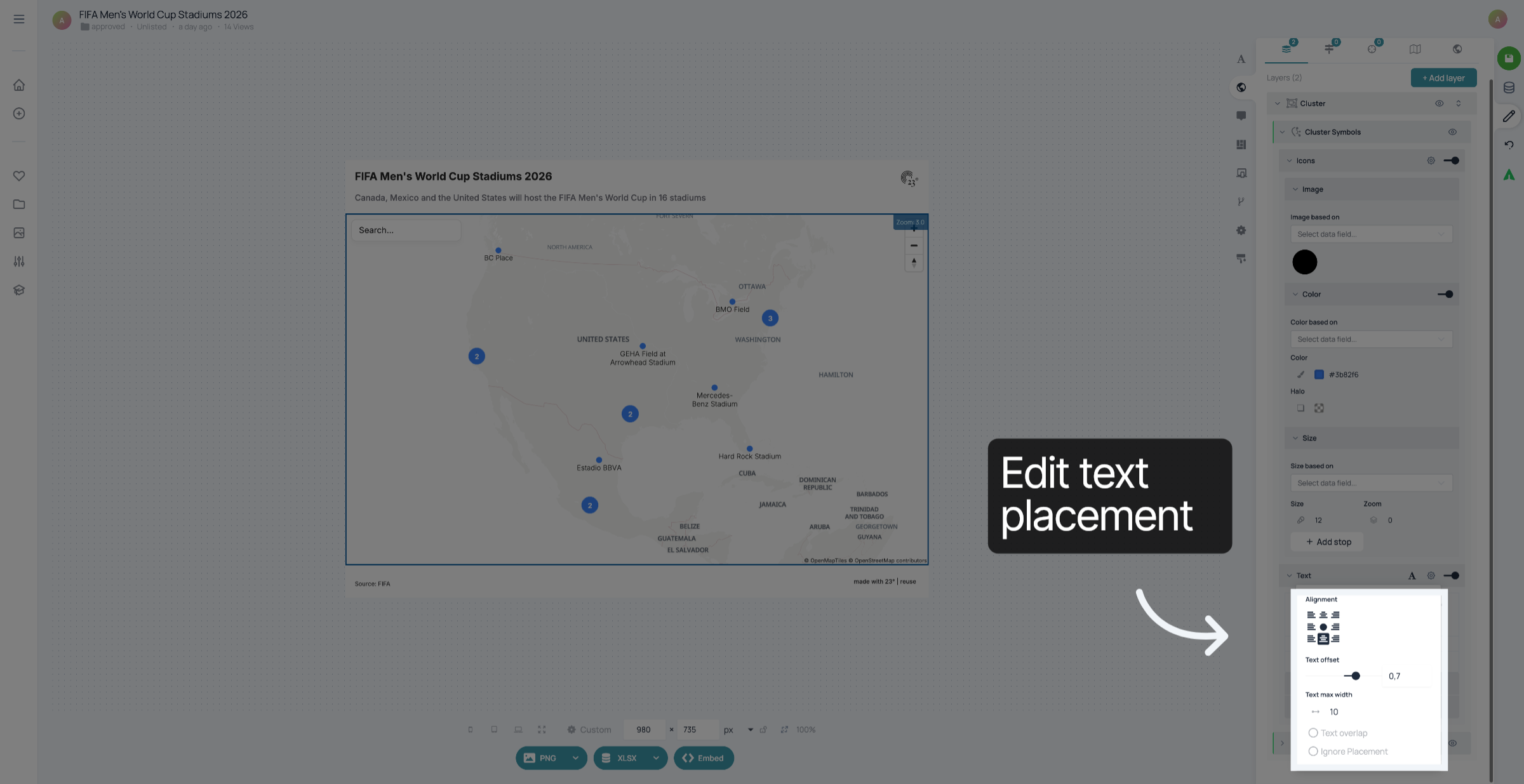
Adjust Label Size
Adjust Label Size
11. Add Cluster Layer

In the Text settings, you can change the
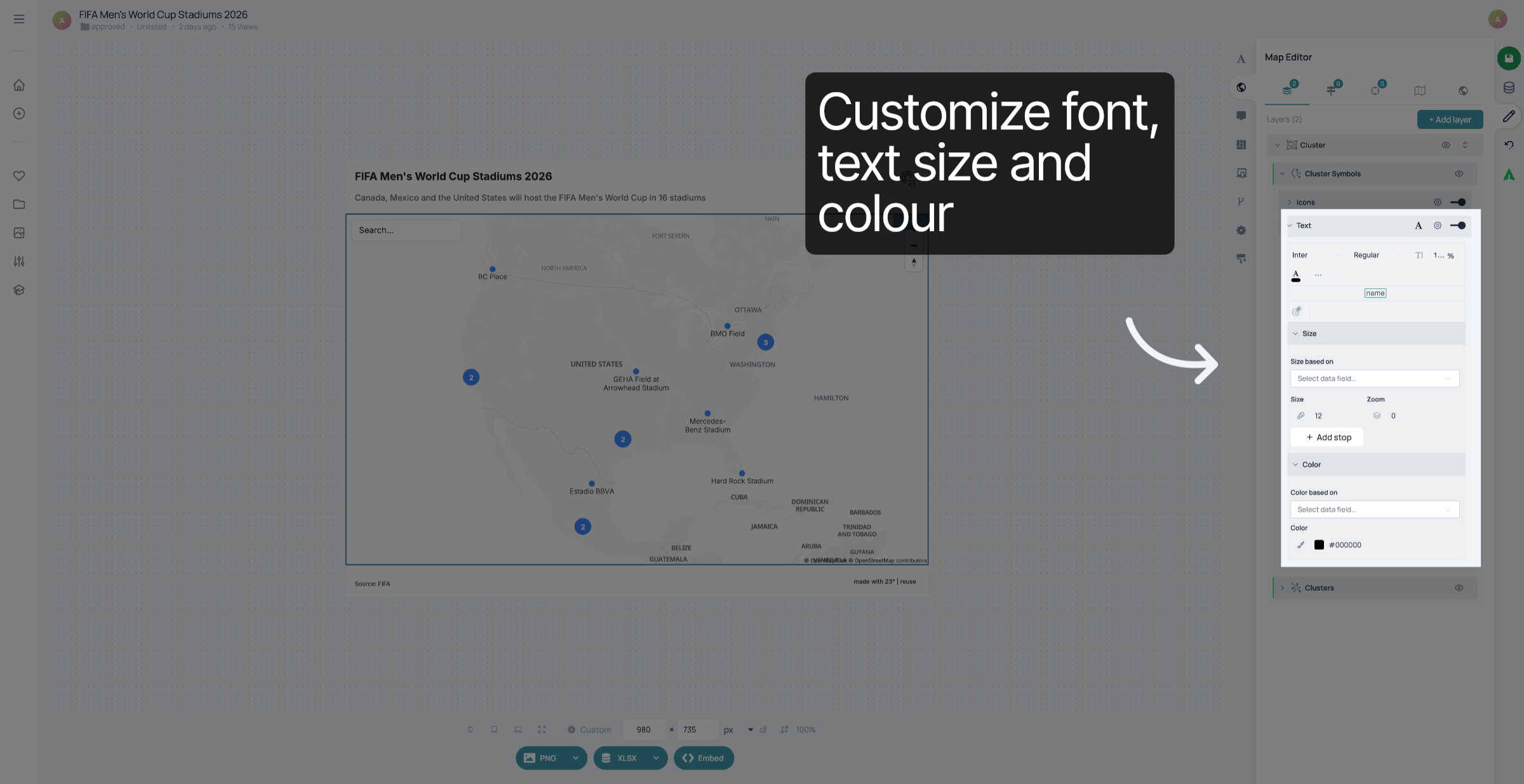
Add Cluster Layer
Add Cluster Layer
12. Enable Label Visibility

Click the visibility toggle to show or hide cluster labels.
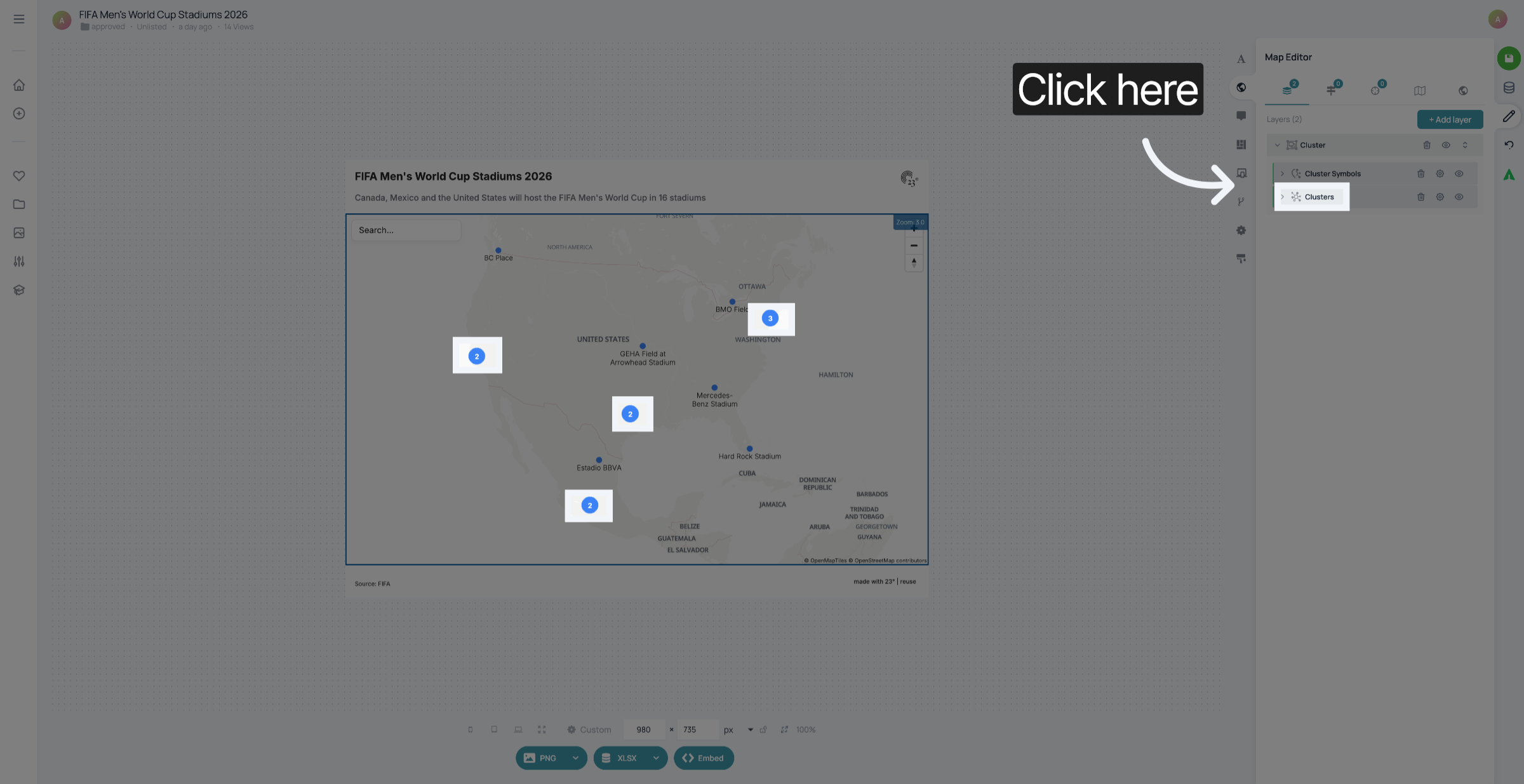
Enable Label Visibility
13. Open Cluster Border Settings

Click the border settings to customize cluster borders.
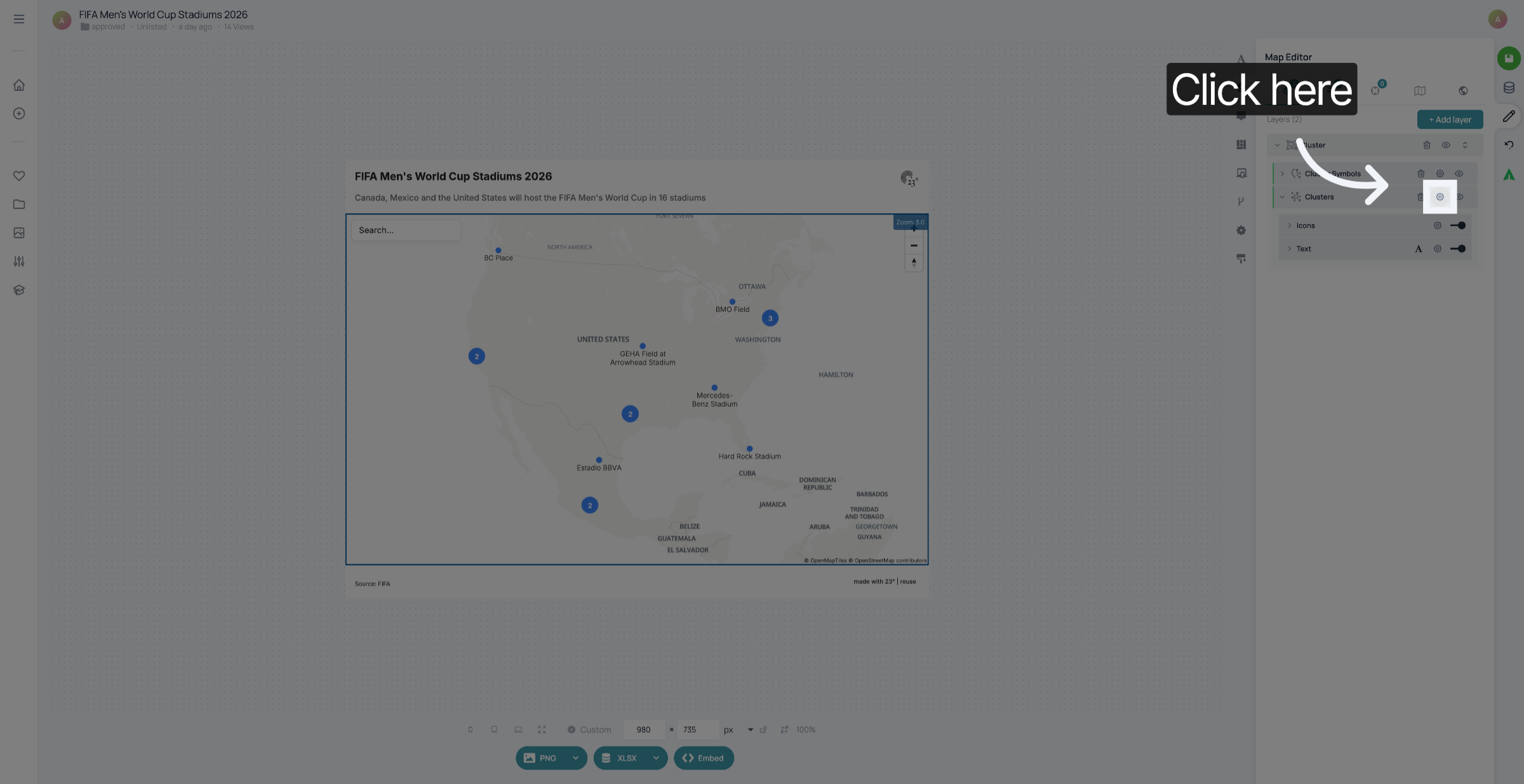
Open Cluster Border Settings
14. Select Border Color

Click the border color option to choose a color for cluster borders.
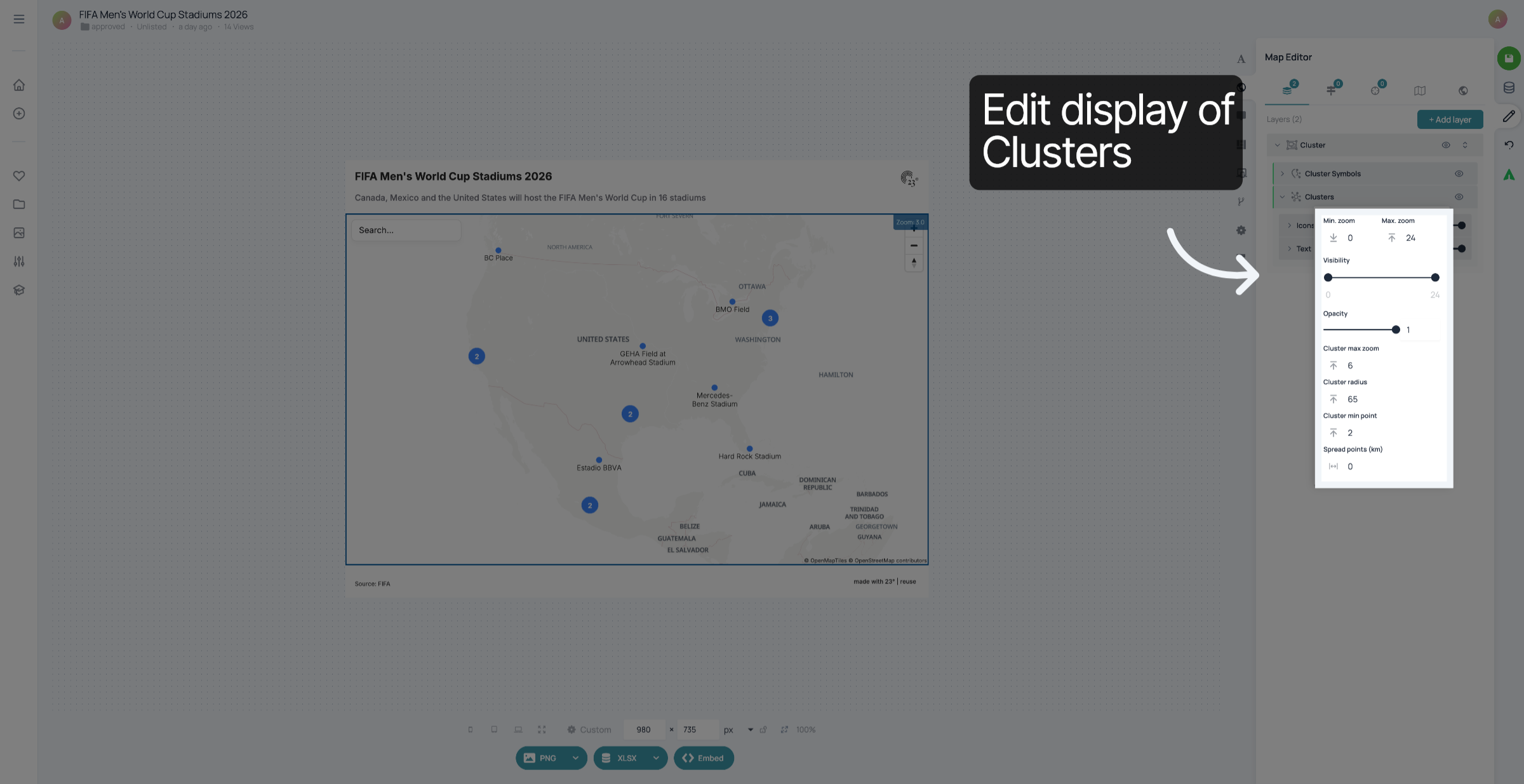
Select Border Color
Select Border Color
15. Enable Border Style

Click the border style option to select a style for cluster borders.
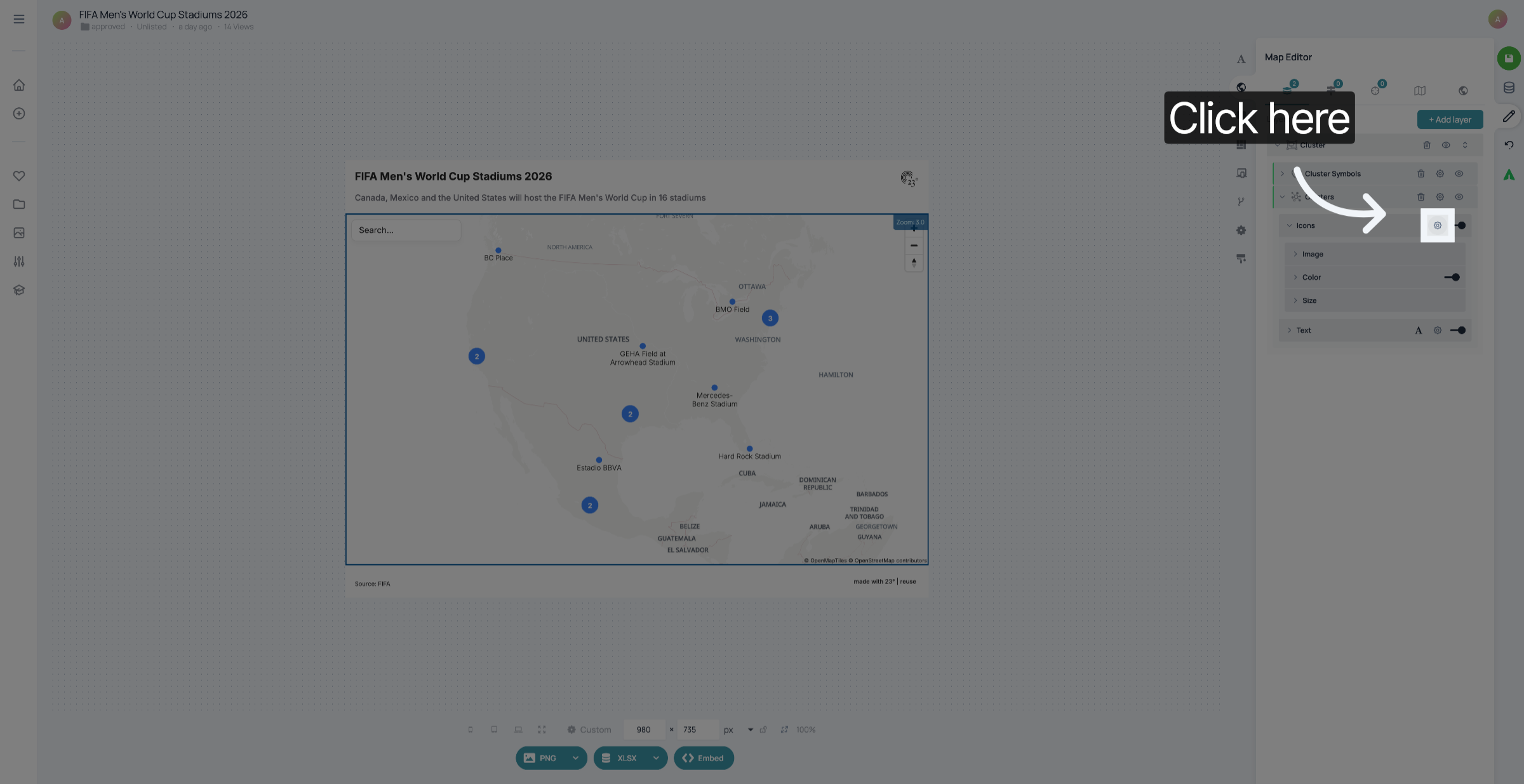
Enable Border Style
Enable Border Style
16. Open Advanced Cluster Settings

Click the advanced settings to access more cluster customization options.
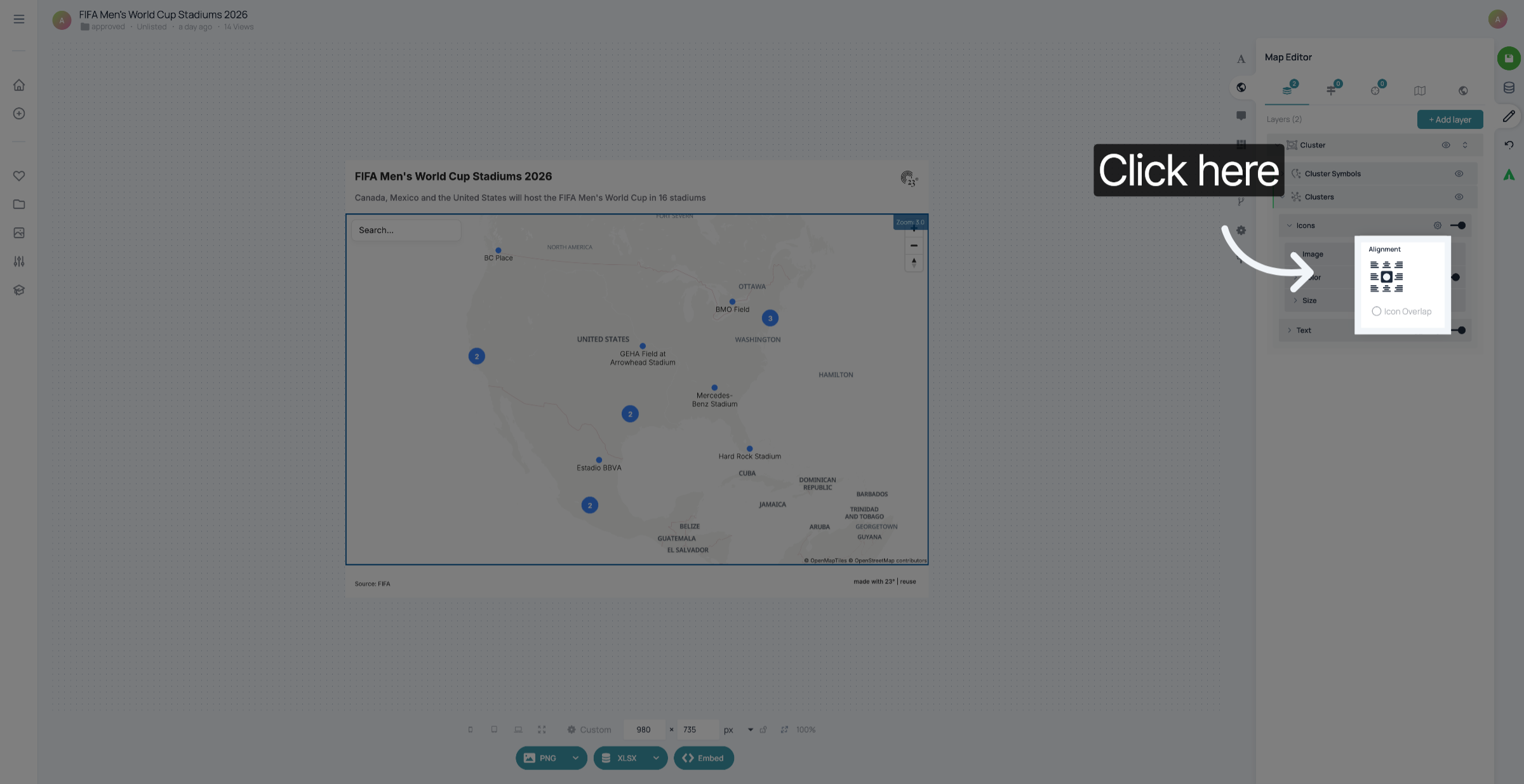
Open Advanced Cluster Settings
17. Select Text Attribute

Click Text to adjust the text attribute in advanced settings.
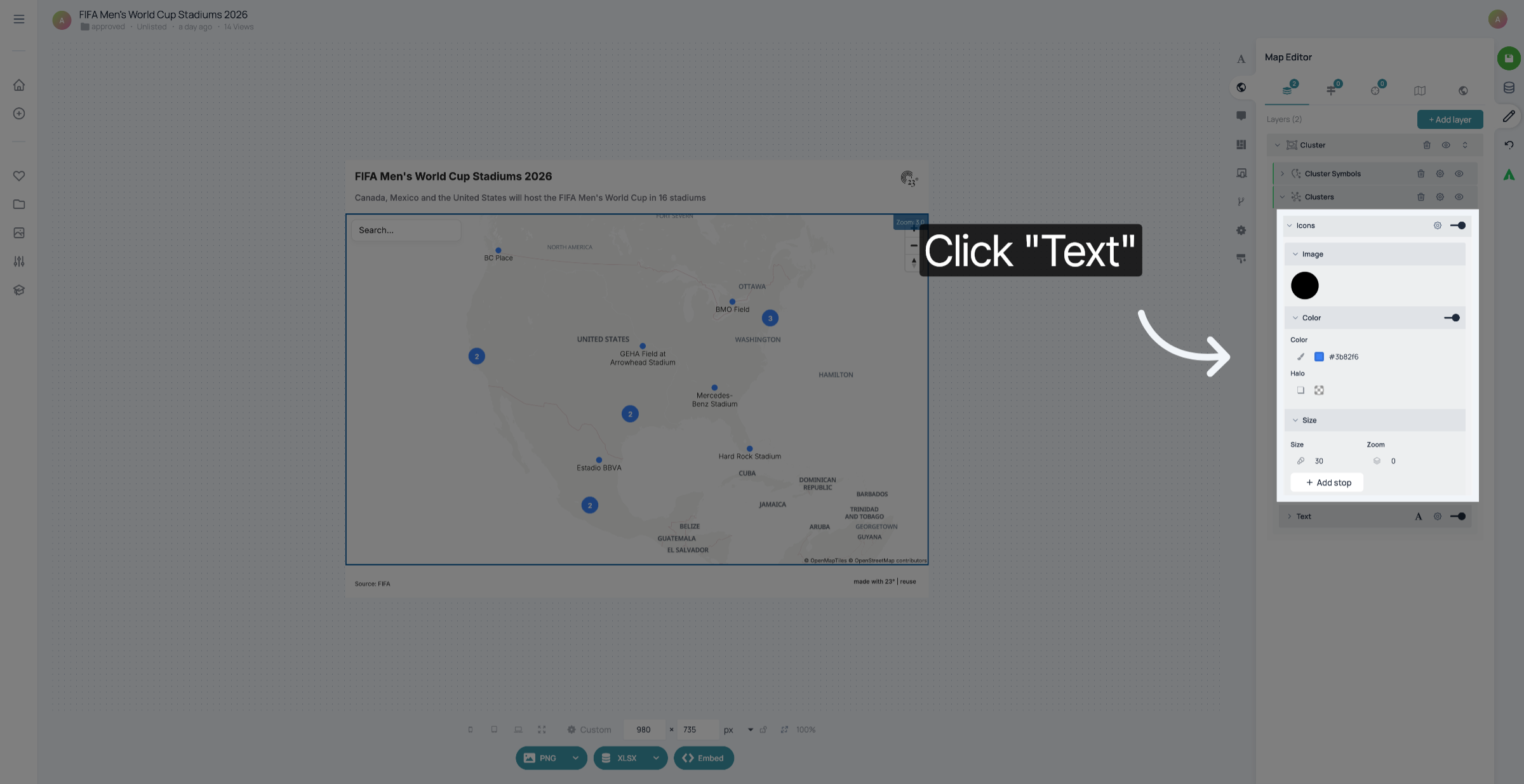
Select Text Attribute
18. Open Cluster Label Options

Click the label options to further customize cluster labels.
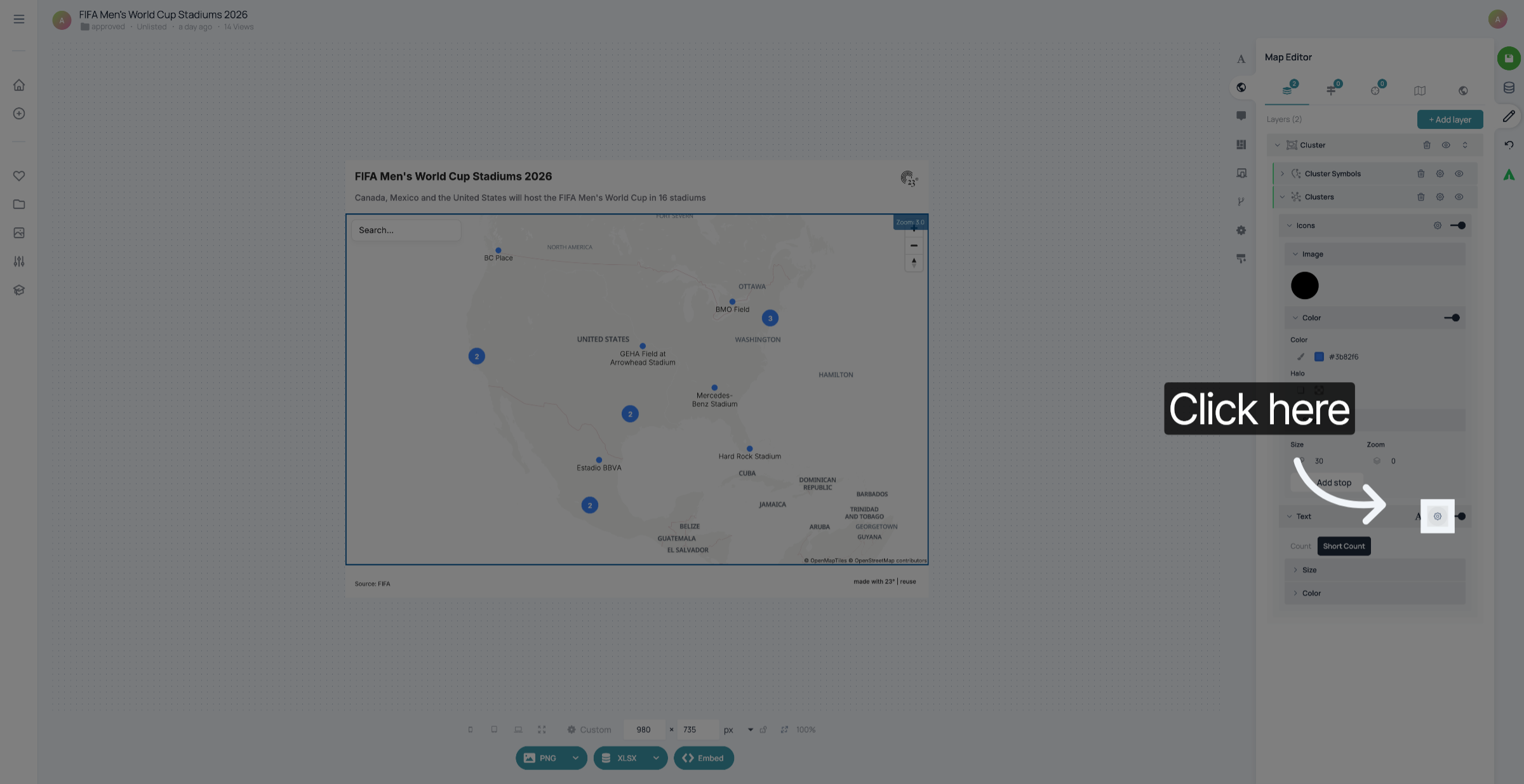
Open Cluster Label Options
19. Open Cluster Label Options

Click the label options to further customize cluster labels.
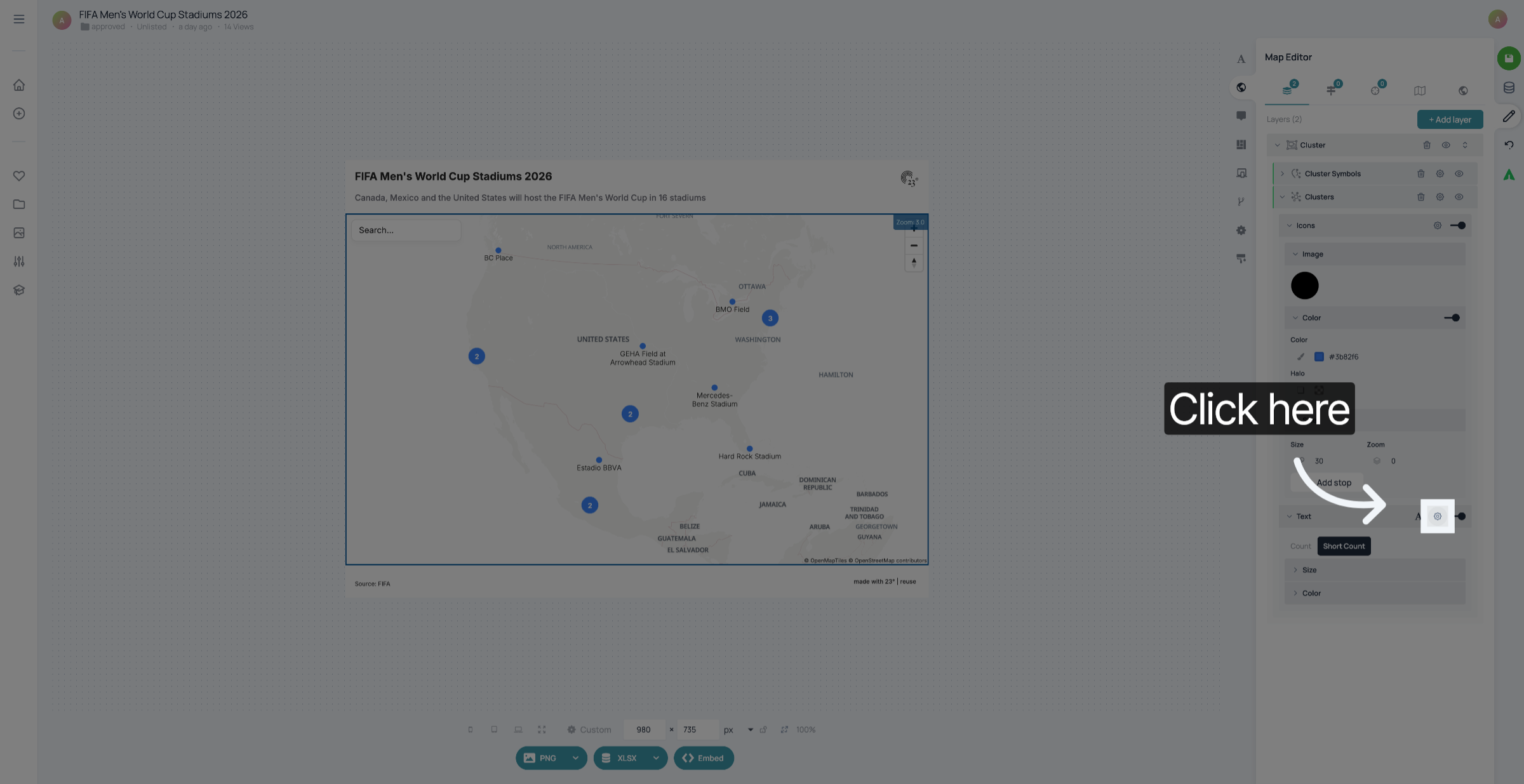
Open Cluster Label Options
20. Adjust Label Font Style

Click the font style option to change the label font.
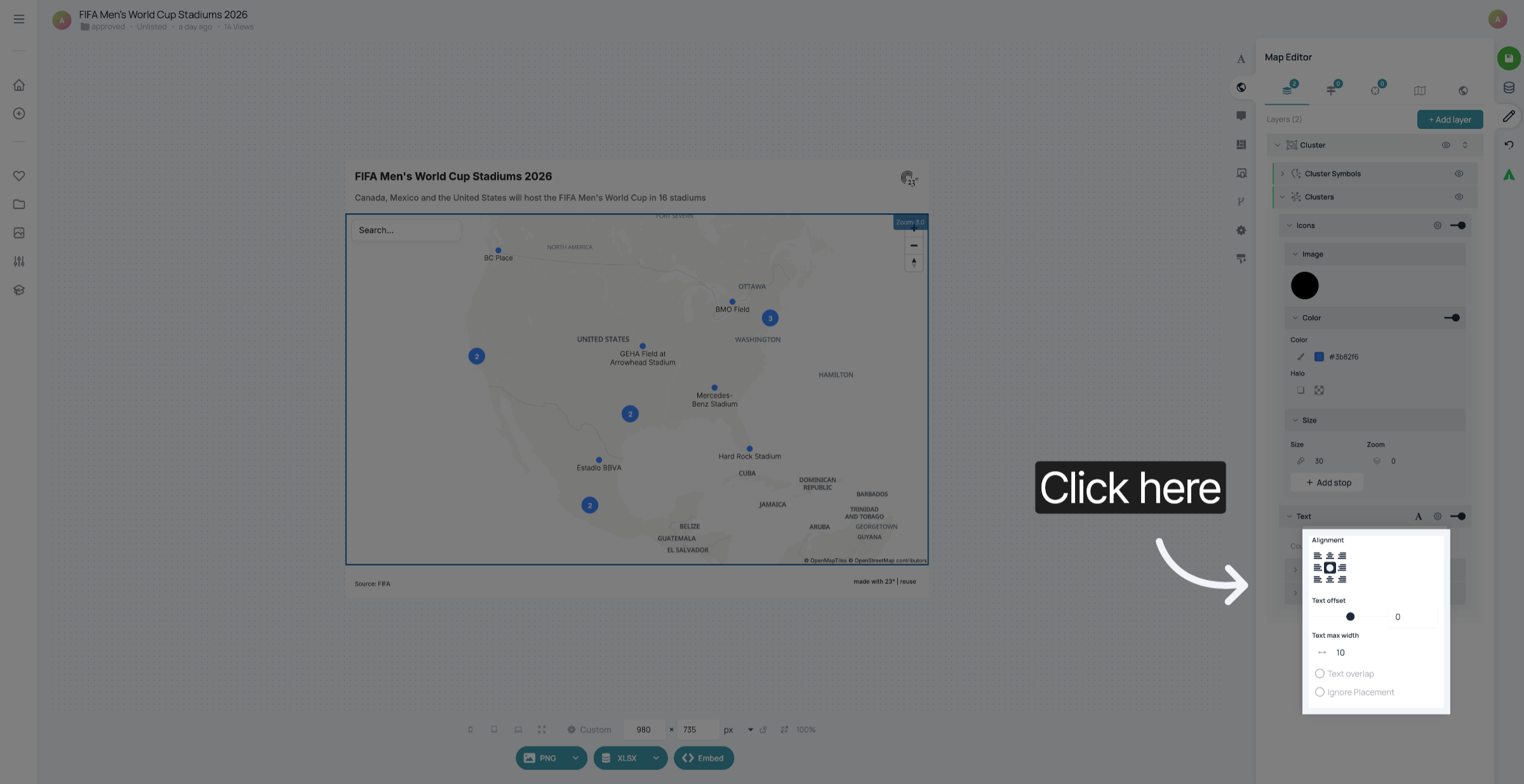
Adjust Label Font Style
21. Adjust Label Font Style

Click the font style option to change the label font.
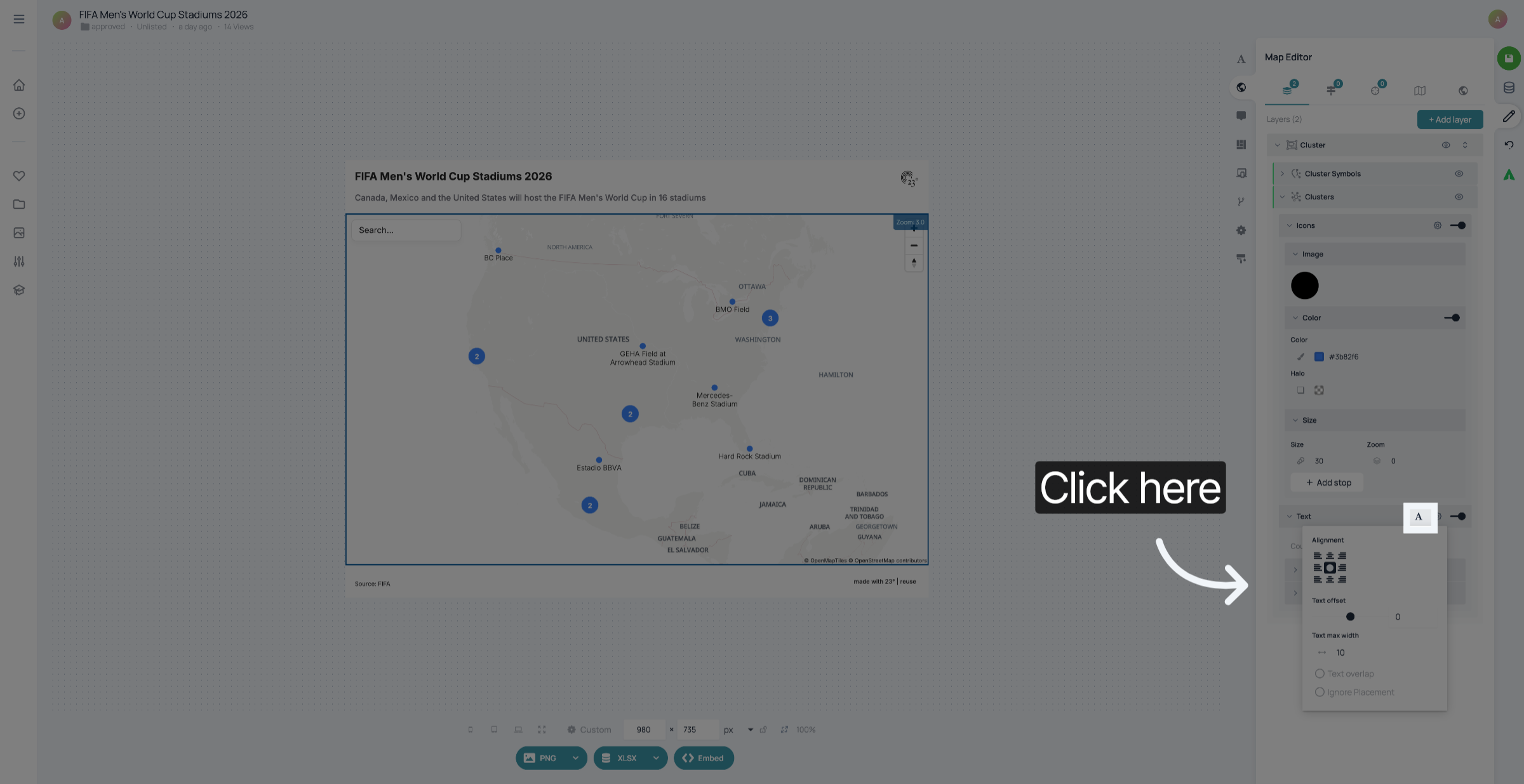
Adjust Label Font Style
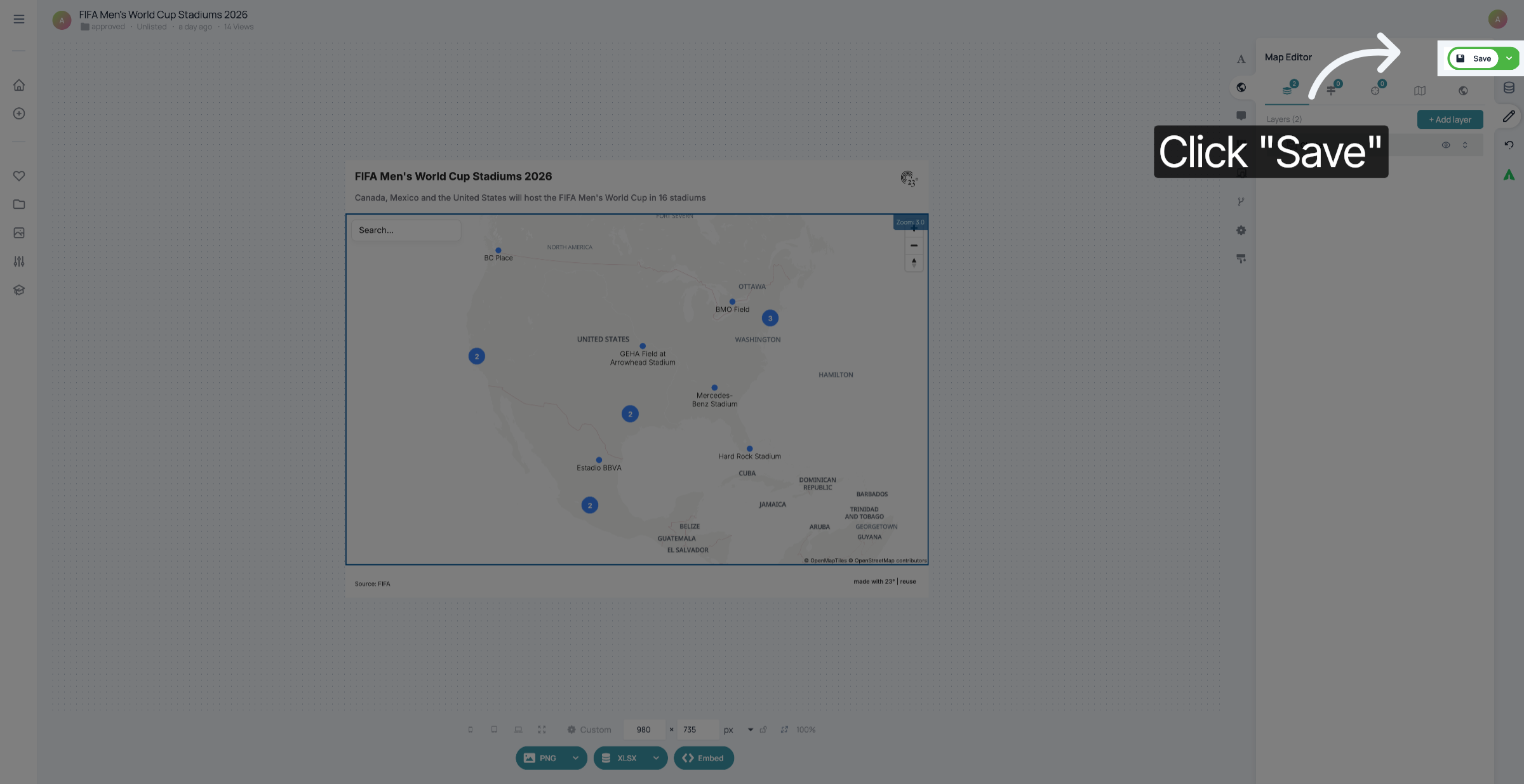
22. Save Cluster Customizations

Click Save to apply all your cluster customization changes.
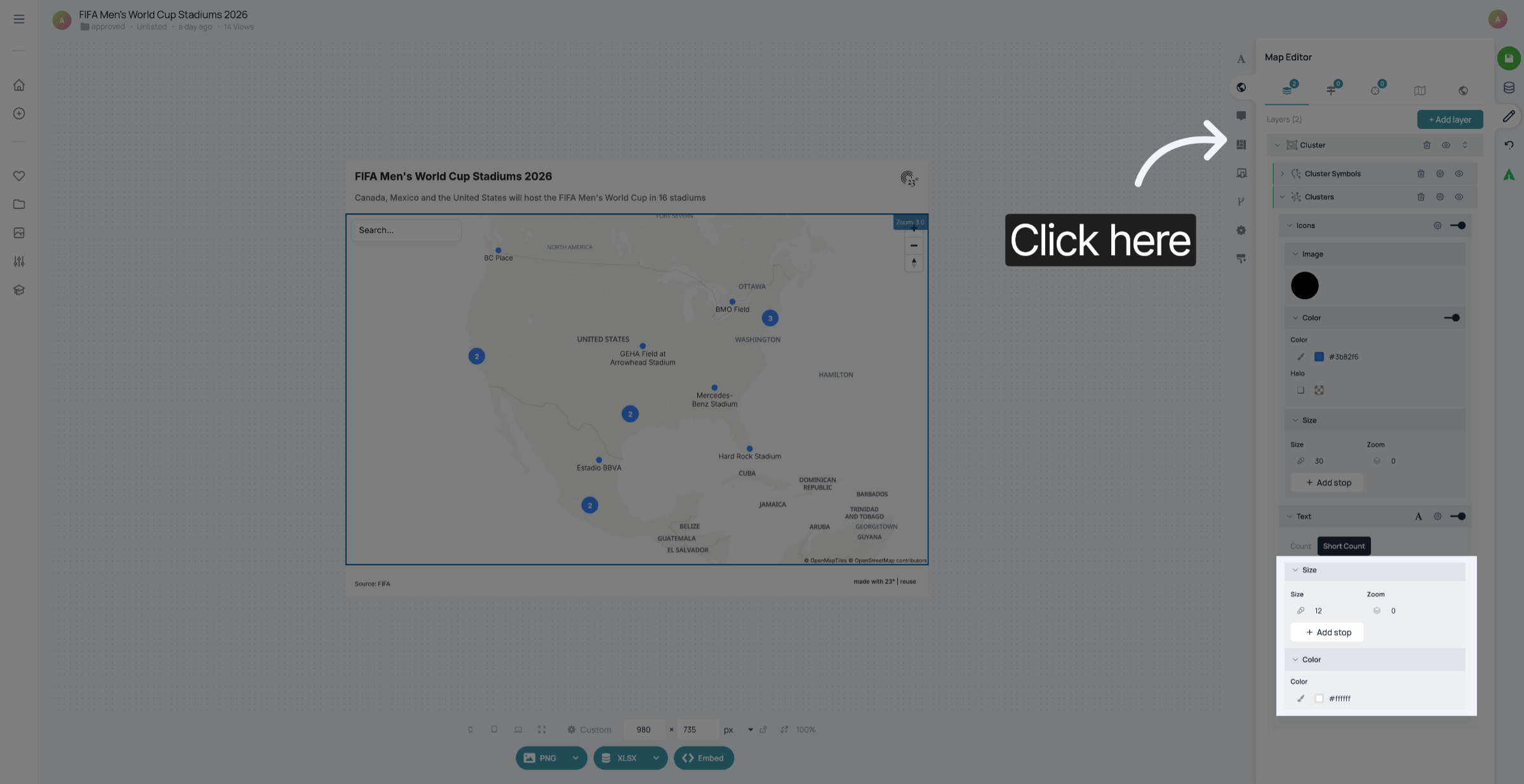
Save Cluster Customizations
23. Save your changes

Don't forget to save your changes.

Save your changes
Save your changes

You have successfully customized the clusters in your cluster map.