Change Starting Angle in Pie Charts with 23degrees
In this tutorial, you’ll learn how to adjust the starting angle of pie and donut charts in 23degrees. This lets you control exactly where your chart begins and how each segment is positioned.
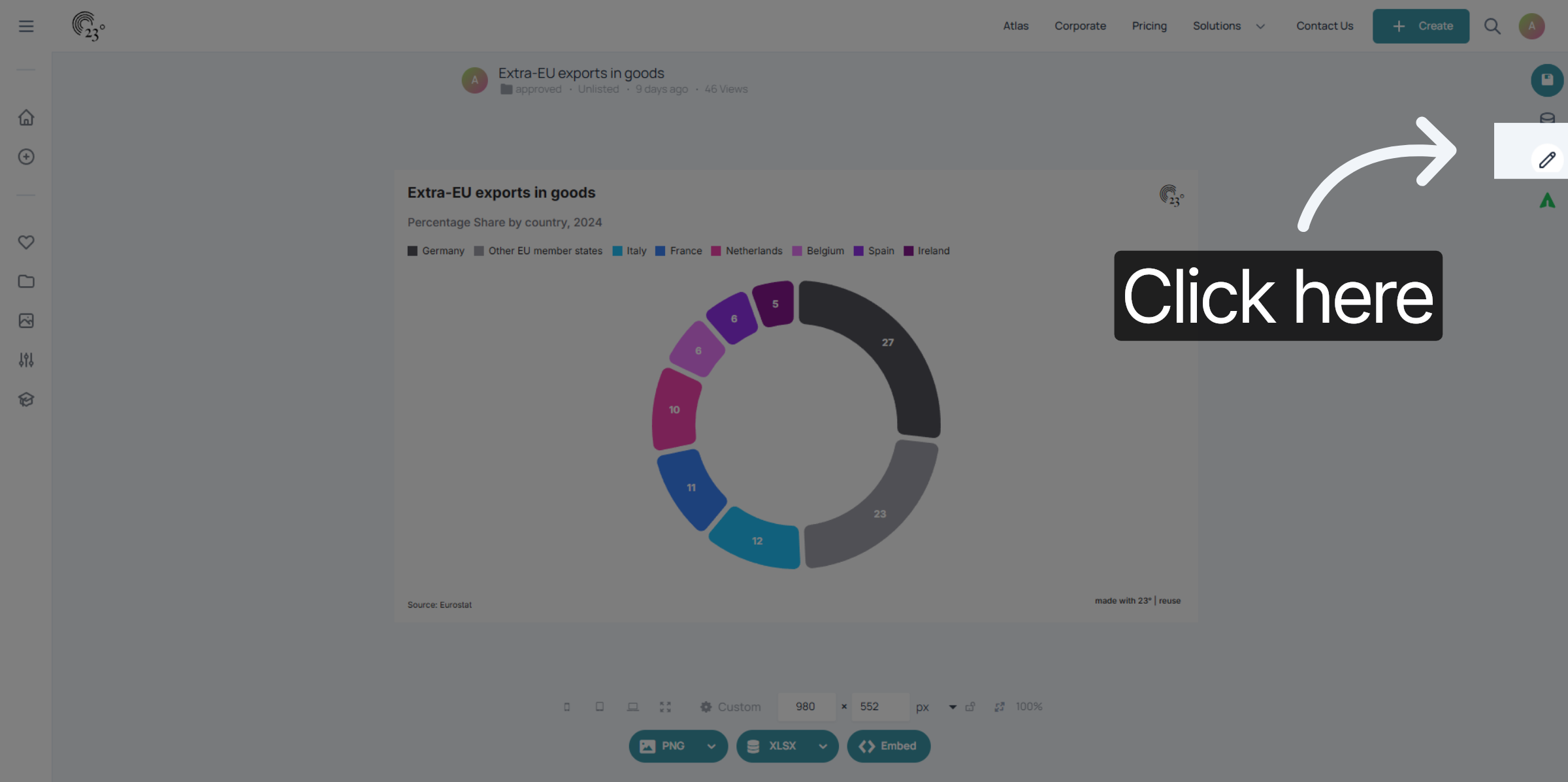
Start by clicking here to open the chart editor. This is where you’ll find all layout and styling options for your visualisation.
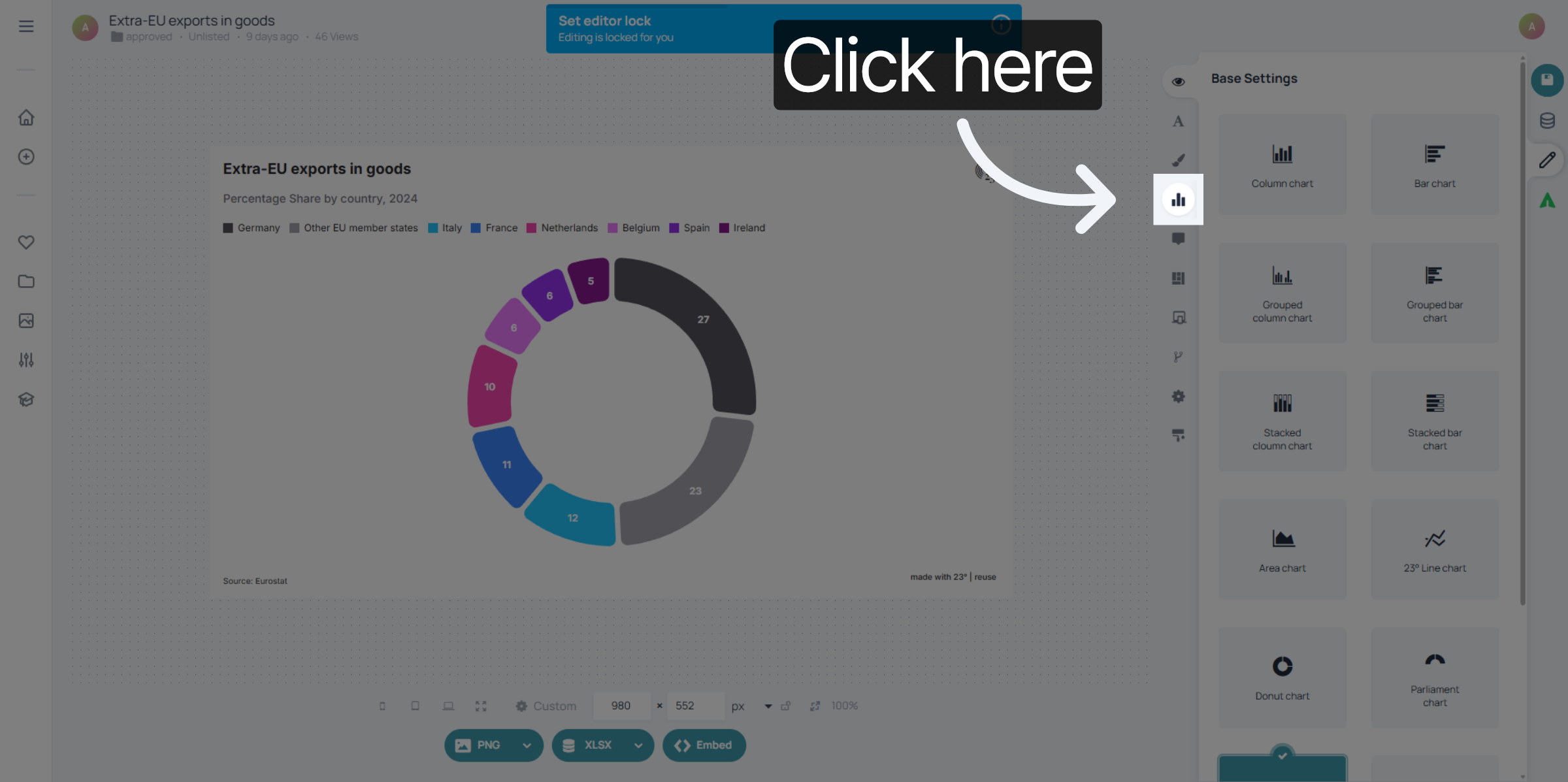
In the editor, go to the Chart settings panel. This is where the structural and visual configuration options for your pie chart are located.
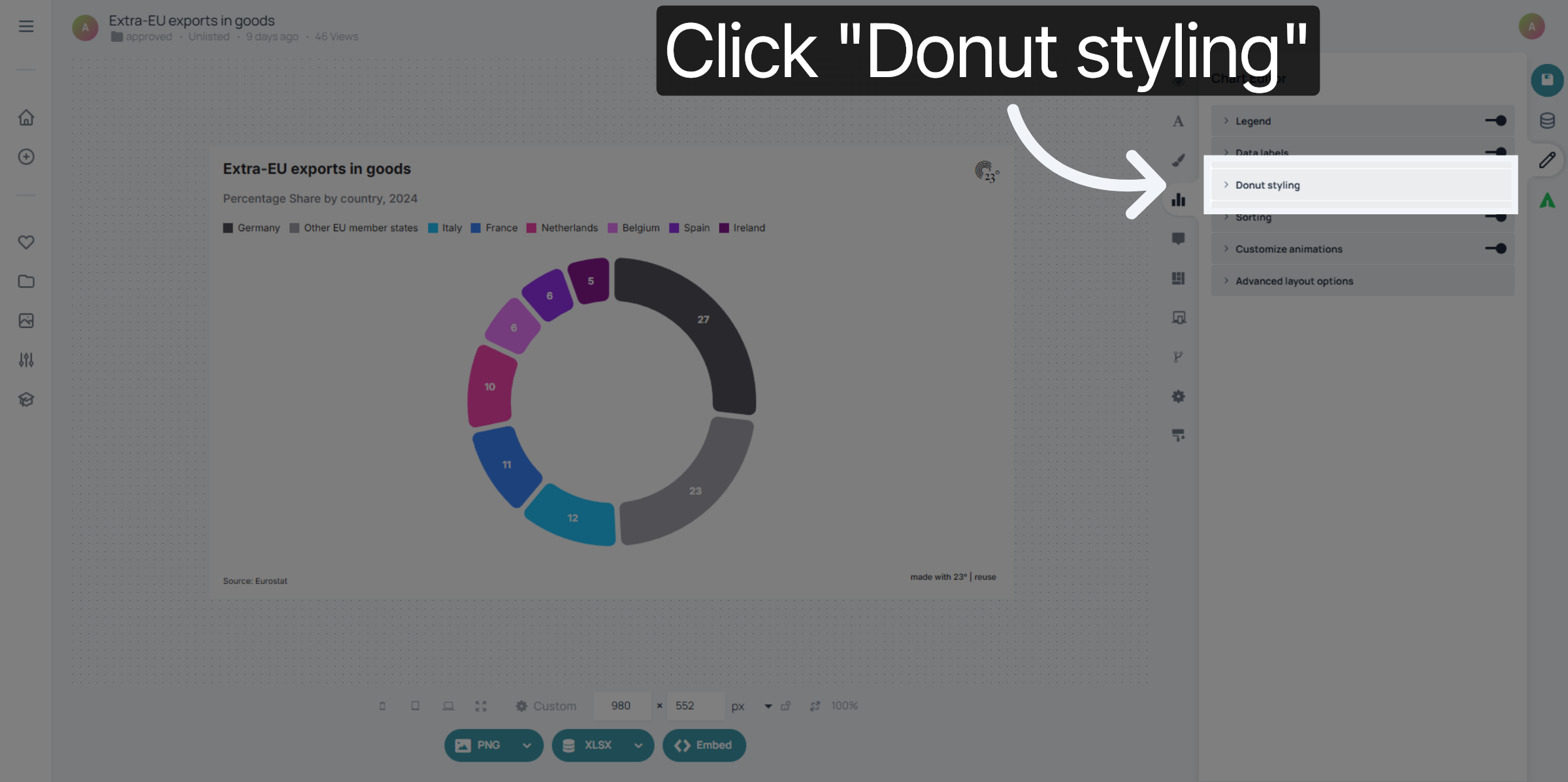
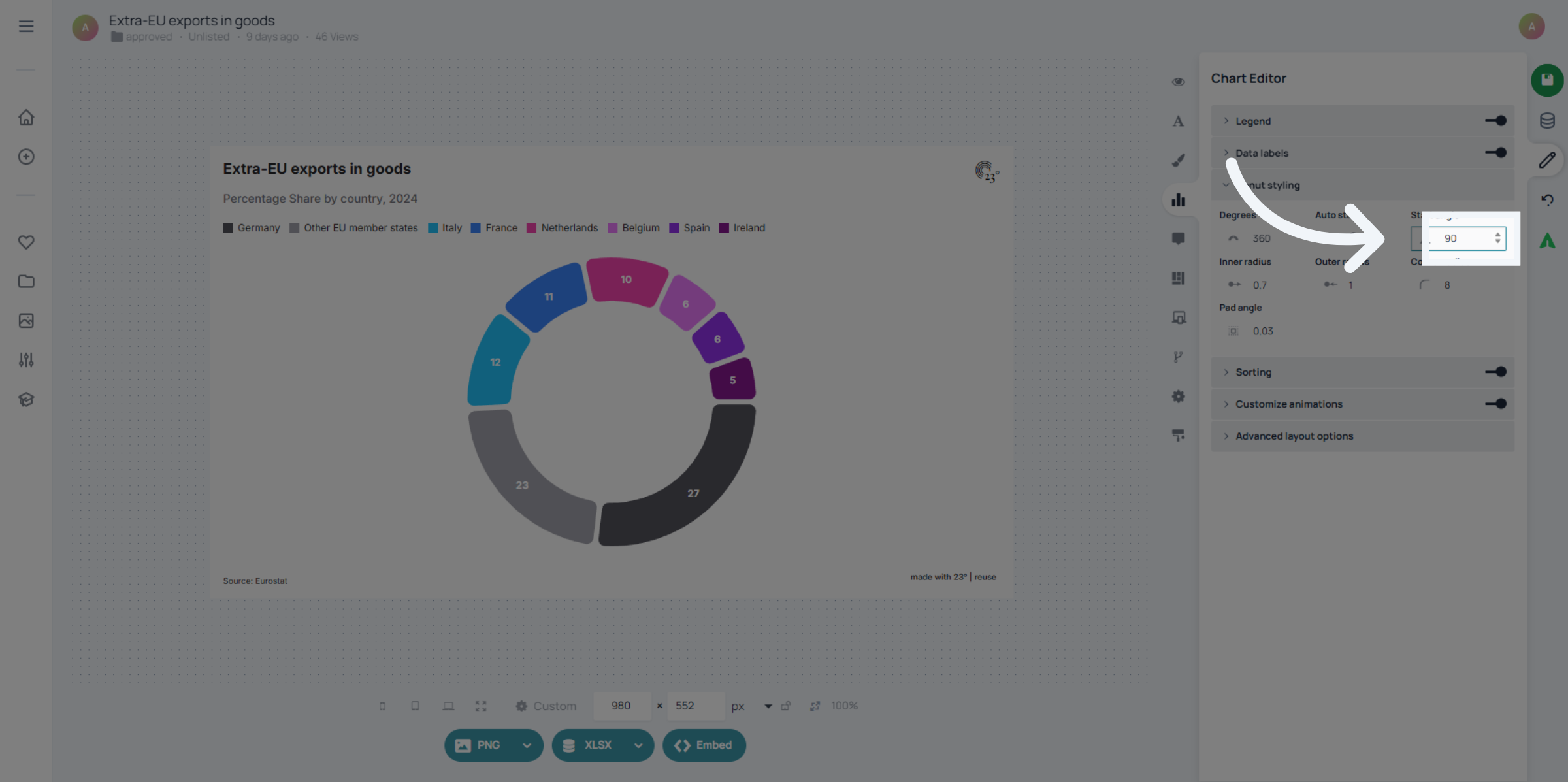
Next, click “Donut styling”. Even for regular pie charts, this section contains the controls for donut and pie appearance, including the starting angle.
Here you can enter the starting angle you want.
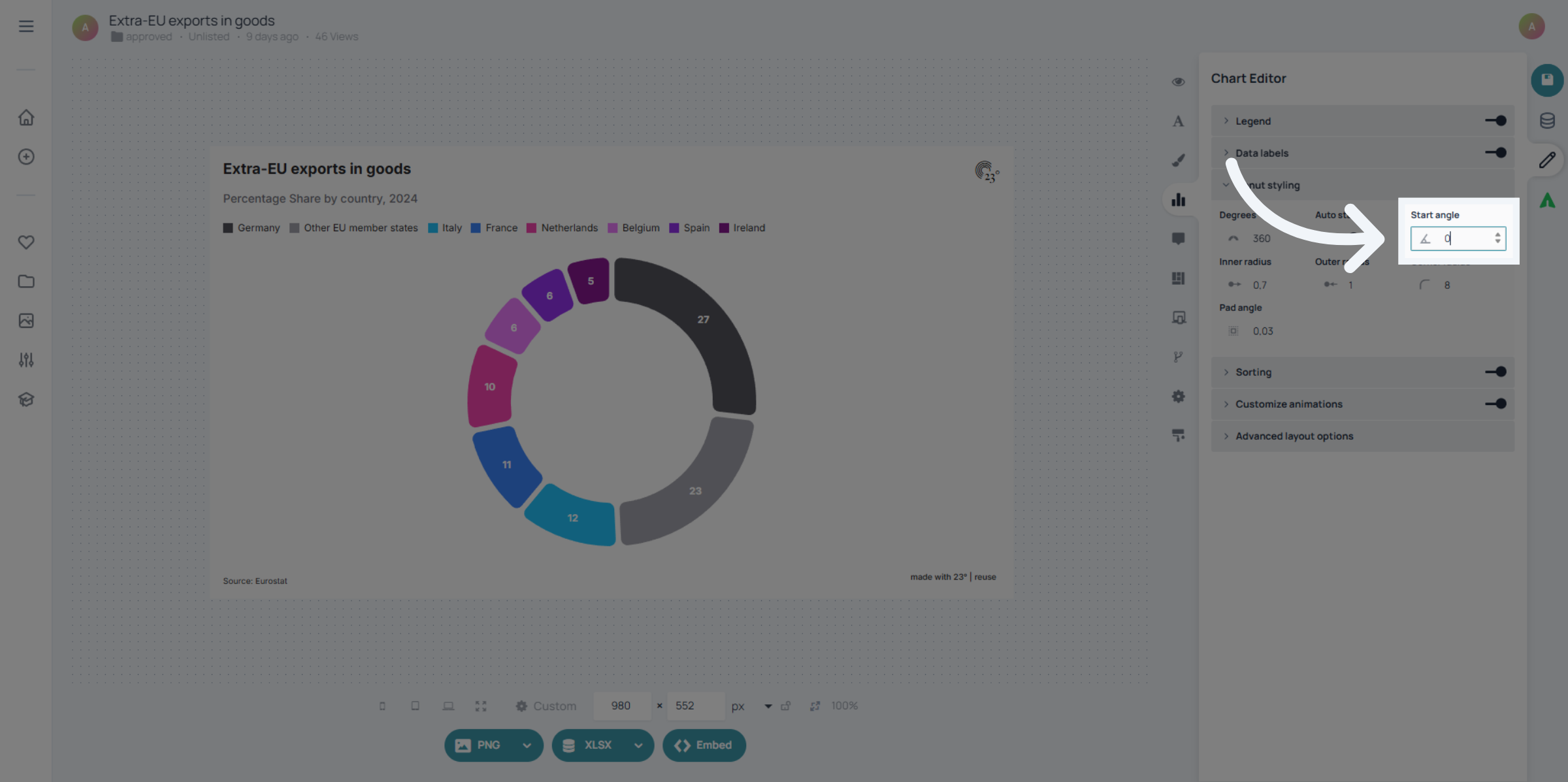
For example: setting the angle to 90 degrees rotates the entire chart 90° to the right, shifting all segments accordingly.
You’ve successfully adjusted the starting angle of your pie chart using the advanced layout settings in 23degrees.This gives you precise control over how your segments are arranged and presented.