Change Date Column Output Format In Data Editor
This tutorial shows how to change the output format of the Date column in the Data Editor.
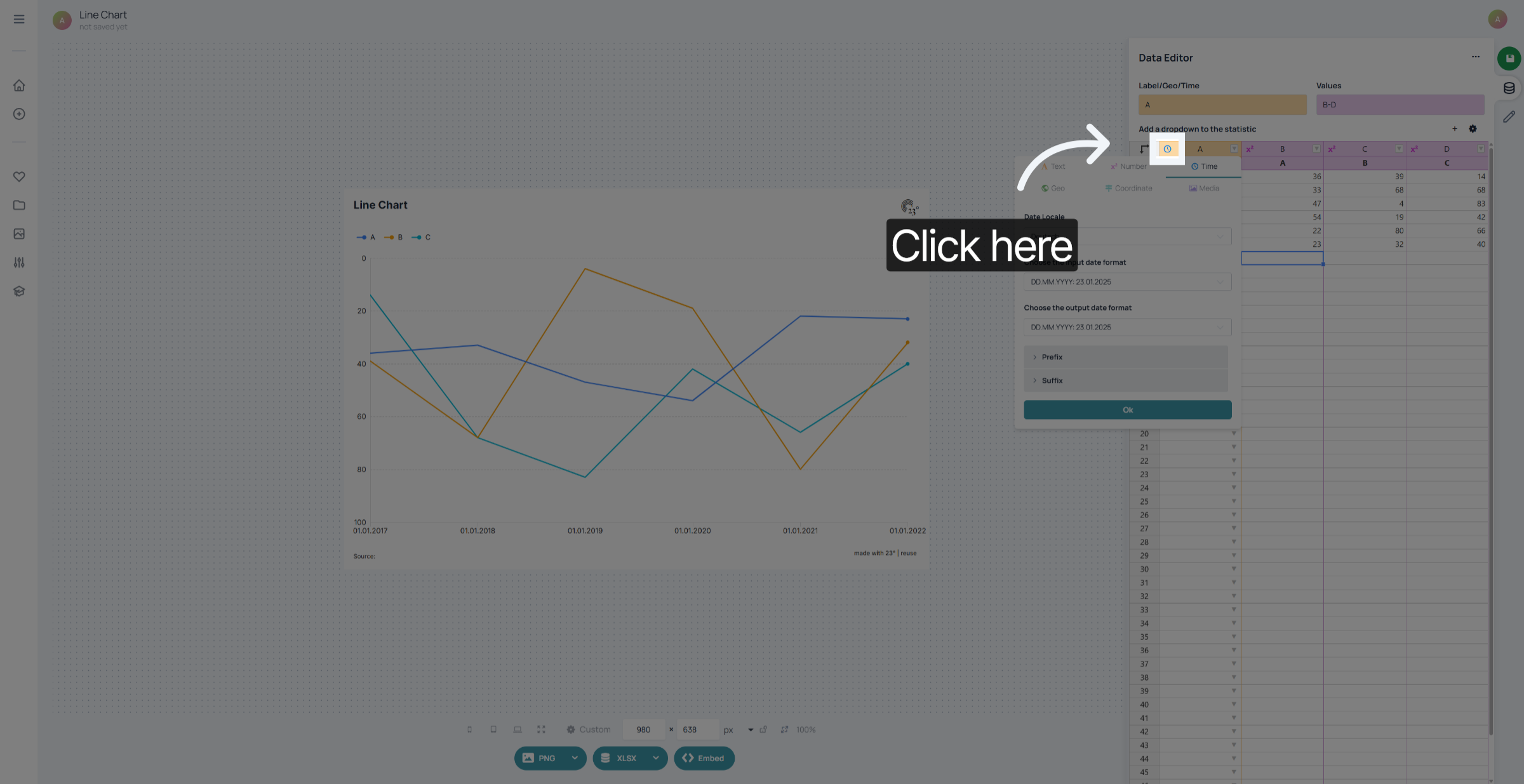
1. Open Date Column Settings
Click on the clock icon to access the date column settings.
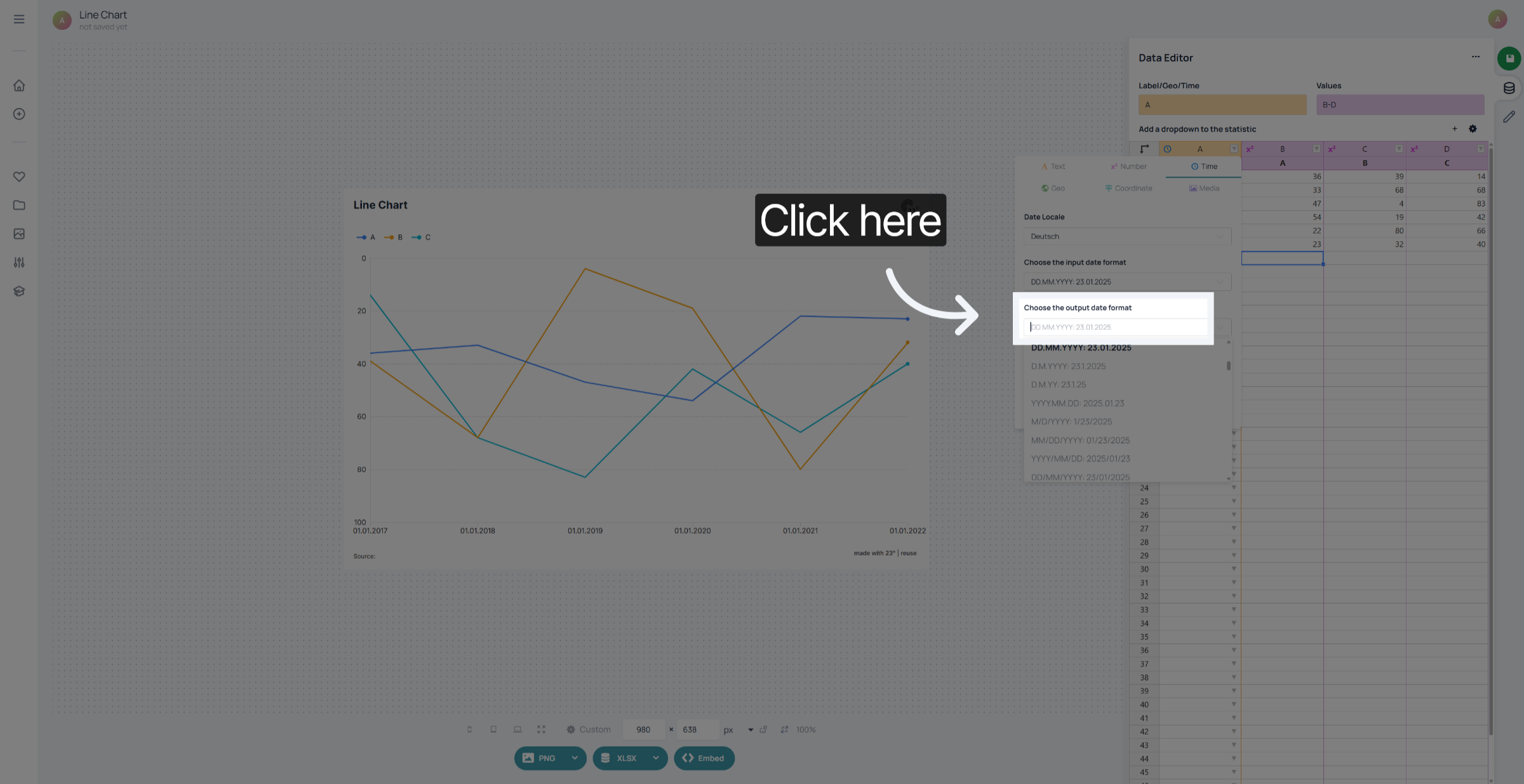
2. Access Format Options
choose your Output Format. You can scroll or just type in the format that you are looking for.
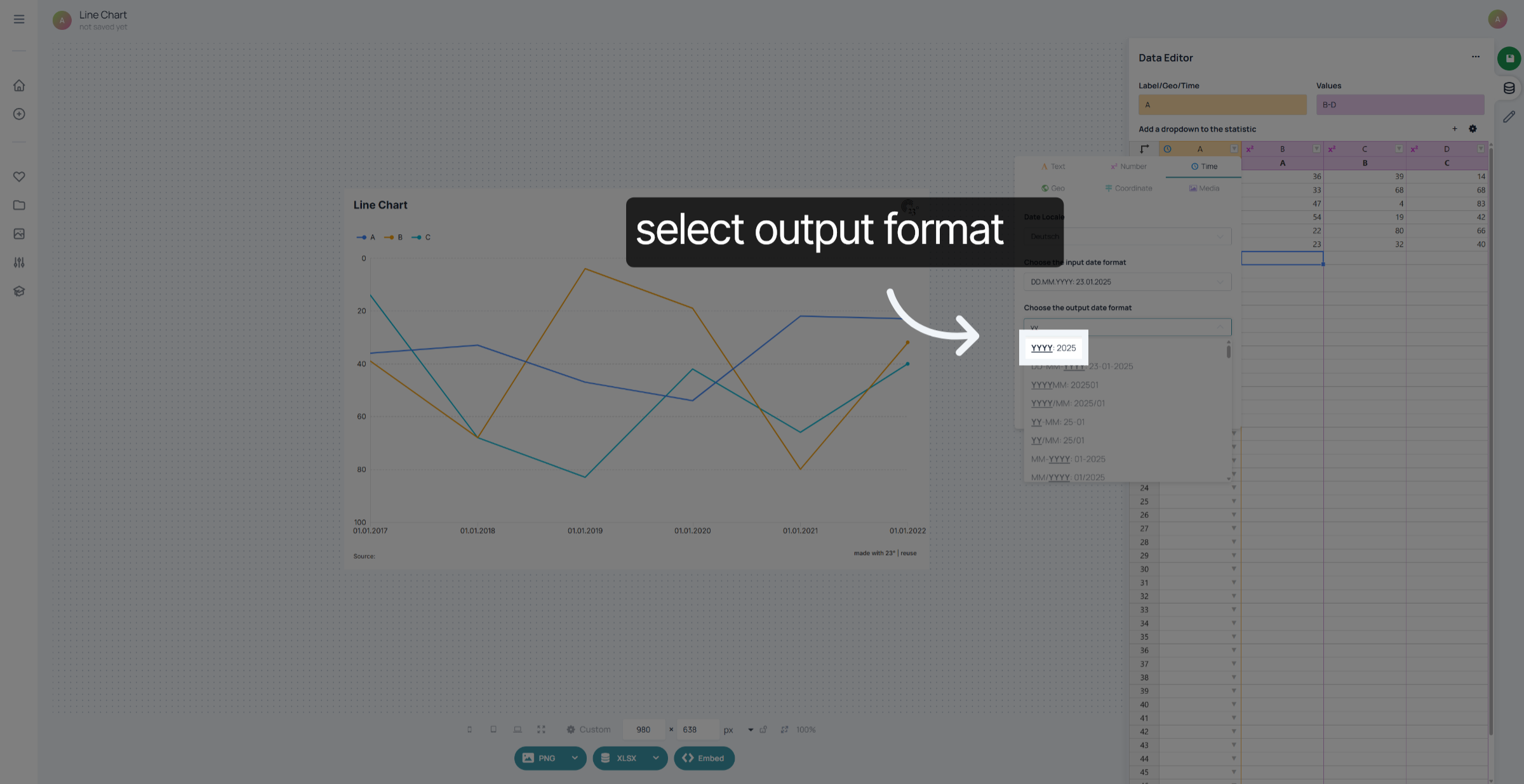
3. Select Full Year Format
In this case we want to switch from a day/mont/year format to a format only displaying the years
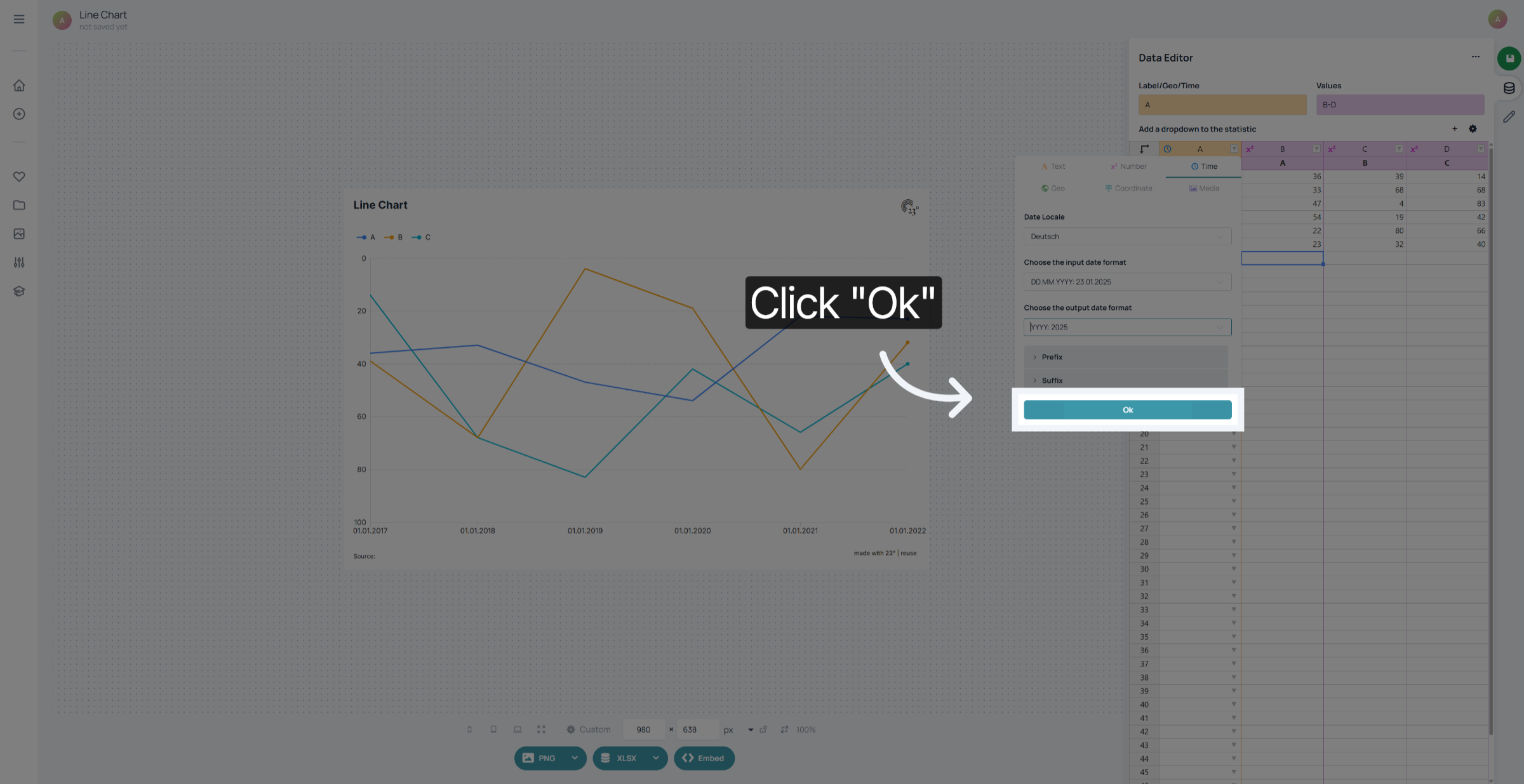
4. Confirm Format Selection
Click "Ok" to confirm and apply the selected date format settings.
5. Review Date Format Preview
Now the date in your label axis is displaying exactly as specified without changing the original date format in the dataset.
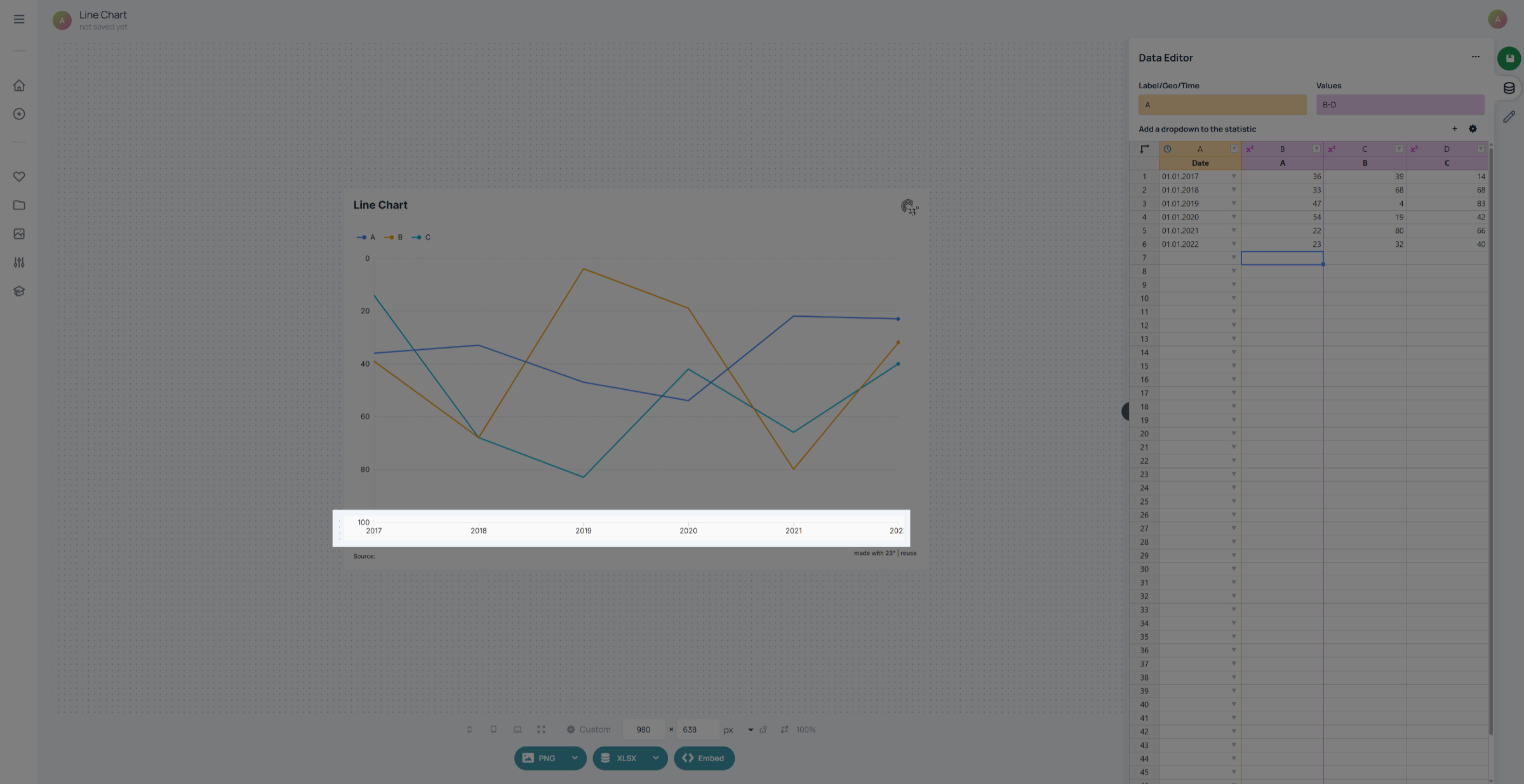
You have successfully changed the output format of the Date column in the Data Editor. This customization allows you to display dates in your preferred style for better data readability.