Customize Text Labels Using 23degrees Application
This tutorial guides you through customizing specific text labels within charts in 23degrees.
First click on the chart editor.
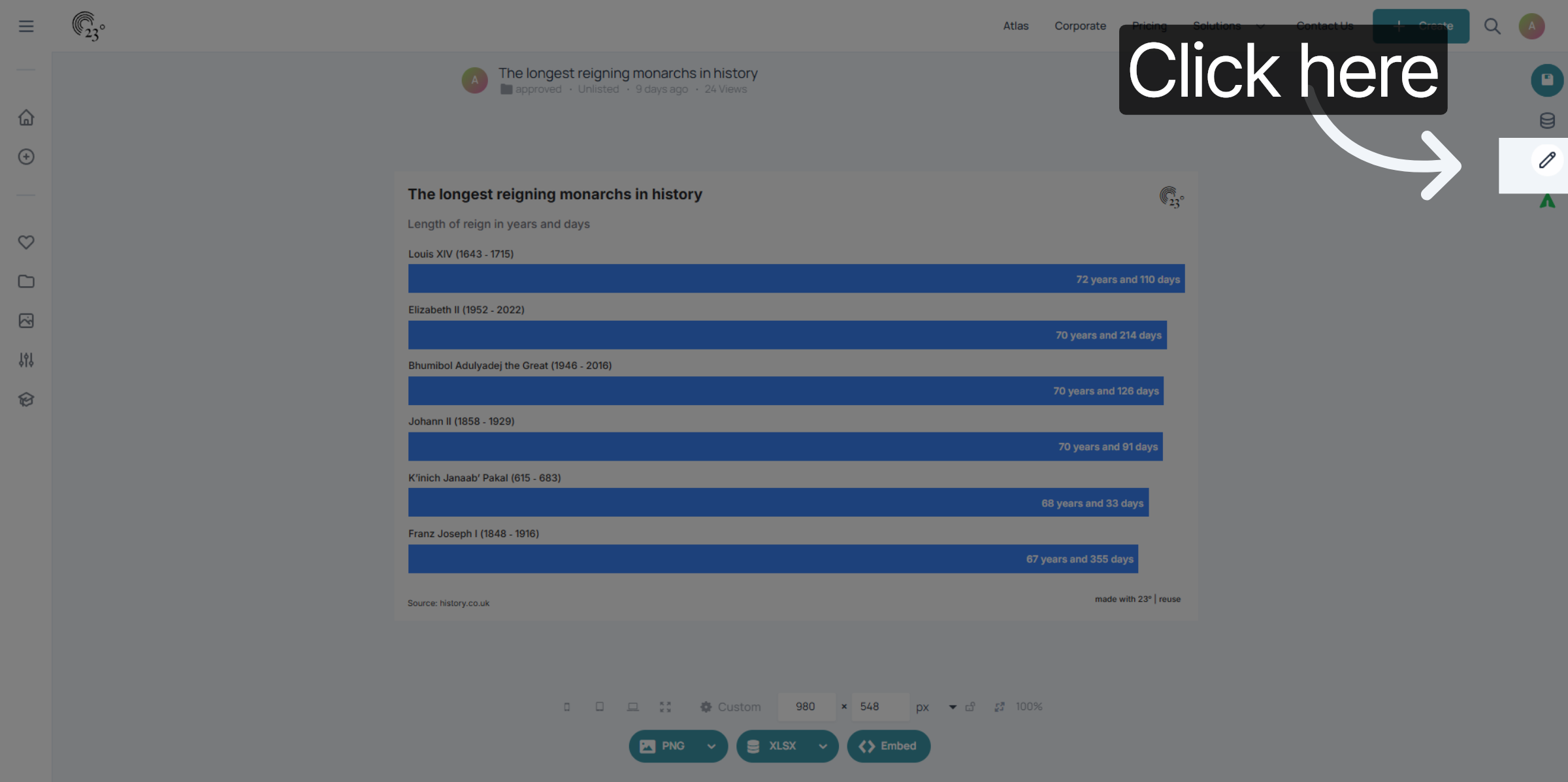
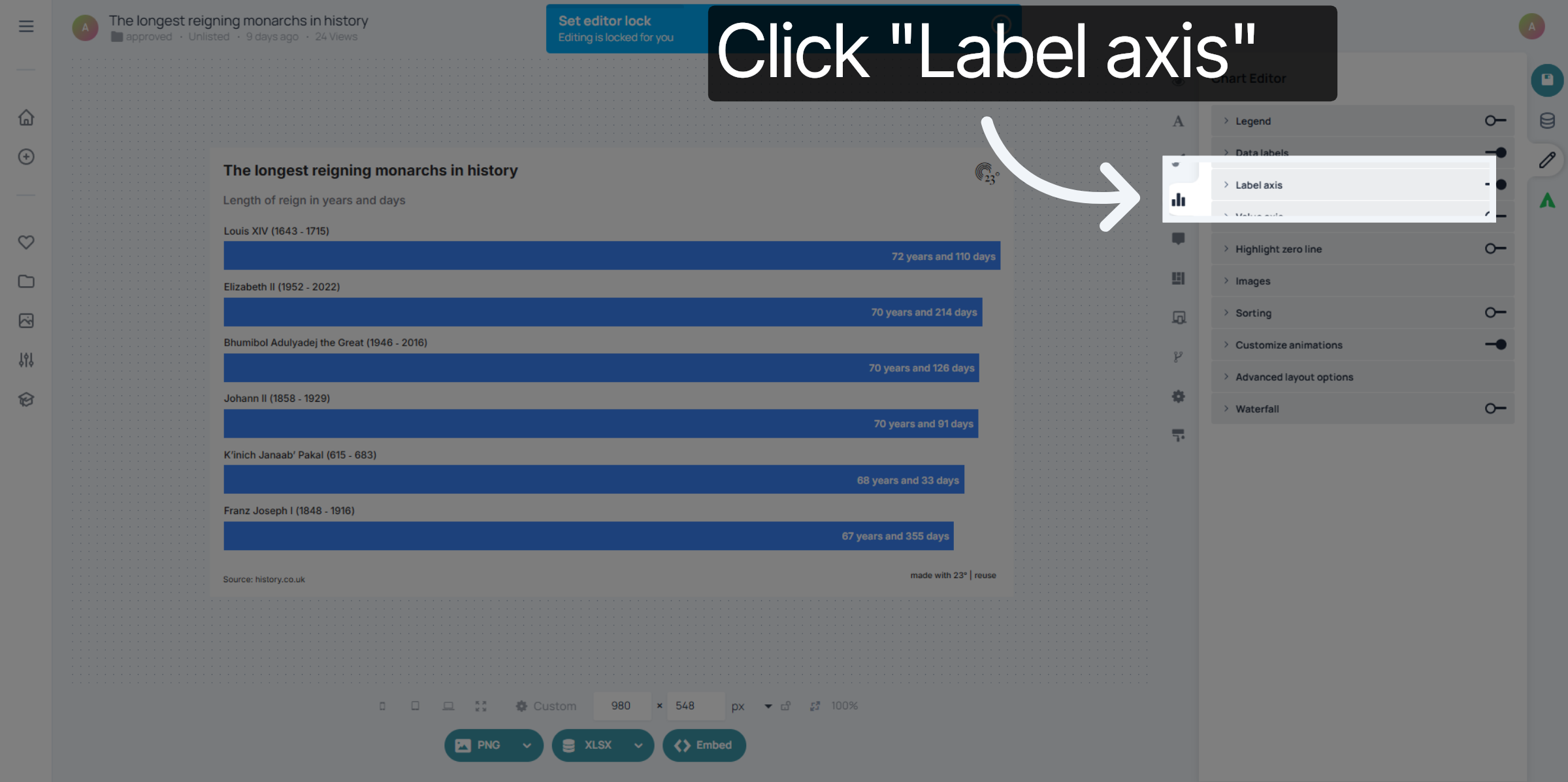
go to the chart editor and select "Label Axis"
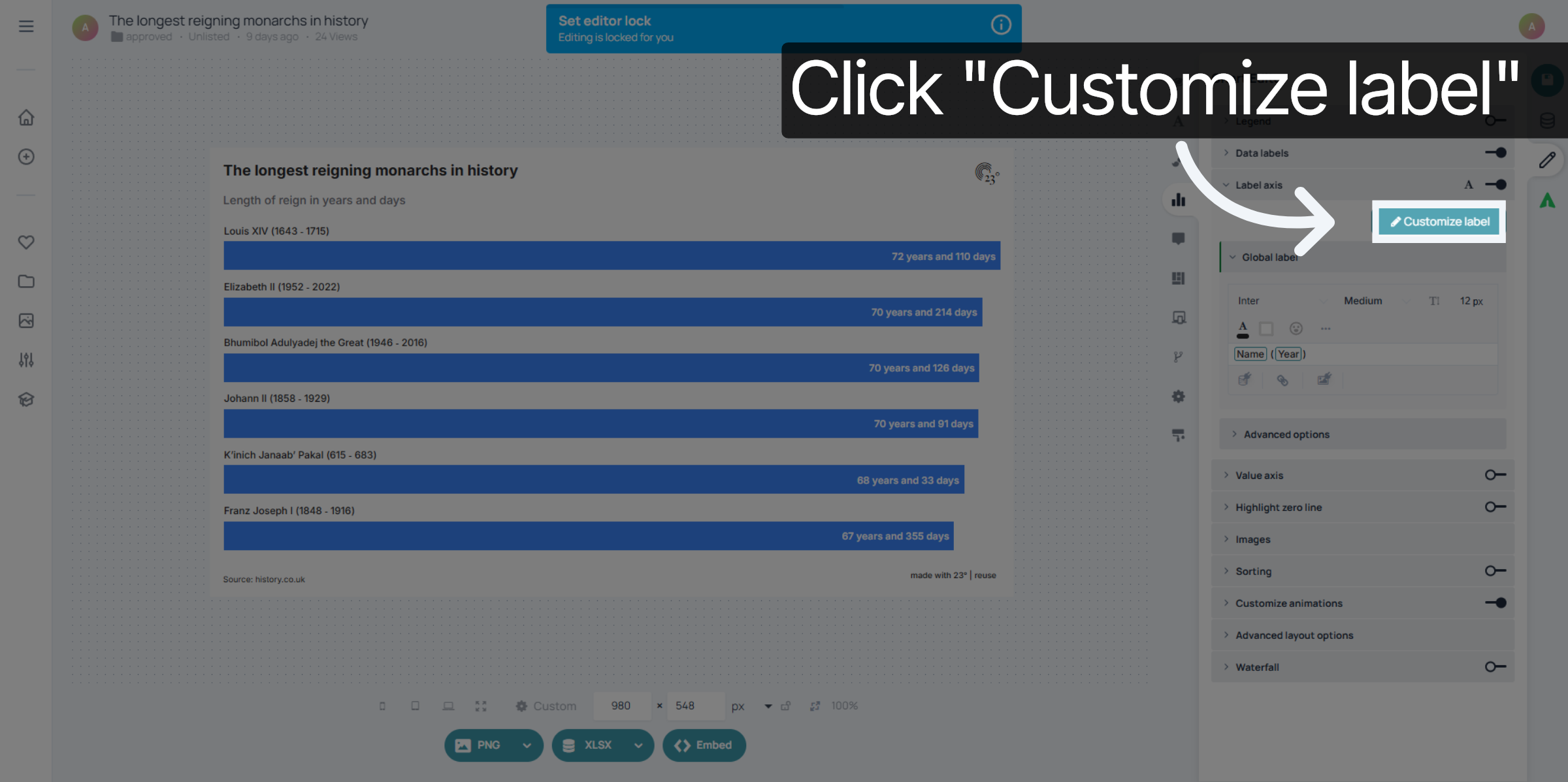
Click "Customize label" to open the options for modifying label text.
Select the text label you want to customize.
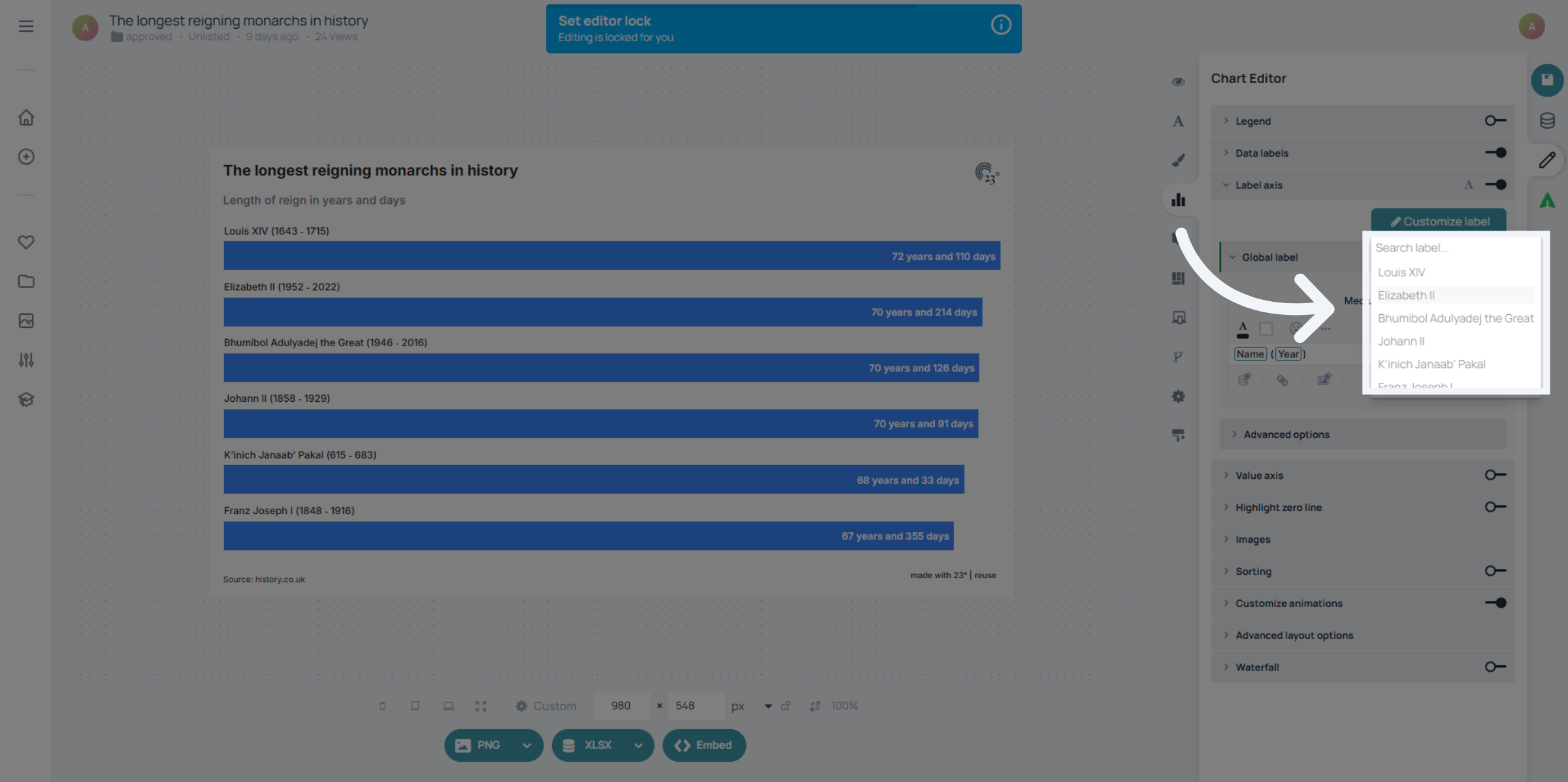
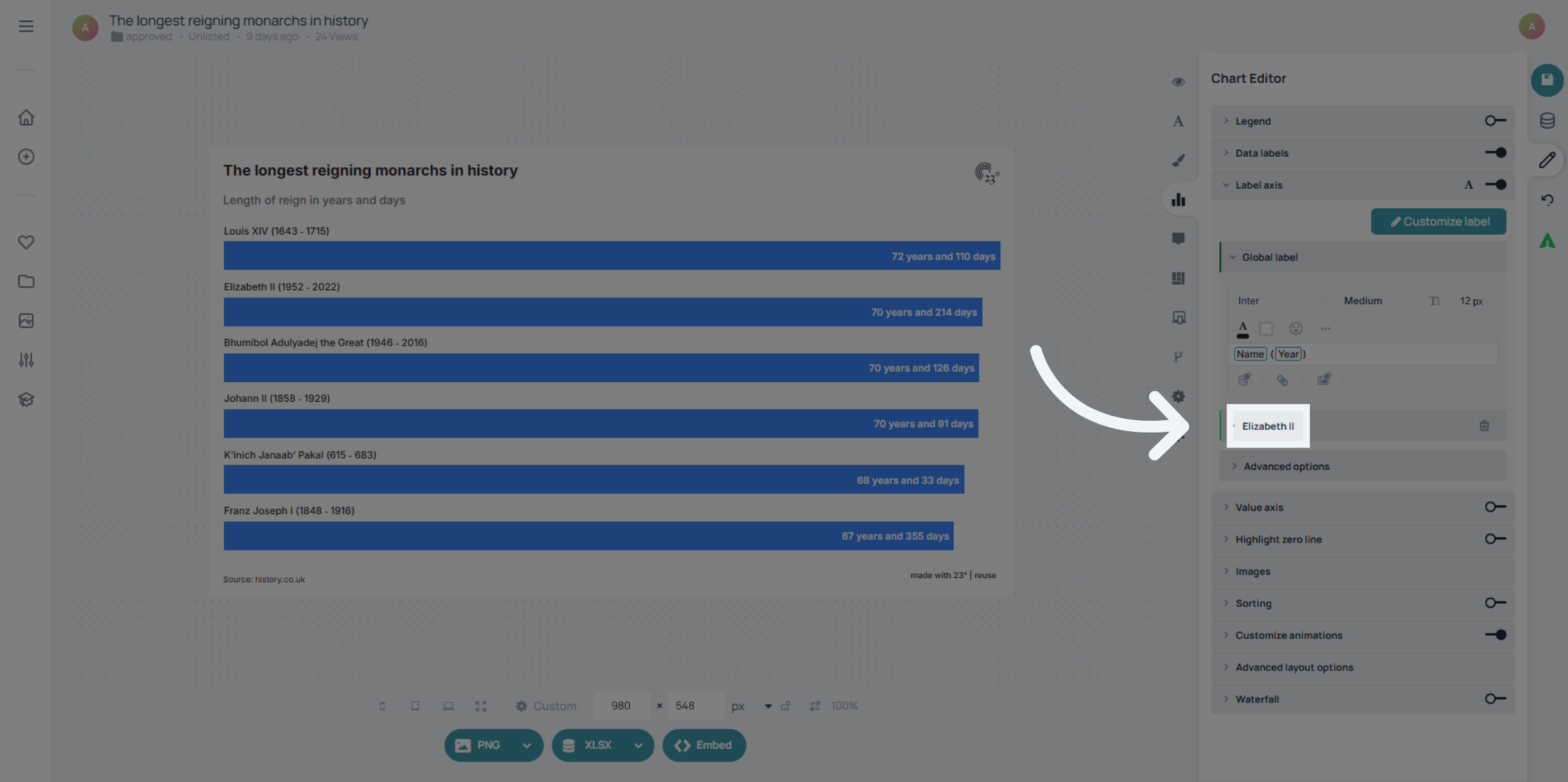
Click the area that opens the editing options for the selected label.
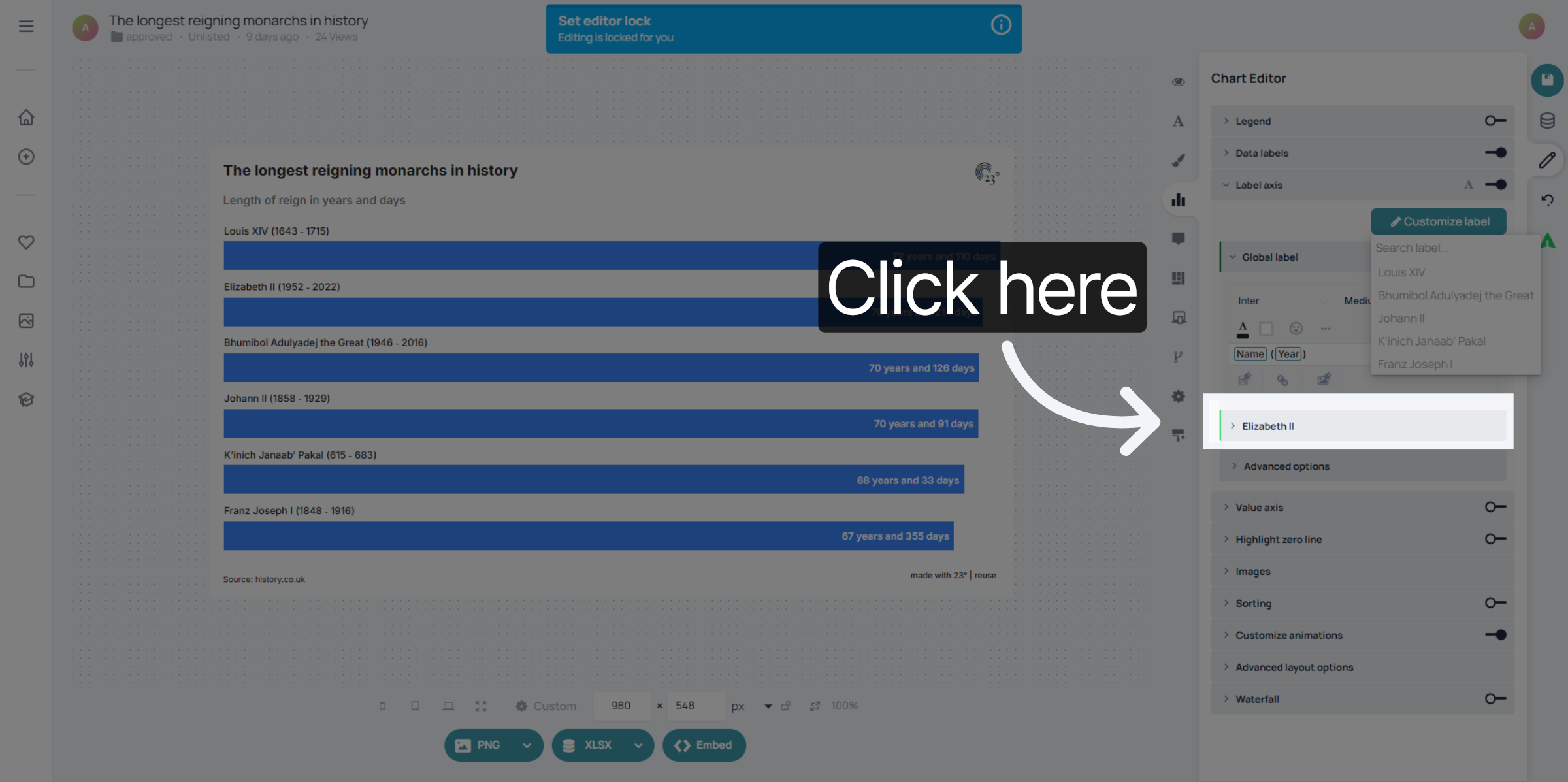
Click on your selected label.
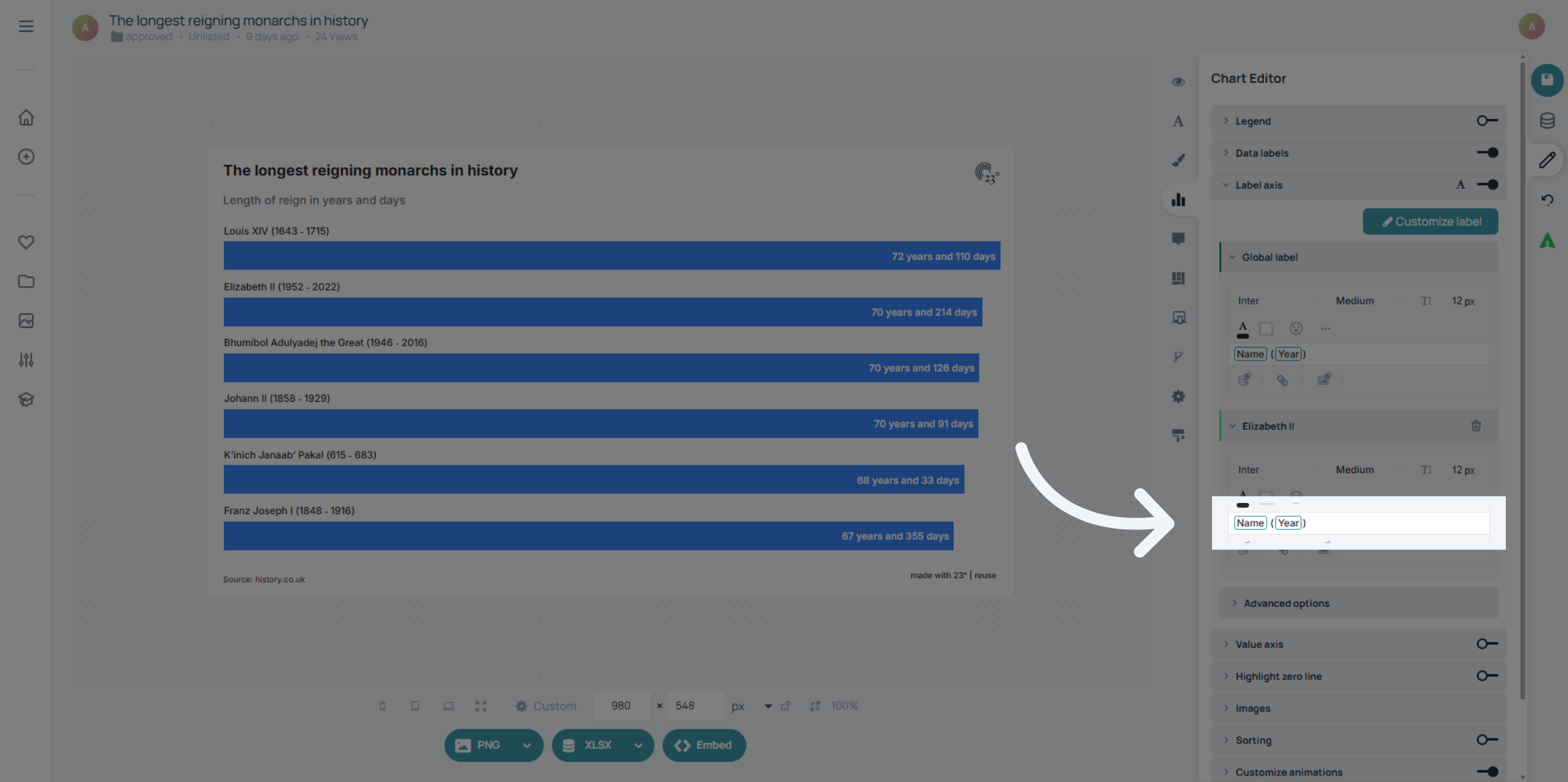
Select the data fields and customize font, font size, allignment or colour in the quill editor.
You have customized and highlighted one specific text label
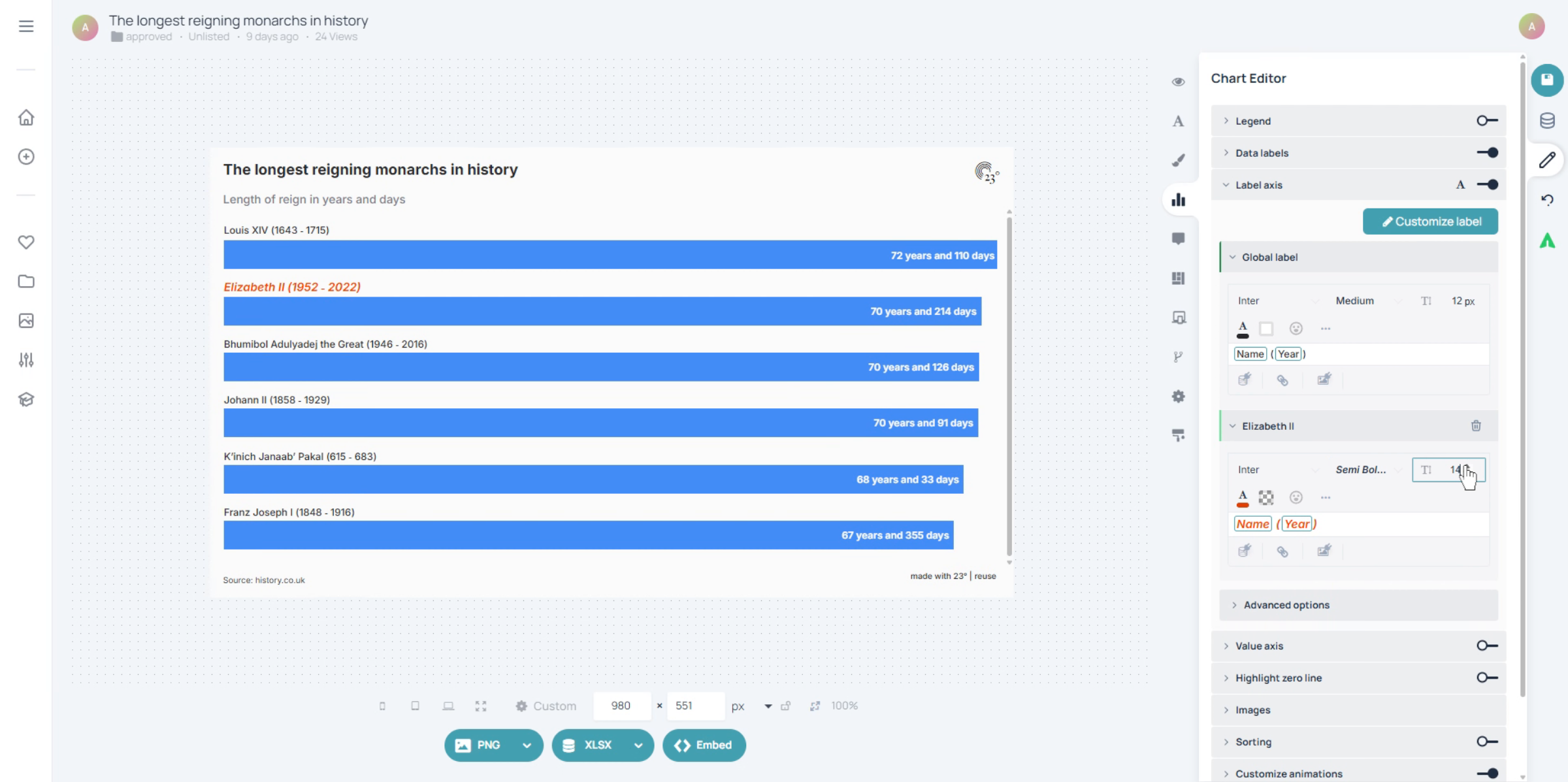
You have successfully customized specific text labels by selecting label axes, choosing label formats, and adjusting text styles and sizes. This process allows you to personalize label appearance within the 23degrees application for clearer data presentation and allows you to highlight specific data entries more.