Create And Manage Folders And Shortcuts In 23degrees
This tutorial demonstrates how to create folders and folder shortcuts within the 23degrees application.
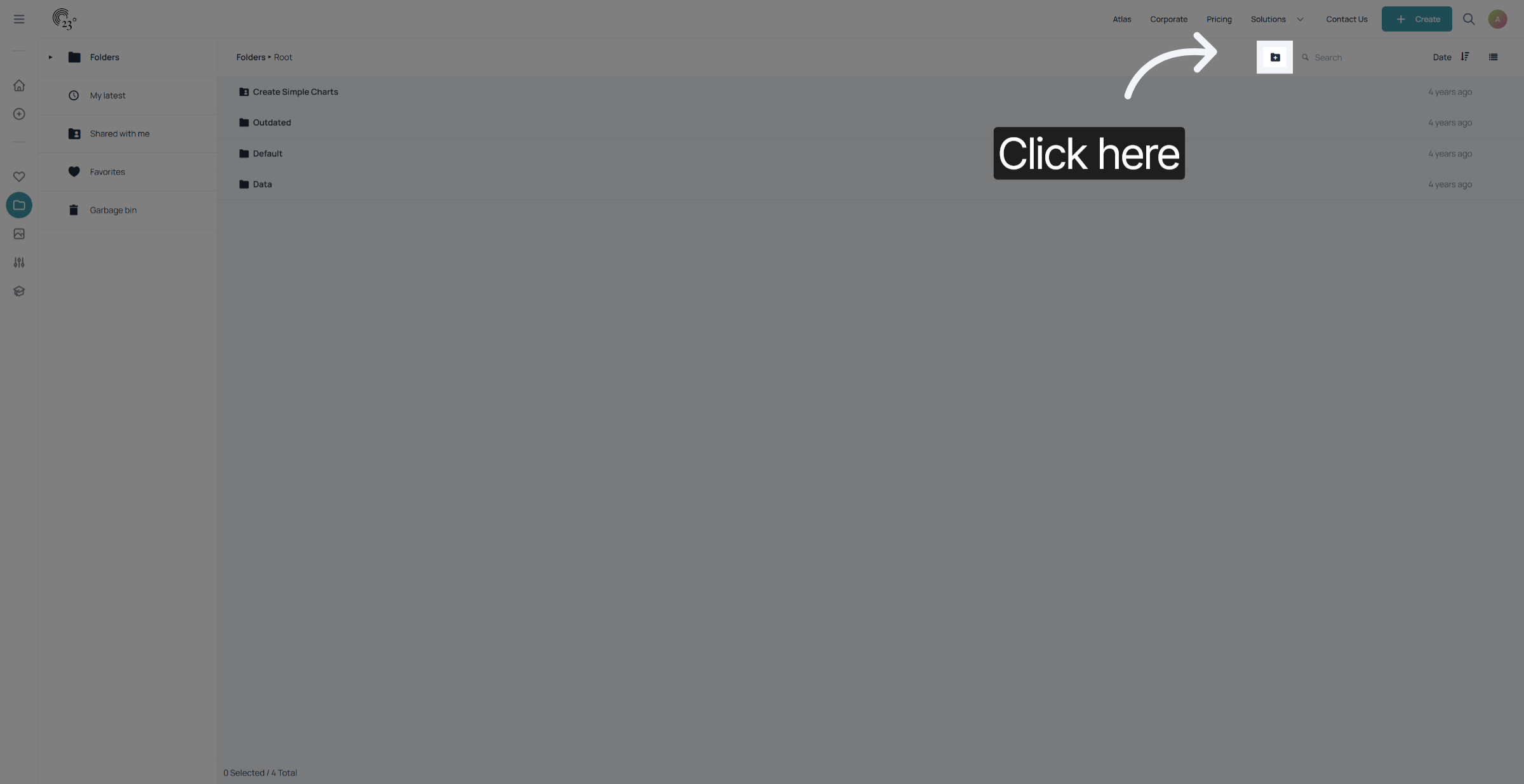
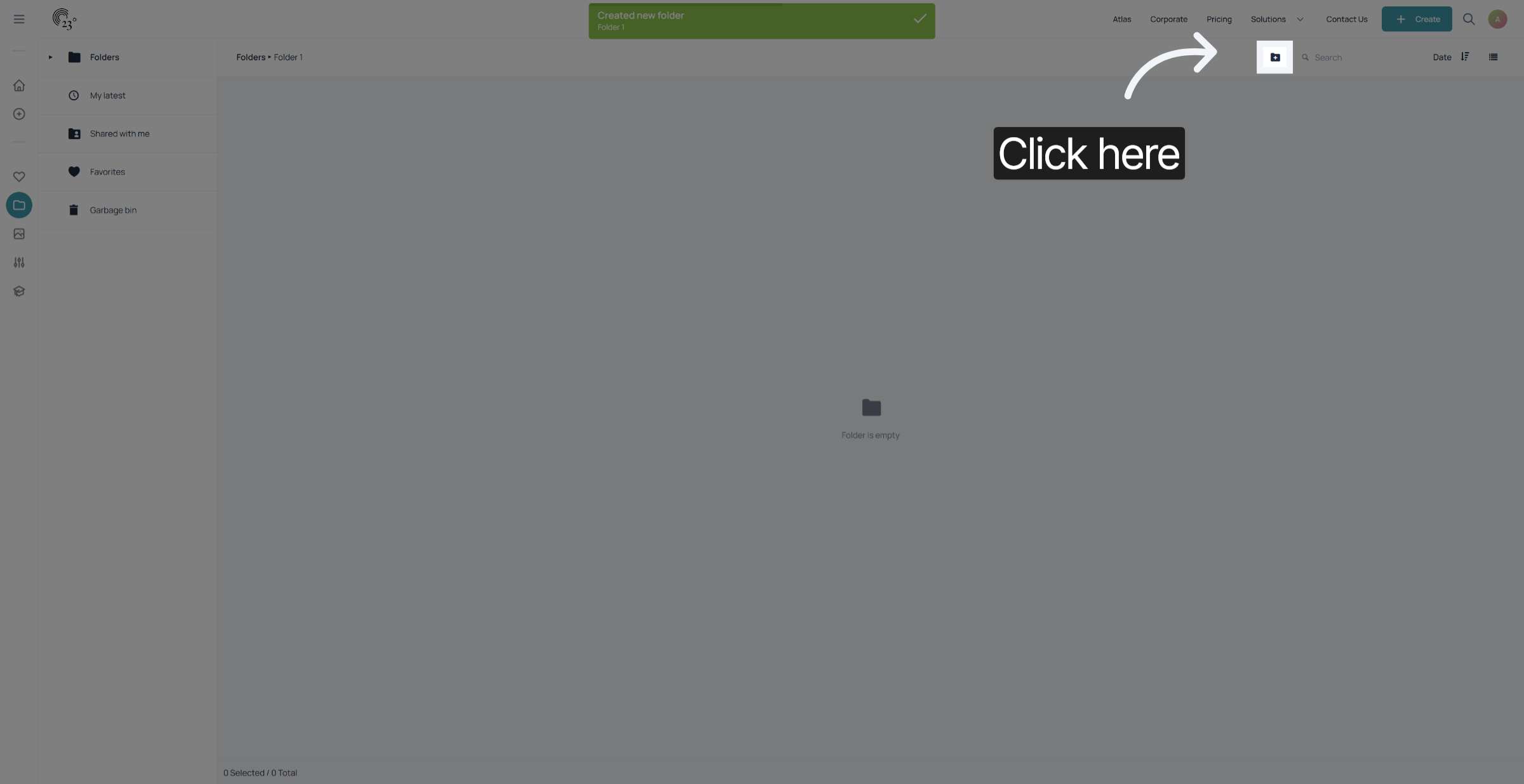
To create a new folder click on the folder icon in the top right corner of your screen
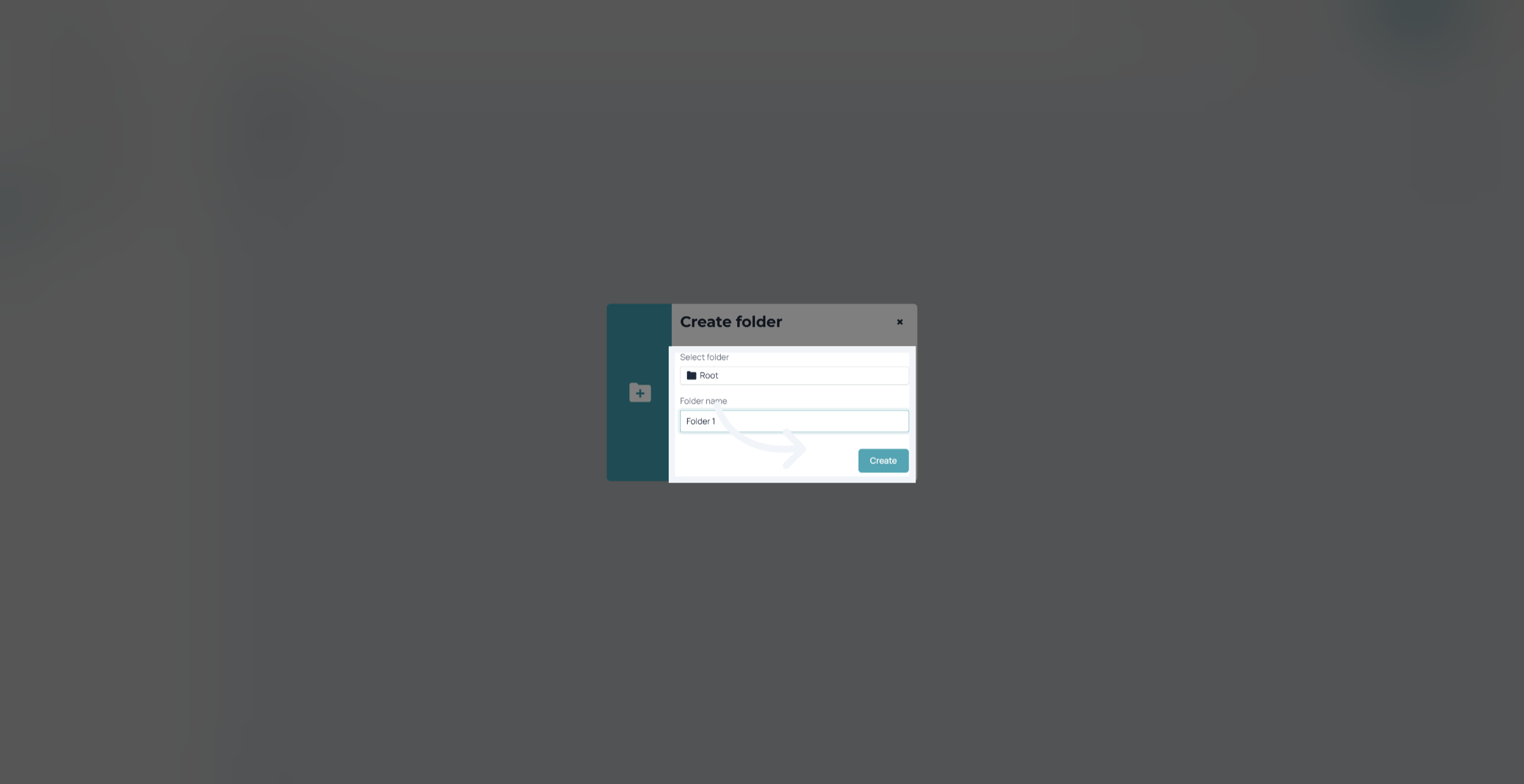
Select where you want to create the folder and give the folder a name.
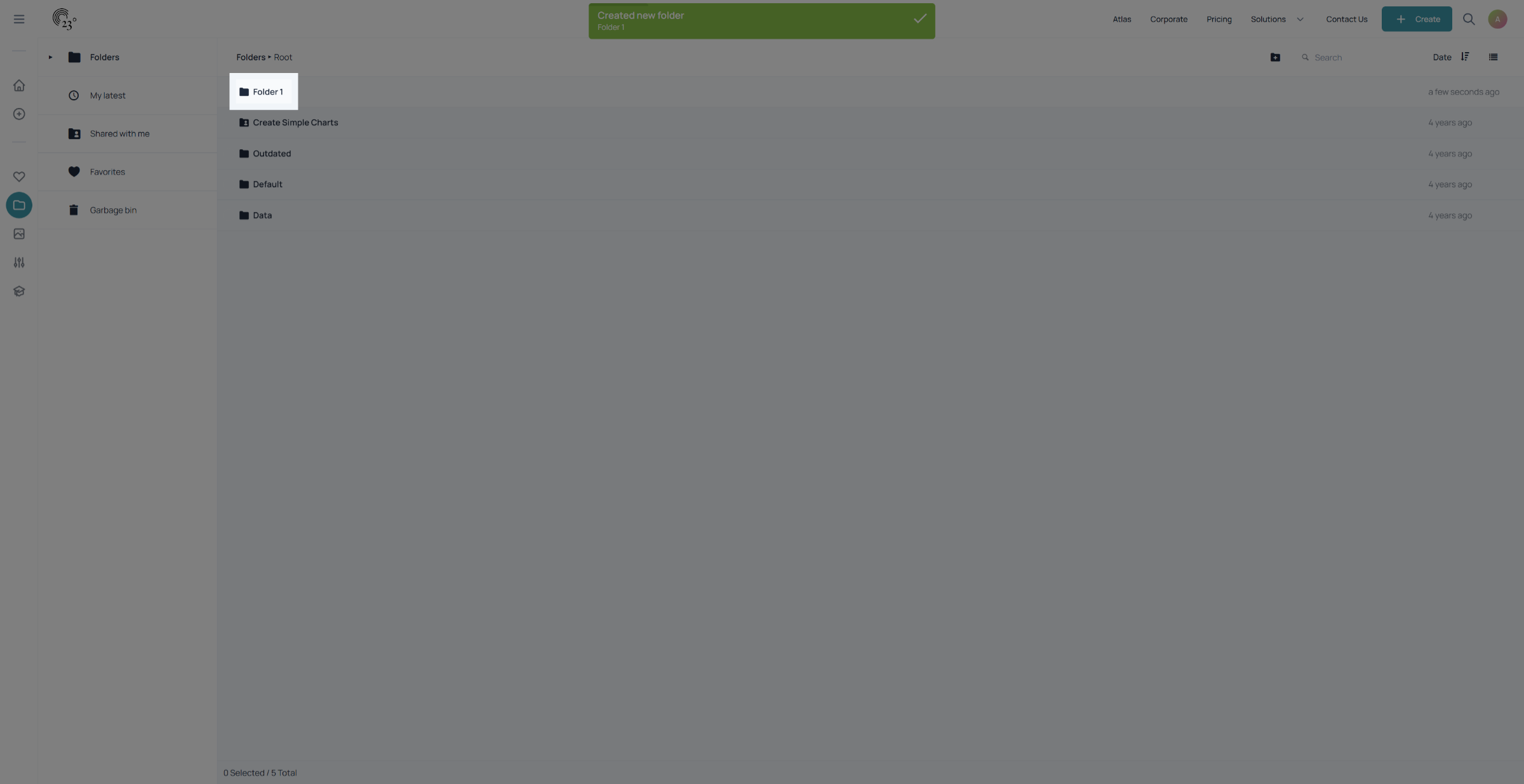
Your folder should appear in the folder navigation menu
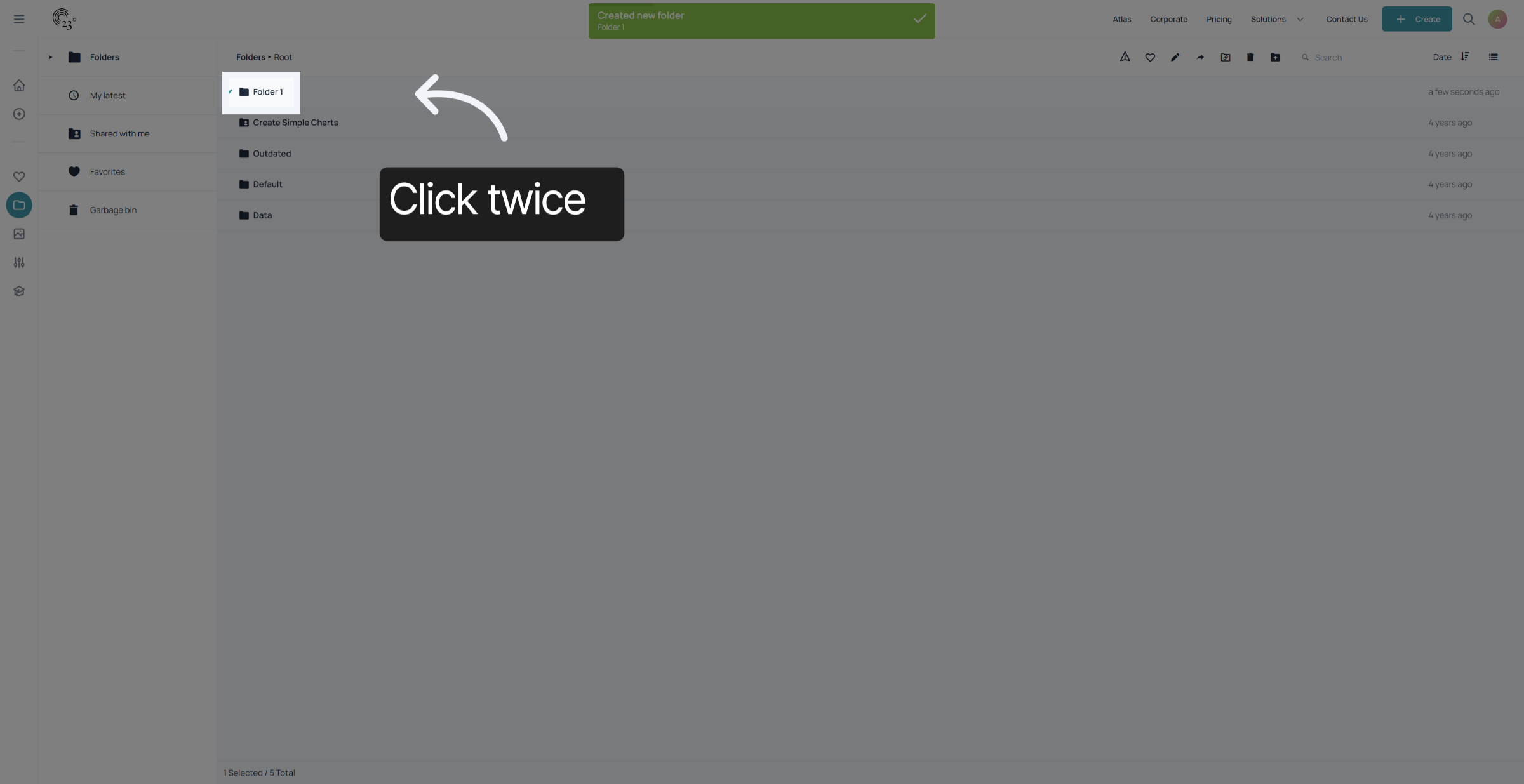
Now i am going to show you how to create a folder shortcut. therefore we need to create a nested folder within the one we just created. Therefore click on the folder twice.
Create another folder repeating the same process.
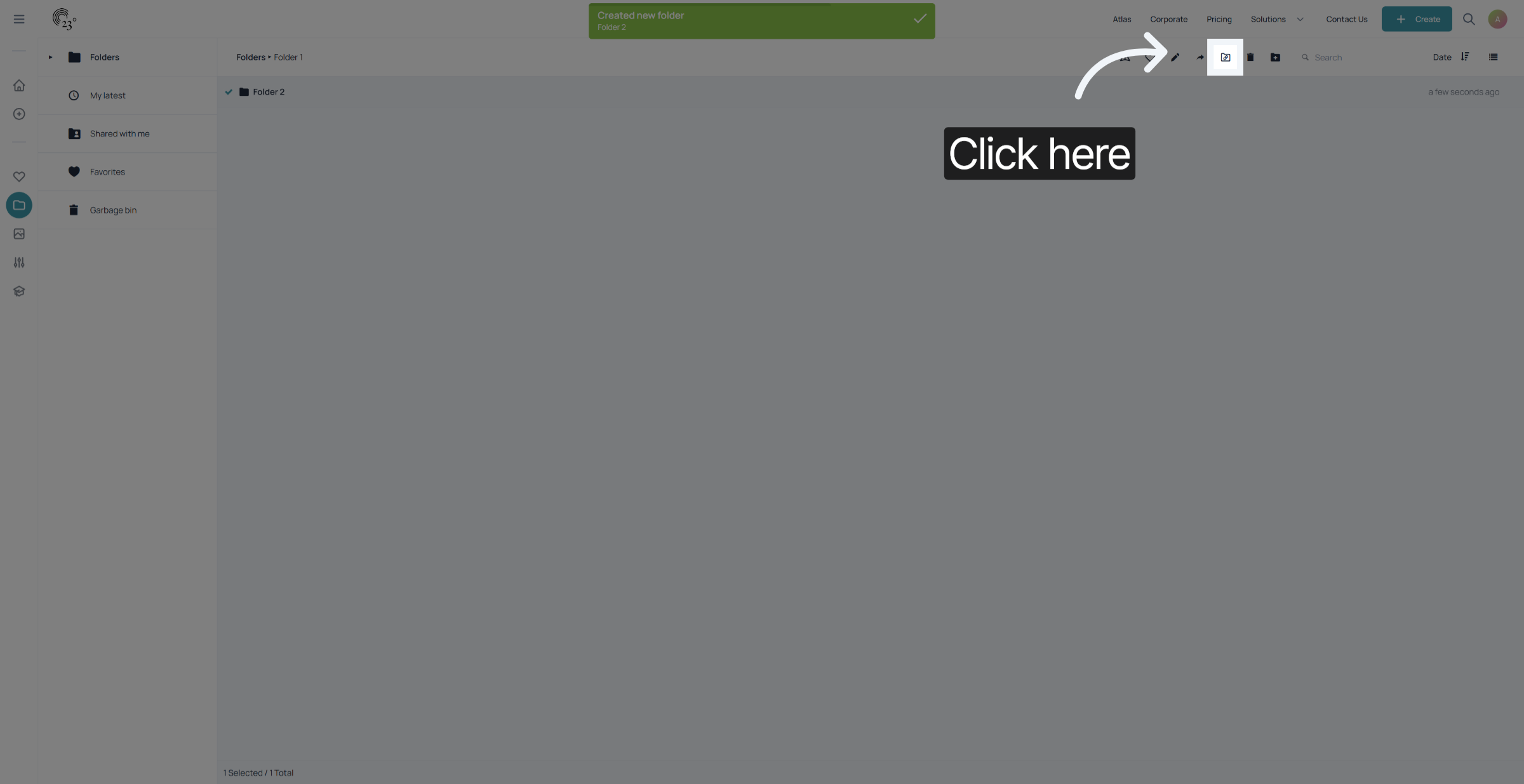
To create a short cut click on the newly created folder once. and click on the short cut icon in the top right corner of the screen.
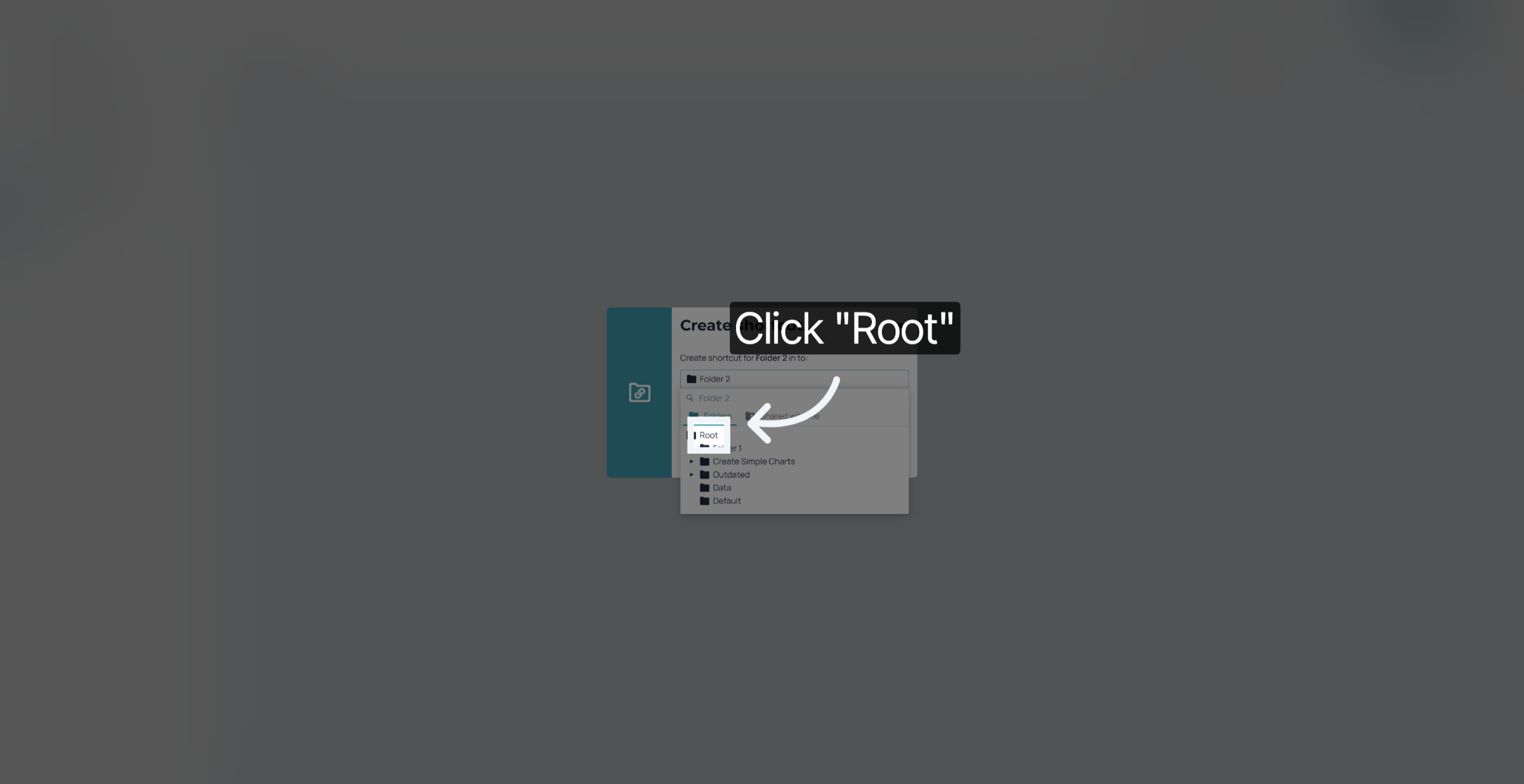
Select the folder where you want your short cut to be. Keep in mind: the shortcut can only be placed in a folder that is above the current one. in this example we are going to use the root folder.
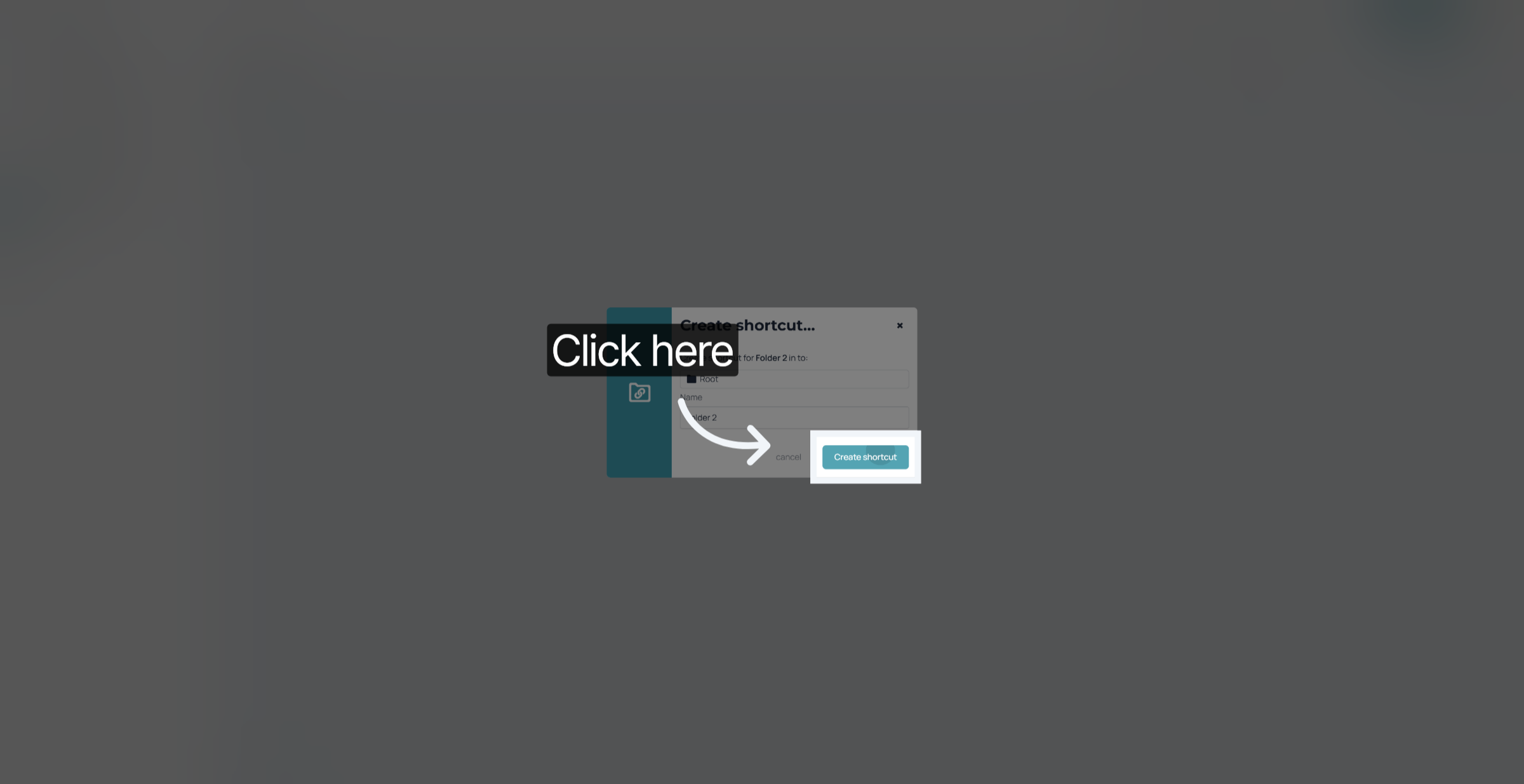
Click on "Create shortcut".
Go to your folder view.
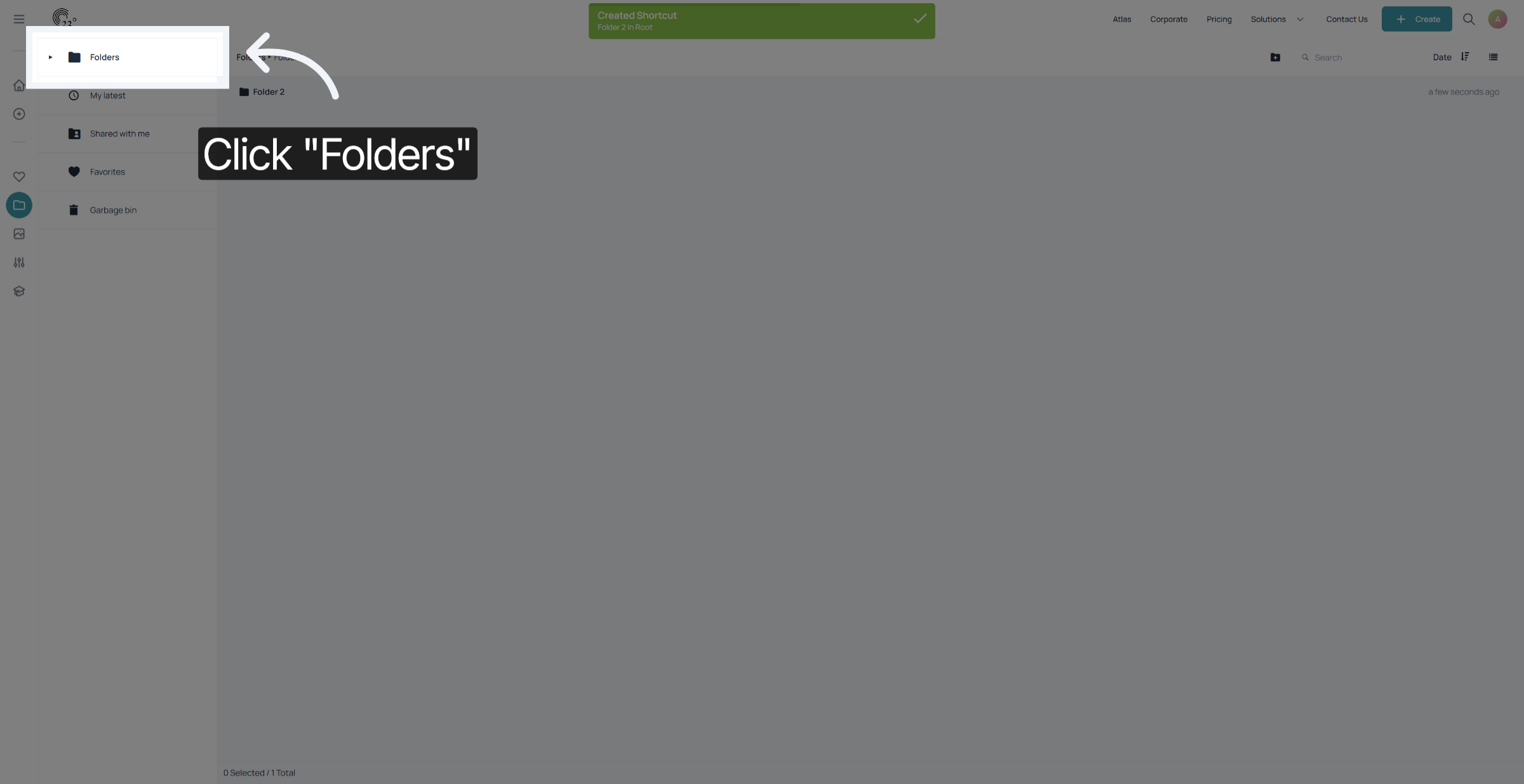
your short cut is now visible in the root folder. This should help you navigate important folders and content items more easily without the hassle of having to click through many different folders.
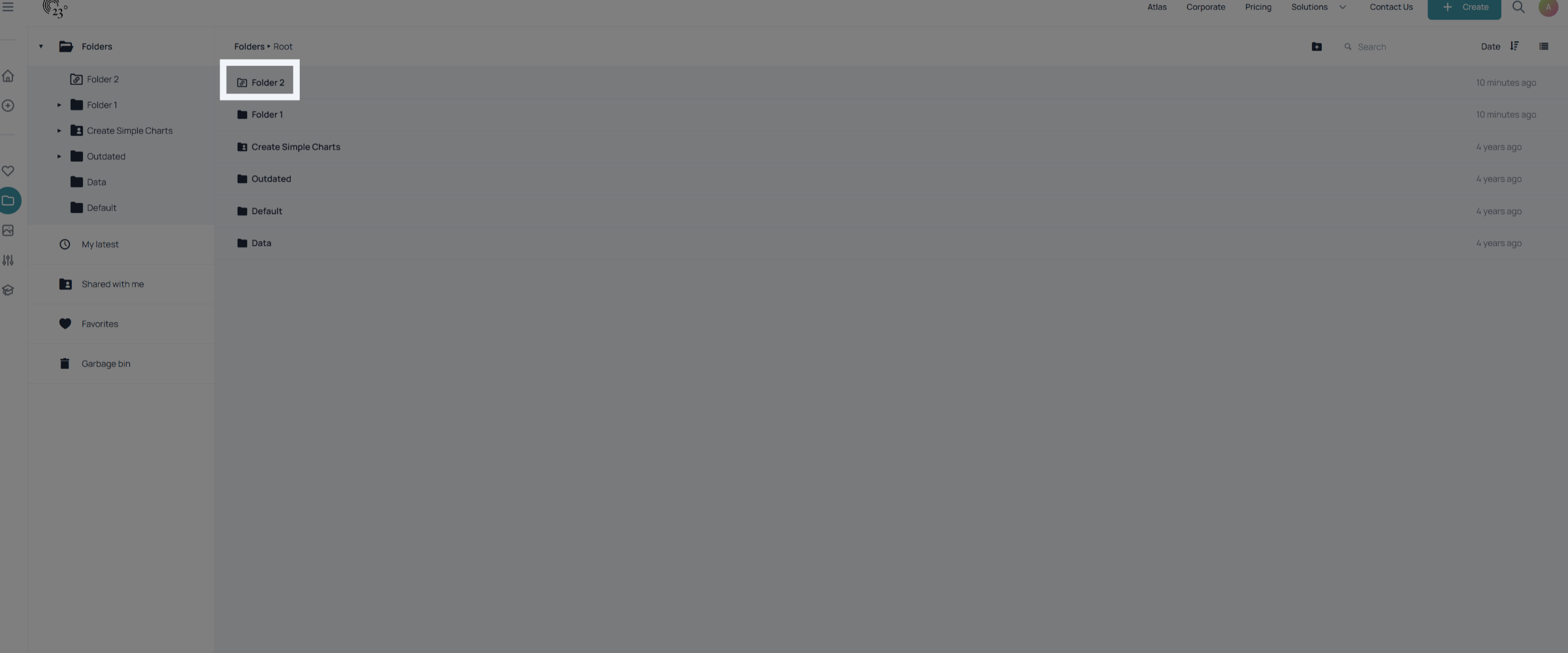
You have successfully created folders and folder shortcuts in 23degrees, enabling better organization of your workspace.