Configure User Map Navigation Options in 23degrees
This tutorial explains how to configure navigation options within the user map feature of 23degrees.
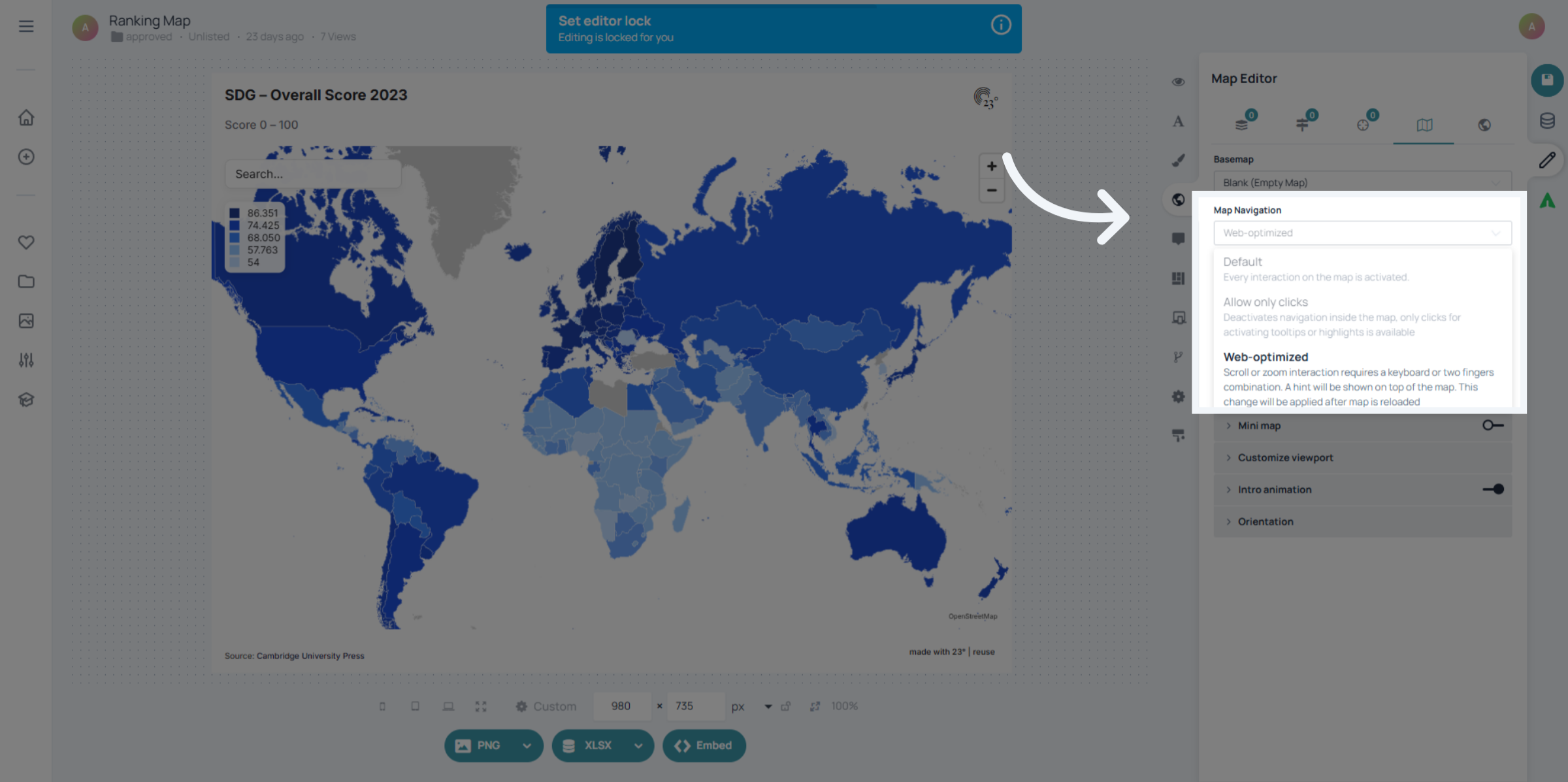
In this tutorial, we’ll look at the different zoom and navigation options you can choose for your map: Default, Allow clicks only, and Web-Optimize.
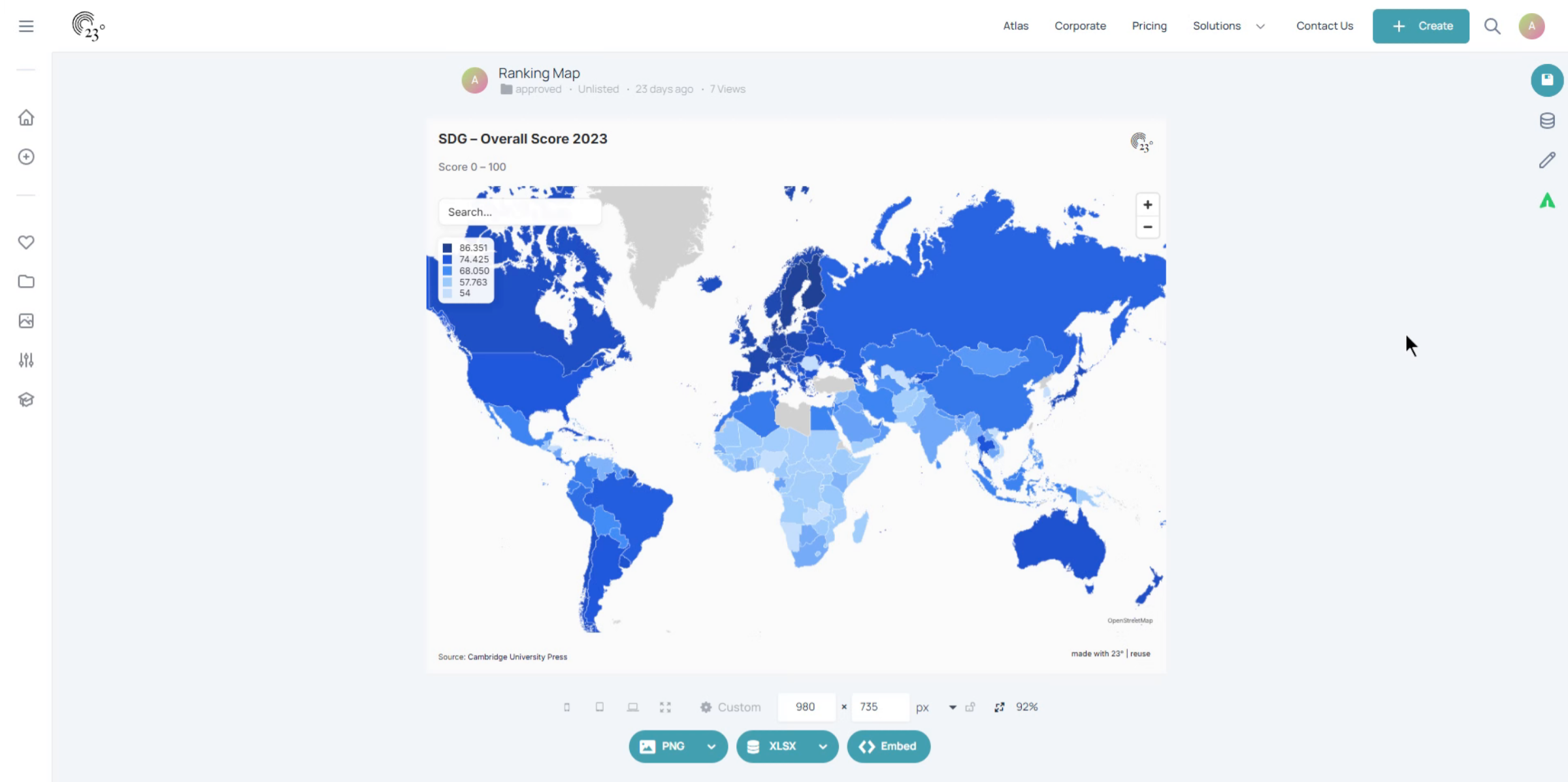
Click "Start editing" to begin modifying the map settings.
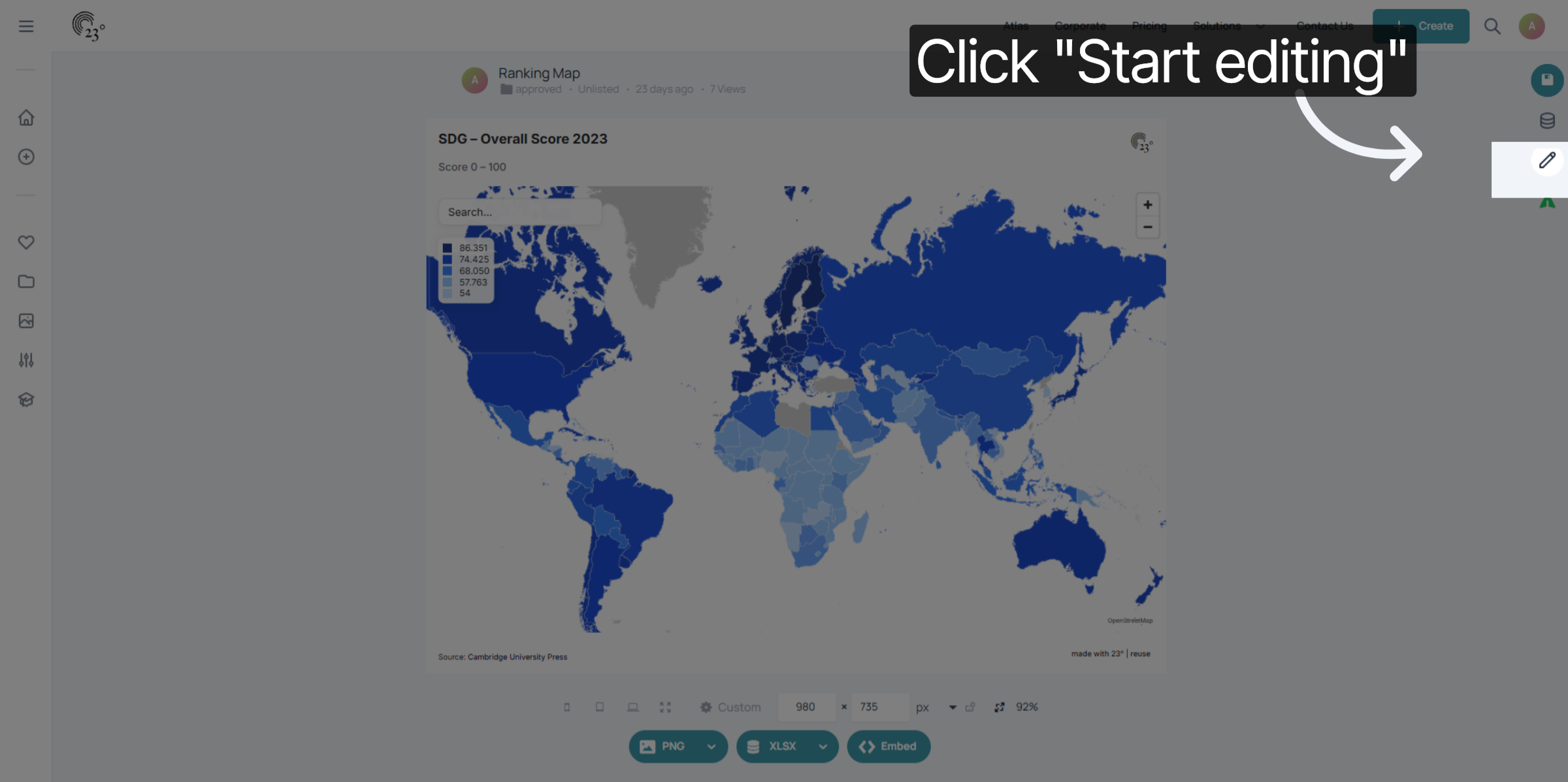
Go to the Map Settings.
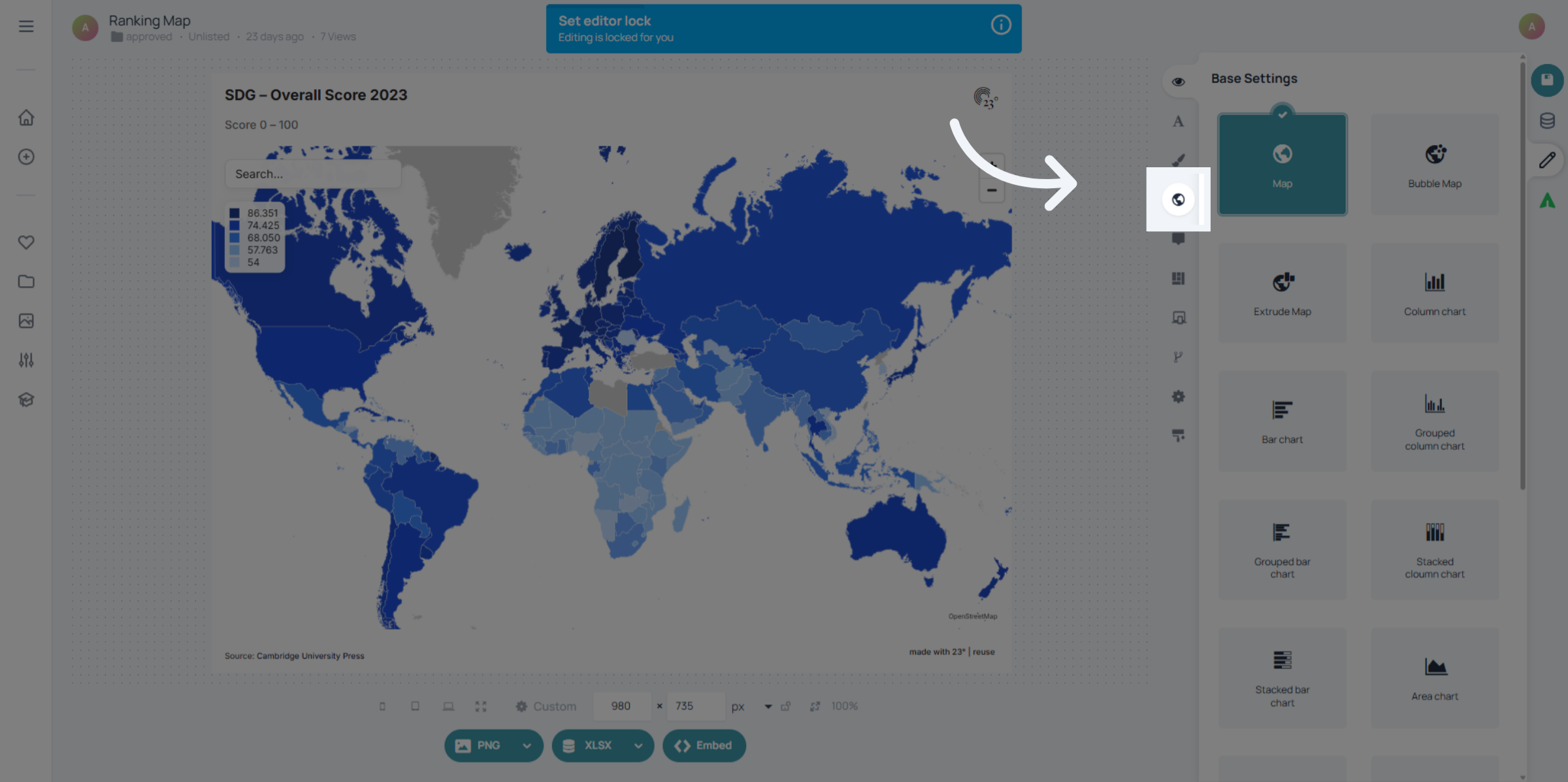
Click here to open the first navigation setting within the map options.
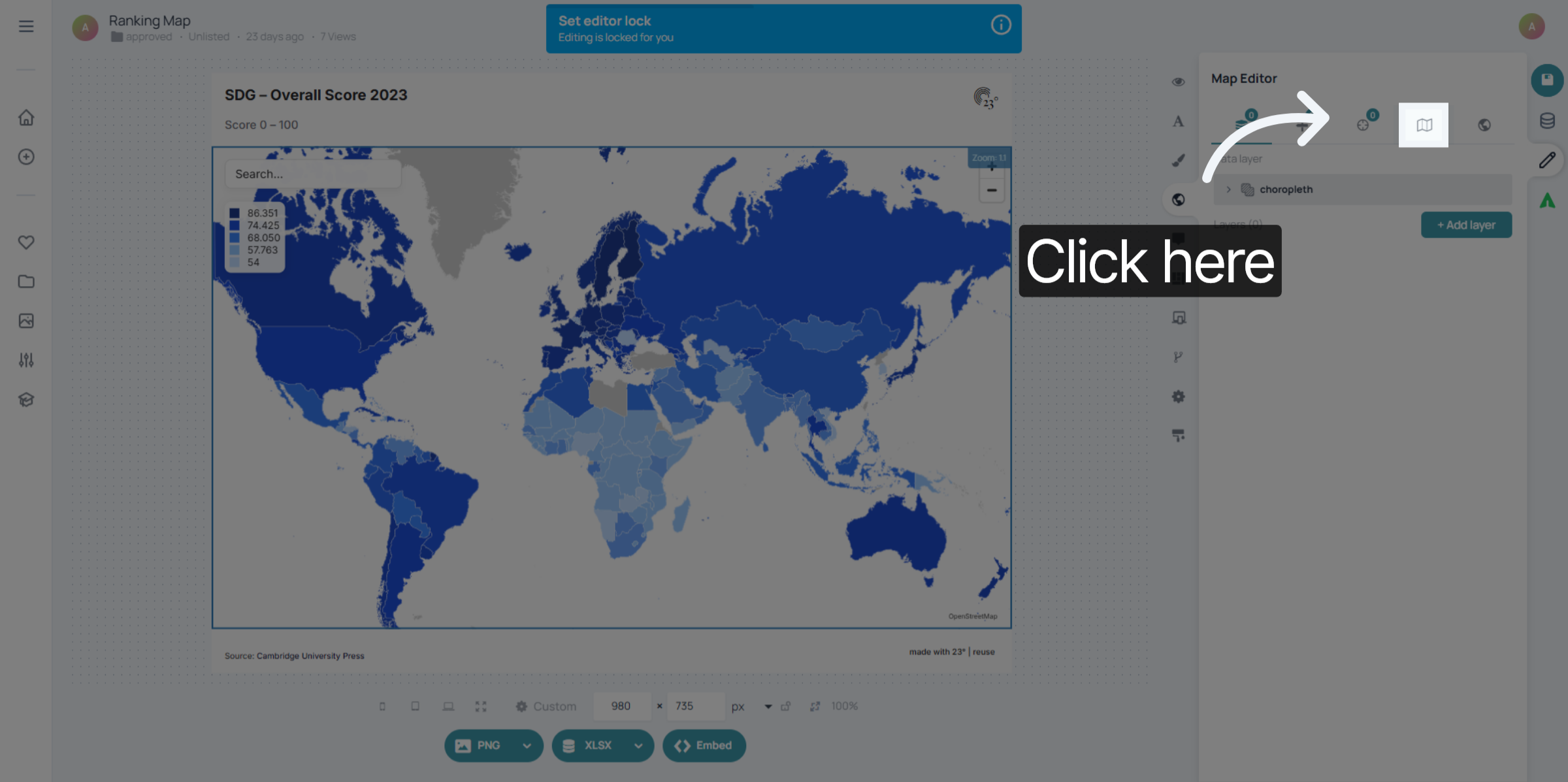
Choose Default if you want standard map interaction. Users can: Zoom with the mouse wheel Use the zoom buttons on the map This is the most familiar behaviour for most users. Select Allow clicks only if you want to disable mouse wheel zoom.In this mode, users can only zoom using the zoom buttons.This is useful when you want more controlled zooming and less accidental zooming while scrolling. Choose Web-Optimize for touch-friendly and keyboard-assisted zooming. Users can: Zoom on mobile using two fingers (pinch gesture) Zoom on desktop by pressing Ctrl + scroll This mode helps prevent unwanted zooming while scrolling the page, especially in web embeds.
You have successfully configured the user map navigation options in 23degrees, including activating interactions, disabling navigation, and enabling web optimization. These settings enhance map usability and performance for your users.